TimeFence: persistent focus timer HUD — buy direct, lifetime license.
Available on Windows $2.49 USD

Your right-click menu, cleaned up and under control.

Pin what you use. Hide what you don’t. Tame slow add-ons. No registry edits.

Right-clicking in Windows 11 should be fast. Instead you get a cluttered menu full of things you never use, options buried behind “Show more options,” and third-party add-ons that slow everything down. ContextCleaner puts you back in control—and every change is backed up automatically, so you can undo anything with one click.

$2.49 USD · $4.99 USD · pay once, own forever · 100% offline

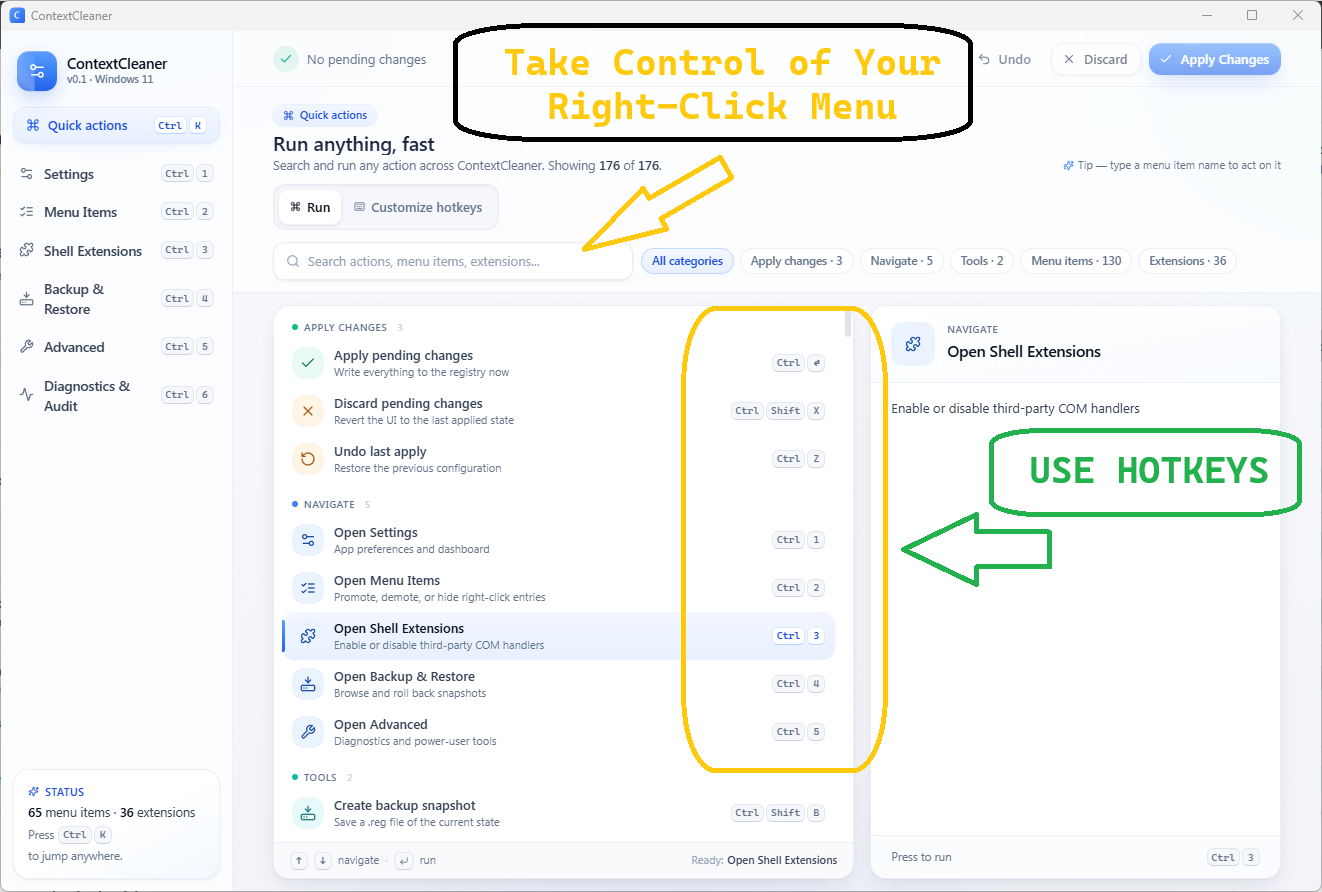
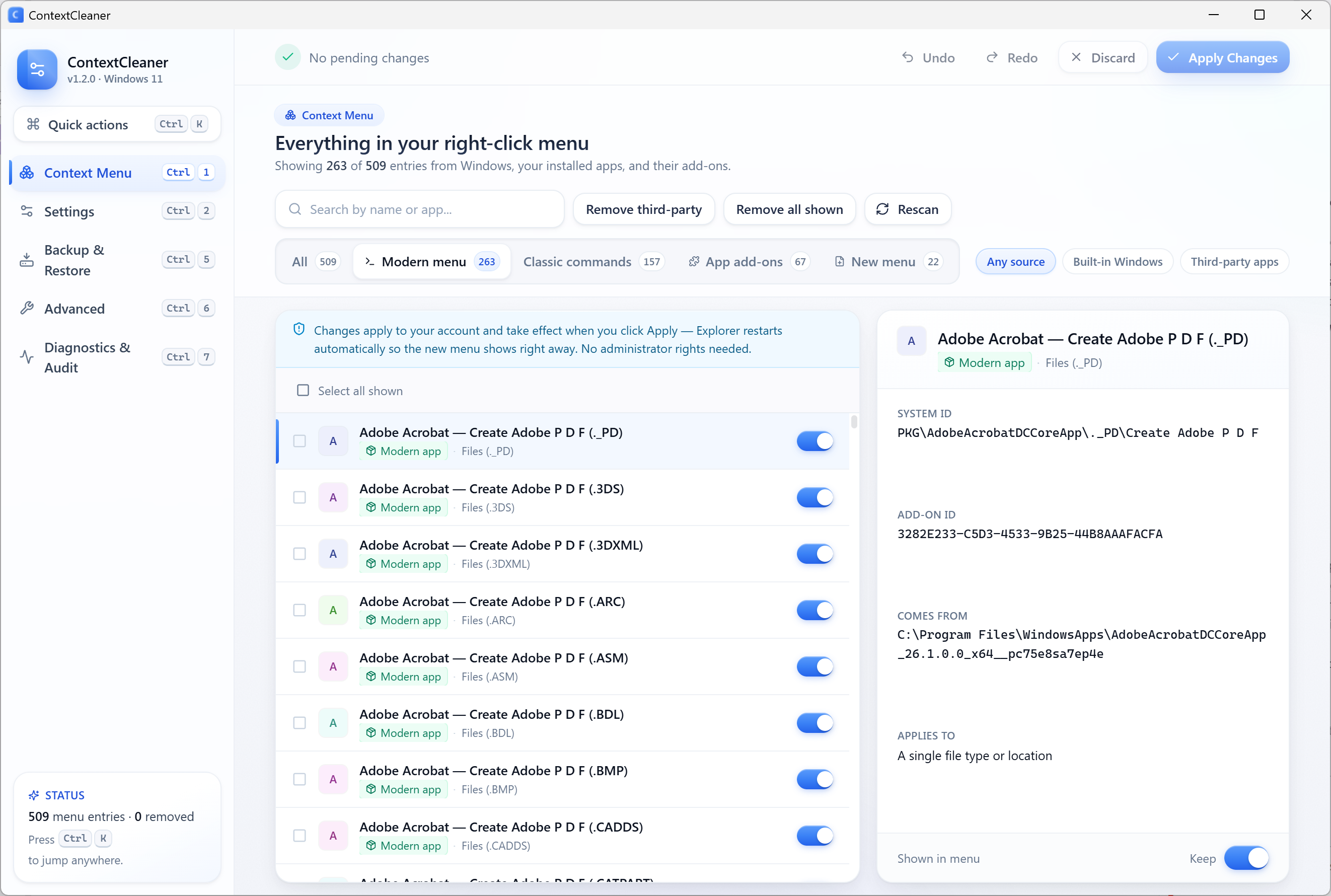
ContextCleaner running on Windows 11, showing its polished interface for organizing right-click context menu items.

A native-feeling Windows 11 interface

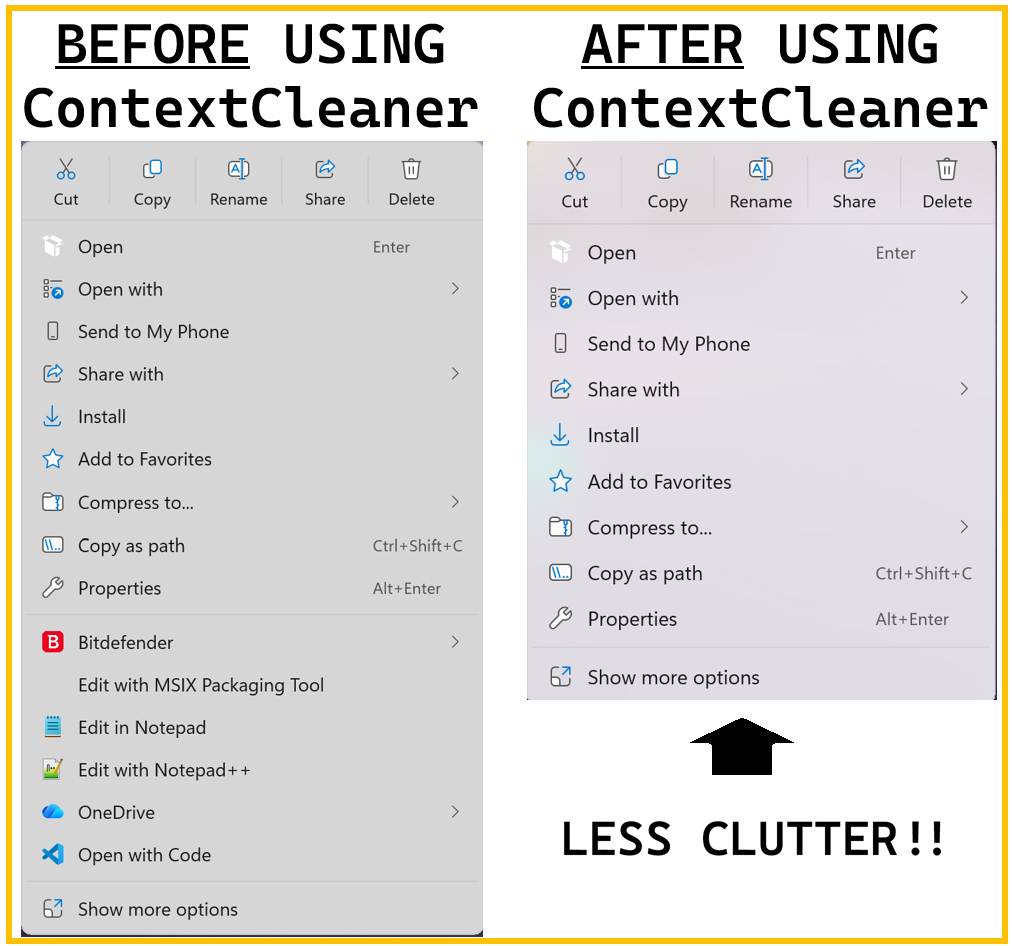
The cluttered default

A menu full of things you never click.

The Windows 11 right-click menu hides what you need behind “Show more options,” mixes in entries from apps you installed years ago, and slows down every time a third-party shell extension wakes up. You right-click dozens of times a day and fight the same menu every time.

The ContextCleaner fix

A menu that works the way you do.

In a couple of minutes you promote the commands you use every day to the top, hide or disable everything else, and switch off the add-ons dragging things down. No registry surgery, no risky tweaks—and because every change is backed up first, you can experiment knowing you are always one click away from how things were.
See it in action

A polished, native-feeling interface for every part of the menu.

ContextCleaner main view: the Windows 11 right-click menu organized with pinned commands at the top.
ContextCleaner listing context menu entries with options to pin, hide, or disable each one.
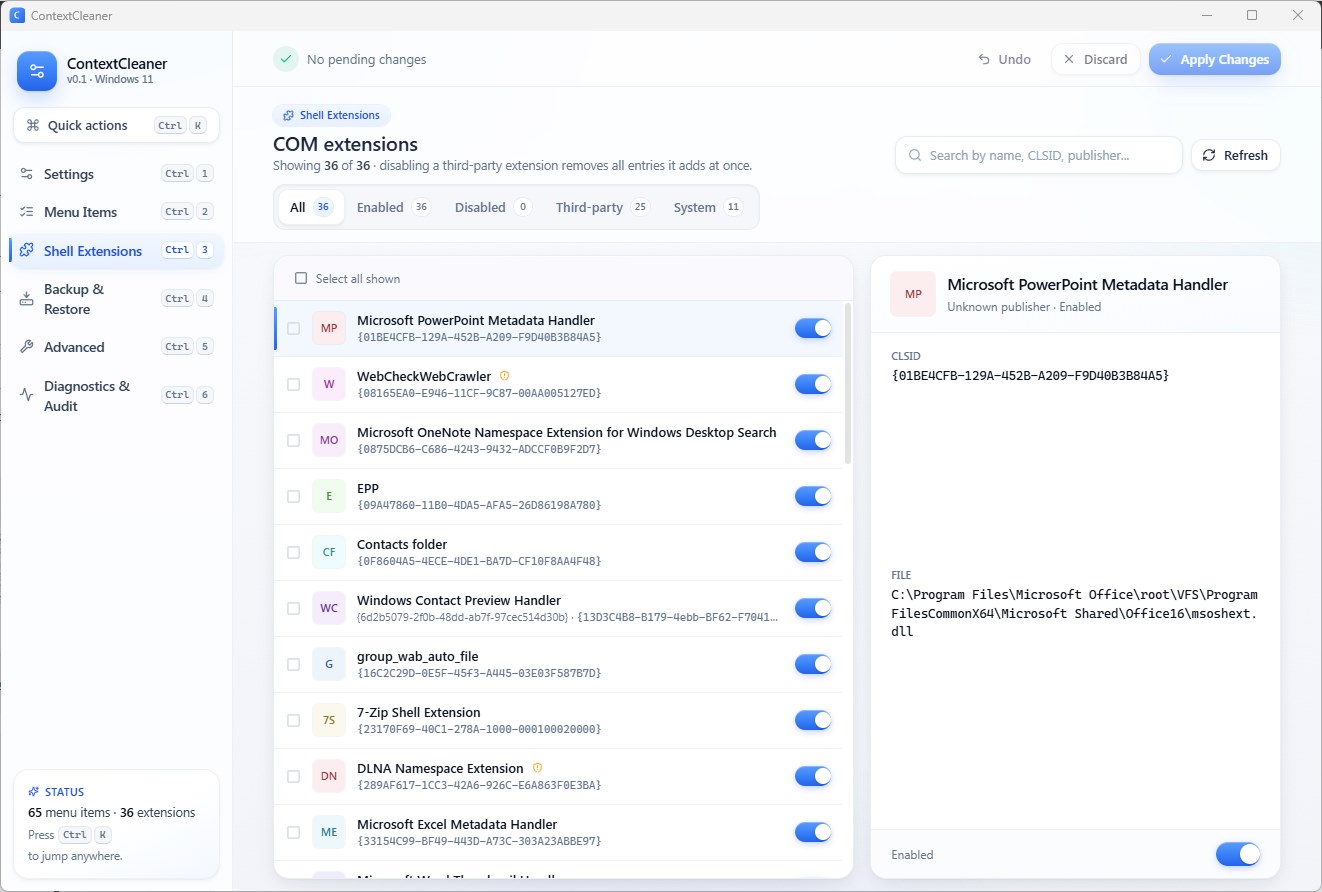
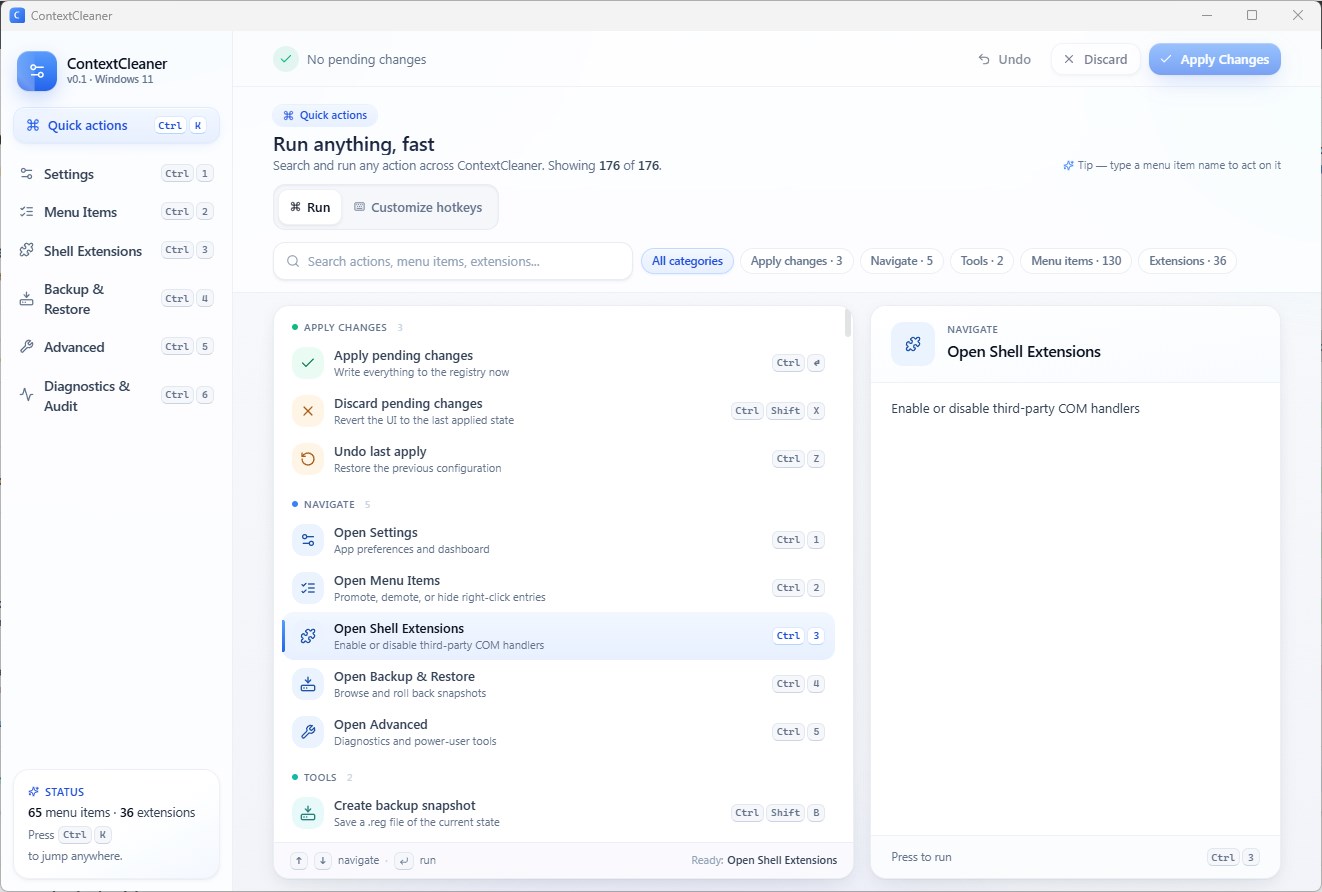
ContextCleaner showing shell extensions in one place with their source and where they appear.
ContextCleaner search and bulk-edit view for changing multiple context menu items at once.
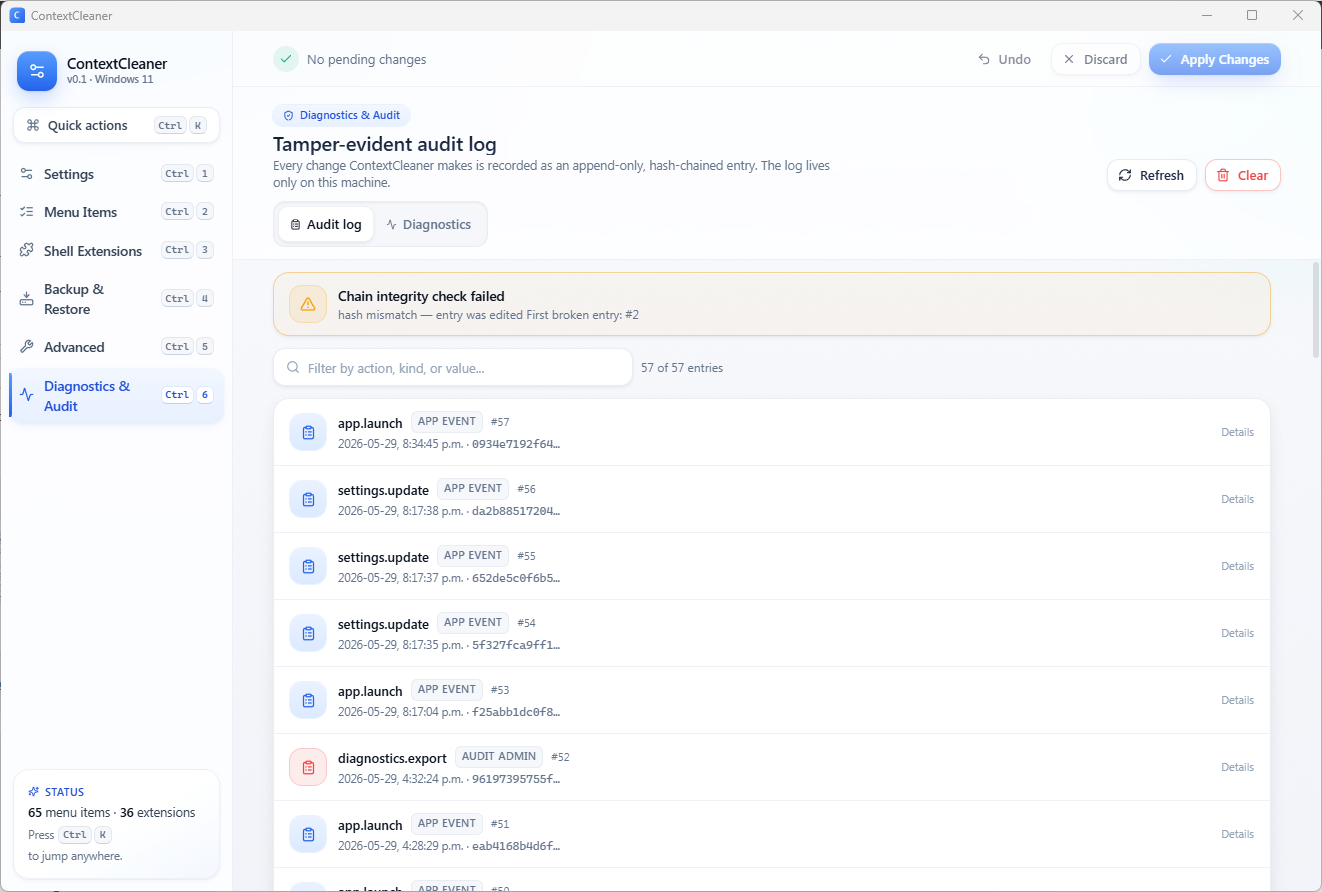
ContextCleaner backup and restore controls with one-click snapshot restore and undo history.

What you can do

Promote, hide, and tame—then undo anything.


ContextCleaner main view: the Windows 11 right-click menu organized with pinned commands at the top.

Pin what matters

Move the items you actually use to the very top of both the compact Windows 11 menu and the full “Show more options” list, so they are always one click away.

ContextCleaner listing context menu entries with options to pin, hide, or disable each one.

Hide the clutter

Turn off entries you never click and clean up both the modern short menu and the longer classic list. Every item is labeled with its source and context—files, folders, desktop, and more.

ContextCleaner showing shell extensions in one place with their source and where they appear.

Tame slow add-ons

See every shell extension in one place, understand what it does and where it appears, then switch off the ones you do not need. The third-party add-ons that quietly slow your menu down finally have an off switch.

ContextCleaner backup and restore controls with one-click snapshot restore and undo history.

Change with total confidence

Automatic backup before every single change, one-click restore from any earlier snapshot, and a 10-step undo history. Experiment freely—you are always one click away from how things were.
Reversible by design

Built so you can experiment without worry.

  • Automatic backup before every single change
  • One-click restore from any earlier snapshot
  • 10-step undo history for quick fixes
  • Clear confirmation before anything is written
  • Friendly warnings before disabling built-in Windows components
  • Change history stays on your PC—no tracking or analytics

Use This When

  • Clean up a cluttered Windows 11 right-click menu without editing the registry
  • Pin the context-menu commands you use most to the top so they are always one click away
  • Disable slow or unwanted shell extensions and reverse any change instantly if you change your mind

Technical specifications

Facts for technical buyers

Spec Implementation
Data Sovereignty Menu edits and full change history stay on your PC; diagnostics exports strip personal folder names first
Telemetry Status None; no tracking, advertising, or third-party analytics
Core Runtime Native-feeling Windows 11 app that edits the shell context menu without registry surgery
Network Requirements Fully functional offline
Deployment Compatibility Windows 11 (recommended); works on Windows 10 22H2. Microsoft Store
Scope Compact Windows 11 menu and the full “Show more options” classic list, plus shell extensions
Reversibility Automatic backup before every change, one-click snapshot restore, and 10-step undo history
Access System tray presence with a customizable hotkey and Ctrl+K command palette
Approximate size About 30 MB installed

FAQ

Quick answers


Does ContextCleaner edit the Windows registry?

No. You manage the right-click menu through ContextCleaner’s interface—pinning, hiding, and disabling items—without ever opening or hand-editing the registry yourself.

Can I undo changes if something looks wrong?

Yes. ContextCleaner backs up automatically before every single change. You can restore any earlier snapshot in one click, step back through a 10-step undo history, and you get a clear confirmation before anything is written (you can turn that off once you are comfortable).

Does it work on both the new and classic right-click menus?

Yes. ContextCleaner manages both the compact Windows 11 menu and the full “Show more options” classic list, so the commands you promote or hide show up consistently in both.

Is ContextCleaner private?

Yes. There is no tracking, advertising, or third-party analytics. Your complete change history stays on your PC, and if you export a diagnostics report, personal folder names are removed first.

Which versions of Windows are supported?

ContextCleaner is built for Windows 11 and also works great on Windows 10 (22H2). It lives in the system tray and opens instantly with a customizable keyboard shortcut or the Ctrl+K command palette.

Clean up your right-click menu in minutes.

Download ContextCleaner, promote the commands you use, hide the rest, and know you can undo anything with a single click. One-time purchase of $2.49 USD—no subscription.