To create a submittal log, go through the project manual section by section, list every item the specifications ask the contractor to submit, and record each one with its spec section, paragraph, submittal type, and page. Then add the columns your team tracks, such as the target date, the reviewer, the status, and notes. A spec-reading app such as Spec Register Builder builds the first part straight from the PDF and cites the page on every row.
The log matters because very little gets ordered, fabricated, or installed until its submittal comes back reviewed. Shop drawings, product data, samples, mix designs, and warranties all start as a paragraph in the specifications, and the log is how the team makes sure each one is sent, reviewed, and closed out on time.
Build the submittal log for your next project from the spec book, on your own PC.
Get it from Microsoft
What a submittal log tracks
| Column | Example | Where it comes from |
|---|---|---|
| Spec section and title | 03 30 00 Cast-in-Place Concrete | The section title line in the spec book |
| Paragraph | 1.3.C | The article and outline label of the requirement |
| Page | PDF page 3, printed page 03 30 00 - 1 | The PDF and the section footer |
| Description | Shop Drawings: For steel reinforcement | The requirement text |
| Type | Shop Drawings, Product Data, Samples | The wording of the requirement |
| Action or informational | Action | The article the requirement sits in |
| Target date, reviewer, status | Set by the team | The project schedule and the review process |
The first six columns come from the specifications; the rest are filled in once the list exists.
Ways to build a submittal log
| Method | How it works | Good fit | Notes |
|---|---|---|---|
| Read and type by hand | Highlight each requirement in the book and type it into a spreadsheet | A small project with a short specification | Slow on a full project manual, and page references are easy to skip |
| A blank spreadsheet template | Download a workbook with headers, then fill in the rows | Teams that already have a house format | The rows are still typed by hand |
| A construction management platform | Build the log inside a subscription platform | Teams that run the whole project there | Usually sold per user or per project, and the spec book is uploaded |
| A spec-reading app such as Spec Register Builder | Pick the PDF, review the rows beside each page, export to Excel or CSV | Contractors who want a cited log in their own spreadsheet | Every row cites its section, paragraph, and page, and the book stays on your PC |
Before you start: read Division 01
Division 01 sets the rules every other section follows. Section 01 33 00 Submittal Procedures, or its equivalent in your book, usually says how submittals are numbered and transmitted, how long review takes, and which items need a schedule up front. The closeout sections list warranties, record documents, and operation and maintenance manuals for the whole project. Read those first, because they shape the columns your log needs.
Then check which issue of the book you have. If the project manual was reissued with addenda bound in, build the log from the current file and note which issue it came from.
Meet Spec Register Builder
Spec Register Builder turns a spec book PDF into a cited submittal register: every requirement it finds, with its section, paragraph, and page, ready to export to Excel or CSV.
It is a Windows app from Automata Labs. It reads the section number and title from each section of the book, scans every article for submittal language, and lists each requirement with its type and a confidence hint. The rendered page sits beside the table, so checking a row takes one click. It runs on Windows 10 version 2004 or later and Windows 11, on x64 and ARM64 PCs, with no account and no network connections.
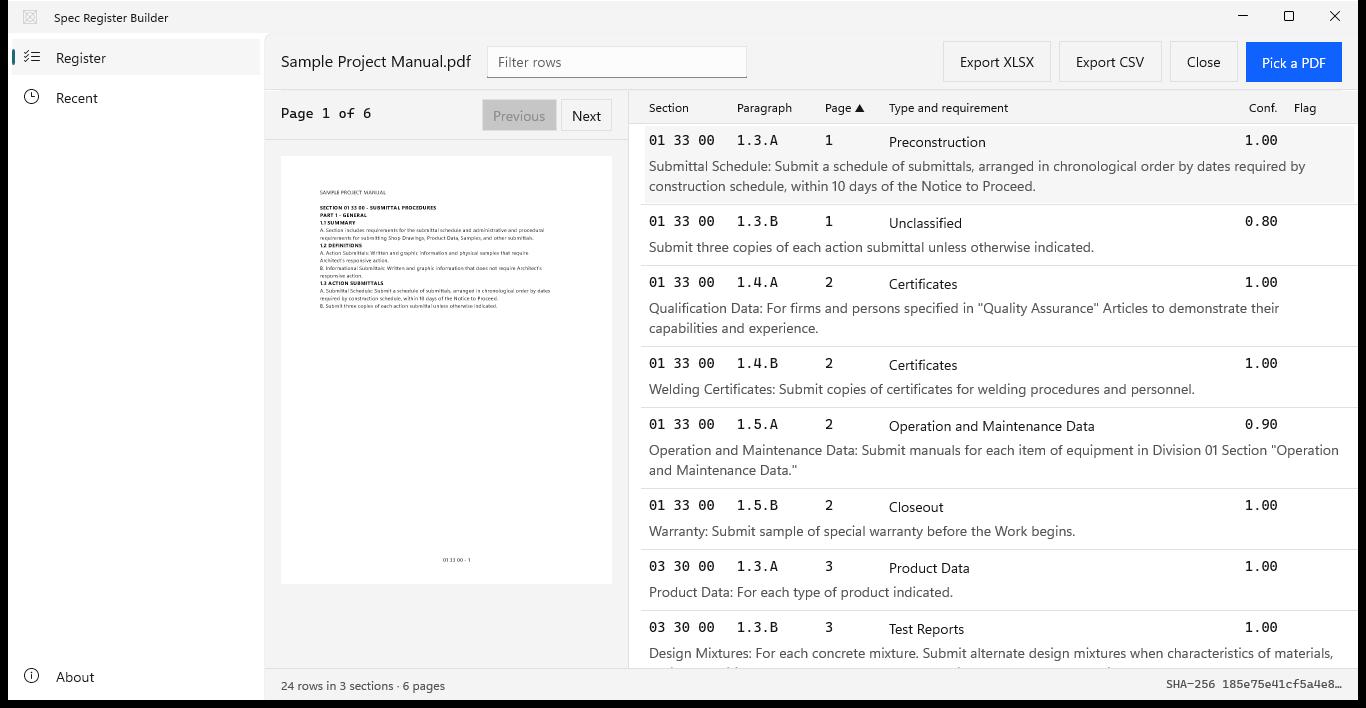
Screenshots use a sample project manual generated for testing, with placeholder text.
How to create a submittal log in Spec Register Builder
- Open the spec book. Choose “Pick a PDF” and select the project manual. To see how it works first, choose “or try the sample spec book”.
- Enter the password if asked. A password-protected PDF opens a dialog titled “This PDF is password protected.” Type the password and choose “Open”; if you close the dialog, “Enter password” brings it back. The file itself stays as it was.
- Read the status line. When the book has been read, the status line counts what was found, for example “24 rows in 3 sections · 6 pages”, and adds the pages read with OCR when the book has scanned pages.
- Review rows beside the page. Select a row and its page renders on the left. Use “Previous” and “Next” to step through the book. Each row shows the section, paragraph, page, type, confidence, and the requirement text.
- Narrow the table. Type in “Filter rows”, for example
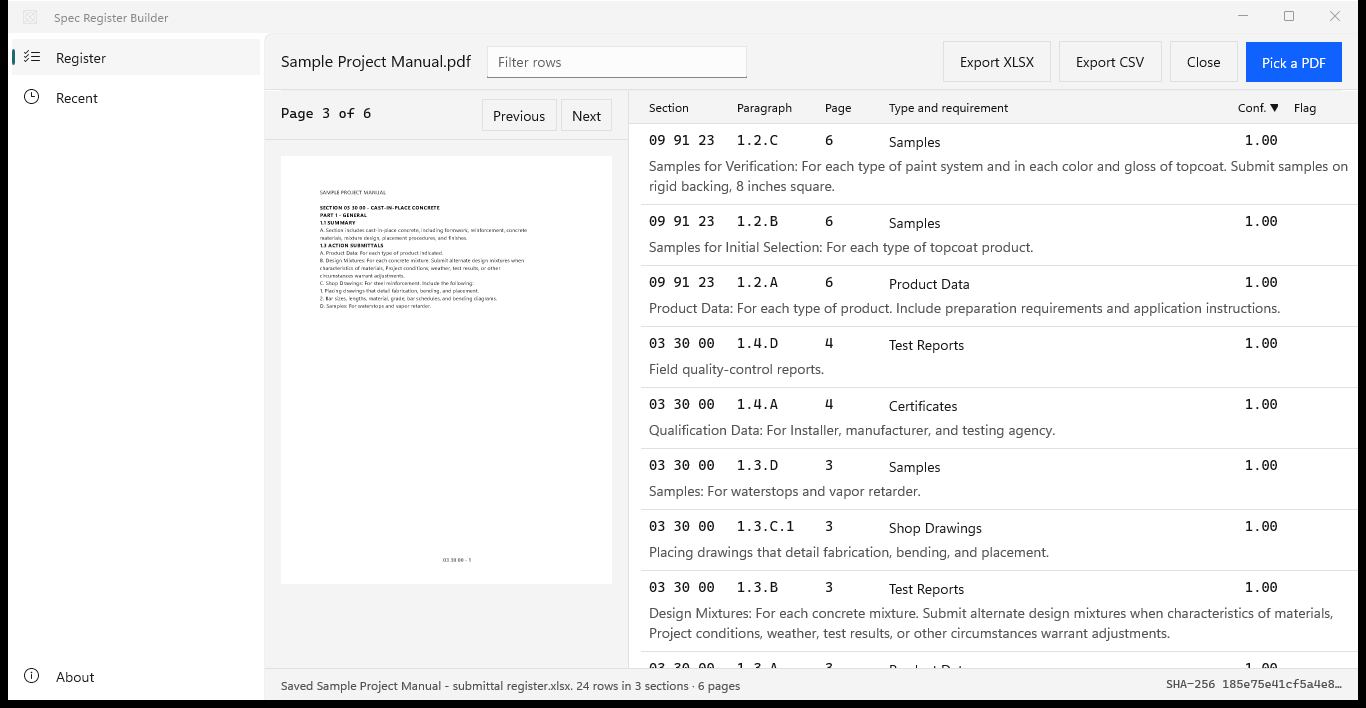
shop drawingsor a section number such as09 91 23. The filter changes the view, and every row still goes into the export. - Check flagged rows first. Choose the “Conf.” header to sort by the confidence hint, lowest first. Rows at 0.40 or below carry a “Review” flag.
- Export. Choose “Export XLSX” or “Export CSV” and name the file in the Save dialog. The suggested name follows the book, such as
Project Manual - submittal register.xlsx, and the status line confirms the save. - Finish the log in Excel. Fill in the “Submit By”, “Reviewer”, and “Notes” columns, and add any columns your team tracks, such as status or transmittal number.
- Come back later. The book stays on the “Recent” page, so after an addendum you can reopen it, or pick the reissued file, and export a fresh register.
Run these steps on a project manual you have already logged and compare the lists.
Get it from Microsoft
Finish the log for the team
- Add dates from the schedule. Work back from when each item must be on site, allowing the review time Division 01 sets.
- Assign reviewers. Group rows by type or by section, then assign the architect, the engineer of record, or the consultant who reviews each group.
- Keep the source on record. The workbook’s Manifest sheet records the source file name, its SHA-256, the page and row counts, and the export time, so the log names the exact book it came from.
- Rebuild after addenda. Export a fresh register from the reissued book and compare it with the log you are tracking.
For the parts that differ by project, see submittal register from specifications for what the register should contain, submittal log template for Excel for the column layout, and CSI MasterFormat submittal list for sorting by section. Our guide to submittal types explains each type, and the submittal register checklist lists the places requirements hide in a spec book.
Frequently asked questions
What is the difference between a submittal log and a submittal register?
In most firms they are the same thing: a list of every required submittal, tied to its spec section and paragraph, with columns for dates, reviewers, and status. Some teams call the list built from the specifications the register and the tracking spreadsheet the log. Spec Register Builder builds the register and exports it as a log your team can track in Excel.
Where do I start on a large project manual?
Start with Division 01, because it sets the submittal procedures for the whole project, then work through the trade sections in order. In Spec Register Builder, choose the “Section” header to sort the register by section number, which puts Division 01 at the top and every division after it in order.
Can I make a submittal log from a scanned spec book?
Yes. Spec Register Builder reads pages without a text layer with the OCR engine built into Windows, using the OCR language installed on your PC. The status line counts the pages read with OCR, and the workbook’s Manifest sheet lists them, so you know which pages came from scans.
Does the export open in Excel?
Yes. “Export XLSX” writes a workbook with a Register sheet, a frozen header row, and fourteen columns, plus a Manifest sheet. “Export CSV” writes the same columns in UTF-8 with a byte-order mark, so Excel opens it with accents intact.
Try Spec Register Builder
Spec Register Builder is a one-time purchase in the Microsoft Store, and the Store runs a 15-day free trial with every feature, so you can build a log from a project manual you have already logged and compare the two. Nothing uploads: the app makes no network connections and has no account. Read how it works and see the screenshots on the Spec Register Builder product page.
Build a cited submittal log during the 15-day free trial.
Get it from Microsoft
MasterFormat is a trademark of The Construction Specifications Institute, Inc. (CSI). Spec Register Builder is not affiliated with or endorsed by CSI.
Last updated 15 October 2026. Published by Automata Labs, a software company in Canada.