A thorough submittal register comes from checking more than the Submittals article in each section. Start with Division 01 for the project-wide items, then in every section check the Action, Informational, and Closeout Submittals articles, Quality Assurance, Warranty, and Maintenance Material Submittals in Part 1, and the source and field quality-control paragraphs in Parts 2 and 3. Record each requirement with its section, paragraph, and page.
The checklist below follows the order a spec book is written in, so you can work through it section by section. It applies whether you build the register by hand or with an app such as Spec Register Builder, which reads every article of every section and cites the page on each row.
Check every section of your spec book for submittals, on your own PC.
Get it from Microsoft
The checklist
| # | Where to look | What you will find there | Usual type |
|---|---|---|---|
| 1 | Division 01, Submittal Procedures (often 01 33 00) | The schedule of submittals and how items are sent and reviewed | Preconstruction |
| 2 | Division 01, Quality Control (often 01 45 00) | Testing and inspection reports required across the project | Test Reports |
| 3 | Division 01, Closeout Submittals (often 01 78 00) | Warranties, record documents, and operation and maintenance manuals | Closeout, O&M Data |
| 4 | Division 01, sustainability requirements | Documentation for sustainable-design requirements | Sustainability |
| 5 | Each section, Part 1, Action Submittals | Shop drawings, product data, samples, delegated design | Shop Drawings, Product Data, Samples, Design Data |
| 6 | Each section, Part 1, Informational Submittals | Qualification data, certificates, test reports, field reports | Certificates, Test Reports |
| 7 | Each section, Part 1, Closeout Submittals | Warranties and maintenance data for that section’s work | Closeout, O&M Data |
| 8 | Each section, Part 1, Quality Assurance | Mock-ups, installer and manufacturer qualifications | Samples, Certificates |
| 9 | Each section, Part 1, Warranty | Special warranties beyond the general one | Closeout |
| 10 | Each section, Part 1, Maintenance Material Submittals | Extra stock and spare parts for the owner | Closeout |
| 11 | Each section, Part 2, Source Quality Control | Factory tests and inspection reports | Test Reports |
| 12 | Each section, Part 3, Field Quality Control | Field tests, inspections, and manufacturer’s field service reports | Test Reports, Field Reports |
Section numbers vary from book to book, so treat the numbers above as typical, and use the ones printed in your project manual.
Division 01 first
Division 01 applies to every trade. Its submittal procedures section usually sets what goes in a submittal, how items are numbered, and how long review takes, and its closeout sections list what the owner receives at the end. These items belong at the top of the register because every other section points back to them.
Part 1 of each section
Most requirements sit in Part 1, but not only in the article titled Submittals. Quality Assurance often asks for a mock-up or for qualification data. Warranty sections ask for a special warranty to be submitted. Maintenance Material Submittals ask for extra stock, which has to be ordered with the rest of the material.
Parts 2 and 3
Part 2 can require factory test reports under Source Quality Control, and some sections put delegated-design calculations there. Part 3 often asks for field test results or a manufacturer’s field service report under Field Quality Control. These are easy to miss when reading only Part 1.
Not every mention is a requirement
A sentence such as “Comply with Section 01 33 00” points to the procedures; it does not add an item. The word submittals in passing, such as “in accordance with approved submittals”, does not either. Look for the verb Submit, a label such as Samples:, or an item under a UFGS SD heading.
Ways to check a register against the book
| Method | How it works | Good fit | Notes |
|---|---|---|---|
| A printed binder and a pen | Tick each requirement in the binder as it goes into the log | Teams that work from paper | Hard to share, and the ticks stay in one binder |
| Two windows on screen | A PDF viewer beside the spreadsheet | Anyone with a large monitor | Finding each paragraph again means searching the PDF |
| A spec-reading app such as Spec Register Builder | The register sits beside the rendered page; select a row and its page appears | Teams that want every row tied to its page | Rows from every article are listed with part, article, paragraph, and page, and the confidence hint shows where to look first |
Meet Spec Register Builder
Spec Register Builder turns a spec book PDF into a cited submittal register, reading every article of every section and citing the page on each row.
It is a Windows app from Automata Labs. It reads each section number and title from the book, lists the requirements it finds in Parts 1, 2, and 3 with their type, and keeps the rendered page beside the table. The spec book is only read, nothing uploads, and there is no account.
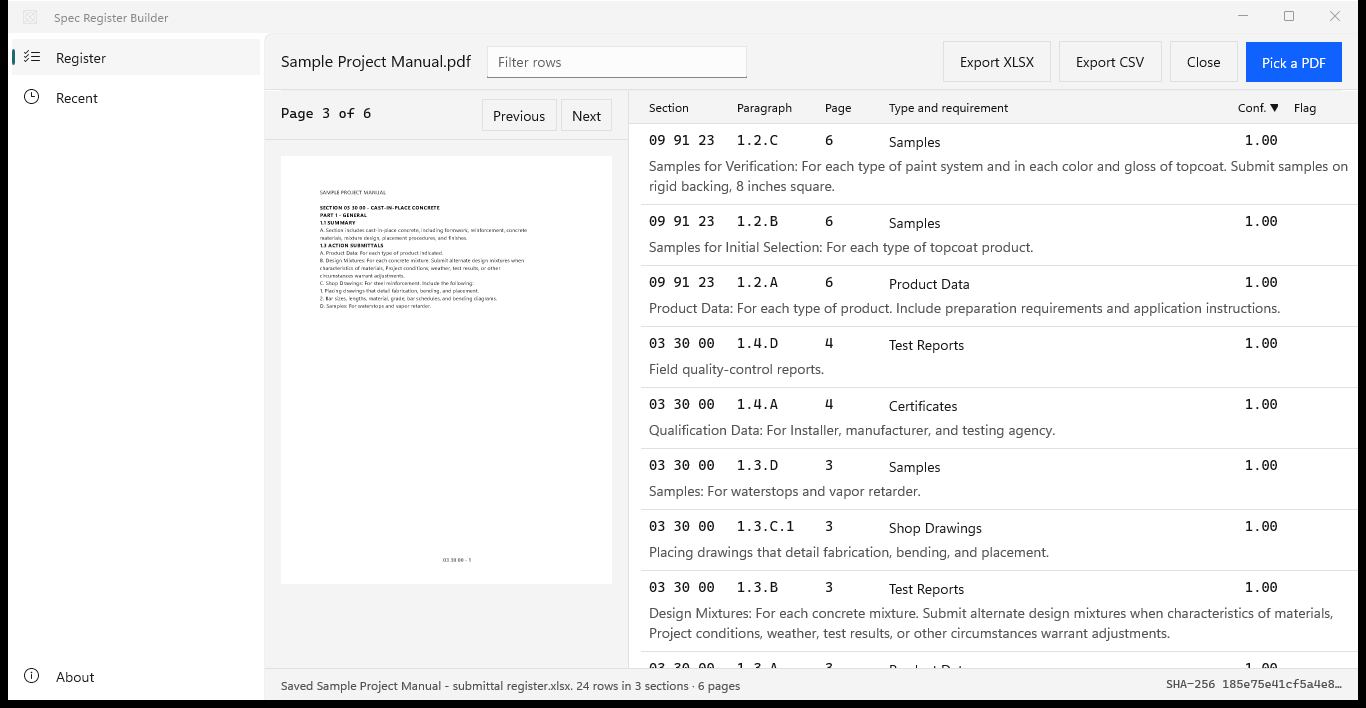
Screenshots use a sample project manual generated for testing, with placeholder text.
How to run the checklist in Spec Register Builder
- Open the book. Choose “Pick a PDF” and select the project manual. A password-protected PDF asks for its password first.
- Start with Division 01. Choose the “Section” header to sort by section number. Division 01 rows come first, in book order.
- Search for the hiding places. Type
warranty,mock-up,field quality, orextra stockin “Filter rows” to see every row that mentions them, across all sections. - Check each row on its page. Select a row and its page renders on the left. The “Paragraph” column shows where it sits, such as 1.4.B or 3.3.A.
- Look at flagged rows. Choose the “Conf.” header to sort by the confidence hint, lowest first. Rows at 0.40 or below carry a “Review” flag, so they get a look before anything else.
- Export and record the source. Choose “Export XLSX”. The workbook’s Manifest sheet records the source file, its SHA-256, the pages, sections, and rows, and the export time.
Run the checklist on a spec book you have already logged.
Get it from Microsoft
After the export
- Count by section. In Excel, a count of rows per Spec Section shows how many requirements each section holds. Set that list beside the book’s table of contents, and open any section you expected to see to confirm what it asks for.
- Compare with the last issue. When an addendum arrives, export a register from the reissued book and compare the two workbooks; the Manifest sheets name each source file by its SHA-256.
- Fill in the tracking columns. Add dates to “Submit By”, names to “Reviewer”, and anything else to “Notes”.
For the full build, see our guide on how to create a submittal log, and for what each type means, submittal types explained. The pages on extracting submittals from a spec book and the CSI MasterFormat submittal list cover how rows are found and sorted by section.
Frequently asked questions
Where are submittal requirements in a spec section?
Mostly in Part 1, under articles such as Action Submittals, Informational Submittals, and Closeout Submittals, with more under Quality Assurance, Warranty, and Maintenance Material Submittals. Parts 2 and 3 add source and field quality-control reports. Spec Register Builder reads every article in all three parts and records the part and article for each row.
Do Part 2 and Part 3 contain submittals?
Yes, often. Part 2 can ask for factory test reports under Source Quality Control, and Part 3 can ask for field test results and manufacturer’s field service reports under Field Quality Control. Spec Register Builder lists a paragraph from any part when it asks for something to be submitted, with its page.
How do I keep the register current after an addendum?
Build a fresh register from the reissued project manual and compare it with the one you are tracking. In Spec Register Builder, pick the new file, export it, and compare the two workbooks in Excel. Each Manifest sheet records the source file’s SHA-256 and the export time, so you can tell which issue each register came from.
Try Spec Register Builder
Spec Register Builder is a one-time purchase in the Microsoft Store, and the Store runs a 15-day free trial with every feature, so you can run this checklist on a spec book you know and compare the register with your own log. Nothing uploads, and the spec book is never written. See how it works on the Spec Register Builder product page.
Check every section of your spec book during the 15-day free trial.
Get it from Microsoft
MasterFormat is a trademark of The Construction Specifications Institute, Inc. (CSI). Spec Register Builder is not affiliated with or endorsed by CSI.
Last updated 15 October 2026. Published by Automata Labs, a software company in Canada.