ContextCleaner: see every entry in the Windows 11 right-click menu, and which app added it — on the Microsoft Store.
Guided workflow variation

Turn "file in use"into a name you can act on.

LockGhost reveals which process is locking a file or folder — right from Explorer — with Restart Manager–grade detection, friendly names, severity cues, and guarded "end process." 100% offline, no telemetry.

LockGhost reveals which process is locking a file via the Windows Restart Manager API in under 50 ms, shows it by a friendly name, and ends it with a guarded one-click action. 100% offline, no telemetry.

Pay once. Own it forever.

One-time purchase on the Microsoft Store · No subscription · Instant install

Buy through the Microsoft Store—instant install, automatic updates, and a Microsoft receipt for easy expensing. No account needed on our site, and no subscription on Store purchases.

Full LockGhost overview
One-time purchase No telemetry Local-first

windows · offline · zero telemetry · buy direct

If this sounds like your week

"The action can't be completed because the file is open in another program."

One of the most useless errors Windows produces: it tells you the file is busy but never says *what* has it. You try to delete, rename, or move, and a program you can't identify is holding it open — so you're stuck before you've started.

Where tooling usually breaks

Task Manager has no "what owns this file" view.

So the advice online is "close everything" or "reboot" — coping mechanisms, not answers. And a blind "end task" on a guessed process can crash something you actually needed, turning a stuck file into a bigger problem.
Where LockGhost lands

Right-click the file. See the holder. Unblock it safely.

LockGhost adds a right-click action in Explorer that finds the locking process via the Windows Restart Manager API in under 50 ms and shows it by a name you recognize, with color-coded severity. End it with a guarded one-click action that warns before touching anything critical — or just wait, now that you know who to wait for. 100% offline, no telemetry.

Pay once. Own it forever.

One-time purchase on the Microsoft Store · No subscription · Instant install

Buy through the Microsoft Store—instant install, automatic updates, and a Microsoft receipt for easy expensing. No account needed on our site, and no subscription on Store purchases.

Learn more about LockGhost

windows · offline · zero telemetry · buy direct

What you get

Feature highlights

Sub-50ms lock detection via the Windows Restart Manager API

see whether OneDrive sync, antivirus, Windows Search indexing, or another service is holding handles—without guesswork.

Explorer-native workflow

right-click context integration so the answer appears where you already are, not buried in another tool.

Friendly resolution UI

process names you can recognize, color-coded lock severities, and one-click End Process with guardrails against terminating critical system roles by accident.

Feels like part of Windows 11

Mica-friendly presentation, system tray presence, and customizable global hotkeys so LockGhost stays invisible until the lock isn’t.

100% offline & privacy-first

zero telemetry, zero cloud sync, zero network calls—lock history and preferences live in a local database on your disk. One-time purchase. No subscriptions. Local-first.

Product Interface

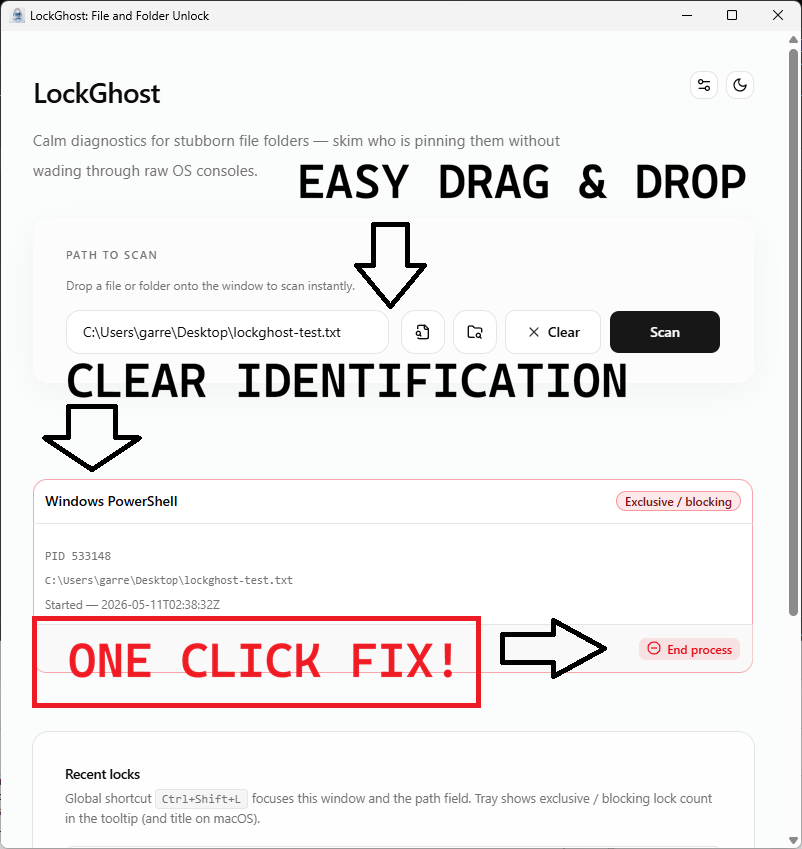
LockGhost showing the processes holding a file, each with a friendly name and color-coded lock severity
The answer Windows never gives you: every process holding the path, by friendly name, with color-coded severity instead of cryptic PIDs.

Detect, identify, and resolve—without leaving Explorer.

LockGhost turns the opaque “file in use” dialog into a clear, actionable list. The Windows Restart Manager API names the real holder in under 50 ms, and a guarded one-click action ends it safely.

Friendly names, not PIDs: recognize OneDrive, Defender, Search, or a stray dev watcher at a glance.
Color-coded severity: know what is safe to end and what to wait out before you touch a thing.
Guarded termination: critical system roles are hard-blocked, so a stuck file never becomes a crashed machine.

Especially when

  • Find which process has a file open when Windows only says “File in use”
  • Avoid dangerous blind “end task” cleanup when a lock could be OneDrive, Defender, or Explorer
  • Resolve folder delete and document save blocks with clear, local-only diagnostics

Who benefits

Real-world scenarios

The file that won't delete

You drag an old folder to the Recycle Bin and Windows refuses: "open in another program." You have nothing open that touches it, and the dialog won't say what does.

You right-click the folder, LockGhost names the holder via the Restart Manager API, and you end it with a guarded click — or wait it out, now that you know who to wait for. Deleted, no reboot.

The sync client in the background

OneDrive (or Defender, or Windows Search) is quietly holding a file mid-operation, so your move or delete keeps failing for no visible reason.

LockGhost shows it's a sync/scan/index handle with color-coded severity, so instead of force-killing a system service you wait a beat or end it safely — and Windows stops fighting you.

The build that won't clean

`git clean` and your rebuild die because a DLL or `node_modules` file is "used by another process" — a watcher or a previous run never let go.

LockGhost names the exact holder so you end only that process, not your whole IDE, and the build cleans on the next try. No more nuking node and hoping.

Deep dive

What "file in use" actually means on Windows

When a program opens a file it requests a sharing mode. If that mode denies deletion or renaming, Windows refuses your operation until every such handle is closed — and the error deliberately doesn't name the holder. The holder is frequently not an app you opened at all: OneDrive or Dropbox syncing, Windows Defender scanning, Windows Search indexing, or Explorer's own preview/thumbnail handler reading the file to show you a thumbnail.

LockGhost asks the Windows Restart Manager API who holds the file — the same subsystem Windows uses before updates — and gets an answer in under 50 ms, complete with a friendly process name and a color-coded severity hint. That severity matters: ending a stray editor is fine, but force-killing a sync agent or a system service is not, so LockGhost guards those and tells you when waiting a moment is the smarter move.

# The dialog that says everything except what you need:
# "The action can't be completed because the file is open in another program."
#
# LockGhost (right-click → Who's locking this?):
#   OneDrive.exe   — syncing (wait or pause)
#   SearchProtocolHost.exe — indexing (safe to end)
Trusted by pragmatic desktop users

Built for people who prefer tools that stay local.

Real workflows: focus timers that stay visible, batches that never leave the disk, and renames you can rewind.

Customer review 01

PinPoint: Always On Top saves me so much time as I can organize all my report materials without having to flip between windows or tabs. I love the fact that it is straightforward and simple.

Senior Accountant · Manufacturing Company · United States · PinPoint Reviewed About PinPoint
Customer review 02

I used to get so frustrated when my Taskbar would freeze and disappear. Taskbar Sentinel has eliminated that pain without subjecting me to another subscription.

Darren · Calgary, Alberta, Canada · Taskbar Sentinel Reviewed About Taskbar Sentinel
Customer review 03

OpticBatch and MetaForge are a lifesaver for me as a person with a passion for photography. They give me the ability to stay organized and keep personal information confidential when I post pictures online.

Sherri · United States · OpticBatch & MetaForge Reviewed Browse the full catalog

Quotes are shown with customer permission; names and locations appear as reviewers provided them.

Our Core Moat

Engineered to respect your system boundaries.

System Resource Monitor (Idle State Comparison)
Automata Labs low idle memory footprint compared to generic Electron applications

Lightweight Native Stack

Compiled Rust core wrapped inside an optimized Tauri shell. No heavy background node loops or duplicate Chromium engines cooking your memory footprint (<25MB idle RAM).

100% Local-First Privacy

Executes entirely on-device with full offline isolation. Absolute zero background telemetry policies, no metrics aggregation, and zero mandatory cloud-sync accounts.

Perpetual Fallback Licenses

Pay a single, clear one-time purchase price. Own your specific native software utility execution tier permanently without artificial subscription paywalls or ongoing usage tax.

FAQ

Straight answers—no glossary dump

How do I find which process is locking a file on Windows?

Windows only tells you a file is "in use," not what's using it. LockGhost adds a right-click action in Explorer that queries the Windows Restart Manager API and names the exact holding process in under 50 ms — no Task Manager guesswork, no PID hunting.

Is it safe to end the process LockGhost finds?

LockGhost color-codes severity and guards termination of critical system roles, so you don't accidentally take down something essential. For ordinary apps, one guarded click ends the lock; for system or sync processes, it warns you first.

Does LockGhost use Process Explorer or send anything to the cloud?

Neither. LockGhost uses the official Windows Restart Manager API directly and runs 100% offline — zero telemetry, zero network calls. Lock history and preferences live in a local database on your disk.

How do I get LockGhost, and is it a subscription?

LockGhost is a one-time purchase on the Microsoft Store — no subscription, no account required for core use. Use the Microsoft Store button on this page for the current listing and price.

Stop guessing which app
has your file open.

LockGhost uses the Windows Restart Manager API for fast lock discovery, Explorer right-click integration, friendly process names, and guarded termination—without shipping data off your machine.

Pay once. Own it forever.

One-time purchase on the Microsoft Store · No subscription · Instant install

Buy through the Microsoft Store—instant install, automatic updates, and a Microsoft receipt for easy expensing. No account needed on our site, and no subscription on Store purchases.

Open full product page

Technical specifications

Technical specifications for procurement

Spec Implementation
Data Sovereignty Lock discovery and history stored in a local on-disk database; no cloud sync
Telemetry Status None; zero network calls in shipping builds
Core Runtime Native Windows utility using Restart Manager API and Explorer shell integration
Network Requirements Fully functional offline
Deployment Compatibility Windows 11 (Microsoft Store and direct purchase)
Detection Sub-50ms lock queries via Windows Restart Manager
Integration Explorer right-click context menu and system tray