ContextCleaner: see every entry in the Windows 11 right-click menu, and which app added it — on the Microsoft Store.
Windows 10 & Windows 11 Updated 2026-10-15

Cut diagrams, labels, and a recut list for every revision.

CutPacket is a Windows app from Automata Labs that turns a parts CSV and a stock CSV into a cutting packet for the shop floor: cut diagrams with the saw sequence, a label for every piece, and a recut list. Set the kerf, edge trim, and grain, review and approve each sheet, and export. When the client revises the order, import the new CSV: part IDs stay the same, pieces you already cut are kept, and the recut list names exactly what goes back to the saw. Your CSV files are never changed.

One-time purchase · 15-day free trial in the Microsoft Store · One-time purchase. No subscriptions. Local-first.
Pay once. Own it forever.

One-time purchase on the Microsoft Store · No subscription · Instant install

Buy through the Microsoft Store—instant install, automatic updates, and a Microsoft receipt for easy expensing. No account needed on our site, and no subscription on Store purchases.

How it works See the screens

csv in · kerf, trim, grain · guillotine layouts · labels and recut list · nothing uploads

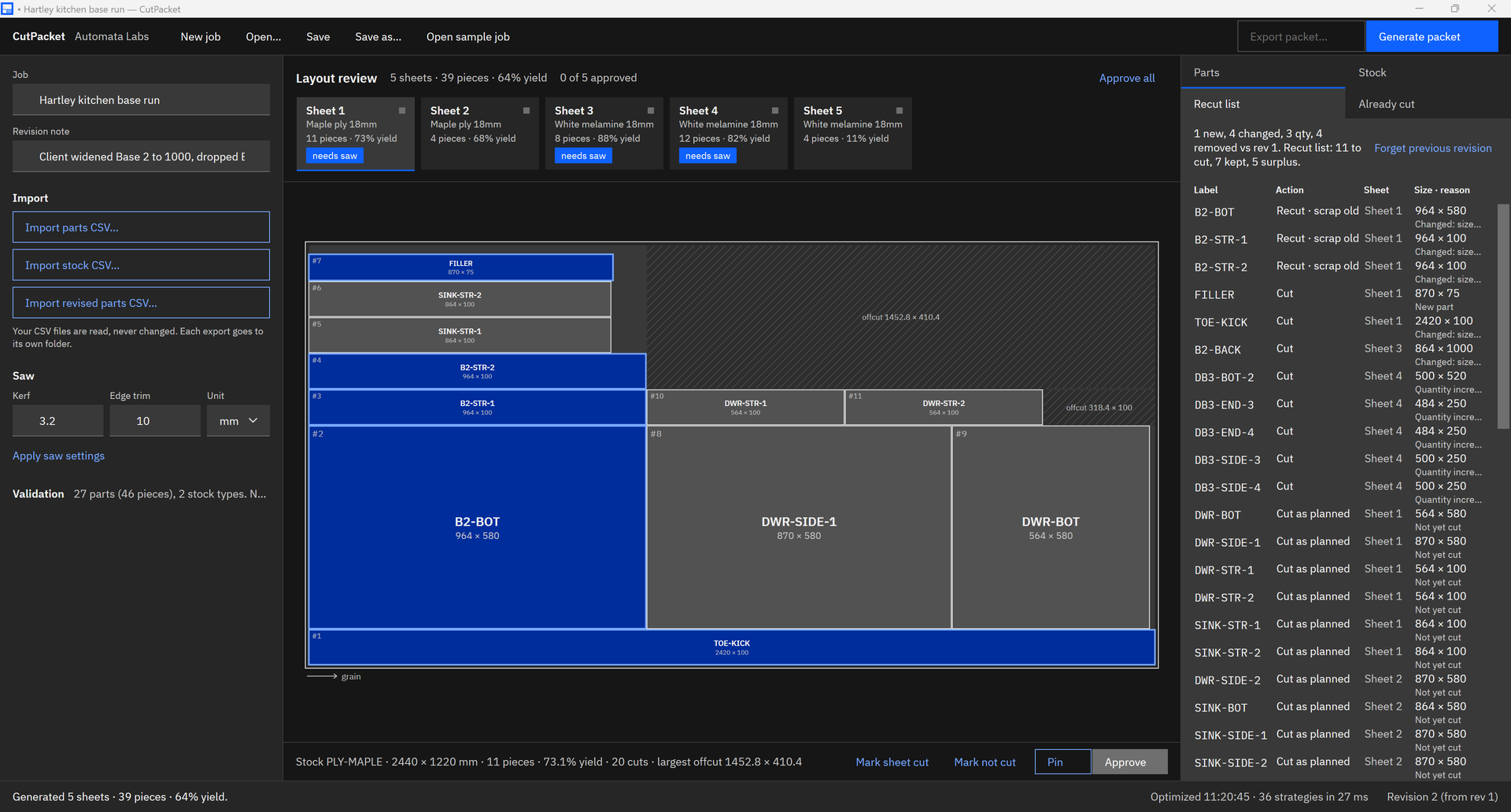
CutPacket layout review and recut list

CutPacket layout review for revision 2 of the Hartley kitchen sample: sheet 1 of 5 in maple ply with new and changed pieces shaded blue, and the Recut list tab showing Recut · scrap old, Cut, and Cut as planned rows with sheets and sizes.
Generate the layout, review each sheet, and read the recut list: what is new, what changed, and which sheet each piece is on.

The problem

The order changed, and half the sheets are already cut.

A small shop builds the parts list in a spreadsheet, lays out the sheets, and starts cutting. Then the client widens a cabinet, drops another, and adds a filler. Laying everything out again from scratch renumbers every sheet and every label, so nobody can tell which cut pieces are still good, which must be recut, and which are now surplus.

With CutPacket

Import the revision. Cut only what changed.

CutPacket keeps the part IDs from your CSV as the labels on every piece, so a revision is compared part by part. Tick what the shop already cut, import the revised CSV, and generate: unchanged cut pieces are kept and use no new stock, changed ones are flagged for recut, and the packet names the sheets that need the saw.

Key benefits

From a spreadsheet to a shop-floor packet, revision after revision

A recut list for every revision

Import the revised parts CSV and CutPacket compares it with the last revision by part ID. Every piece gets one action, Cut, Recut · scrap old, Cut as planned, Keep, or Surplus, with its sheet and the reason, such as size 864 × 580 mm → 964 × 580 mm. Pieces already cut and unchanged leave the new layout, so they use no new stock, and the summary page names the sheets that need the saw.

Part IDs that stay put

The ID in your CSV is the label on the piece, with -1, -2 for multiples. IDs that match keep their labels from one revision to the next, and row order in the spreadsheet never matters.

Kerf, edge trim, and grain

Set the blade kerf and edge trim in millimetres or inches. Parts marked length or width follow the grain on grained stock, and parts on melamine or MDF rotate to fit.

Layouts a panel saw can follow

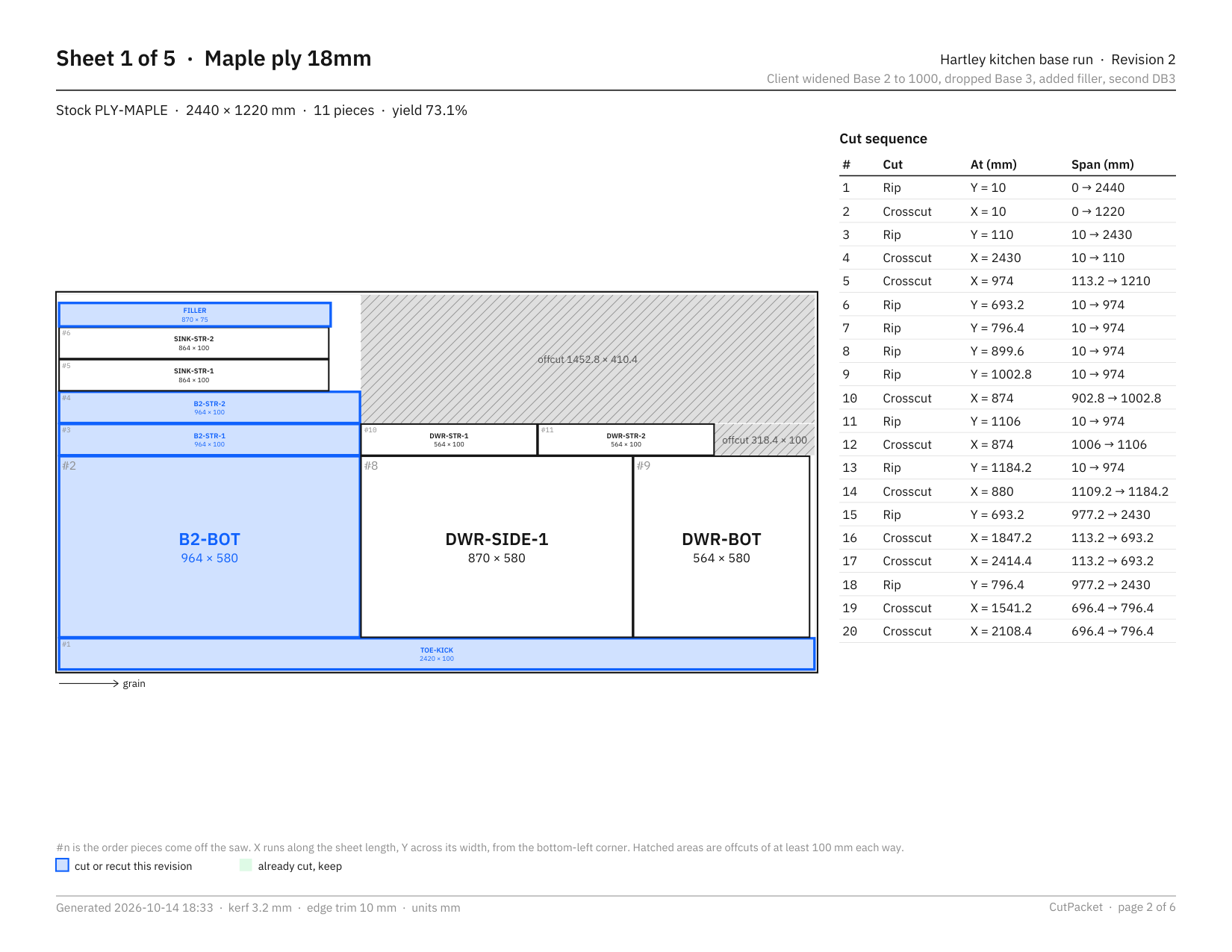
Every layout is built from straight, edge-to-edge rips and crosscuts, printed in order with their positions. Pieces are numbered in the order they come off the saw, and offcuts of 100 mm or more each way are hatched and sized.

Checked before the saw

Mixed units, blank grain on grained stock, oversize parts, unknown materials, duplicate IDs, and short stock are listed with the CSV row and the fix before you generate.

A label for every piece

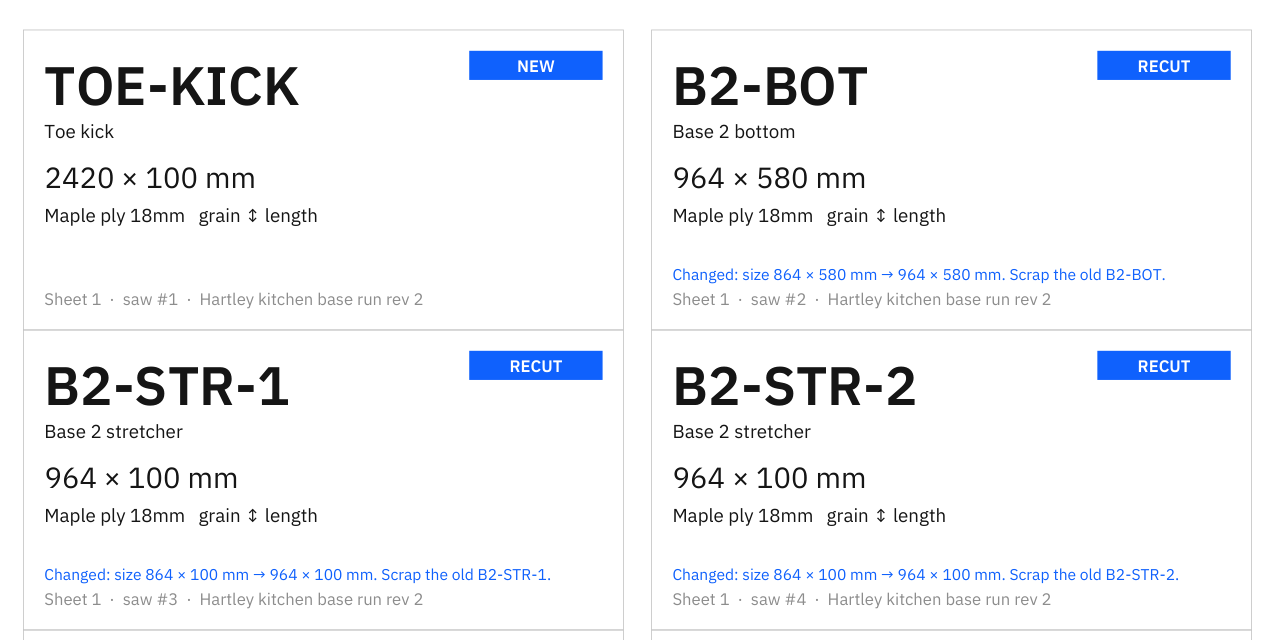
4 × 2 inch labels, ten to a Letter page, with the part ID, size, material, grain, sheet, and saw number. In a revision, pieces to cut are tagged NEW, changed cut pieces RECUT, and kept pieces need no new label.

How it works

Import, check, review, export

Import

Choose Import parts CSV and Import stock CSV, or open the sample job. CutPacket reads the files you already keep, recognizes common column names, and sets the job to millimetres or inches to match. Your CSV files are only read.

Check

The Validation list shows every error and warning with the row, the part, and the fix: mixed units, blank grain on grained stock, oversize parts, unknown materials, short stock. Set the kerf and edge trim under Saw.

Review

Choose Generate packet. Each sheet appears in the layout review with its pieces, yield, and status. Hover a piece for its label, size, and saw number, pin a sheet to keep its layout on the next generate, and approve each sheet or choose Approve all.

Export

Choose Export packet and pick a folder. CutPacket writes the cut diagrams, labels, and recut list as PDF and CSV into a new folder for the job and revision. When the order changes, import the revised CSV and run it again.

Keyboard shortcuts keep it quick: Ctrl+I imports parts, Ctrl+R imports a revision, Ctrl+G generates, and Ctrl+E exports the packet.

See it in action

The cut checklist, the labels, the recut list, and the diagram

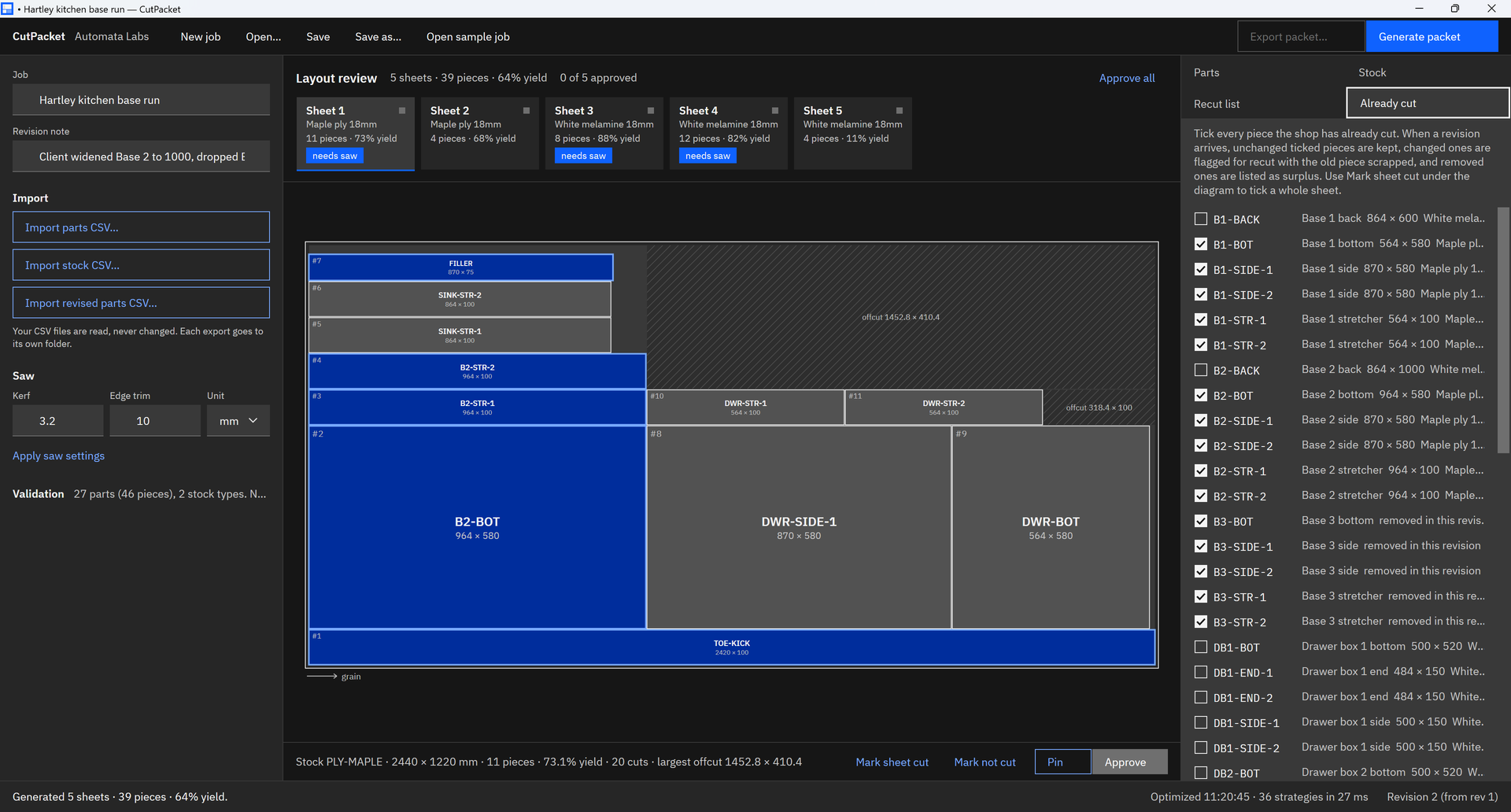
CutPacket Already cut tab with a checklist of piece labels, B1-SIDE-1, B2-BOT, and the Base 3 pieces ticked as cut, beside the sheet 1 layout and the Mark sheet cut button.
Tick what the shop has already cut, piece by piece or with Mark sheet cut. The next revision keeps those pieces and recuts only what changed.
Exported CutPacket labels: TOE-KICK tagged NEW, and B2-BOT, B2-STR-1, and B2-STR-2 tagged RECUT, each with size, material, grain, sheet, saw number, and the note to scrap the old piece.
A 4 × 2 inch label for every piece. RECUT labels name the change and the old piece to scrap.
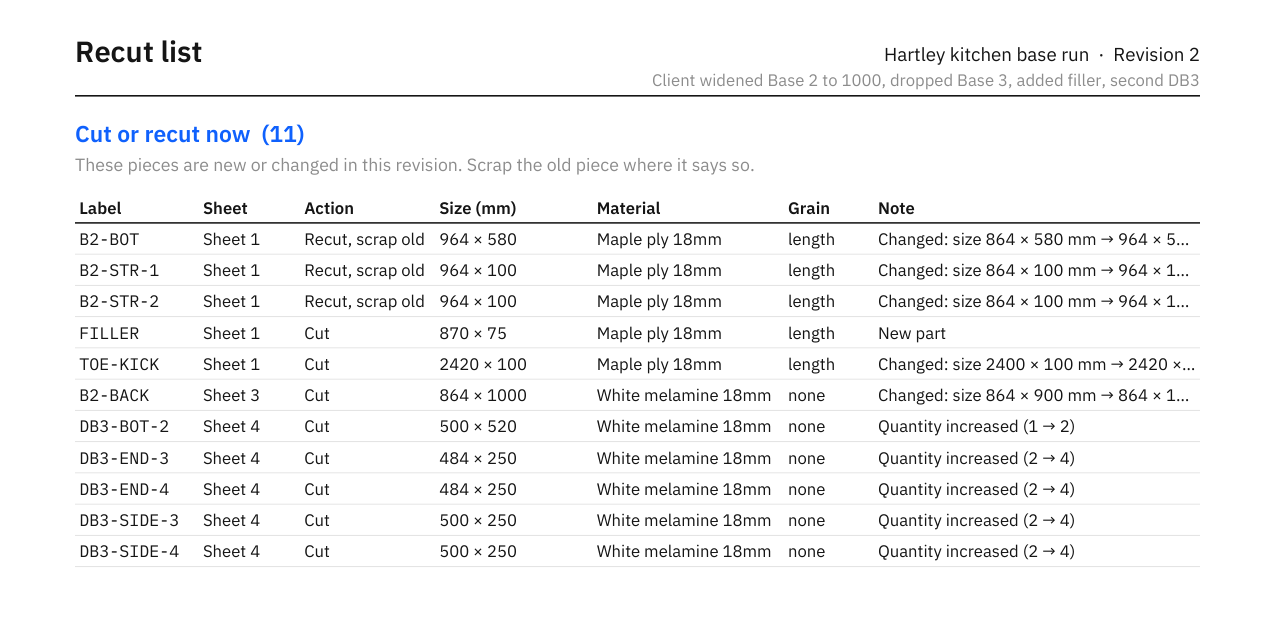
Recut list PDF for revision 2 of the Hartley kitchen sample, headed Cut or recut now (11), with each label’s sheet, action, size, material, grain, and note.
The recut list leads with what goes back to the saw, then surplus, pieces cut as planned, and pieces kept.
CutPacket cut diagram page for sheet 1 of 5, maple ply 2440 × 1220 mm: pieces numbered in saw order, recut pieces shaded blue, hatched offcuts with sizes, a grain arrow, and a 20-step cut sequence of rips and crosscuts.
One page per sheet: the layout drawn to scale, the saw order, every rip and crosscut with its position, and the offcuts worth keeping.

Screenshots use the Hartley kitchen sample job that comes with CutPacket, shown at revision 2.

Privacy

Nothing uploads

CutPacket runs on your PC. It has no account, collects no telemetry, and makes no network calls of its own; the Microsoft Store handles the purchase and the trial. It reads only the CSV and project files you pick, writes each packet to a new folder you choose, and keeps its settings and a small diagnostic log on this PC. Your CSV files are never changed, and it runs as a standard user with no elevation.

What you get

  • A cut diagrams PDF: a summary page, then one landscape page per sheet with the layout and its numbered cut sequence.
  • A labels PDF: one 4 × 2 inch label per piece, ten to a US Letter page, printed in saw order.
  • A recut list PDF: cut or recut now, surplus to set aside, cut as planned, and already cut and kept.
  • Cut list, labels, and recut list CSVs in UTF-8, ready for Excel, label printers, and shop spreadsheets.
  • Every packet in its own folder, named after the job and revision, with the plan saved as JSON.
  • Saw settings for kerf and edge trim in millimetres or inches, with fractions such as 1/8 accepted.
  • A .cutpacket project file that keeps the parts, stock, settings, approvals, pins, and already-cut ticks.
  • The Hartley kitchen sample job, with a real client revision, ready to generate on first run.

Try it on the last job that changed.

The Microsoft Store runs a 15-day free trial. Open the sample job, or import the parts and stock CSVs from a job you already cut, mark the sheets the shop finished, and import the revision. Compare the recut list with what the shop redid by hand. If it fits your shop, buy it once. There is no subscription.

Pay once. Own it forever.

One-time purchase on the Microsoft Store · No subscription · Instant install

Buy through the Microsoft Store—instant install, automatic updates, and a Microsoft receipt for easy expensing. No account needed on our site, and no subscription on Store purchases.

Who uses it

  • Owners and production leads at small cabinet and furniture shops who keep parts lists in a spreadsheet and need diagrams and labels for the saw
  • Shops whose clients revise orders after cutting has started, and who need to know which pieces to recut, keep, or set aside
  • Panel saw and table saw operators who work from printed sheet layouts with the cut order and offcut sizes on the page
  • Jobs that mix grained veneered ply with melamine or MDF, where grain must be respected on one and rotation is allowed on the other

FAQ

Quick answers about CutPacket

What is CutPacket?

CutPacket is a Windows app for small cabinet and furniture shops that turns a parts CSV and a stock CSV into a cutting packet: cut diagrams with the saw sequence, a label for every piece, and a recut list. When the order changes, it compares the revised list by part ID and tells the shop what to recut, keep, or set aside. It runs on your PC with no account.

What do the parts and stock CSV files need?

Each part row needs an ID, a length, a width, and a material; quantity, name, grain, unit, and notes are read when present. Each stock row needs a length, a width, and a material, with the quantity on hand and grain yes or no. Common header names such as part, qty, or pcs are recognized, and comma, semicolon, and tab files all import.

What does CutPacket check before it lays out sheets?

Mixed units in one file, unknown units, sizes over 10 metres that look like a unit mistake, duplicate or missing IDs, blank grain on grained stock, parts too big for any sheet after trim, materials with no matching stock, and stock too short for the parts. Each finding shows the CSV row, the part, and the fix, and you clear the errors before Generate packet runs.

Does it respect grain direction?

Yes. Mark each part length, width, or none, and each stock sheet yes or no. On grained stock, a length part keeps its length along the sheet, a width part is turned 90 degrees, and a none part can go either way. Parts on stock without grain, such as melamine, rotate to fit. Labels print each part’s grain, and grained sheets get a grain arrow on the diagram.

How are kerf and edge trim applied?

Type them under Saw, such as a 3.2 mm kerf and a 10 mm edge trim, or 1/8 and 1/2 in inches, and choose Apply saw settings. The trim comes off every edge of each sheet before any part is placed, and the kerf is taken out between neighbouring parts. The footer of every page in the packet prints the kerf and trim used.

How does CutPacket handle a revised order?

Choose Import revised parts CSV. CutPacket compares the new list with the previous revision by part ID and marks each part New, Changed, Qty up, Qty down, or Notes. After Generate packet, every piece gets one action: Cut, Recut · scrap old, Cut as planned, Keep, or Surplus. Pieces already cut and unchanged are left out of the new layout.

How do I mark pieces that are already cut?

Tick them on the Already cut tab, or select a sheet in the layout review and choose Mark sheet cut to tick every piece on it. The ticks are saved in the .cutpacket project file and carry into the next revision, because part IDs and labels stay the same from one revision to the next.

What is in the exported packet?

Approve each sheet in the layout review, or choose Approve all, then choose Export packet and pick a folder. CutPacket writes a new folder for the job and revision with three PDFs, the cut diagrams, the labels, and the recut list, plus a cut list CSV, a labels CSV, a recut list CSV, and the plan as JSON.

What label sheets does it print?

4 × 2 inch labels, two across and five down on a US Letter page, printed in saw order, sheet by sheet. Each label shows the part ID in large type, the name, size, material, grain, sheet number, saw number, and the job and revision. The labels CSV carries the same fields for thermal and roll label printers.

What happens to my CSV files and earlier packets?

They stay exactly as they are. CutPacket reads your CSV files and never writes to them, and each export creates its own folder. If a packet for the same job and revision is already in the folder you pick, the new one is written beside it with a -2 suffix, so the copy the shop is cutting from stays intact.

Where does my job data go?

It stays on your PC. CutPacket has no account, collects no telemetry, and makes no network calls of its own; the Microsoft Store handles the purchase and the trial. It reads only the files you pick, writes only to the folders you choose, and runs as a standard user with no elevation.

What does it cost, and what do I need to run it?

CutPacket is a one-time purchase in the Microsoft Store, which shows the current price in your currency and runs a 15-day free trial. There is no subscription. It runs on Windows 10 version 2004 or later and Windows 11, on x64 PCs.
Still stuck? Email [email protected] after checking the Support Center.

Technical specifications

Technical specifications

Spec Implementation
Data Sovereignty Reads only the parts CSV, stock CSV, and .cutpacket project files you pick, and never writes to the CSV files; writes each packet to a new folder you choose and project files where you save them; settings and a small diagnostic log stay in the app’s local data folder on this PC
Telemetry Status None; no account, no telemetry, and no network calls of the app’s own (the Microsoft Store handles purchase and the trial)
Core Runtime .NET 10 and WPF desktop app; PDFs are drawn on your PC with the fonts embedded, so they print the same from any PC
Network Requirements Fully functional offline; the app makes no network calls of its own
Deployment Compatibility Windows 10 version 2004 or later and Windows 11, x64; runs as a standard user with no elevation; one-time purchase in the Microsoft Store with a 15-day free trial
Inputs Parts and stock lists as CSV (comma, semicolon, or tab; UTF-8 with or without BOM); common header names recognized; millimetres or inches from a unit column, a header suffix, or a value suffix, with fractions such as 23 1/4
Validation Mixed or unknown units, sizes over 10 m, duplicate or missing IDs, blank grain on grained stock, oversize parts after trim, unknown materials, stock area shortfall, and unusual kerf, each with the CSV row and the fix
Layout Guillotine layouts (straight, edge-to-edge rips and crosscuts) with kerf and edge trim; grain per part (length, width, none) and per sheet (yes, no); several strategies per run, deterministic for the same inputs; sheet pins and per-sheet approval
Revisions Parts compared by stable ID; already-cut pieces ticked per piece or per sheet; recut actions Cut, Recut · scrap old, Cut as planned, Keep, and Surplus; kept pieces left out of the new layout
Outputs Cut diagrams PDF (summary plus one landscape page per sheet with the cut sequence), labels PDF (4 × 2 in, 10 per US Letter page, Avery 5163 layout), recut list PDF, cut list, labels, and recut list CSVs (UTF-8 with BOM), and the plan as JSON
Projects .cutpacket project file with parts, stock, saw settings, plan, pins, approvals, the previous revision, and already-cut ticks; a sample job with a real revision is included

A parts CSV in. A cutting packet out.

CutPacket lays out every sheet with your kerf, trim, and grain, prints the diagrams and a label for every piece, and writes a recut list when the order changes. Your CSV files are never changed, and nothing uploads.

One-time purchase. No subscriptions. Local-first.

Pay once. Own it forever.

One-time purchase on the Microsoft Store · No subscription · Instant install

Buy through the Microsoft Store—instant install, automatic updates, and a Microsoft receipt for easy expensing. No account needed on our site, and no subscription on Store purchases.

Browse catalog