What is InkQuote?
InkQuote is a Windows app that estimates the cyan, magenta, yellow, and black ink coverage of every page in a PDF, from the colour values written in the file. Add a price per copy and a copy count on the Quote page, and export a one-page quote sheet as a new PDF. It runs on your PC, and nothing uploads.
How do I estimate the ink coverage of a PDF with it?
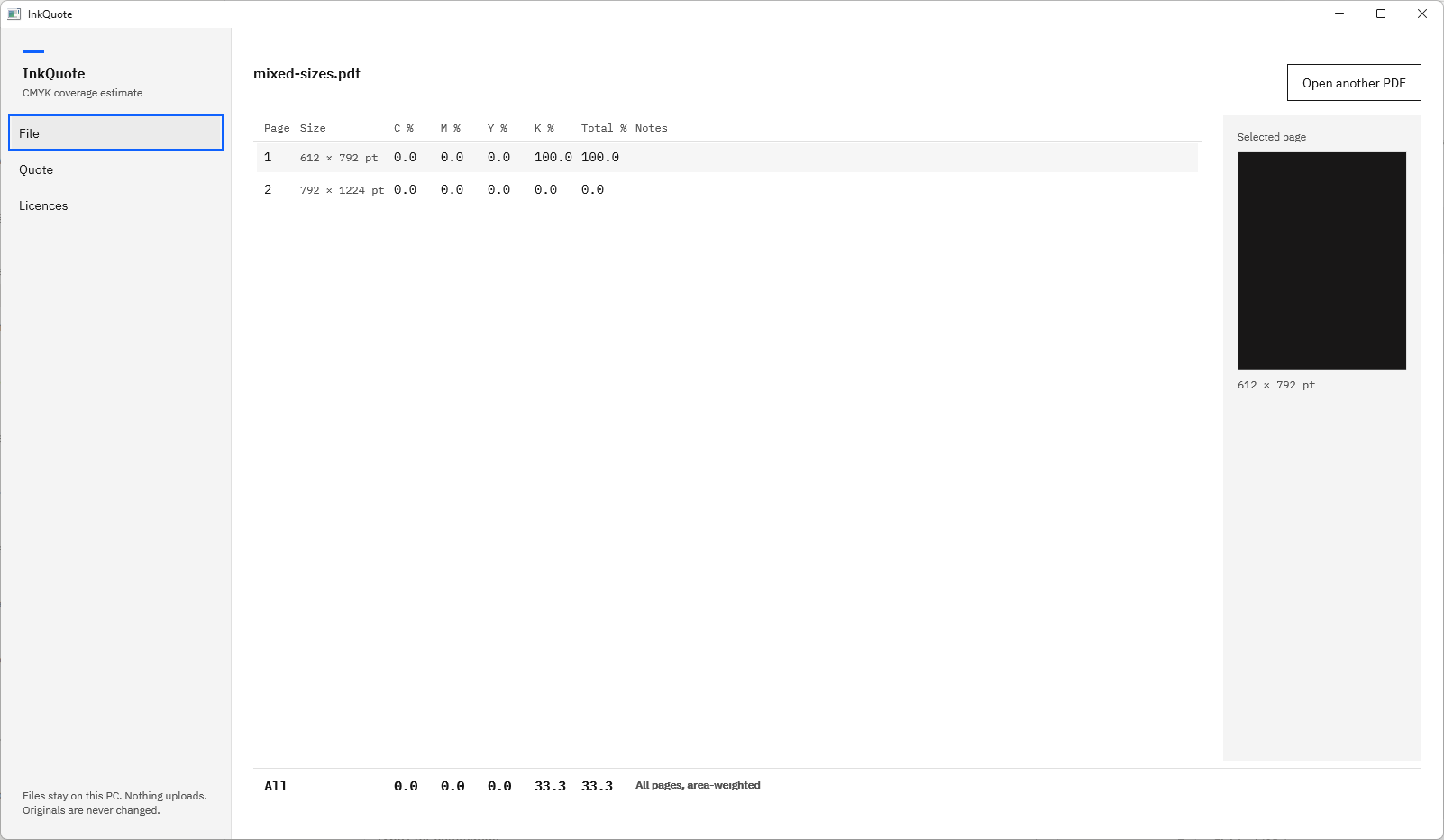
Choose Open PDF and pick the file, or reopen it from the Recent list. InkQuote measures the pages one by one, showing Page 3 of 12 as it goes, and fills a table with C %, M %, Y %, K %, and Total % for every page. The All row under the table gives the document total, weighted by page area.
What do the C %, M %, Y %, K %, and Total % columns mean?
Each column is the estimated amount of that ink spread over the whole page, as a percentage of the page area. A page of solid black reads K 100.0, and a 50 percent cyan tint across the page reads C 50.0. Total % is the sum of the four channels, so a heavy photo page can read well above 100. Figures show one decimal place.
How does InkQuote read CMYK, RGB, and spot colours?
CMYK artwork is measured from the values the file states, so solid black text stays black ink only rather than turning into rich black. Grayscale counts as black. RGB content is converted with the PDF specification’s own formula, and spot colours go through the file’s own tint transforms and are listed by name for each page.
How does the Quote page work?
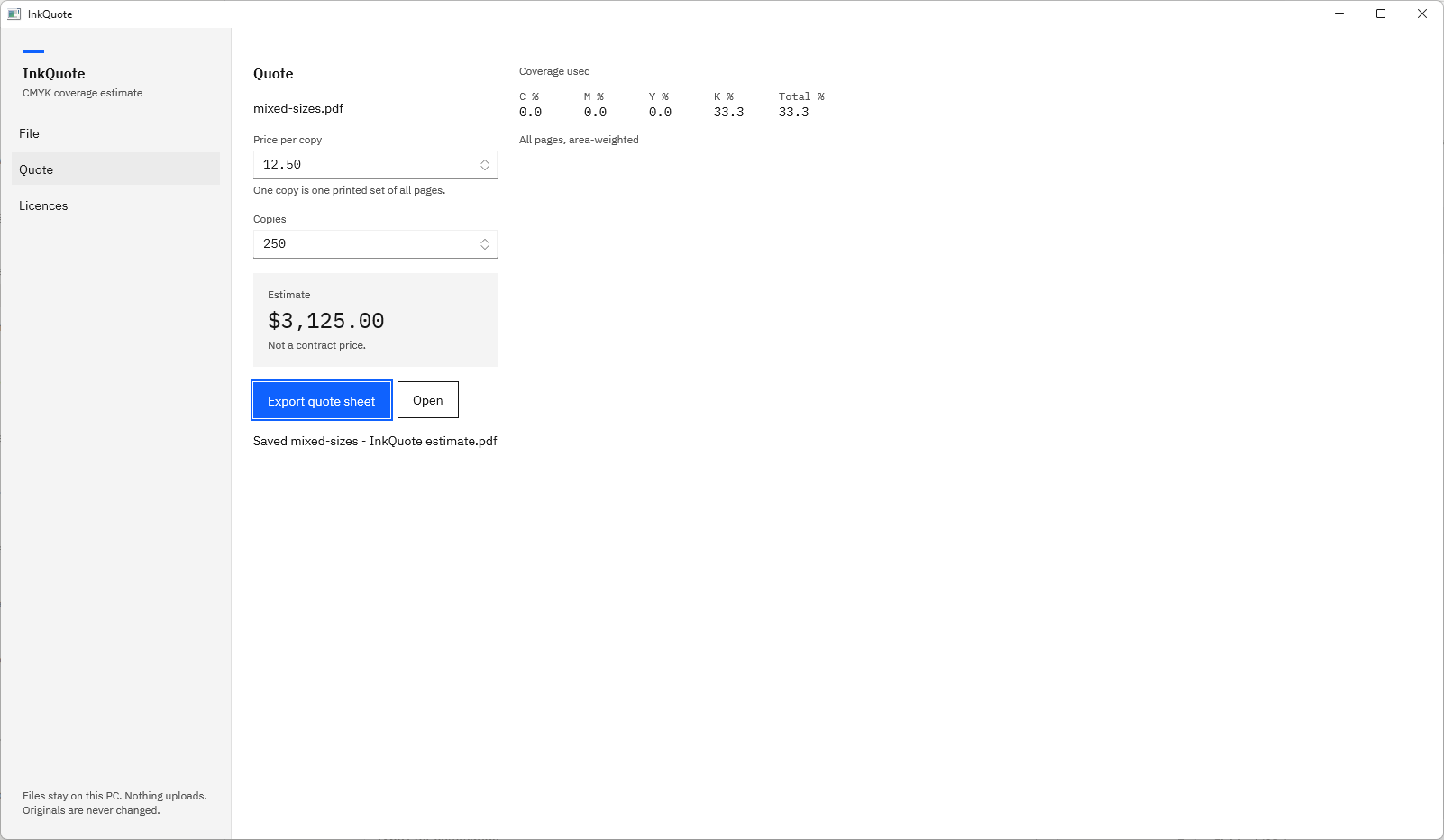
Open the Quote section and type a price per copy and the number of copies. InkQuote shows the estimate, price per copy times copies, in the currency symbol from your Windows regional settings. One copy is one printed set of all pages. The Coverage used panel beside it shows the C, M, Y, K, and total figures the price rests on.
What is on the exported quote sheet?
One page titled Ink coverage estimate, with the source file name, the date it was prepared, a page table of size, C, M, Y, K, total, and notes, the area-weighted document total, any spot colours, and the quote: copies times price per copy, and the total. It is saved as a new PDF on Letter or A4 paper to suit your region.
Can it open password-protected PDFs?
Yes. When a PDF needs a password, InkQuote names the file, shows a password box, and measures the file after you choose Retry. A file that is not a PDF, or is damaged, gets one sentence naming the file and the reason, and the Recent list and Open PDF stay right there.
How does it handle long documents?
InkQuote measures page by page and shows its progress as Page N of M. Choose Cancel and it keeps every page measured so far, with the total covering those pages, for example Pages 1–81 of 500. A long catalogue gives you figures to work from without waiting for the last page.
What happens to my original PDF?
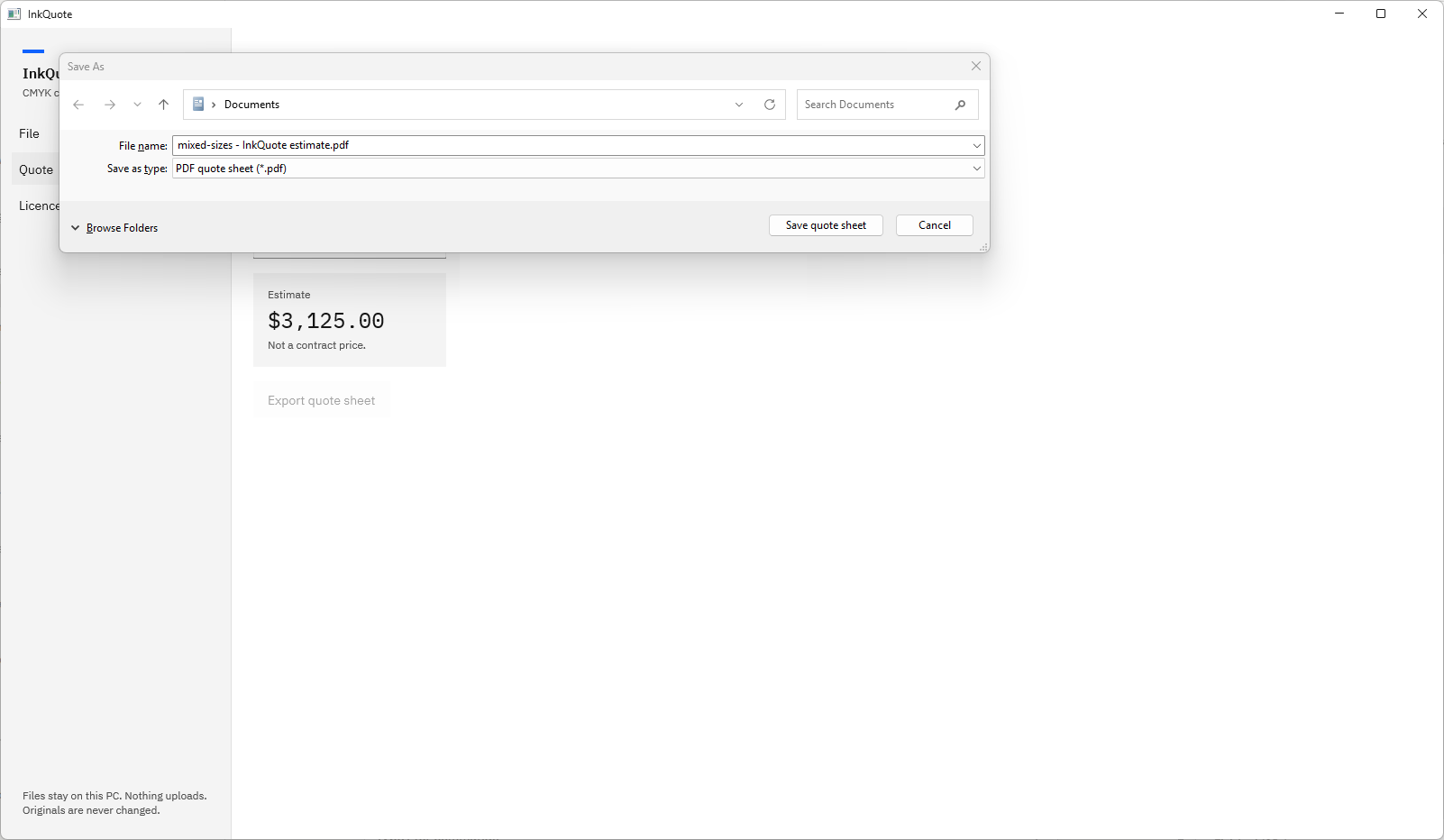
It is opened for reading only and stays exactly as it was. The quote sheet is always a new file you name in the Windows Save dialog, which suggests the name of your file followed by InkQuote estimate.pdf, and InkQuote refuses a save that would land on the PDF you opened or on any file in its Recent list.
Where do my files go?
They stay on your PC. InkQuote runs in the Windows app sandbox with no declared capabilities, including no network access, and it has no account and no telemetry. It opens only the PDF you pick and writes only the quote sheet you name. The Recent list lives in the app’s own local settings.
What does it cost, and is there a trial?
InkQuote is a one-time purchase in the Microsoft Store, and the listing shows the current price in your currency. The Store runs a 15-day free trial with every feature, and there is nothing to activate in the app. There is no subscription and there are no in-app purchases.
What Windows version do I need?
Windows 10 version 2004 or later, or Windows 11, on an x64 or ARM64 PC, with a display of 960 by 600 or larger; 1100 by 720 or larger is recommended. InkQuote has light and dark themes, works from the keyboard, and names every control for screen readers.