When a cabinet order changes after cutting has started, pause the saw, record which pieces are already cut, compare the revised parts list with the old one by part ID, and sort every piece into five piles: cut new, recut and scrap the old, cut as planned, keep, and surplus. CutPacket builds that list on Windows from your revised CSV and the pieces you tick as cut, and prints new labels only for the pieces that need them.
Changes after the first sheets are cut are normal in small cabinet work. The client sees the kitchen taped out on the floor and wants the sink base 100 mm wider, a drawer bank goes because the dishwasher moved, a filler appears at the wall. The cost of the change is rarely the new material. It is the confusion on the cart: which of these stacked panels are still right?
Get a recut list for your next revised order, on your own PC.
Get it from Microsoft
Why mid-cut changes cause rework
Three things usually go wrong, and none of them is a woodworking problem.
- The labels move. Running a fresh layout for the revised order renumbers sheets and pieces, so the names written on cut panels no longer match the new printout.
- Changes hide in plain sight. A stretcher that grew from 864 to 964 mm looks like every other stretcher on the list. Comparing two printouts by eye misses it, and the short piece is found at assembly.
- Leftover parts drift into the job. Panels for a cabinet the client dropped sit on the cart with everything else and get used by mistake.
The recut checklist
- Pause and tag the cart. Stop cutting for the job, and keep the cut pieces together with their labels on.
- Record what is cut. Note every piece that came off the saw, by its label. Whole sheets are quickest: if sheet 1 is done, every piece on it is cut.
- Get the revised parts list in the same format. Same columns, same units, and the same IDs for parts that still exist. New parts get new IDs; removed parts simply disappear from the list.
- Compare by ID, not by row. Rows get sorted and inserted. The part ID is the one stable key, so match old and new parts on it and compare size, material, grain, and quantity.
- Sort every piece into one of five actions. New or changed and not yet cut: cut. Changed and already cut: recut and scrap the old piece. Unchanged and not yet cut: cut as planned. Unchanged and already cut: keep. Already cut but no longer needed: surplus.
- Lay out only what still has to be cut. Kept pieces already exist, so they should not take space on new sheets.
- Mark new and recut labels so they stand out. The operator should see at a glance that a label belongs to the revision, and which old piece it replaces.
- Set surplus aside physically. Move removed and extra pieces off the cart, so they cannot slip into a cabinet.
- Find the sheets that need the saw. Some sheets in the new plan may hold only pieces that are already cut or planned; send the operator to the ones with new work first.
- Save the revision. Keep the revised list and the record of cut pieces together for the next change.
For the reasoning behind each action, see revision cut list.
Ways to handle the change
| Method | How it works | Good fit when | What to expect |
|---|---|---|---|
| Start over with a new layout | Run the revised list through a layout tool as a new job | Nothing has been cut yet | Labels and sheets renumber, and cut pieces are laid out again |
| Mark up the old printout | Cross out and write in changes by hand | One or two parts changed | Easy to miss a size change, and no new labels |
| Compare two spreadsheets | Lookup formulas match old and new rows | Someone in the office enjoys formulas | Shows the changes, but not which pieces are cut or where new ones go |
| CutPacket recut list | Tick cut pieces, import the revised CSV, generate | Small shops whose orders change mid-job | Why it works: one action per piece, kept pieces use no new stock, and NEW and RECUT labels print for the revision |
Meet CutPacket
CutPacket compares a revised parts CSV with the previous revision by part ID and prints a recut list, new labels, and fresh cut diagrams for only the work that is left, on your Windows PC.
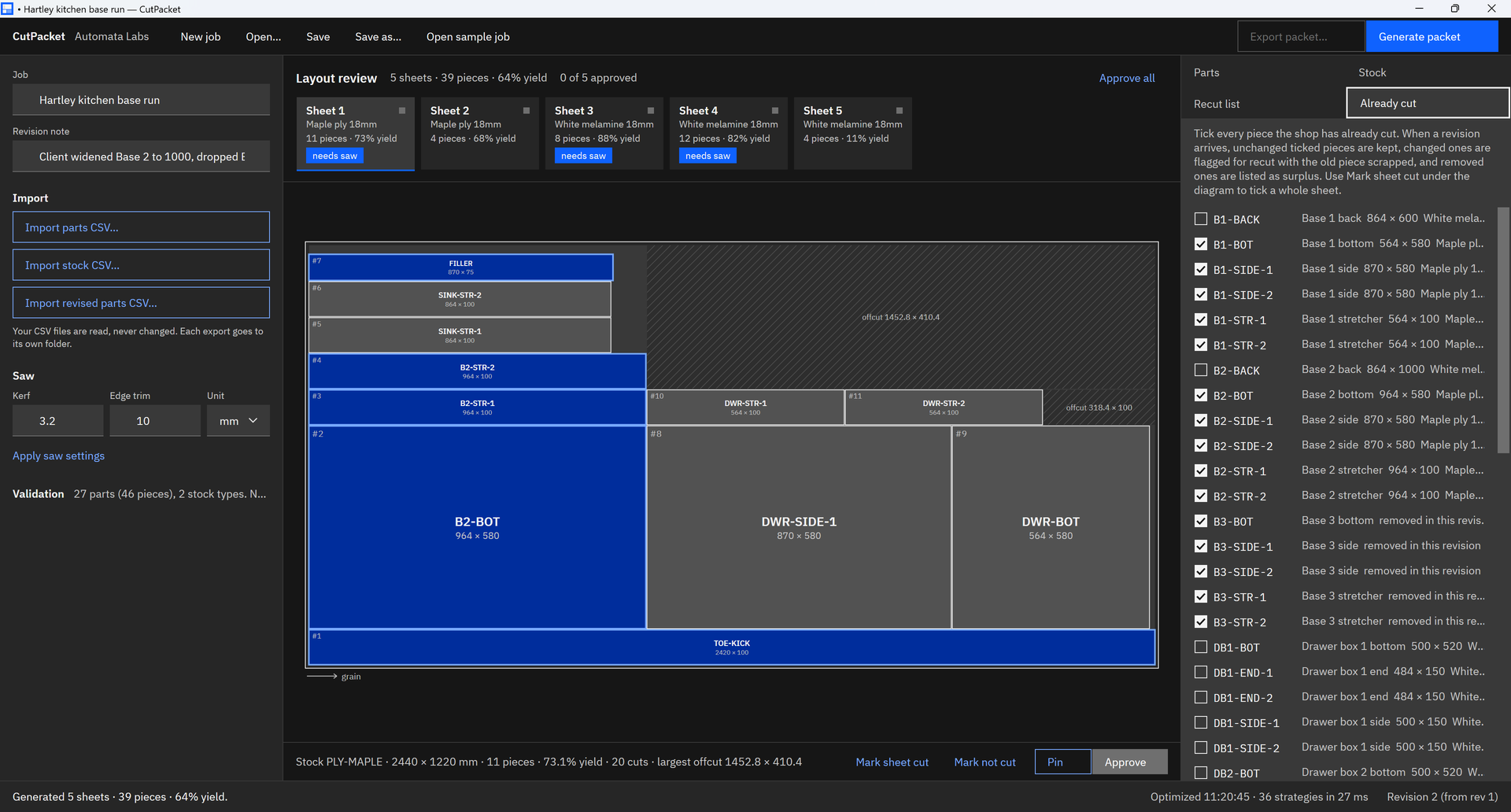
Screenshots use the Hartley kitchen sample job that comes with CutPacket: Base 2 widened, Base 3 dropped, a filler added, and a second drawer box 3.
How to run the checklist in CutPacket
- Open the job. Choose “Open…” (Ctrl+O) and pick the job’s .cutpacket project file.
- Tick what is cut. On the “Already cut” tab, tick each piece that came off the saw, or select a sheet in the layout review and choose “Mark sheet cut” to tick all of its pieces. Choose “Save”.
- Import the revision. Choose “Import revised parts CSV…” (Ctrl+R) and pick the new parts file. The Parts tab marks each part New, Changed, Qty up, Qty down, or Notes, and the status bar shows the revision number.
- Generate. Choose “Generate packet” (Ctrl+G). Kept pieces stay out of the new layout, and sheets with work on them are tagged needs saw.
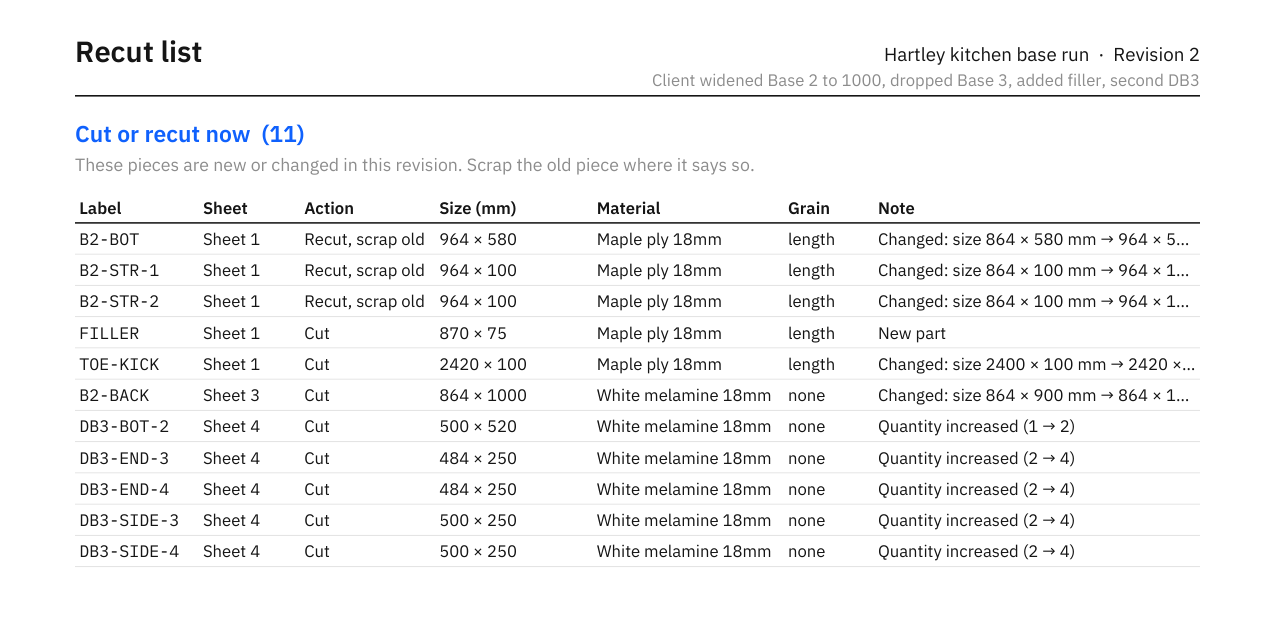
- Read the recut list. Open the “Recut list” tab. Each row shows the label, the action, the sheet, the size, and the reason, such as Changed: size 864 × 580 mm → 964 × 580 mm. Scrap the old B2-BOT.
- Approve and export. Choose “Approve all” after reviewing the sheets, then “Export packet…” (Ctrl+E). The revision gets its own folder, so the first packet stays as it was.
- Hand it out. Give the operator the recut list PDF and the diagrams for the sheets that need the saw, print the labels, and move the surplus off the cart.
What the shop receives
- A recut list that leads with the work. The PDF opens with Cut or recut now, then the surplus to set aside, the pieces to cut as planned, and the pieces already cut and kept.
- Labels for the revision only. Pieces to cut get a NEW tag; changed pieces that were already cut get a RECUT tag with the change and the old piece to scrap. Kept pieces keep the labels they have. See cabinet part labels.
- A summary with the count. The first page of the cut diagrams states the revision work, in the sample 11 pieces to cut or recut, 7 already cut and kept, and 5 surplus, with the sheets that need the saw: 1, 3, 4.
Setting up the job from scratch? Start with how to make a cabinet cut list from a spreadsheet, and for the vocabulary, cut list terms explained.
Frequently asked questions
What if the client only renamed a part?
When only a part’s name or notes change, CutPacket treats the piece as unchanged. It shows Notes on the Parts tab, keeps an already-cut piece as Keep, and leaves a piece not yet cut as Cut as planned, so a corrected description sends nothing back to the saw.
What if a quantity goes down?
The pieces still needed stay as they were. An extra piece that was already cut is listed as Surplus with the reason Quantity reduced, so it is set aside rather than used.
Can I start the comparison over?
Yes. On the Recut list tab, “Forget previous revision” drops the comparison and treats the current list as a first revision, while keeping the pieces you ticked as cut.
Try CutPacket
CutPacket is a one-time purchase in the Microsoft Store with a 15-day free trial. Open the sample job to see a real revision, then run one of your own changed jobs through it: tick the sheets the shop finished, import the revised CSV, and compare the recut list with what you redid by hand. Everything stays on your PC. Visit the CutPacket product page or the cabinet cut list software overview.
Turn your next revised cabinet order into a recut list during the 15-day free trial.
Get it from Microsoft
Last updated 15 October 2026. Published by Automata Labs, a software company in Canada.