Copier scan to folder saves each scan job as one PDF in a folder. To split that PDF into separate, named files, point a splitter at the folder, split each new scan at separator sheets, blank pages, or a page count, check the proposed names, and write the results to a different folder.
The copier in the hall is set up to scan to a folder on the front-desk PC. People drop a stack in the feeder, press the button, and walk away. By Friday the folder holds forty files named by date and time, each with several documents inside, and someone has to open, split, and rename every one of them.
Turn copier scans into separate, named PDFs on this PC.
Get it from Microsoft
How copier scan-to-folder works
Most office copiers can save a scan straight into a shared folder on a computer. You set the destination once in the copier’s address book, and every job you send there arrives as one PDF, usually named with a prefix plus the date and time.
Many copiers can also split a job every N pages, add a file name prefix, or remove blank pages. What a copier cannot do is tell where one document ends and the next begins in a mixed stack, or read an invoice number off the page to name the file.
Options for sorting copier scans
- By hand. Open each PDF, extract the page ranges, and type a name for each part. Reliable, but it takes as long as the scanning saved.
- The copier’s page-count split. Works for identical forms only.
- A tool that files new scans as soon as they arrive. Quick, but a misread name or a missed separator is filed before anyone sees it, and you find out later when something is in the wrong folder.
- A watched folder that waits for you. New scans are picked up, but nothing is split, named, or written until you have checked the result. This is how ScanRoute works.
Meet ScanRoute Local
ScanRoute Local watches a folder on this PC for new copier scans, and each one waits for you to plan, check, and commit it.
It splits at Code 128 or QR separator sheets, at blank pages, or every N pages, names each file from a template and one zone you draw, and writes the results to the destination folder you choose. It has no account and makes no network connection. Nothing uploads.
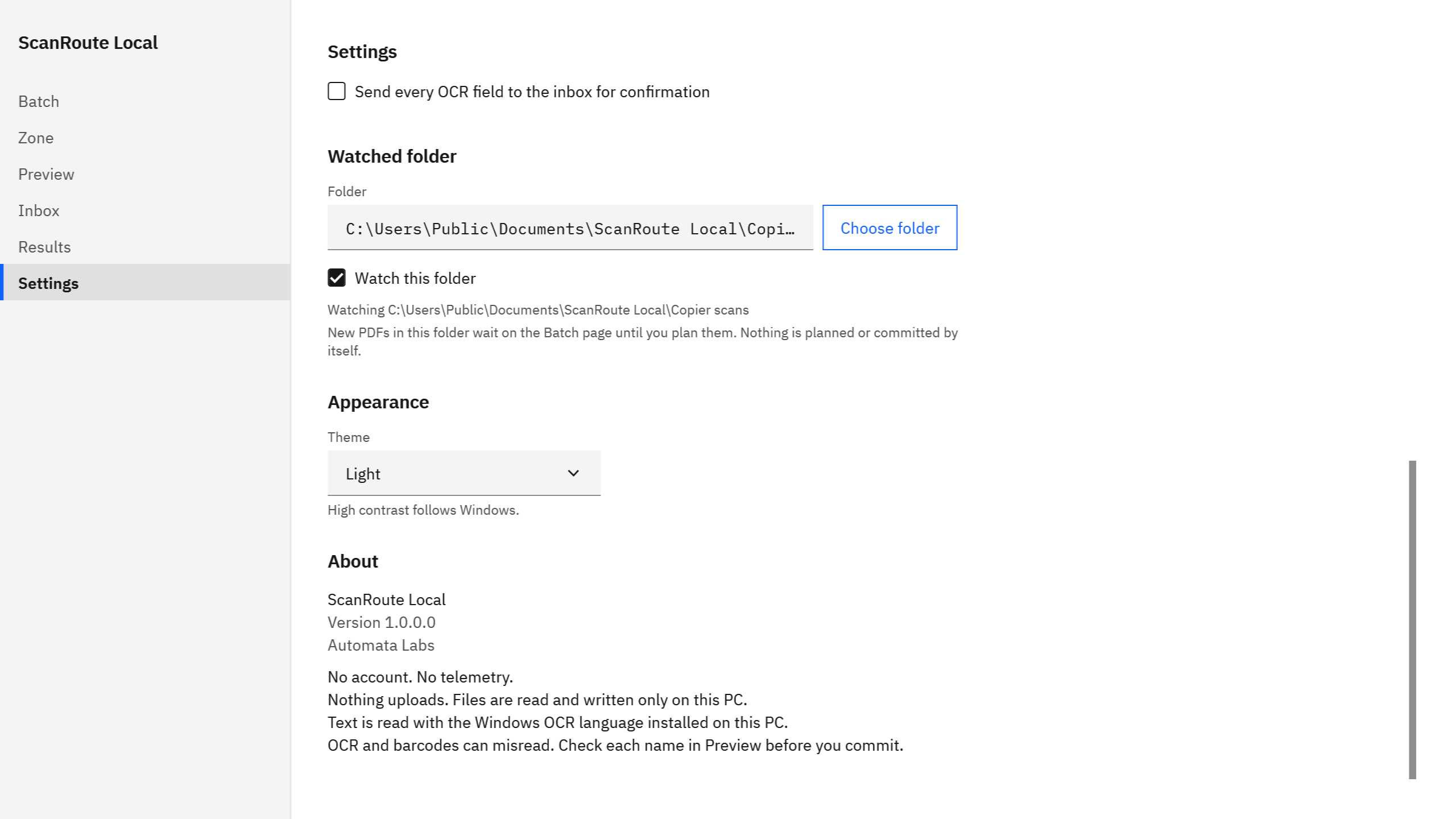
Screenshots show a synthetic batch with fictitious client codes.
Turn on the watched folder
- Choose the folder. In Settings, under Watched folder, choose the folder your copier scans into. It must be a folder on this PC.
- Turn it on. Tick “Watch this folder”. Watching is off until you turn it on, and Settings shows which folder is being watched.
- Choose a different destination. Under Destination, pick where the split PDFs should go. ScanRoute refuses a destination that is the same as the watched folder or a source folder, so keep the output in a folder of its own.
- Set how to split. Under Splitting, choose Split mode: “Barcode”, “Blank page”, “Barcode or blank page”, or “Every N pages”. For barcode sheets, set a “Separator prefix” such as
SR-. - Set the names. On the Zone page, draw one zone and set a template such as
{Client}\{Date}_{Type}_{Id}.pdf. The OCR zone guide covers this in detail.
Why new files wait instead of filing themselves
OCR and barcodes can misread, and stacks get put together between other tasks. A separator sheet gets left out, a received stamp lands on the invoice number, a page is missing. If every new scan were split and filed as it arrived, those mistakes would sit in your folders until someone stumbled on them.
So ScanRoute does not file anything by itself. In the app’s own words: “New PDFs in this folder wait on the Batch page until you plan them. Nothing is planned or committed by itself.”
Plan, check, and commit a batch
- Plan the waiting scans. On the Batch page, plan each new PDF when you are ready. The summary shows the count, such as “11 documents: 8 ready, 3 need review, 0 skipped”.
- Check Preview. Every proposed name and folder is listed with the pages it came from and why it was split there.
- Settle the Inbox. Unsure reads, missing separators, bad file names, duplicates, and unreadable PDFs wait here. Type the fields and choose Apply fields, fix the name with Apply name, Accept, or Skip.
- Commit. Choose Commit in Preview. Only ready documents are written; anything still in the Inbox stays there for later.
- Open the manifest. Results lists every committed file. Results > “Open manifest” shows the CSV record of this commit.
Let copier scans wait for you instead of filing themselves.
Get it from Microsoft
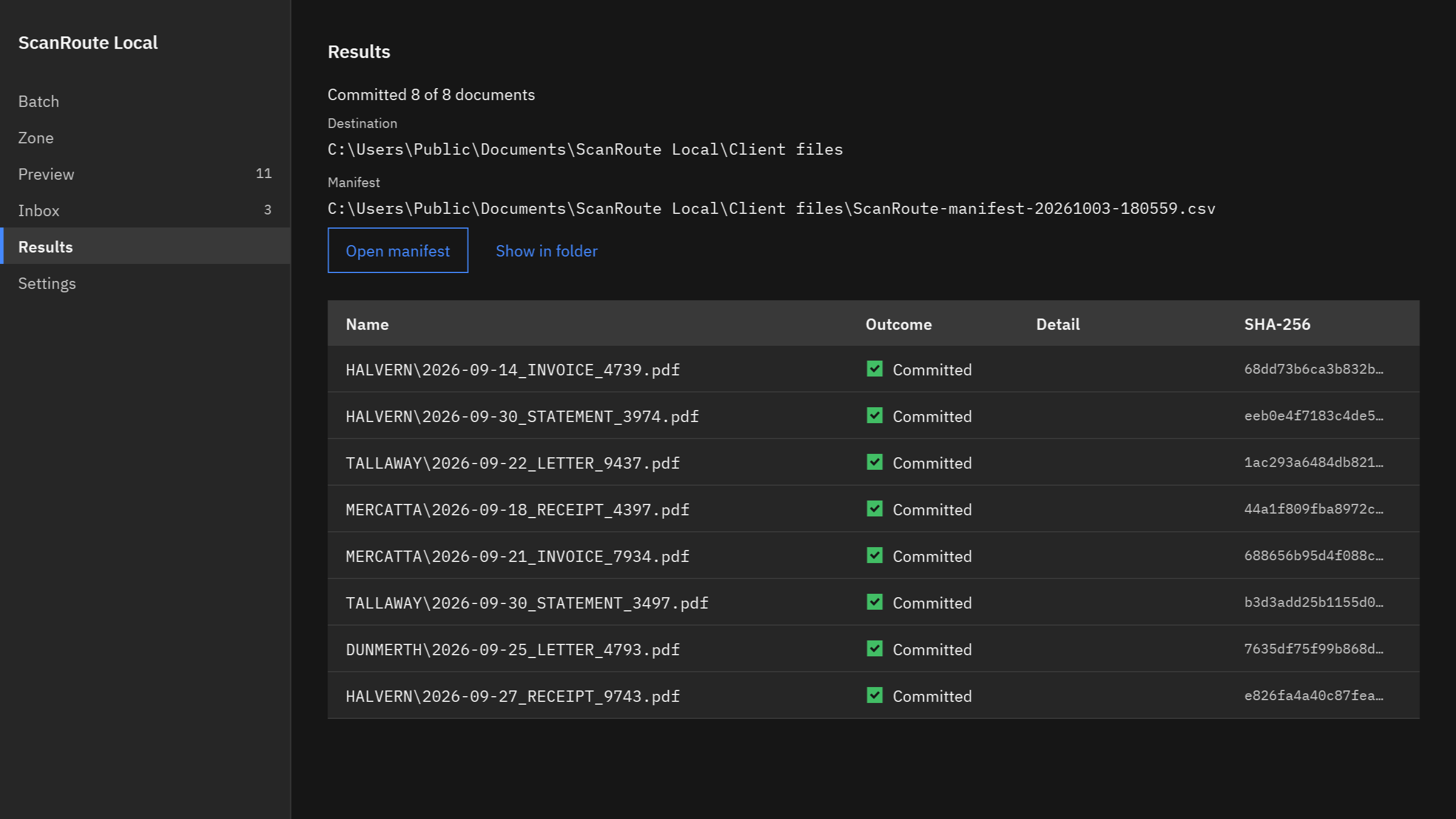
The CSV manifest as a record of what was written
Each commit writes a new CSV manifest in the root of the destination folder, with a name such as ScanRoute-manifest-20261003-180559.csv. It lists every file written with its SHA-256 hash, and it records any page that did not get a searchable text layer. You can open it in Excel or any spreadsheet app.
To check later that a file has not changed since it was written, compare its hash with the manifest. In Command Prompt:
certutil -hashfile "C:\Client files\HALVERN\2026-09-14_INVOICE_4739.pdf" SHA256What happens to the original scans
Your original PDFs are only read. ScanRoute never changes, moves, or deletes them, and it never overwrites an existing file. That also means the copier folder keeps every scan. Once you have checked the committed files, archive or clear out the originals yourself on your own schedule.
If your destination is a folder that a sync app such as OneDrive manages, that app may copy the files elsewhere under its own settings. ScanRoute itself sends nothing; the privacy section of the product page has the details.
Limits
- The watched folder, sources, and destination must be folders on this PC. Folders on another computer or a file server are not supported in this version.
- PDF input only. ScanRoute does not control the copier or change its settings.
- One zone per document for naming.
Offices with steady copier traffic, such as property management document scanning and bill of lading and POD scans, use the same setup. For the split methods themselves, see split a scanned PDF into separate files on Windows.
FAQ
Does the watched folder file my scans by itself?
No. The watched folder is off until you turn it on, and new PDFs in it wait on the Batch page until you plan them. Nothing is planned or committed by itself. You check every proposed name in Preview, settle the Inbox, and choose Commit when you are ready.
Can ScanRoute watch a folder on another computer or a file server?
Not in this version. The watched folder, the source files, and the destination must all be folders on the PC where ScanRoute runs. If your copier saves into a folder on that same PC, ScanRoute can watch it. More answers are in the product FAQ.
What happens to the scans in the copier folder?
They stay where they are. ScanRoute only reads original PDFs and never changes, moves, or deletes them. The split, named files are new files in the destination folder you chose, and each commit writes a CSV manifest listing them. You decide when to archive or remove the originals.
Can our whole office use one purchase?
Microsoft Store purchases are per user: each person who uses ScanRoute Local gets it with their own Microsoft account, and there is no volume license. One person can still plan, check, and commit every scan that lands in the watched folder on their own PC.
Try ScanRoute Local
ScanRoute Local is a one-time purchase in the Microsoft Store, and the Store offers a free trial so you can point it at your own copier folder first. It runs on Windows 10 version 2004 or later, or Windows 11, on an x64 PC. Nothing uploads. See the ScanRoute Local product page for more.
Watch your copier folder and commit only what you have checked.
Get it from Microsoft
Last updated 5 October 2026. Published by Automata Labs, a software company in Canada.