A cut list is the plan for turning stock sheets into parts, and a handful of terms carry most of its meaning: kerf is the width the saw blade removes, edge trim is the strip taken off each factory edge, grain direction says which way a part’s length must run, and a guillotine cut runs straight across a panel from one edge to the other. This glossary covers those and the rest, rips, crosscuts, offcuts, yield, part IDs, and revisions, with examples from the Hartley kitchen sample job in CutPacket.
The examples use 18 mm maple ply and white melamine on 2440 × 1220 mm sheets, a 3.2 mm kerf, and a 10 mm trim; the same ideas apply in inches.
See every one of these terms on a printed sheet from your own parts list.
Get it from Microsoft
The documents
Parts list. Every part the job needs, with an ID, a finished length and width, a quantity, a material, and a grain direction. It is usually a spreadsheet. See how to make a cabinet cut list from a spreadsheet for the columns.
Stock list. The sheets on hand: material, length, width, quantity, and whether the sheet has a grain direction.
Cut list. The plan the saw follows: which piece comes from which sheet, and the order of the cuts that release it.
Cutting diagram. A drawing of one sheet with every piece in place, usually with the cut order beside it. Our plywood cutting diagram page shows one in detail.
Saw terms
Kerf. The width of material the blade removes on each cut. Panel saw and table saw blades are commonly around 3 mm, often quoted as 1/8 inch. Five 100 mm stretchers ripped from one strip need 500 mm of material plus a kerf between each pair, so ignoring kerf leaves the last stretcher short. CutPacket’s default kerf is 3.2 mm, and you can enter your own in millimetres or inches, fractions such as 1/8 included.
Edge trim. Factory edges are often chipped or slightly out of square, so a strip is cut off each edge before parts are laid out. A 10 mm trim on a 2440 × 1220 sheet leaves 2420 × 1200 to work with. On a CutPacket diagram the trim band is shaded, and the first two cuts in the sequence are the reference rip and crosscut that clean the edges.
Rip. A cut along the length of the sheet, with the grain on veneered ply. In CutPacket’s cut sequence a rip is listed with its position across the width, such as Y = 110.
Crosscut. A cut across the sheet, at a right angle to a rip. It is listed with its position along the length, such as X = 974.
Guillotine cut. A cut that runs straight from one edge of the panel being cut to the opposite edge. Panel saws and sliding table saws work this way, and a layout built from guillotine cuts never needs a plunge or a stopped cut. CutPacket builds every layout that way.
Cut sequence. The numbered order of cuts on a sheet. On a CutPacket diagram, each piece also carries a small number for the order it comes off the saw, the same saw number printed on its label.
Material terms
Grain direction. On veneered ply and solid wood, the visible grain runs one way, along the length of the sheet. A cabinet side usually wants its grain vertical, so its length must run along the sheet length. CutPacket uses three values per part: length (keep the part’s length along the sheet), width (turn the part 90 degrees), and none (either way). Stock sheets are marked grain yes or no.
Rotation. Turning a part 90 degrees to fit it better. It is allowed for parts marked none and for every part on stock marked grain no, such as melamine or MDF. Labels and diagrams always print the size as listed, even when the piece was turned.
Offcut. A leftover piece of a sheet, also called a remnant or drop. CutPacket hatches leftovers at least 100 mm each way and prints their size, such as offcut 1452.8 × 410.4, so useful pieces can be racked for fillers and small parts.
Yield. The share of a sheet’s area that becomes parts. In the sample job, sheet 1 of maple ply has a yield of 73.1% and the whole job 64.4%. Each sheet’s yield is printed on its page.
Revision terms
Part ID. The short name for a part, such as B2-BOT for the bottom of base 2. In CutPacket the ID from your CSV is the label on the piece.
Instance label. When a part has a quantity above one, each piece gets its own label: B2-STR-1 and B2-STR-2. A single piece keeps the plain ID.
Revision. A changed version of the parts list. Matching IDs are how a revision is compared with the one before it, so IDs should never be reused for a different part.
Recut list. The list a shop works from after a revision. In CutPacket every piece gets one action: Cut, Recut · scrap old, Cut as planned, Keep, or Surplus. The revision cut list page explains each one.
Surplus. A piece already cut that the revised order no longer needs. It is set aside so it does not end up in another cabinet.
Ways to handle kerf, trim, and grain
| Method | How kerf, trim, and grain are handled | Good fit when | What to expect |
|---|---|---|---|
| Hand layout on graph paper | Added by the person drawing | A small one-off job | Easy to drop a kerf or turn a grained part |
| Spreadsheet formulas | Kerf added in formulas, grain noted in a column | Simple strip cutting | No drawing, and grain is checked by eye |
| A general online optimizer | Usually a kerf field; trim and grain vary by site | Personal projects | Job data is uploaded |
| CutPacket | Kerf and trim set per job, grain per part and per sheet, checked before layout | Cabinet shops cutting veneered ply and melamine | Why it works: blank grain on grained stock is flagged before layout, and every page footer prints the kerf and trim used |
Meet CutPacket
CutPacket turns a parts CSV and a stock CSV into cut diagrams, labels, and a revision recut list on your Windows PC, with every term above applied and printed where the shop can see it.
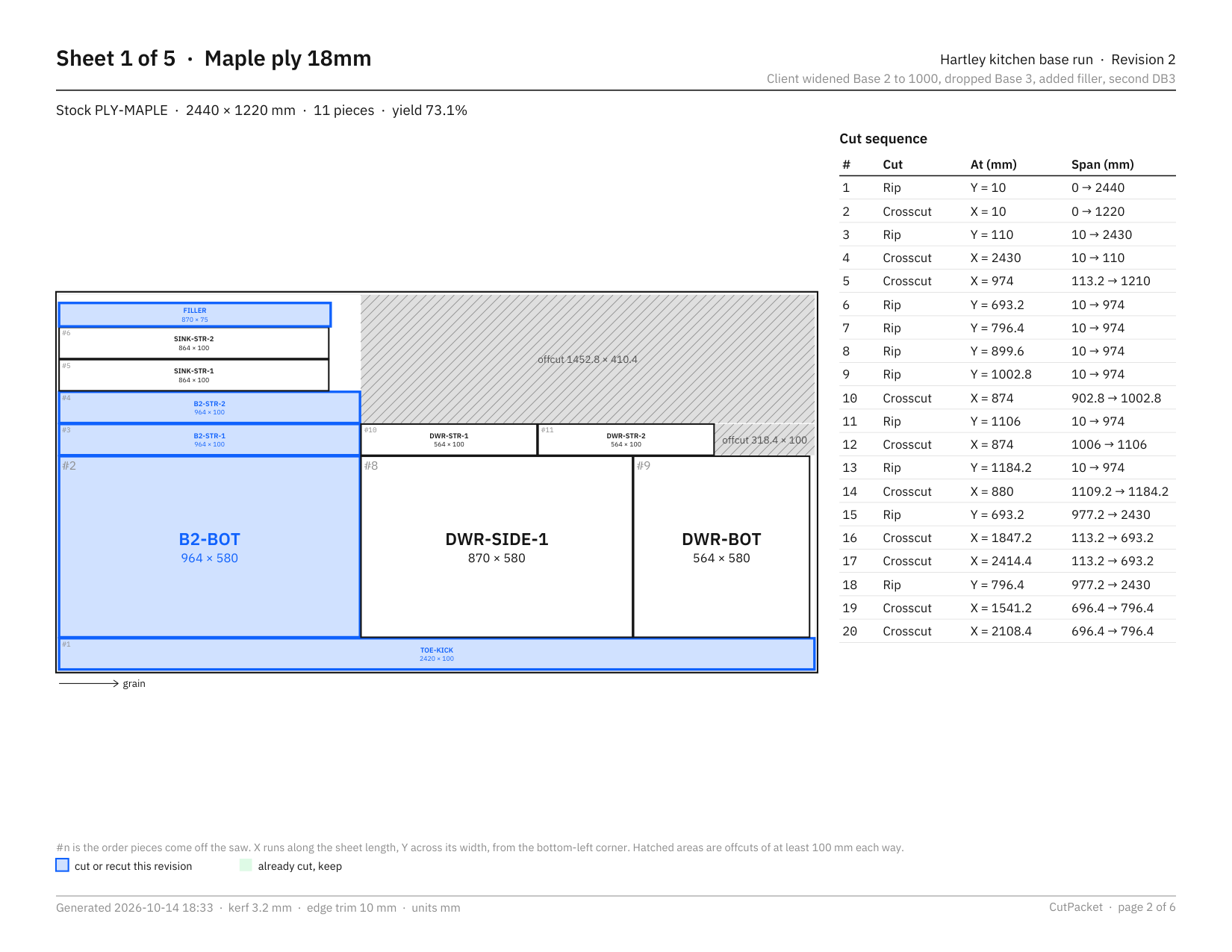
The diagram comes from the Hartley kitchen sample job that ships with CutPacket.
How to see each term in CutPacket
- Open the sample. Choose “Open sample job” in the header. It loads the Hartley kitchen at revision 2, with the first maple sheet already marked as cut.
- Check the saw settings. Under Saw, “Kerf” reads 3.2 and “Edge trim” reads 10, with “Unit” set to mm.
- Generate. Choose “Generate packet” (Ctrl+G). The layout review shows each sheet with its pieces and yield.
- Read a sheet. Select Sheet 1. The trim band, the hatched offcuts, and the grain arrow are on the canvas. Hover a piece to see its label, size, and saw number, and whether it was rotated.
- Read the recut list. Open the Recut list tab to see Recut · scrap old, Cut, Cut as planned, Keep, and Surplus in use.
- Export. Choose “Approve all”, then “Export packet…” (Ctrl+E). The cut diagrams PDF prints the cut sequence for each sheet, with each rip and crosscut, its position, and its span.
Frequently asked questions
How much kerf should I enter?
Enter the width of the blade on the saw you will use, as listed by the blade maker or measured from a test cut. Many panel saw blades are around 3 to 3.2 mm, or 1/8 inch. CutPacket flags a kerf over 25 mm as a likely unit mistake, so a value typed in the wrong unit is caught before layout.
Does edge trim apply to all four edges?
Yes. The trim is taken off every edge of the sheet before parts are placed, so the usable area is the sheet size minus twice the trim each way. Set it to 0 for stock with clean, square edges.
Try CutPacket
CutPacket is a one-time purchase in the Microsoft Store with a 15-day free trial. Open the sample job, generate it, and read every term on a printed sheet, then run your own parts list through it. For the full workflow, read how to make a cabinet cut list from a spreadsheet, and for layout details, see cut list optimizer for Windows or the CutPacket product page.
Print a cutting diagram with your own kerf, trim, and grain during the 15-day free trial.
Get it from Microsoft
Last updated 15 October 2026. Published by Automata Labs, a software company in Canada.