To delete an old iPhone backup on Windows, open the Apple Devices app, select your iPhone, choose Manage Backups on the General tab, right-click the backup and choose Delete. In iTunes, choose Edit, then Preferences, then Devices. Apple says deleted backup files can’t be recovered, so save any conversation you still need first.
Old backups pile up quietly, one folder for each iPhone that has been backed up to the PC. The catch is that an old backup may hold a conversation you still want, and once the backup is deleted, that copy is gone from the PC.
Keep the one conversation you need before you delete the backup.
Get it from Microsoft
Why do iPhone backups take up so much space?
Apple’s page on backup methods says a backup from a computer includes almost all of your device’s data and settings. Each device you back up has its own folder, so every phone you have used with this PC can leave one behind. To see a backup’s size, right-click its folder in File Explorer and choose Properties.
A large folder does not mean it holds your messages. Apple says a backup made on a computer leaves out iMessages and texts that already sync to iCloud, so if Messages in iCloud is on, the backup may hold few or no conversations. Use the free trial to see what your backup holds before you decide anything.
Where are the backups on Windows?
There are two possible folders, depending on which Apple app made the backup. Check both if you have used more than one app over the years.
| App | Backup folder |
|---|---|
| Apple Devices app, or iTunes from the Microsoft Store | %USERPROFILE%\Apple\MobileSync\Backup |
| iTunes downloaded from Apple’s website | %APPDATA%\Apple Computer\MobileSync\Backup |
Press the Windows key + R, type %USERPROFILE% or %AppData%, and press Enter, then follow the path. Our guide on where iPhone backups are stored on Windows has the full steps.
How do I tell which backup is which?
Each backup is a folder named with the iPhone’s device ID, a long code such as 00008110-001A2B3C4D5E6F7A on newer iPhones (older models use 40 characters), so the name alone will not tell you which phone it belongs to. Use one of these instead.
- The backup list in Apple Devices or iTunes. Apple’s page on encrypted backups describes the list under Manage Backups in Apple Devices, or in the Devices pane of iTunes preferences. It shows your device’s name, a lock next to encrypted backups, and the date and time each backup was made. In Apple Devices, right-clicking a backup offers Show in Explorer, which opens its folder.
- BackupPaper. BackupPaper shows the device name and the backup date after you open a folder, then lists the conversations inside.
Meet BackupPaper
BackupPaper is the keep-what-you-need step: it saves the one conversation you want from an old backup as a file, before the backup goes.
BackupPaper is a Windows app that saves one conversation from an iPhone backup on your PC as a PDF or CSV file. It reads backups made by iTunes or Apple Devices, including encrypted ones when you type the password.
- It never changes the backup. It opens the backup read-only, and every export is a new file that you name.
- Exports stay out of the backup folder. It refuses to save there, so the file you keep is not deleted with the backup.
- You can check the file later. It shows the SHA-256 of each export, which you can confirm with
certutil -hashfile. - Nothing leaves the PC. It makes no network connections, needs no account, and does not need the iPhone connected.
Step by step: keep the conversation, then delete the backup
Part 1: Save the conversation with BackupPaper
- Open the old backup. Start BackupPaper and choose the backup’s folder. For an encrypted backup, type the password you set.
- Find the conversation. BackupPaper lists the conversations with message counts and last dates, newest first.
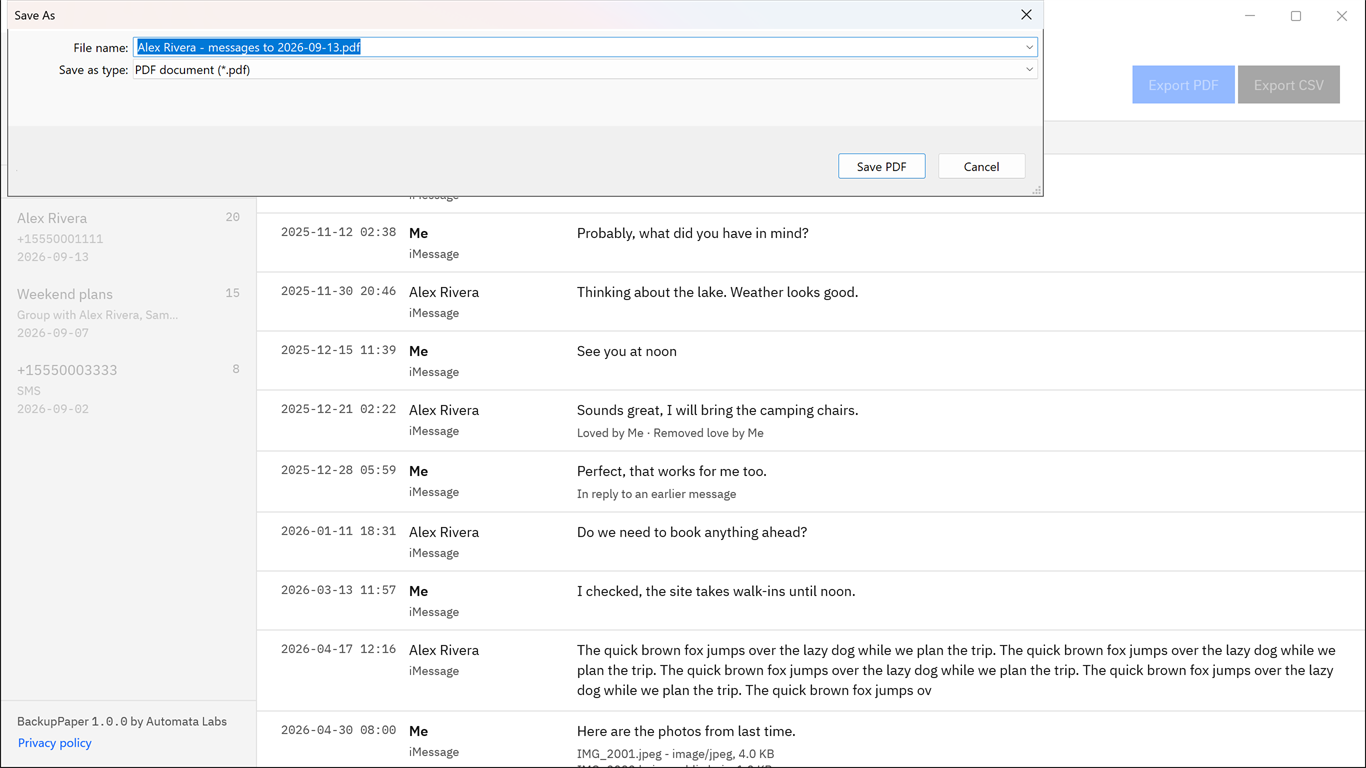
- Export it. Choose Export PDF, or Export CSV for a spreadsheet. Name the new file in the Windows Save dialog, in a folder such as Documents.
- Check the file. Open the PDF and note the SHA-256 that BackupPaper shows. You can confirm it later with
certutil -hashfile "<file>" SHA256in a Command Prompt. - Repeat for each conversation you want. BackupPaper exports one conversation per file. Close BackupPaper when you are done.
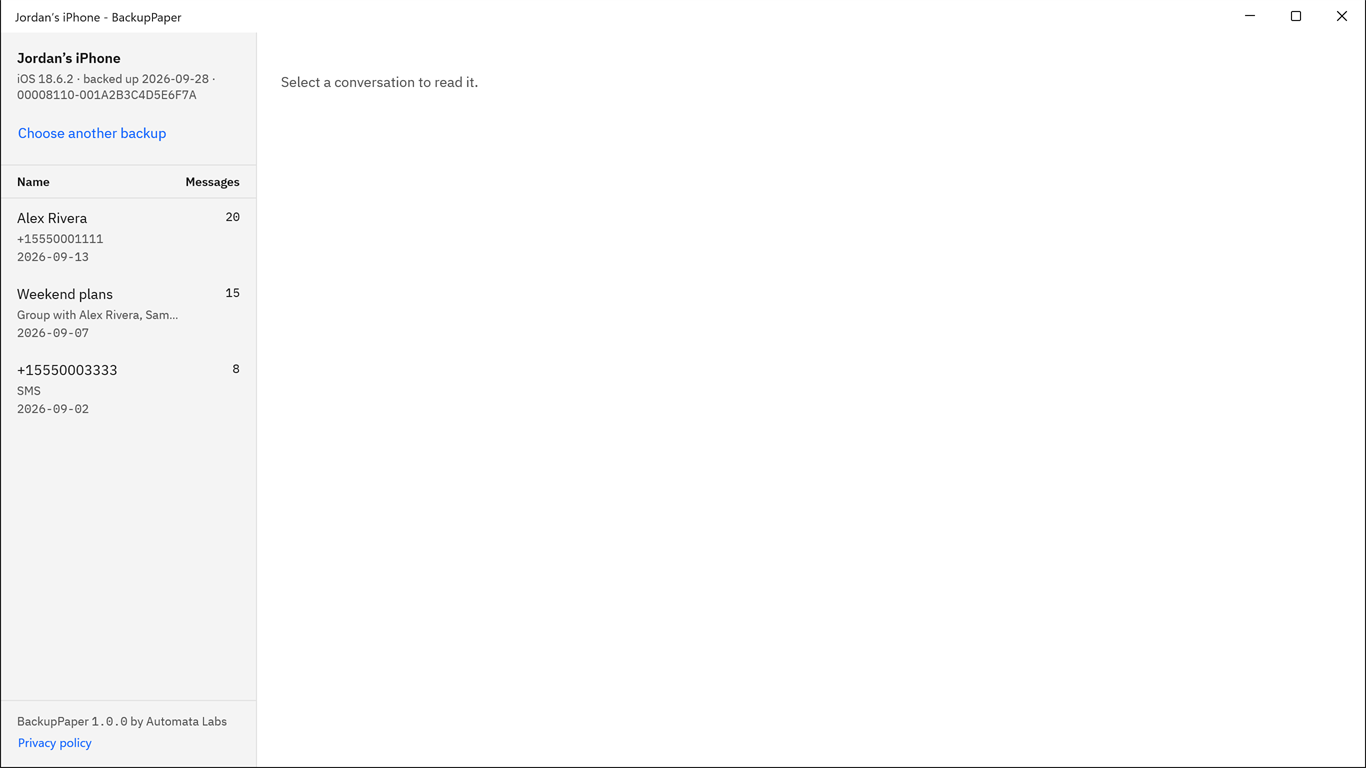
Screenshots use a synthetic backup with fictitious names.
For a spreadsheet copy, see exporting iPhone text messages to Excel, or saving text messages from iPhone to PC for the wider task.
Export the conversation and check its SHA-256 before anything is deleted.
Get it from Microsoft
Part 2: Delete the backup in Apple Devices
These steps follow Apple’s page on managing backups.
- Open the Apple Devices app.
- Connect your iPhone with a USB cable. If it is not selected automatically, select it. If asked, trust the device.
- Under the General tab, click Manage Backups to see a list of your backups.
- Right-click the backup you want to remove and choose Delete.
- Click OK when you finish.
Or delete it in iTunes
In iTunes, choose Edit, then Preferences, then click Devices. Select the backup and click Delete Backup. Apple’s iTunes guide says all backup files are deleted and can’t be recovered, which is why the export comes first.
Why delete from the app instead of File Explorer?
Apple’s documented route is the backup list in Apple Devices or iTunes, which shows the device name, the backup date and a lock for encrypted backups. In File Explorer you see only the coded folder names. Do not rename, move or edit files inside a backup folder as a way to set it aside; a change can damage the backup. This is general care advice.
What should I check before I delete?
- The password, for an encrypted backup. BackupPaper cannot recover or reset a password and cannot open an encrypted backup without it. Apple says that without the password, you won’t be able to use previous encrypted backups. See opening an encrypted iPhone backup on Windows.
- That deleting is final on this PC. Once deleted, the messages in that backup are gone from this PC, and BackupPaper does not bring back deleted messages.
- Messages in iCloud. Apple describes messages that sync with iCloud as already stored there, which is why a computer backup leaves them out. BackupPaper does not read Messages in iCloud.
- Photos and videos. BackupPaper lists attachments by name. It does not place photos or videos in the PDF or save them, so plan for those separately.
What other ways are there to keep a conversation?
| Method | Works well for | Watch for |
|---|---|---|
| Screenshots | A few messages that are still on a phone | One screen per shot, and the messages must still be on a phone |
| Restoring the old backup to an iPhone | Putting the backup’s information back on a phone | Needs a phone to restore, and you still have no file |
| A Mac’s print dialog | Saving a PDF if a Mac has the same messages | You need a Mac that has the messages |
| Reading the backup on the PC with BackupPaper | One conversation from the backup you are about to delete | The backup must hold the messages |
Reading the backup on the PC is the practical route here: the backup is already there, nothing is restored, and it stays unchanged until you delete it.
Frequently asked questions
Is it safe to delete old iPhone backups on Windows?
Yes, once you have kept what you need. Apple says deleted backup files can’t be recovered, so anything that exists only in that backup is gone from the PC. Before you delete, open the backup in BackupPaper, export any conversation you still need, and check its SHA-256. Then delete the backup from Apple Devices or iTunes.
Does deleting an iPhone backup delete messages on my iPhone?
Deleting a backup removes the backup files on the PC. Apple describes a backup as a copy of the information on your iPhone, so the messages on the phone are a separate copy. The messages inside that backup, though, are gone from the PC, so export any conversation you need first.
How much space will deleting an old backup clear?
About the size of its folder. In File Explorer, open the backup location, right-click the backup’s folder and choose Properties to see its size. Each device you back up has its own folder, so you can compare sizes and see which old backups take the most space before you choose.
Can I keep messages from an encrypted backup before deleting it?
Yes, if you know the password. Open the backup in BackupPaper, type the password you set, and export the conversation as a PDF or CSV. BackupPaper cannot recover or reset a forgotten password, and Apple says you won’t be able to use previous encrypted backups without it, so decide with that in mind.
Try BackupPaper
BackupPaper is a one-time purchase in the Microsoft Store, with a 15-day free trial run by the Store. The trial has every feature, with no watermark and no message limit, so you can open an old backup, export what you need and check the file before you delete anything. The Store installs and updates the app, and the receipt comes from Microsoft. Read more on the BackupPaper product page.
Keep the conversation you need during the 15-day free trial.
Get it from Microsoft
Last updated 5 October 2026. Published by Automata Labs, a software company in Canada.
iPhone, iMessage and iTunes are trademarks of Apple Inc., registered in the U.S. and other countries and regions. BackupPaper is not affiliated with or endorsed by Apple.