To do a takeoff from a PDF plan, set the scale on each sheet from a dimension you know, check it against a second dimension, then measure lengths, areas, and counts under labels such as Carpet or Base. Total each label for every sheet and the whole set, and move the totals into the spreadsheet where you price the job.
A takeoff is the measuring half of a bid. It turns the drawings into quantities a price can attach to: square feet of floor by material, linear feet of base, wall area at each height, and fixture counts. When the plans arrive as one PDF set, the job is to get those numbers out without losing track of what was measured.
Measure your next PDF plan set on your own PC.
Get it from Microsoft
What a takeoff from a PDF plan produces
Finish trades usually need some mix of five kinds of quantity.
| Quantity | Usual unit | Typical items | How it is measured |
|---|---|---|---|
| Length | linear feet or meters | base, trim, wall runs, edging | a run traced along the drawing |
| Area | square feet, square yards, or square meters | flooring, ceilings, slabs, roofing | a closed outline or a room |
| Count | each | fixtures, outlets, doors | one click per item |
| Wall area | square feet or square meters | drywall, paint | length times wall height, less openings |
| Volume | cubic yards or cubic meters | concrete slabs, fill | area times depth |
Every one of those rests on the scale. If the scale is off, every length is off by the same proportion and every area by its square, so set the scale first and check it.
Ways to do a takeoff from a PDF
| Method | Good fit | Trade-off |
|---|---|---|
| Print the sheets and use a scale ruler | A small job and a full-size print | The print must be at its stated scale, every figure is added and retyped by hand, and the record is pencil on paper |
| A PDF reader’s measuring tool | Checking a few distances or one area | Totals by material and a spreadsheet export vary from reader to reader, so the adding up may still be manual |
| An estimating suite | Large commercial work with assemblies, cost databases, and a team | Often sold per user, per year, and it takes time to learn |
| A takeoff tool | Measuring, labeling, and totaling, with pricing kept in your own spreadsheet | No pricing inside the tool; that stays in Excel |
If your unit prices and markup already live in a workbook, the part you need is the measuring.
Before you measure: read the set
- Note each sheet’s scale. It is usually in the title block or under each drawing title.
- Compare the page size with the sheet size. A set drawn on 24 by 36 inch sheets but saved at 11 by 17 inches has been reduced, and the scale printed in its title block no longer applies to the page.
- Look for NTS. A detail marked not to scale cannot be measured; measure the same area where it is drawn at the plan scale.
- Collect the third dimension. Wall heights, slab depths, and roof pitches come from sections, schedules, and notes.
Our guide on how to set the scale on a PDF drawing covers reduced prints and scale checks in detail.
Meet MeasureSet
MeasureSet is a takeoff ruler for plan PDFs: set the scale, measure, and hand the quantities to Excel, without changing the drawing.
MeasureSet is a Windows app for construction takeoff from plan PDFs: set the scale from a dimension you know, measure length, area, and counts, and export the totals to Excel, CSV, or a marked-up PDF. It works on your PC with no account, and nothing uploads. It is not an estimating suite. It has no assemblies, no cost database, and no cloud collaboration, so the pricing stays in your own spreadsheet.
Step by step: a takeoff from a PDF plan in MeasureSet
- Open the set. Choose Open > PDF plan and pick the file. The Sheets list shows every page with its size and “Not calibrated” until it has a scale.
- Set the scale. Choose Calibrate (C), click both ends of a long printed dimension, type its length, such as 40’-0”, and choose Calibrate. Tick “Use this scale on all sheets that have none” if the set shares one scale. For a full-size sheet, you can pick a standard scale in the Scale box instead.
- Check it. Choose Segment (S) and click both ends of a second printed dimension, ideally one running the other direction. If it matches the drawing, the scale holds.
- Name what you measure. Under Next mark, pick a color and type a label such as Carpet, LVP, Base, or Walls. Labels you have used before are suggested as you type.
- Measure areas. Choose Room (R) and click inside each closed room, or choose Area (A) to click around a boundary or drag a rectangle. Tick “Deduct from the total” before outlining a void that should come off its label’s total.
- Measure runs and counts. Choose Length (L) for base, trim, and wall runs; Enter or a right-click finishes a run. Choose Count (N) for fixtures, one click each; Esc starts a new group.
- Add heights, depths, slopes, and waste. Choose Select (V), click a mark, and type its Height (for lengths), Depth or Roof slope (for areas), and Waste. The value applies to every mark with that label.
- Read the totals. The Totals list shows each label for the sheet and for the whole set, with perimeter, wall area, volume, sloped area, and the figure with waste where they apply.
- Export. Choose Export > Excel workbook (.xlsx) or CSV (.csv) for pricing, and Export > Marked-up plan (.pdf) for a copy of the marked sheets with a totals page. Choose Save to keep the job as a .measureset project that reopens later.
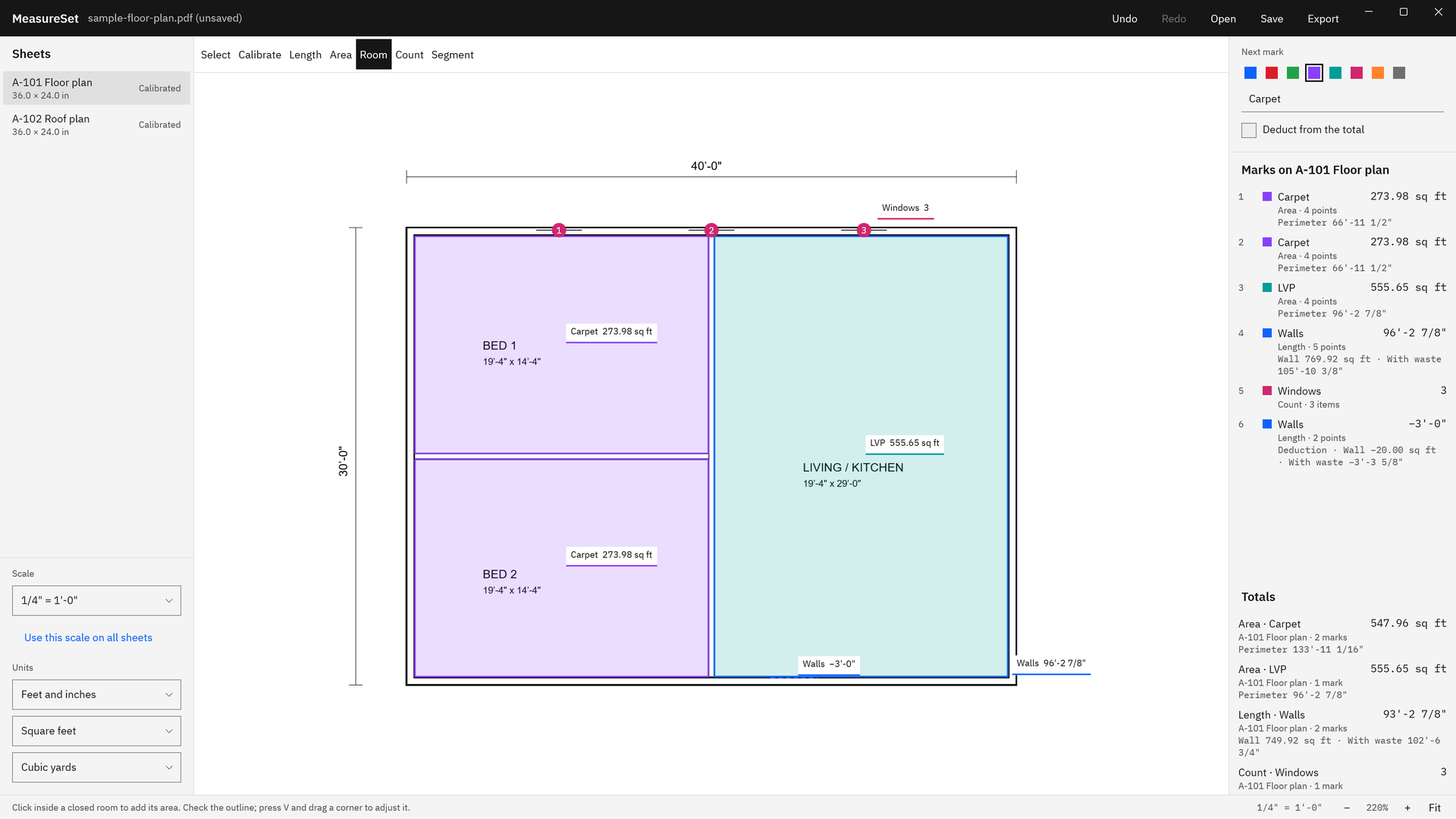
Screenshots use a sample floor plan drawn for software demonstration, not a real building or client.
Try these steps on a plan set you have already bid.
Get it from Microsoft
Check the takeoff before it goes into the bid
- The scale, on every sheet. A measurement is only as good as the calibration and the drawing, so check one known dimension on each sheet you used.
- Coverage. Zoom out. Marks are drawn in color over the plan, so an unmeasured room stands out.
- Room outlines. Closed shapes inside a room, such as furniture, count in its area, and the room tool says so when they make up 15% or more of it. Outline a core or shaft with Deduct from the total ticked.
- Revisions. If an addendum came in, choose Open > Revision to compare and pick the revised PDF. Red is only on this sheet, blue is only on the revision, so a moved wall shows up before you price it.
- The record. Look through the marked-up PDF the way the general contractor would. It shows every mark and ends with the totals.
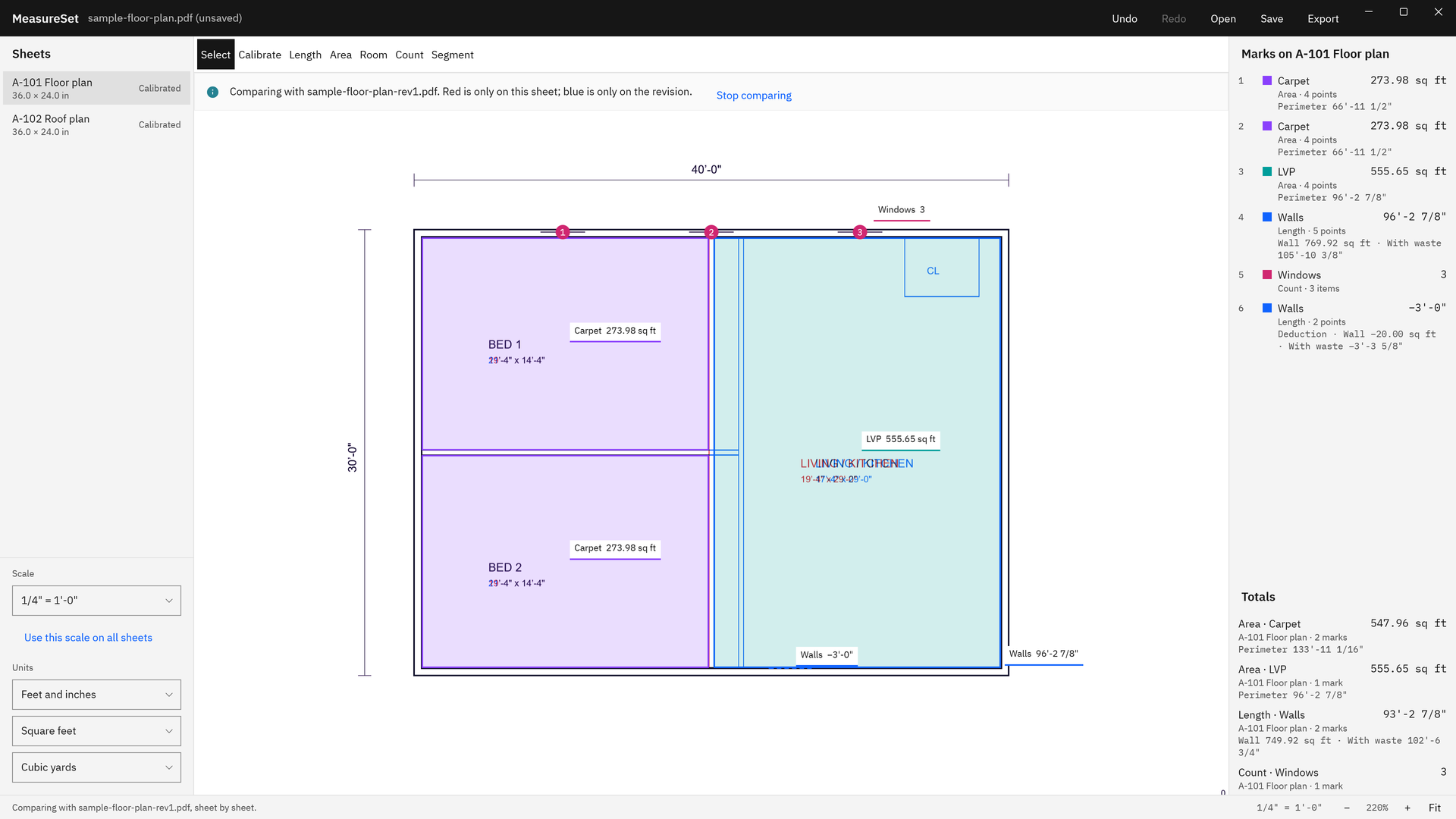
For trade-specific setups, see drywall takeoff from PDF plans and our guide to calculating flooring square footage from plans. For a wider look at what takeoff software should do, read PDF takeoff software for Windows.
Limits
- MeasureSet opens PDF files only, and each sheet has one scale.
- The room tool needs a closed room; open-plan spaces and openings without door symbols need an outline drawn point by point.
- Counts are clicks, there is no circle or arc tool, and it has no assemblies, no cost database, and no cloud collaboration.
The full list is under good to know before you buy.
Frequently asked questions
What is a takeoff in construction?
A takeoff is the list of quantities measured from the drawings before a job is priced: lengths such as base and trim, areas such as flooring and roofing, counts of fixtures, and derived figures such as wall area and slab volume. An estimator multiplies those quantities by unit prices to build the bid.
Can I do a takeoff from a PDF without printing it?
Yes. Takeoff software measures the PDF on screen once you give each sheet its scale. In MeasureSet you calibrate from a printed dimension, measure with the length, area, room, count, and segment tools, and export the totals to Excel or CSV, so nothing needs to be printed or retyped.
How do I know the scale on a PDF plan is right?
Measure a second printed dimension after you set the scale, ideally one running the other direction. If it reads what the drawing says, the scale holds for that sheet. Also compare the page size with the sheet size in the title block, because a reduced print no longer matches its printed scale.
Does takeoff software price the job?
Some estimating suites do, with assemblies and cost databases. MeasureSet does not. It measures and totals quantities by label, for each sheet and the whole set, and exports them to Excel or CSV so your own workbook applies the prices, waste rules, and markup you already use.
Try MeasureSet
MeasureSet is a one-time purchase in the Microsoft Store, and the Store runs a 15-day free trial with the full app, so you can take off a plan set you have already bid and compare the numbers. It works on your PC, nothing uploads, and the plan PDF is never written over. See how it works on the MeasureSet product page.
Set the scale, measure, and export your next takeoff during the free trial.
Get it from Microsoft
Last updated 7 October 2026. Published by Automata Labs, a software company in Canada.