To export emails from a PST file without Outlook, open the file in an app that reads the PST format itself, filter the list down to the messages you need, and save them as EML, PDF, or HTML files in a folder you choose. PstVault does this on Windows: it opens the PST read-only, searches by sender, recipient, subject, body, and date, and writes your selection to a folder with a report of every file it saved.
The request usually arrives the same way: someone needs a slice of an old mailbox, such as the messages with one supplier or a year of invoices, and the mailbox only exists as a .pst file on a PC without Outlook.
Open the PST you have and export the messages you need, on your own PC.
Get it from Microsoft
What you can get out of a PST
A PST is Outlook’s data file. Besides email, it can hold contacts, calendar items, tasks, and notes, each stored with its own fields, and every message keeps its attachments inside the file. Our explainer on what a PST file is covers the format in more detail.
When you export, you are deciding what shape each item should take outside the archive:
- Email as EML. One standard file per message, with its headers, bodies, and attachments, that mail programs open with a double-click.
- Email as PDF. A reading copy for printing and sharing, either one PDF per message or one combined PDF for the whole selection.
- Email as HTML. An offline reading copy that opens in any web browser.
- Contacts as vCard or CSV, calendar items as ICS. Formats built for address books, spreadsheets, and calendars.
- Attachments as ordinary files. The originals, saved beside the message they came with.
Not sure which to pick? Our guide to EML, PDF, and HTML for exported email compares them side by side.
Your options on Windows
| Method | How it works | Good fit when |
|---|---|---|
| Attach the PST to classic Outlook | Open the data file in Outlook, then drag, print, or save messages one at a time | Outlook is already installed and licensed, and you need a handful of messages |
| Outlook’s Import/Export wizard | Exports a folder of items to a CSV file or a new PST | You are moving data between two Outlook installations |
| An online converter | Upload the PST, download converted files | The archive holds nothing private and the file is small enough to upload |
| A desktop app such as PstVault | Open the PST, filter, select, export to a folder | You need files out of the archive without Outlook: EML, PDF, HTML, vCard, ICS, or CSV, with a report of what was saved, on your own PC |
Before you export
- Know what you are looking for. A sender’s name or domain, a phrase from the body, and a date range narrow thousands of messages to the ones that matter.
- Pick the format for the person receiving it. A lawyer or accountant usually wants PDF, a review platform or another mail app wants EML, and someone without a mail program at all can read HTML in a browser.
- Make an empty folder for the export. PstVault names each file by date and subject and writes a report beside them, so a fresh folder keeps one export together.
Meet PstVault
PstVault opens an Outlook PST without Outlook, searches it by sender, recipient, subject, body, and date, and exports the messages you pick as EML, PDF, offline HTML, vCard, ICS, or CSV, with nothing uploaded.
PstVault is a Windows app from Automata Labs. It runs on Windows 10 version 2004 or later and Windows 11, on x64 and ARM64 PCs, inside the Windows app sandbox. It makes no network connections, has no account, and opens the PST read-only, so the archive stays exactly as it was.
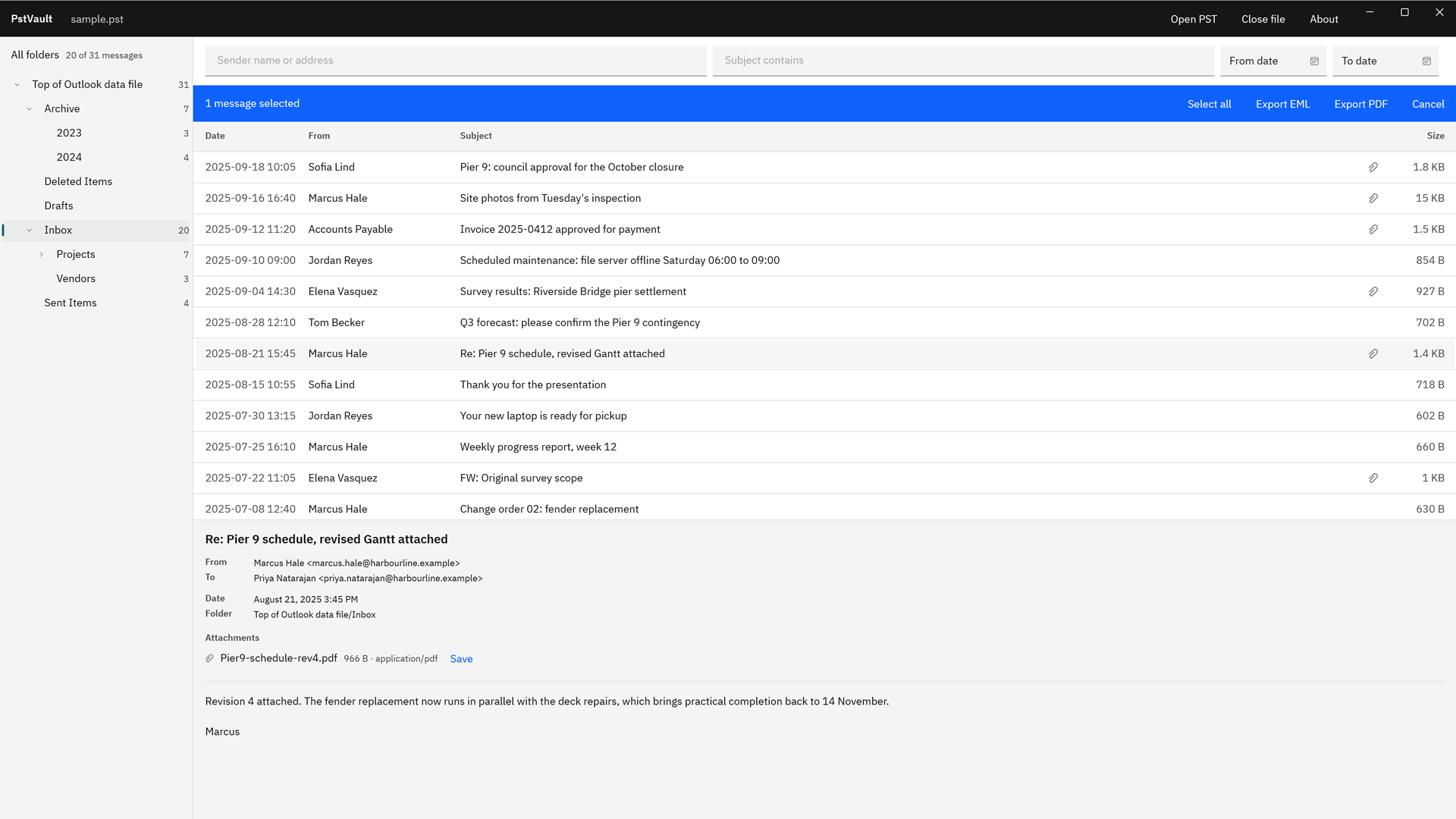
Screenshots use a sample PST generated for testing, with invented people and companies.
How to export emails from a PST in PstVault
- Open the PST. Choose “Open PST” and pick the file, or double-click the .pst in File Explorer. The folder tree appears with a message count beside each folder, and “Recent” keeps the file ready for next time.
- Pick where to look. Select a folder to search it and everything beneath it, or choose “All folders” to cover the whole file.
- Filter the list. Type a name or address in “Sender” and a word in “Subject”. Choose “More filters” to add “Body”, “Recipient”, “From date”, and “To date”. Matches are listed newest first, and a body search shows how many messages it has searched.
- Read before you export. Select a row to see the message in the preview: From, To, Cc, the date, the folder it lives in, its attachments, and its text. “Save” beside an attachment writes that one file to a folder you pick.
- Select the messages. Ctrl+click or Shift+click rows, or choose “Select all results”. The bar above the list counts the selection.
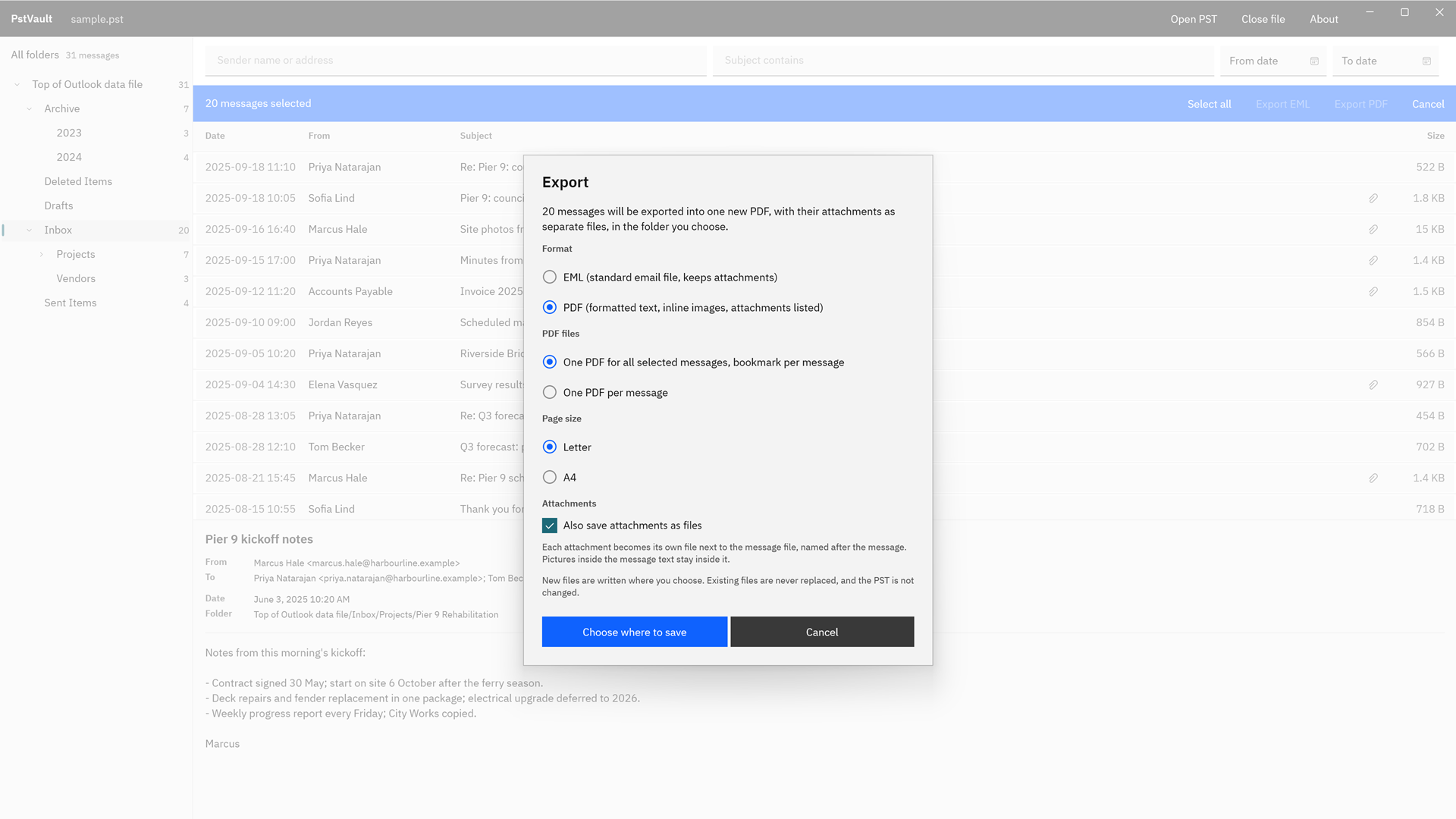
- Open the Export dialog. Choose “Export PDF” for a PDF, or “Export files” for every other format.
- Choose the format. Under “Format”, pick “Email (.eml)”, “PDF reading copy (.pdf)”, “HTML reading copy (.html)”, “Contacts (.vcf)”, “Calendar (.ics)”, “Contact table (.csv)”, or “Native files (.eml / .vcf / .ics)”. For PDF, choose “One PDF for the selection, bookmark per item” or “One PDF per item”, set “Page size” to Letter or A4, and turn on “Append supported attachments as PDF pages” or “Embed original attachments in PDF” if you want the attachments in the document.
- Keep the originals. Turn on “Also save original attachments as files” to save every attachment, inline pictures included, beside the message it came with.
- Save. Choose “Choose where to save” and pick your empty folder. PstVault writes the new files, then reads each one back for the report. A summary names the destination and the report file when it finishes.
Run these steps on your own archive and compare the files with the mailbox you remember.
Get it from Microsoft
Check what you exported
- File names. Each message file starts with its date and time, then the subject, such as
2025-09-16 1640 - Site photos from Tuesday's inspection.eml, so the folder sorts by date. A combined PDF is named after the PST, the number of messages, and the export time. - The report. A file named
PstVault export reportwith the date and time sits in the same folder. It records the source PST, the folder and filters behind the selection, every item with its folder path, subject, the format it was saved in and the file it became, and the size and SHA-256 hash of every file written. - The hashes. To confirm later that a file is the one you exported, run Get-FileHash in Windows PowerShell, which computes SHA-256 by default, and compare the result with the report.
For the details of each format, see export PST to PDF for bookmarks and attachment pages, and convert PST to EML for what goes into each message file.
Frequently asked questions
Can I export only some of the messages?
Yes. Filter by sender, recipient, subject, body text, or date range, then select the rows you want or choose “Select all results”. Only the selection is exported, and the report records the filters you used, so you can describe exactly how the set was chosen.
Do the attachments come with the emails?
Yes. EML files carry their attachments inside. A PDF can append PDF, PNG, JPEG, and text attachments as pages and embed the original files. With “Also save original attachments as files” turned on, every original is also saved beside its message, named after the message date and subject.
What happens to the PST when I export from it?
It stays exactly as it was. PstVault opens the PST read-only and never writes to it, and a file that already exists in the export folder is never replaced, so you can run as many exports as you need. See open a PST file without Outlook for more on reading an archive.
Try PstVault
PstVault is a one-time purchase in the Microsoft Store, and the Store runs a 15-day free trial with every feature, so you can open your own PST and export a real set before you buy. Nothing uploads: the app makes no network connections and has no account. See how it works and the screenshots on the PstVault product page, or compare it with other ways to read an archive in our PST viewer for Windows guide.
Export the messages you need from a PST during the 15-day free trial.
Get it from Microsoft
Microsoft and Outlook are trademarks of the Microsoft group of companies. PstVault is not affiliated with or endorsed by Microsoft.
Last updated 15 October 2026. Published by Automata Labs, a software company in Canada.