To fix true peak overs in WAV files, measure true peak with a 4× oversampled meter, set each file’s loudness first, then run a look-ahead limiter that detects peaks the same way and holds them under the spec’s ceiling, and measure the written file again. Doing it as one batch keeps every file under the same ceiling and at the same loudness.
A true peak over is a delivery problem you usually cannot hear in the edit. The waveform looks clean, the sample-peak meter reads below 0 dBFS, and the file still fails a broadcaster’s QC or picks up clipping once a station or podcast host encodes it. The fix is simple in principle and tedious by hand: get the level right, catch the peaks, and show the numbers.
Set the loudness, hold the ceiling, and verify a whole batch in one run.
Get it from Microsoft
What a true peak over is
Digital audio is a series of samples, but the waveform a converter rebuilds from them can rise between two samples. A sample-peak meter reads only the samples, so it can show -0.5 dBFS while the rebuilt signal goes above full scale. When the file is resampled, or encoded to MP3 or AAC, those inter-sample peaks turn into real clipping.
ITU-R BS.1770 defines true peak to catch them. The signal is oversampled, four times with the reference filter in BS.1770-5 Annex 2, and the highest value is read in dBTP, decibels true peak. That is the figure delivery specs quote. Our explainer on LUFS, LKFS, dBTP and LRA covers the rest of the vocabulary.
The ceilings delivery specs set
| Spec | Loudness target | Peak ceiling |
|---|---|---|
| EBU R 128 broadcast | -23 LUFS | -1 dBTP |
| UK DPP AS-11 | -23 LUFS ±0.5 LU | -3 dBTP recommended |
| ATSC A/85 (2026), short-form | -24 LKFS | -2 dBTP |
| Apple Podcasts | around -16 LKFS | -1 dBFS true peak |
| Spotify audio ads | -16 LUFS ±1.5 | -2 dBTP |
| ACX audiobook | -23 to -18 dB RMS | -3 dB sample peak |
The ceiling and the loudness target work together. Raising a quiet file to its target raises its peaks by the same amount, so a file that cleared the ceiling before the gain change can fail it afterward. A loud file turned down will usually clear the ceiling on its own.
Ways to fix true peak overs
| Method | What it does | Good fit |
|---|---|---|
| Turn the whole file down | Lowers every sample until the highest true peak clears the ceiling | A single file with no loudness target to meet |
| Hand-drawn clip gain | Pulls down the few transients that cross the ceiling | A handful of obvious peaks in one file |
| A limiter in an audio editor | Holds the ceiling while you set the level, one file at a time | A one-off mix you are already editing |
| Batch QC that sets the level, limits and re-measures, such as WavSpec | Puts each file on the loudness target, limits only the peaks the gain pushed over, then measures the written file again | Batches that must meet a loudness target and a peak ceiling together, with a report to send |
Turning a file down fixes the peak by moving the loudness away from the target, which simply trades one failure for another. Clip gain by hand is precise but slow on a batch, and every manual method leaves you metering each file again afterward.
Order matters: level first, then the ceiling
Set the loudness first, because gain moves every peak in the file. Then limit only what crosses the ceiling, with a limiter that detects true peak rather than sample peak. A look-ahead limiter sees a peak coming and eases the gain down just before it, instead of clipping the top off. Finally, measure the written file rather than trusting the plan, because resampling, dither and encoding all change the samples you deliver.
Two details make a difference on real deliveries:
- Leave a small margin. Aim a fraction of a dB under the ceiling so rounding in the written file cannot nudge it over. Encoded formats need more room than PCM.
- Keep the margin consistent. A batch limited to the same ceiling with the same margin reads as one delivery in the client’s QC, instead of forty separate judgment calls.
Meet WavSpec
WavSpec checks a batch of audio files against a named delivery spec, corrects loudness and true peak in one run, re-measures every delivered file from disk, and writes the report.
WavSpec is a Windows app that measures loudness and true peak per ITU-R BS.1770-5, with a meter its test suite checks against the EBU Tech 3341 and 3342 test signals. Its limiter uses the same 4× oversampled detection with a 2 ms look-ahead, and it limits a file only when the gain it needs would cross the spec’s ceiling. It runs on Windows 11, opens no network connection, and never overwrites the originals.
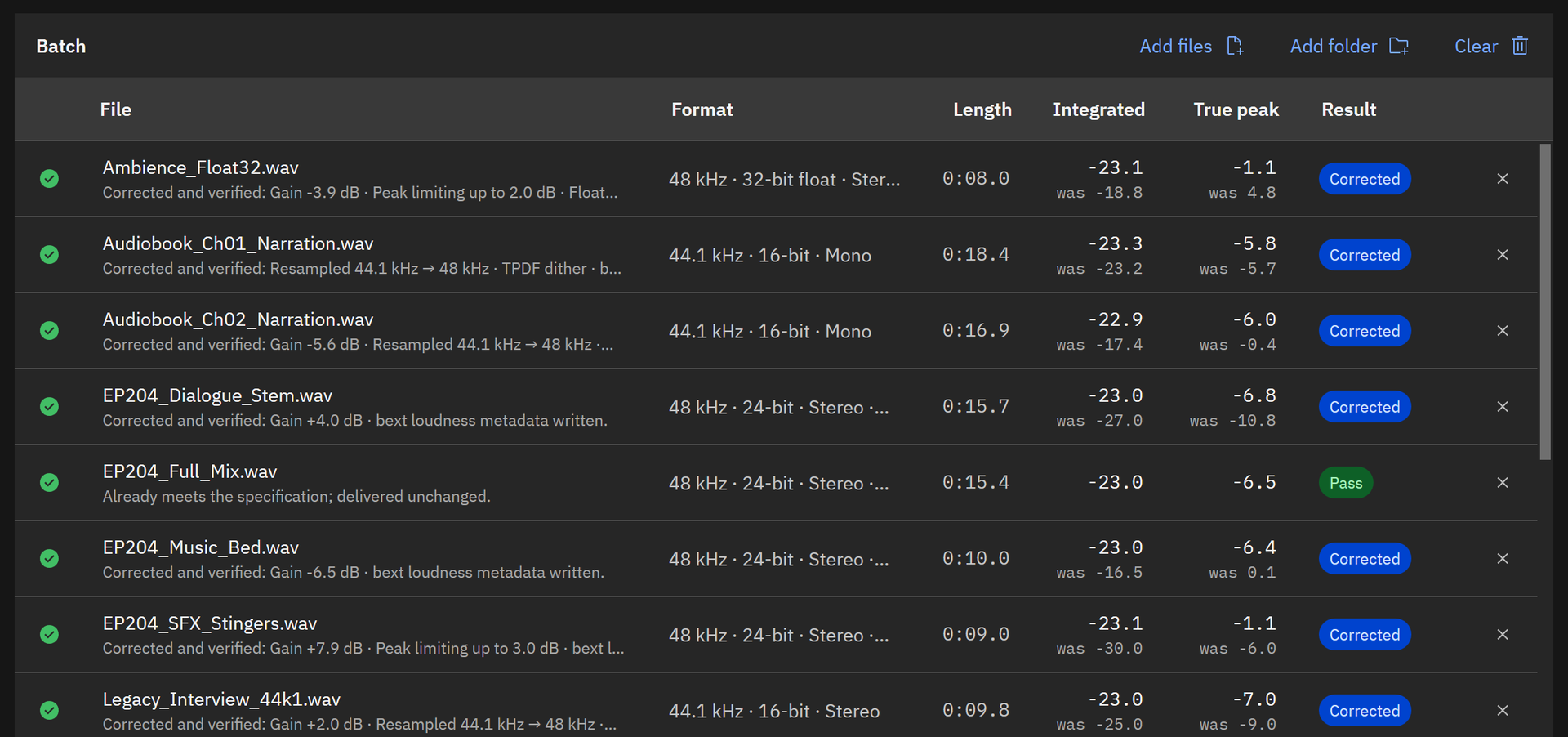
Screenshots show WavSpec’s own sample batch, with synthesized speech, music and effects.
How to fix true peak overs in WavSpec
- Add the files. Drag the WAV files or their folder into the window, or choose “Add files” (Ctrl+O) or “Add folder” (Ctrl+Shift+O).
- Pick the spec. Under “Client specification”, choose the delivery spec, such as “EBU R 128 broadcast” for -1 dBTP or “ATSC A/85 (2026) full-mix / short-form” for -2 dBTP. The target and the ceiling show under the list.
- Set the delivery folder. Type or browse to a “Delivery folder”. Corrected files and the report are written there, and the originals are never overwritten.
- Check first. Press “Check only” (F6). Every file shows “Pass” or “Fail” in the “Result” column with its value in the “True peak” column, and the line under the file name gives the reason. Nothing is written.
- Correct the batch. Press “Check and correct batch” (F5). Each file is set to the loudness target, and the limiter holds true peak under the ceiling with a 0.1 dB margin for WAV and 0.5 dB for MP3.
- Read the result. The “True peak” column shows the delivered value with the “was” value beneath it. Select a file to see its processing line, such as “Peak limiting up to 3.0 dB”, and its short-term loudness timeline.
- Open the report. Choose “Open PDF” or “Open HTML”. The report lists every file’s true peak before and after, the correction applied, and the SHA-256 digest of the delivered file.
Run these steps on last week’s delivery and compare the true peak columns.
Get it from Microsoft
Using a client’s own ceiling
Some clients ask for a tighter ceiling than the published spec, such as -3 dBTP where R 128 says -1. Open “Client specifications” from the gear button in the header, select the closest built-in preset, and choose “Duplicate”. Set “Maximum true peak (dBTP)”, adjust “Limiter margin below ceiling (dB)” if the client wants more headroom, name the spec after the client, and choose “Save”. “Export” writes it as a file you can send to anyone else who mixes for that client.
For whole folders at a loudness target, see batch normalize WAV files to LUFS. For broadcast specs, see normalize audio to EBU R 128 and the ATSC A/85 loudness check for commercials and promos.
Frequently asked questions
What is the difference between true peak and sample peak?
Sample peak is the highest sample value in the file. True peak is the highest level of the waveform rebuilt between those samples, measured by oversampling per ITU-R BS.1770, and it reads in dBTP. True peak is equal to or higher than sample peak, which is why specs written with encoding in mind quote it. ACX is the exception among common specs: it states its -3 dB limit as sample peak, and WavSpec’s ACX preset follows it.
Why does my file pass in the editor and fail QC?
Usually because the editor showed sample peak while QC measured true peak, or because gain, resampling or encoding happened after the last meter reading. Measure true peak on the file you actually deliver. WavSpec re-reads every delivered file from disk, measures it again, and puts that measurement in the report’s After columns.
How much headroom should I leave below the ceiling?
Enough that the file still clears the ceiling after it is written and encoded. WavSpec limits 0.1 dB under the ceiling for WAV and 0.5 dB under it for MP3, then measures the delivered file to confirm. In a spec of your own, set any margin the client asks for.
Can I fix true peaks in MP3 or FLAC sources?
Yes. WavSpec decodes MP3, AAC, FLAC and AIFF sources, sets the loudness, limits the peaks, and delivers PCM WAV, or constant-bit-rate MP3 through the Windows encoder when the spec asks for it, measuring the encoded file again before it reports.
Try WavSpec
WavSpec is a one-time purchase in the Microsoft Store, and the Store runs a 15-day free trial of the full product. Load the sample batch, or a delivery you have already sent, and compare the true peak columns before and after. See how it works on the WavSpec product page, and run through the audio delivery QC checklist before your next handoff.
Fix true peak overs across a whole batch during the 15-day free trial.
Get it from Microsoft
ACX and Audible are trademarks of Audible, Inc. or its affiliates. Apple Podcasts is a trademark of Apple Inc. Spotify is a trademark of Spotify AB. WavSpec is not affiliated with or endorsed by them.
Last updated 15 October 2026. Published by Automata Labs, a software company in Canada.