ContextCleaner: see every entry in the Windows 11 right-click menu, and which app added it — on the Microsoft Store.
Windows 11 Updated 2026-10-15

Meet the client’s loudness spec, and send the report that shows it.

WavSpec is a Windows app from Automata Labs that checks a batch of audio files against a named delivery spec, such as EBU R 128, ATSC A/85, Apple Podcasts or ACX, and corrects loudness, true peak, sample rate and bit depth in one run. It re-measures every delivered file from disk and writes a PDF, HTML, CSV and JSON delivery report with before and after values. Originals are never overwritten, and nothing uploads.

One-time purchase · 15-day free trial in the Microsoft Store · One-time purchase. No subscriptions. Local-first.
Pay once. Own it forever.

One-time purchase on the Microsoft Store · No subscription · Instant install

Buy through the Microsoft Store—instant install, automatic updates, and a Microsoft receipt for easy expensing. No account needed on our site, and no subscription on Store purchases.

How it works See the screens

ebu r 128 · atsc a/85 · acx · apple podcasts · re-measured from disk · nothing uploads

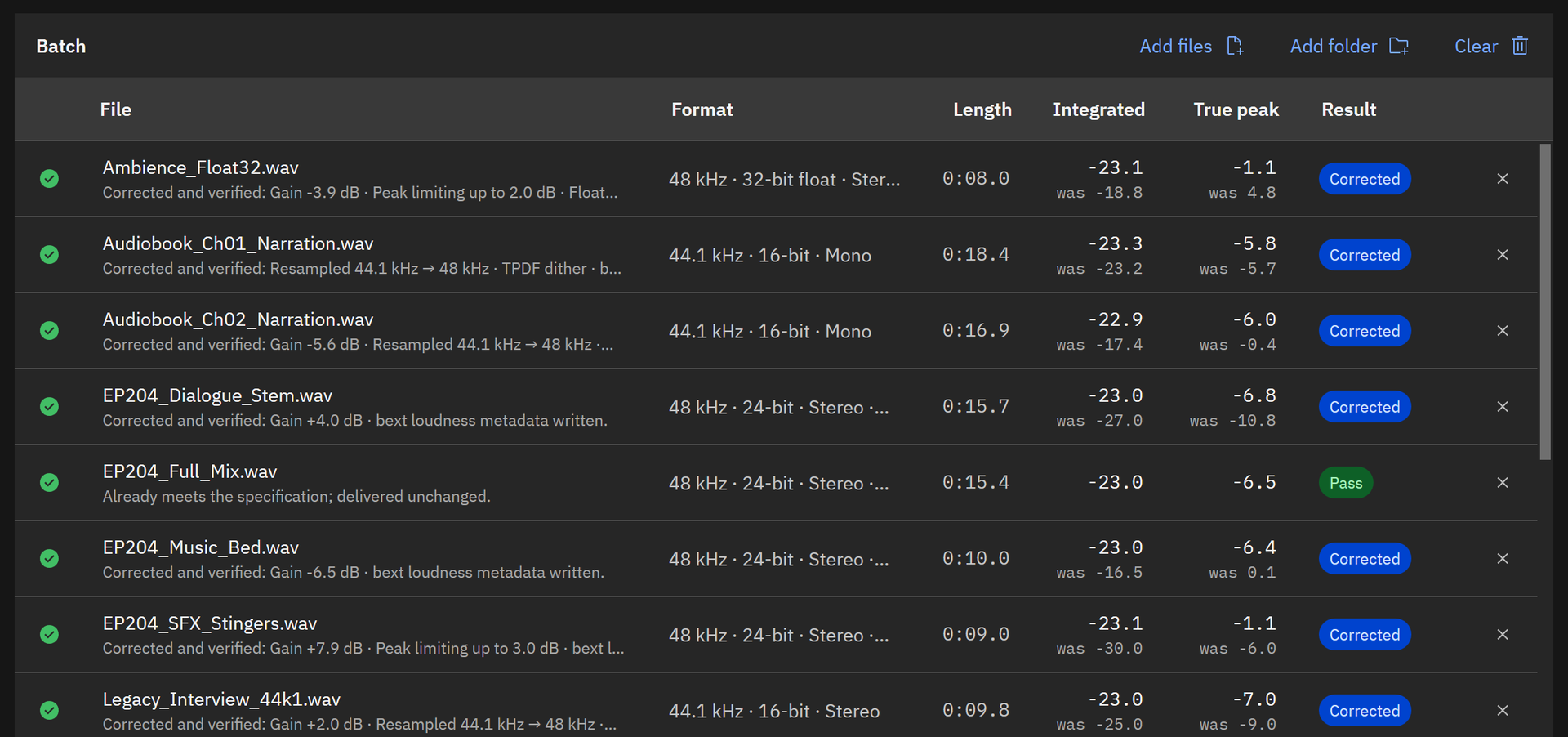
WavSpec batch table after correction

WavSpec batch table after a run under EBU R 128 broadcast: each file Corrected or Pass, with integrated loudness near -23.0 LUFS, true peak, and the was values from before correction.
One run, every file corrected and verified. The table shows the delivered loudness and true peak, with the values each file started at.

The problem

The files are due tonight, and the spec sheet runs four pages.

Every client names a loudness target, a peak ceiling, a sample rate, a bit depth, and sometimes room tone and file-name rules. Hitting them file by file means metering each one, normalizing it, catching the peaks the gain pushed over, exporting in the right format, metering again, and typing the numbers into an email. One missed file and the delivery comes back.

With WavSpec

Pick the spec. Check the batch. Deliver.

WavSpec measures the whole batch against the client’s spec and shows every criterion as pass, fail or advisory. One run corrects what the spec needs, writes the files to a delivery folder, measures each delivered file again from disk, and saves a report with before and after values and a SHA-256 digest for every file, ready to send with the audio.

Key benefits

Measure, correct, verify, and report in one run

Named client specs, checked file by file

Ten built-in presets cover EBU R 128 and R 128 s1, UK DPP AS-11, ARD/ZDF/ORF TV, ATSC A/85, Apple Podcasts, Spotify audio ads, ACX and Author’s Republic audiobooks, and a generic 48 kHz, 24-bit template, each cited to its source document. Build your own with a target and tolerance, a peak ceiling, optional short-term, momentary and loudness-range limits, and the sample rates, bit depths and channel layouts the client accepts.

Measured per ITU-R BS.1770-5

Integrated, short-term and momentary loudness, loudness range, and 4× oversampled true peak, implemented natively and checked against the EBU Tech 3341 and 3342 test signals. Voice specs add RMS, noise floor and room tone.

Corrected without touching the mix

Gain to the exact target, look-ahead true-peak limiting only where gain would cause an over, windowed-sinc resampling, and bit-depth conversion with TPDF dither. Files that already meet the spec pass unchanged.

Re-measured from disk

Every delivered file is read back and measured again, with up to three passes to land on target. The After columns in the report are those verification measurements.

A report to send with the files

PDF, HTML, CSV and JSON with before and after values, a loudness timeline per file, your client and project details, and the SHA-256 digest of every delivered file.

Audiobook heads and tails handled

Too little room tone is padded with the file’s own room tone, too much is trimmed, digital silence is replaced, and delivered copies are renamed to plain file names for ACX.

How it works

Add, choose, check, deliver

Add

Drag files or whole folders into the window, or choose Add files (Ctrl+O) or Add folder (Ctrl+Shift+O). WavSpec reads WAV, BWF, RF64, AIFF, FLAC, MP3, AAC, M4A and WMA, in mono, stereo, 5.1 and 7.1.

Choose the spec

Pick a Client specification, such as EBU R 128 broadcast, Apple Podcasts or ACX audiobook (Audible), or one of your own, and set the Delivery folder. The spec’s target and ceiling show under the list.

Check

Check only (F6) measures every file and marks it Pass or Fail with the reason, writing nothing. Select a row to see each criterion, its measured and required values, and the short-term loudness timeline.

Correct and deliver

Check and correct batch (F5) corrects what the spec needs, writes the files to the delivery folder, re-measures each one from disk, and saves the report as PDF, HTML, CSV and JSON beside them.

On first launch, choose Load sample batch and press Check and correct batch to watch a full run, then open the report from the Delivery report pane. See the screens.

See it in action

The check, the spec, the fix, and the report

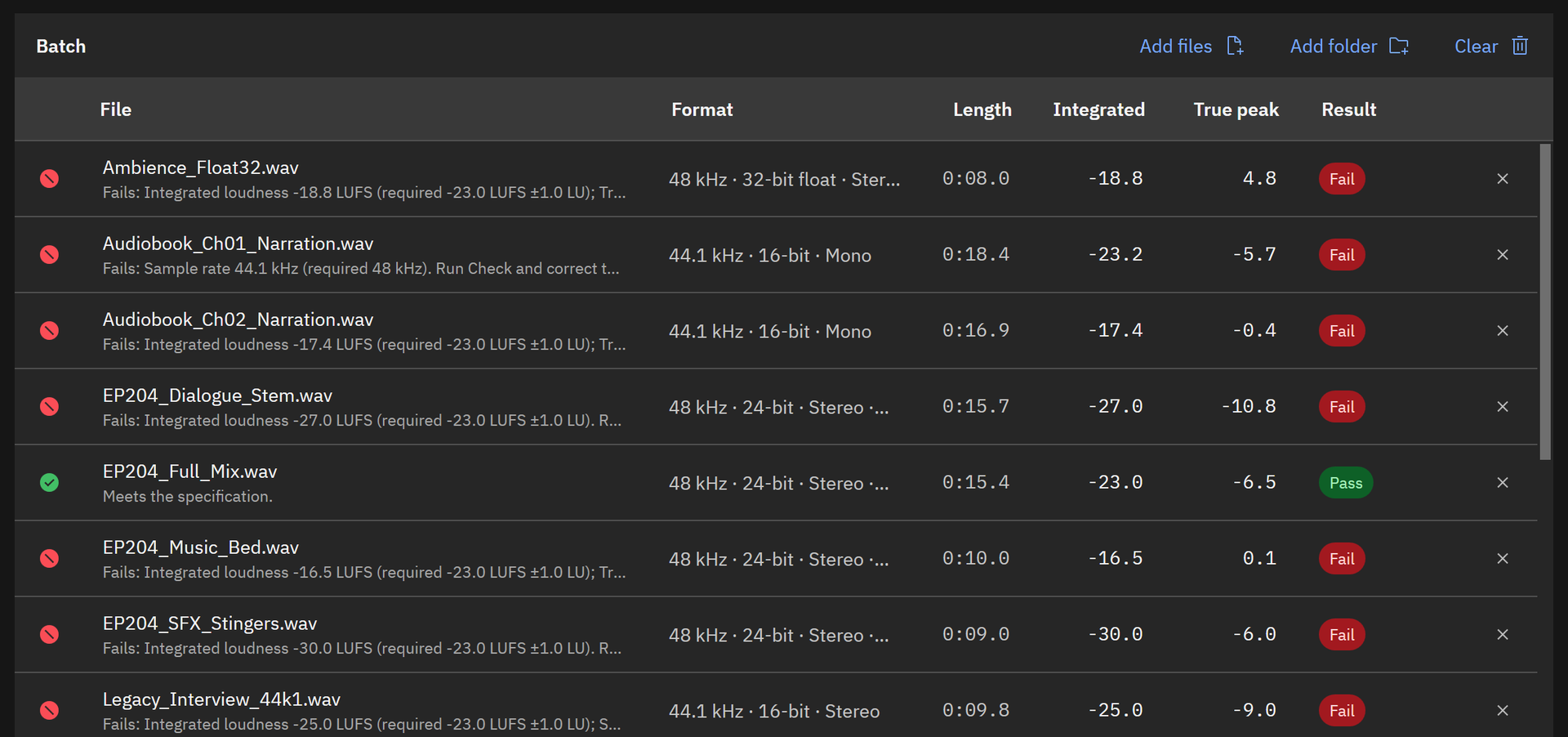
WavSpec after Check only under EBU R 128 broadcast: rows marked Pass or Fail with reasons such as integrated loudness -18.8 LUFS against the required -23.0 LUFS ±1.0 LU.
Check only measures every file against the client spec and names each reason, before anything is written.
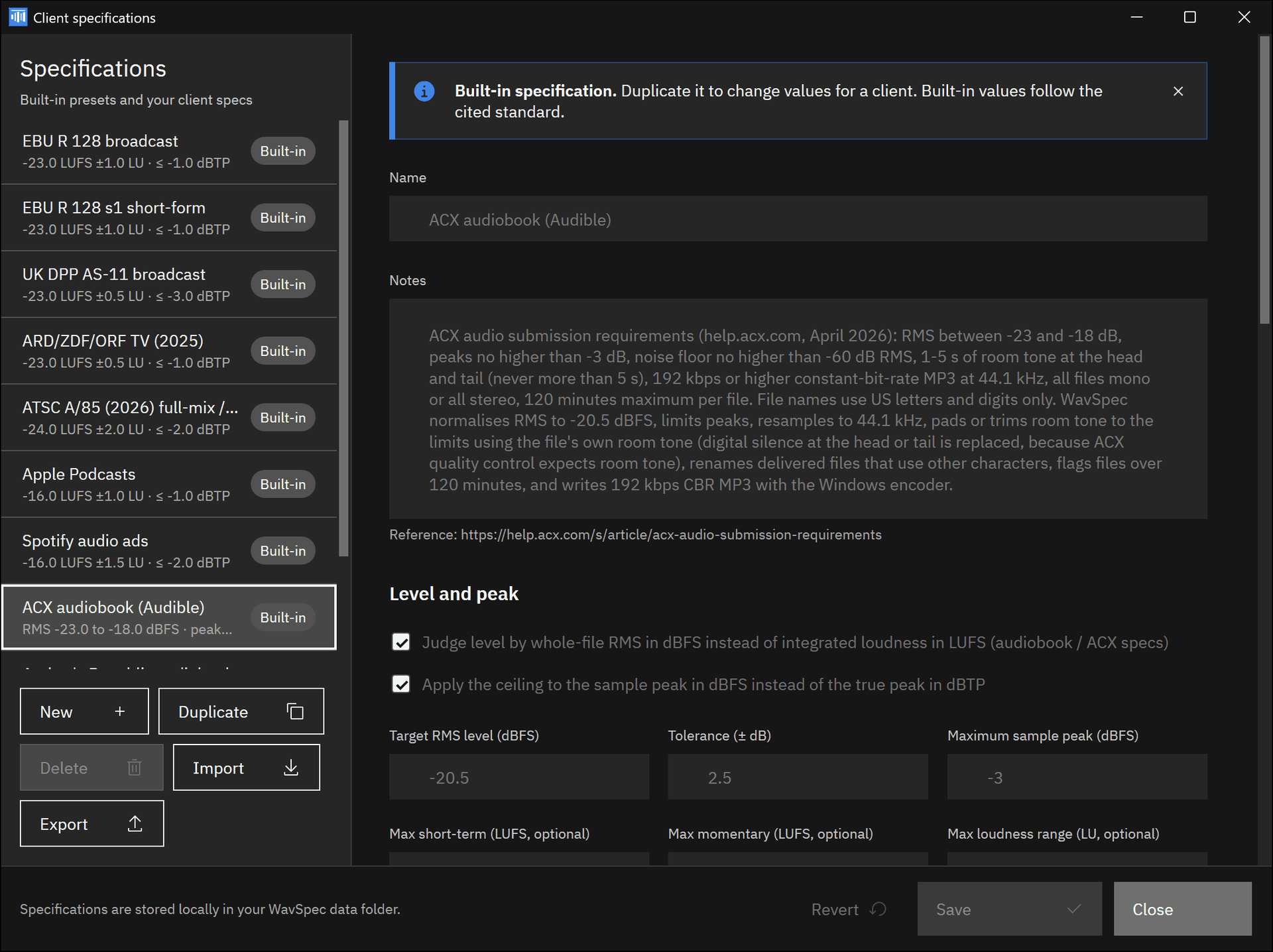
WavSpec Client specifications window listing ten built-in presets, with the ACX audiobook (Audible) preset open showing its cited notes, RMS mode, and sample peak ceiling.
Ten built-in specs, each cited to its source. Duplicate one, or choose New, to build a spec for any client.
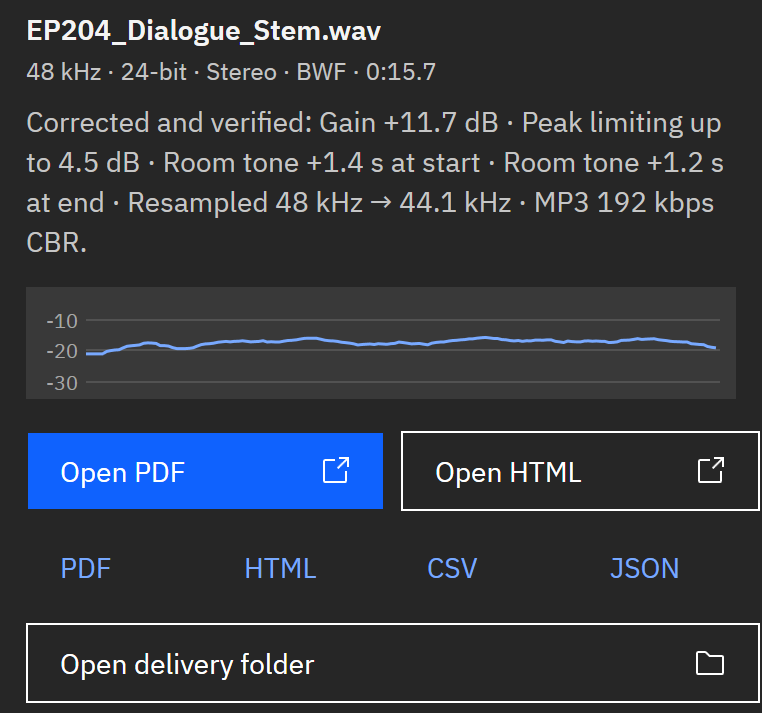
WavSpec file detail under ACX: gain, peak limiting, room tone added at start and end, resampled to 44.1 kHz, MP3 192 kbps CBR, above a short-term loudness timeline.
Select a file to see every correction and its loudness timeline. Here, a chapter prepared for ACX with room tone and 192 kbps MP3.
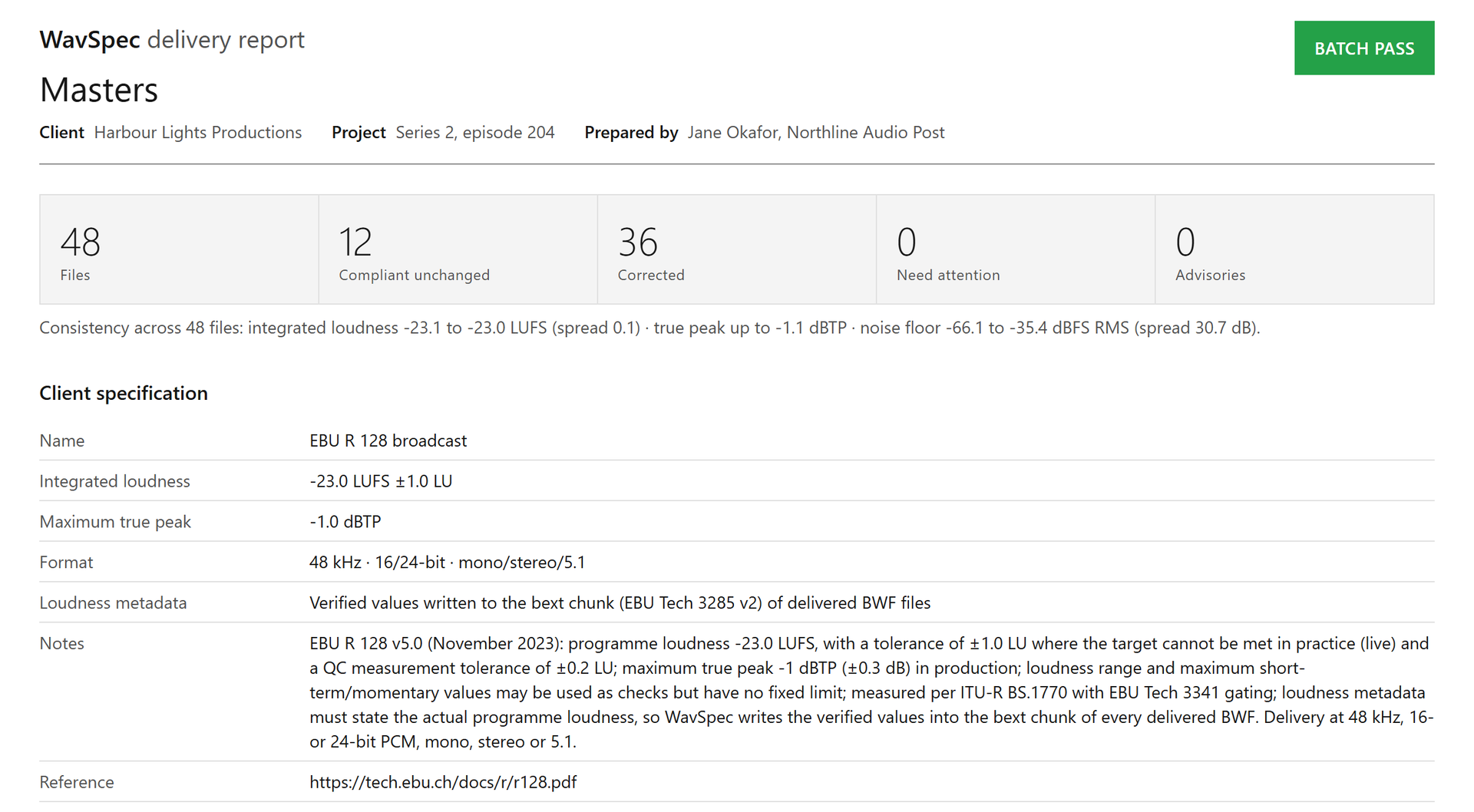
WavSpec HTML delivery report for a 48-file batch marked BATCH PASS, with client and project details, a consistency line, and the EBU R 128 broadcast spec and its reference link.
The delivery report: batch verdict, client and project, the consistency line, and the cited spec, saved as PDF, HTML, CSV and JSON.

Screenshots show WavSpec’s own sample batches, with synthesized speech, music and effects, and fictitious client details.

Privacy

Nothing uploads

WavSpec runs on your PC and opens no network connection. There is no account, no telemetry, no update check and no cloud processing, so client audio and unreleased masters stay on this machine. It runs as your own user account, never asks for administrator rights, and installs no service.

Originals are opened read-only and never overwritten. Delivered files and reports are written only to the delivery folder you choose, and settings, specs and the log stay in your local app data folder.

What you get

  • Corrected files in a separate delivery folder: PCM WAV at the spec’s rate and bit depth, or constant-bit-rate MP3.
  • The delivery report as PDF, HTML, CSV and JSON, saved automatically beside the delivered files.
  • Before and after values for every criterion, with a short-term loudness timeline for each file.
  • A SHA-256 digest for every delivered file and its source, so the report describes the exact bytes sent.
  • Broadcast Wave bext, iXML, LIST and cue chunks carried over, with verified loudness written into bext.
  • Ten built-in delivery specs, plus your own, exported and imported as files to share with clients.
  • A watch folder that checks and corrects new files as they arrive, and a command line with exit codes.
  • A 13-file sample batch on the empty screen, so you can see a full run on first launch.

Try it on your last delivery first.

The Microsoft Store runs a 15-day free trial of the full product. Drop in a batch you have already delivered, pick the client’s spec, and compare the report with what went out. If it fits your work, buy it once and keep your specs and settings. There is no subscription.

Pay once. Own it forever.

One-time purchase on the Microsoft Store · No subscription · Instant install

Buy through the Microsoft Store—instant install, automatic updates, and a Microsoft receipt for easy expensing. No account needed on our site, and no subscription on Store purchases.

Who uses it

  • Audiobook narrators and producers preparing chapters for ACX and Audible: RMS, sample peak, noise floor, room tone, plain file names and 192 kbps CBR MP3 in one batch
  • Freelance audio-post editors delivering episodes, stems and promos to broadcasters under EBU R 128, UK DPP AS-11, ARD/ZDF/ORF or ATSC A/85, with a PDF report for the QC desk
  • Podcast producers setting every episode, trailer and ad read to -16 LUFS for Apple Podcasts and Spotify audio ads, as WAV for the host or MP3 for the feed
  • Editors with recurring client batches who keep a named spec per client and run new exports through a watch folder or the command line

FAQ

Quick answers about WavSpec

What is WavSpec?

WavSpec is a Windows app that checks a batch of audio files against a named delivery spec, corrects loudness, true peak, sample rate, bit depth, room tone and file names, re-measures every delivered file from disk, and writes a delivery report as PDF, HTML, CSV and JSON. Corrected files go to a separate delivery folder, and the originals stay as they were.

Which delivery specs are built in, and can I add my own?

Ten presets, each cited to its source document: EBU R 128 broadcast, EBU R 128 s1 short-form, UK DPP AS-11 broadcast, ARD/ZDF/ORF TV (2025), ATSC A/85 (2026) full-mix / short-form, Apple Podcasts, Spotify audio ads, ACX audiobook (Audible), Author’s Republic audiobook, and Generic post delivery 48k/24. Choose New or Duplicate to make a spec for any client, and Export it as a file to share.

How does WavSpec measure loudness?

Per ITU-R BS.1770-5: K-weighting, 400 ms gating blocks, and the -70 LUFS and -10 LU gates for integrated loudness, short-term and momentary loudness per EBU Tech 3341, loudness range per Tech 3342, and true peak with the 4× oversampled filter from BS.1770-5 Annex 2. Its test suite checks the meter against the EBU Tech 3341 and 3342 test signals. For voice specs it also measures whole-file RMS, noise floor, and room tone.

What does it correct?

Gain to the exact loudness or RMS target, true peaks with a look-ahead limiter, sample rate with a windowed-sinc resampler, bit depth and floating point with TPDF dither, and the container, including constant-bit-rate MP3 through the Windows encoder. For audiobook and ad specs it pads or trims the head and tail, and it renames delivered copies whose names a platform would reject.

Can it get audiobook chapters ready for ACX?

Yes. The ACX audiobook (Audible) preset judges RMS between -23 and -18 dB, peaks at or below -3 dB, a noise floor at or below -60 dB RMS, and one to five seconds of room tone at each end. WavSpec sets the RMS, limits peaks, pads or trims room tone with the chapter’s own room tone, resamples to 44.1 kHz, and writes 192 kbps CBR MP3.

What is in the delivery report?

Every file with its measurements before and after correction, pass, fail or advisory for each criterion, the correction applied, and a short-term loudness timeline. The report adds batch-level warnings, a consistency line across the batch, the spec and its reference document, your client and project details, and the SHA-256 digest of every delivered file. It is saved as PDF, HTML, CSV and JSON beside the delivered files.

Does it keep Broadcast Wave metadata?

Yes. The bext, iXML, LIST and cue chunks are carried into the delivered file in their original order, and unknown chunks are copied as they are, so time references and scene and take data survive. When a spec asks for it, WavSpec writes the verified loudness values into the bext chunk using EBU Tech 3285 version 2 fields.

What happens to my original files?

They stay exactly as they were. WavSpec opens originals read-only and writes every delivered file to the delivery folder you choose, first as a temporary file and then moved into place. If the delivery folder is the source folder, the delivered file gets a new name, so the original is never overwritten.

Where does my audio go?

Only to the delivery folder you pick. WavSpec runs on your PC and opens no network connection: there is no account, no telemetry, no update check and no cloud processing. Settings, specs and the log stay in your local app data folder, and the log records file names and messages, never audio.

Can it process new files automatically?

Yes, two ways. Set a Watch folder and choose Start watching (Ctrl+W): each new audio file is picked up once it has finished writing, checked and corrected under the selected spec, and added to the growing report. For scripts and DAW post-export hooks, the command line runs the same check with a spec name, a delivery folder, and exit codes.

What does it cost, and is there a trial?

WavSpec is a one-time purchase in the Microsoft Store, and the listing shows the current price in your currency. The Store runs a 15-day free trial of the full product, and the app header shows the days remaining. Buying keeps your specs, settings and reports. There is no subscription.

What Windows version do I need?

Windows 11 version 22H2 or later on an x64 PC, with 4 GB of RAM and about 150 MB of disk space. The Microsoft Store installs everything WavSpec needs, and it works fully offline once installed.

Still stuck? Email [email protected] after checking the Support Center.

ACX and Audible are trademarks of Audible, Inc. or its affiliates. Apple Podcasts is a trademark of Apple Inc. Spotify is a trademark of Spotify AB. EBU R 128, ATSC A/85 and the other named specifications belong to their publishers. WavSpec is not affiliated with or endorsed by any of them.
Technical specifications

Technical specifications

Spec Implementation
Data Sovereignty Reads only the files and folders you add, or the watch folder you choose, and opens originals read-only; writes delivered files and reports only to the delivery folder you pick, as a temporary file moved into place; settings, specs and the log stay in your local app data folder on this PC
Telemetry Status None; no account, no telemetry, no update check, and the app opens no network connection
Core Runtime C# on a self-contained .NET 10 runtime with WPF, packaged as MSIX for the Microsoft Store; loudness metering, true-peak detection, resampling and limiting are implemented natively; AIFF is read with NAudio, and MP3, AAC, FLAC and WMA use the Windows Media Foundation codecs
Network Requirements Fully functional offline; WavSpec makes no network connections, and the Microsoft Store handles the trial and purchase
Deployment Compatibility Windows 11 version 22H2 or later, x64, with 4 GB of RAM and about 150 MB of disk; one-time purchase on the Microsoft Store with a 15-day free trial
Inputs WAV, BWF, RF64, AIFF, FLAC, MP3, AAC/M4A and WMA; mono, stereo, 5.1 and 7.1; files, whole folders, or a watch folder
Measurement ITU-R BS.1770-5 integrated loudness, EBU Tech 3341 short-term and momentary loudness, Tech 3342 loudness range, 4× oversampled true peak, sample peak, whole-file RMS, noise floor, and head and tail room tone
Correction Gain to the exact LUFS or RMS target, look-ahead true-peak limiting, windowed-sinc resampling, bit depth and float conversion with TPDF dither, CBR MP3 through the Windows encoder, room-tone padding and trimming, and plain file names on delivered copies
Built-in specs EBU R 128 v5.0, EBU R 128 s1, UK DPP AS-11, ARD/ZDF/ORF TV (2025), ATSC A/85 (2026) full-mix / short-form, Apple Podcasts, Spotify audio ads, ACX audiobook, Author’s Republic audiobook, and generic 48 kHz / 24-bit; user specs export and import as files
Verification Every delivered file is read back from disk and measured again, with up to three passes to land on target
Outputs Corrected PCM WAV or CBR MP3 in a separate delivery folder, with bext, iXML, LIST and cue chunks kept and verified loudness written to bext (EBU Tech 3285 v2)
Report PDF, HTML, CSV and JSON with before and after values per criterion, loudness timelines, a batch consistency line, client and project details, and SHA-256 digests of delivered and source files
Automation Watch folder in the app (Ctrl+W); command line with --spec, --out, --check-only and exit codes for scripts

Deep Dive

WAV File Over 4 GB? RF64 and BW64 Explained, and How Long You Can Record Before You Hit the Limit

Why a WAV file stops at about 4 GB, how RF64 and BW64 get past it with a ds64 chunk, how long each format lasts, and how to check what a client will accept.

Deep Dive

EBU R 128 Tolerance Explained: Plus or Minus 1 LU, 0.2 LU, and What -23 LUFS Really Allows

What EBU R 128 actually allows around -23 LUFS: the 1 LU live tolerance, the 0.2 LU QC tolerance, true peak margin, and how the rule changed since 2010.

Deep Dive

ARD, ZDF and ORF Loudness Spec (TPR 2025): -23 LUFS, -1 dBTP, LRA and Short-Form Rules

Loudness rules in the 2025 ARD, ZDF and ORF production guidelines: -23 LUFS, tolerances, LRA, true peak, short-form and web values, and batch checks.

Workflow

Spotify Audio Ad Specs: -16 LUFS, 44.1 kHz, 30 Seconds, and How to Check a Batch Before Upload

Spotify audio ad specs explained: -16 LUFS integrated, 44.1 kHz, stereo, 192 to 320 kbps, 30 seconds. How to check and correct a batch of spots on Windows.

Workflow

UK DPP AS-11 Audio Delivery: Loudness, True Peak and How to Check Your Mix Before It Goes Into the File

What UK broadcasters expect from programme audio under the DPP AS-11 delivery spec, how -23 LUFS and -1 dBTP are measured, and how to check a batch on Windows.

Workflow

ACX Batch Checker for Windows: Check Every Chapter, Fix What Fails, Keep the Report

Software to check audiobook files against ACX in a batch on Windows: RMS, peaks, noise floor and room tone for every chapter, with fixes and a report.

A batch in. A verified delivery out.

WavSpec checks every file against the client’s spec, corrects loudness, peaks and format in one run, re-measures what it delivers, and writes the report to send with it. The originals are never overwritten, and nothing uploads.

One-time purchase. No subscriptions. Local-first.

Pay once. Own it forever.

One-time purchase on the Microsoft Store · No subscription · Instant install

Buy through the Microsoft Store—instant install, automatic updates, and a Microsoft receipt for easy expensing. No account needed on our site, and no subscription on Store purchases.

Browse catalog