To make a cabinet cut list from a spreadsheet, put one row per part with an ID, length, width, quantity, material, and grain direction, add a second sheet listing your stock panels, save both as CSV, and run them through cut list software that applies the saw kerf, the edge trim, and the grain. CutPacket does that last step on Windows and prints cut diagrams, a label for every piece, and a recut list when the order changes.
Most small shops already have the first half, because the cabinet math gets done in a spreadsheet. This guide gets you from that sheet to paper the saw operator can follow, without retyping anything.
Turn your parts spreadsheet into a shop-floor cutting packet, on your own PC.
Get it from Microsoft
Parts list, cut list, and cutting diagram
Three documents get called a cut list, and it helps to keep them apart.
- The parts list is what you designed: every part in every cabinet, with its finished size and quantity.
- The cut list is what the saw makes: every physical piece, the sheet it comes from, and the order of the cuts.
- The cutting diagram is the drawing of each sheet with the pieces laid out, so the operator can see where every rip and crosscut falls.
Our guide to cut list terms covers kerf, trim, grain, and the rest of the vocabulary.
Set up the parts sheet
Give each part one row. These are the columns CutPacket reads, with some of the other header names it recognizes:
| Column | Example | Notes |
|---|---|---|
| ID | B1-SIDE | Required. Also read as part, part_no, code, ref, or label. This becomes the label on the piece. |
| Name | Base 1 side | Printed under the ID on each label. |
| Length | 870 | Required. The dimension that runs along the grain when grain matters. |
| Width | 580 | Required. |
| Qty | 2 | Also quantity, pcs, pieces, or count. A blank means one. |
| Material | Maple ply 18mm | Required. Spelled the same way as in the stock sheet. |
| Grain | length | length, width, or none. |
| Unit | mm | Optional: mm or in. A unit in the header, such as length_mm, works too. |
| Notes | Finished end left | Kept with the part in the project. |
A few habits make the import clean:
- Keep IDs stable. Use short IDs that mean something, such as
B2-BOTfor the bottom of base 2, and never reuse one for a different part. When the order changes, matching IDs are how the revision is compared. - Use one unit per file. Pick millimetres or inches for the whole sheet. Fractions such as
23 1/4and suffixes such as610mmor24"are read as written. - State the grain. For any part cut from veneered ply, put length or width in the grain column. Parts on melamine or MDF can say none.
Set up the stock sheet
The stock sheet lists the panels on hand: an ID such as PLY-MAPLE, the material name spelled exactly as the parts sheet spells it, the length and width, the quantity, and grain yes or no. Grain runs along the length of a sheet, so list a 2440 × 1220 sheet with 2440 as the length. Save both sheets as CSV; comma, semicolon, and tab files all import.
Your options for turning the list into layouts
| Method | How it works | Good fit when | What to expect |
|---|---|---|---|
| Graph paper and a calculator | Sketch each sheet and subtract the kerf by hand | A one-off box or two | Slow, and every revision means redrawing |
| A layout tab in the spreadsheet | Formulas add part widths across each rip | Shops cutting simple strips | No drawing and no labels; grain tracked from memory |
| An online cut list optimizer | Paste the parts into a web form | Small personal projects | The job data goes to the site, and features vary |
| CutPacket on Windows | Import the CSVs, check, generate, and export | Small cabinet and furniture shops whose orders change | Why it works: diagrams, labels, and a recut list from the same CSVs, on your PC |
Meet CutPacket
CutPacket turns a parts CSV and a stock CSV into cut diagrams, piece labels, and a revision recut list on your Windows PC, with kerf, edge trim, and grain applied and nothing uploaded.
It checks the files before layout, builds every sheet from straight rips and crosscuts, and keeps your part IDs as the labels on the pieces. It runs on Windows 10 version 2004 or later and Windows 11, has no account, and never changes your CSV files.
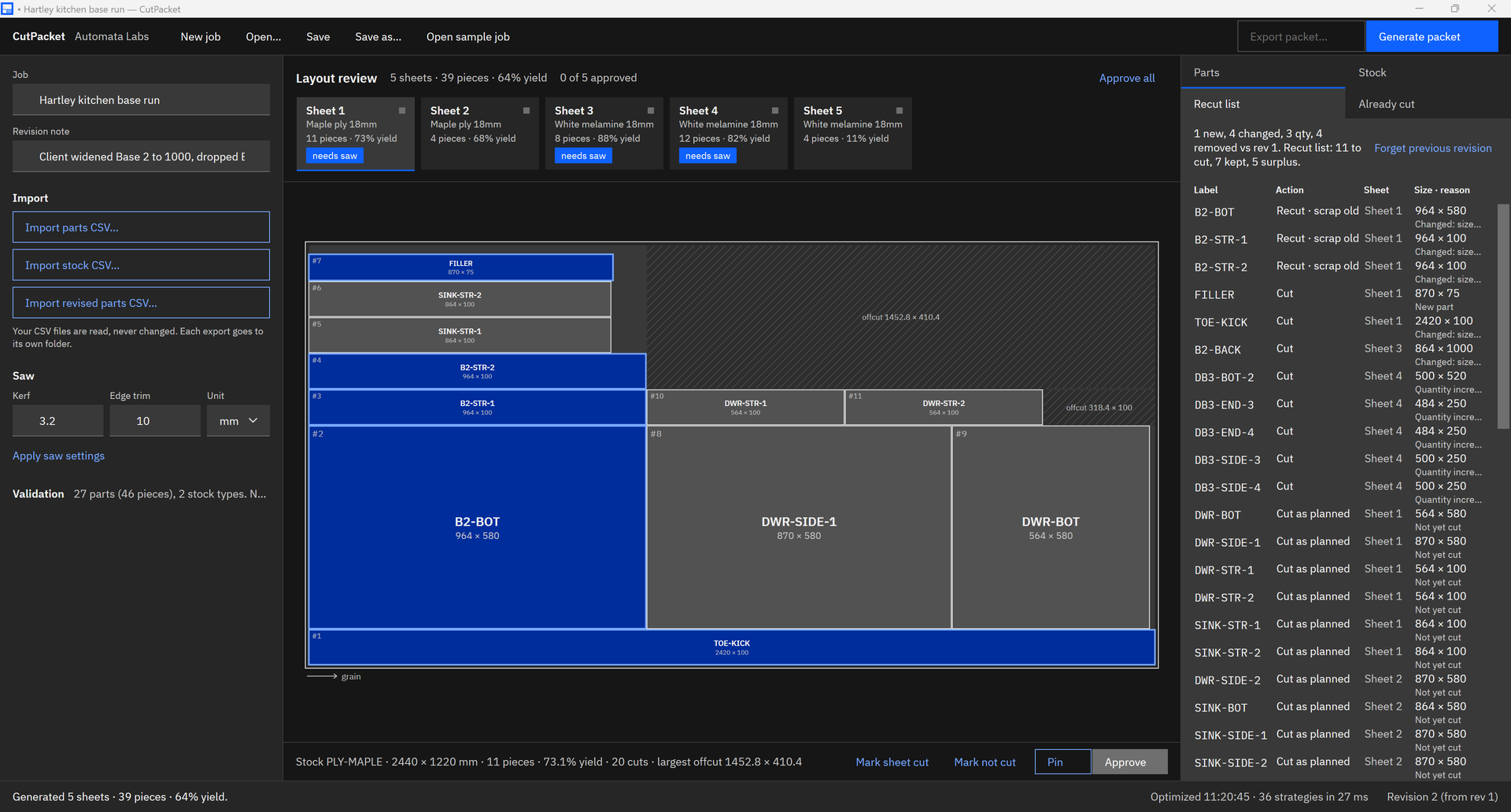
Screenshots use the Hartley kitchen sample job that comes with CutPacket.
How to make the cut list in CutPacket
- Import the parts. Choose “Import parts CSV…” (Ctrl+I) and pick your parts file. The Parts tab lists every part with its size, quantity, and grain.
- Import the stock. Choose “Import stock CSV…” and pick the stock file. The Stock tab shows each sheet type with its size, count, and grain.
- Set the saw. Under Saw, type the “Kerf” and “Edge trim”, such as 3.2 and 10 in millimetres or 1/8 and 1/2 in inches, pick the “Unit”, and choose “Apply saw settings”.
- Clear the validation list. The Validation list shows each error and warning with the CSV row and the fix: mixed units, blank grain on grained stock, a part too big for any sheet, a material with no stock. Correct the CSV and import it again until the errors are gone.
- Generate. Choose “Generate packet” (Ctrl+G). Each sheet appears in the layout review with its material, pieces, and yield.
- Review each sheet. Select a sheet to see it drawn to scale. Hover a piece for its label, size, and saw number. Choose “Pin” on any sheet you want kept exactly as it is on the next generate.
- Approve. Choose “Approve” on each sheet, or “Approve all”.
- Export. Choose “Export packet…” (Ctrl+E) and pick a folder. CutPacket writes a new folder named after the job and revision with the cut diagrams, labels, and recut list as PDF, the matching CSVs, and the plan.
- Save the project. Choose “Save” (Ctrl+S) to keep a .cutpacket file with the parts, stock, settings, approvals, and pins, ready for the next revision.
Check the packet before the first cut
- The summary page. Page one of the cut diagrams PDF gives the sheet count, piece count, overall yield, and sheets per material, so the right stock comes off the rack in one trip.
- The sheet pages. Each sheet page shows the layout with pieces numbered in saw order, next to a cut sequence table of rips and crosscuts. Our plywood cutting diagram page explains how to read one.
- The labels. The labels PDF prints one 4 × 2 inch label per piece, ten to a US Letter page in the Avery 5163 layout, in saw order. More on that under cabinet part labels.
- The CSVs. The cut list, labels, and recut list CSVs open in Excel.
Comparing tools first? See cabinet cut list software and cut list optimizer for Windows.
When the order changes
Keep the project file. When the client revises the job, tick the pieces already cut on the Already cut tab, choose “Import revised parts CSV…” (Ctrl+R), and generate again. The recut list then says what to cut, recut, keep, or set aside. Our recut checklist for a changed cabinet order walks through it step by step, and the revision cut list page shows each action.
Frequently asked questions
Can I keep my parts list in Excel?
Yes. Keep working in Excel and save a copy as CSV when you are ready to cut. CutPacket reads the CSV and never writes to it, so the spreadsheet stays yours. Header names such as part, qty, or pcs are recognized, so most existing sheets import with little or no change.
What if my parts list is in inches with fractions?
Set Unit to in under Saw before importing, or add a unit column or a header such as length_in. Values such as 23 1/4, 3/4, or 24” are read as written, and every diagram, label, and CSV prints in inches.
Try CutPacket
CutPacket is a one-time purchase in the Microsoft Store with a 15-day free trial. Open the sample job on first run, then import your own parts and stock CSVs and compare the packet with how you cut the job last time. See how it works and the screenshots on the CutPacket product page.
Make your next cut list from the spreadsheet you already keep, during the 15-day free trial.
Get it from Microsoft
Avery is a trademark of its owner. CutPacket is not affiliated with or endorsed by Avery.
Last updated 15 October 2026. Published by Automata Labs, a software company in Canada.