To make an exhibit index, list every exhibit in order with its exhibit label, a short description, its page count, and its Bates range or the page where it starts. The dependable way is to generate that list from the exhibit files themselves, in the same step that labels and numbers them, so the index and the exhibits cannot disagree.
For a motion, a hearing, or a trial package, the exhibits often travel as one combined PDF: the index in front, then each exhibit with its label on the first page, and a bookmark that jumps to each one. Some court rules and hearing offices ask for exactly that, an index of exhibits plus electronic bookmarks to the first page of each exhibit, so check the rules that apply to your filing before you build it.
Build the exhibit index from the exhibit files themselves.
Get it from Microsoft
What goes in an exhibit index
| Column | Example | Where it comes from |
|---|---|---|
| Exhibit label | Exhibit 3, or C | The order of the exhibits |
| Description | Email chain, March 2026 | The document; in BatesBind, the file name |
| Pages | 9 | The PDF’s page count |
| Bates range | ACME000021 to ACME000029 | The numbers stamped on its pages |
| Start page | 7 | Its first page in the combined PDF |
Not every filing needs every column. A hearing package may want only labels, descriptions, and start pages; an exhibit set built from a production may need the Bates ranges so each exhibit can be traced back to the documents produced.
The manual ways, and where they slip
- Typing the index in a word processor or Excel. Flexible and familiar, but every label, page count, and range is copied by hand from the PDFs. When an exhibit is added or withdrawn late, every row after it changes, and the table has to be retyped and checked again.
- Combining and bookmarking in a full PDF editor. Most editors can merge files and add bookmarks, but each bookmark is often created and named by hand, and the exhibit labels are a separate stamping job.
- Labels by hand. Adding a text box with the exhibit label to each first page works for a short set. It is easy to skip one, and every label after an insertion has to be edited.
The common weakness is that the index is written separately from the files it describes. Generating both from one list removes that gap.
Prepare the exhibit files
- One PDF per exhibit. Combine multi-part exhibits into a single file first.
- Descriptive file names. BatesBind’s index lists file names, so name each file the way it should read, such as
Email chain, March 2026.pdf. - One folder for the set. Put the exhibits in one folder, in subfolders only if the set is organized that way.
- Final pages only. Do any redaction before labeling and numbering, so the labeled copies are the final pages. BatesBind does not redact.
Meet BatesBind
BatesBind labels each exhibit, numbers every page, and writes the index from the same list, then binds it all into one bookmarked PDF.
BatesBind is a Windows app that numbers a folder of PDFs with one continuous Bates range, adds a confidentiality legend and exhibit labels in the same pass, and writes the index as PDF and CSV, on your PC with nothing uploaded.
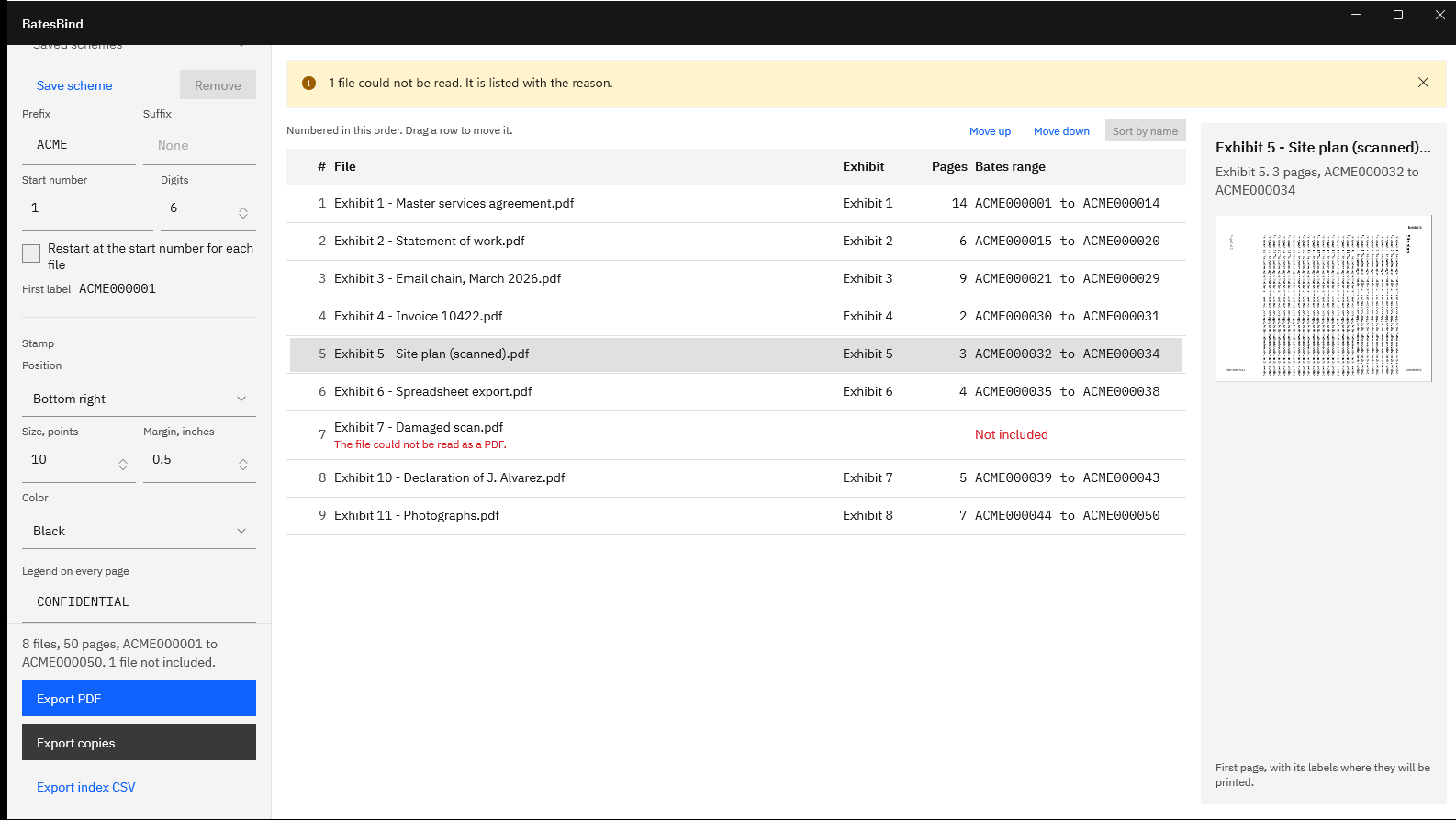
Screenshots use a sample exhibit folder generated for testing, with placeholder text and fictitious names.
Build the exhibit index and bound PDF in BatesBind
- Open the folder. Choose “Open a folder” or drop the folder on the window. The exhibits appear in natural order, so
2comes before10. - Put the exhibits in order. Drag rows, or use “Move up” and “Move down”. This order sets the exhibit labels, the Bates ranges, the index rows, and the bookmarks.
- Turn on exhibit labels. Check “Exhibit label on the first page of each file”. Type the “Text”, such as
ExhibitorEX-, choose “1, 2, 3” or “A, B, C” under “Count”, set “First” (6 gives F when counting letters), and pick a “Position”. The Exhibit column shows each label in the table. - Set the page labels. Every page also gets a Bates label. For a filing that needs plain consecutive page numbers, leave “Prefix” empty and set “Digits” to 1, which gives 1, 2, 3 across the whole set. For an exhibit set drawn from a production, use the production’s prefix and padding.
- Handle cover pages. If each exhibit starts with a cover or tab page, turn on “Leave the first page of each file unstamped”. That page then carries the exhibit label but no page label.
- Check the preview. Select an exhibit to see its first page with the label, the page number, and any legend where they will print.
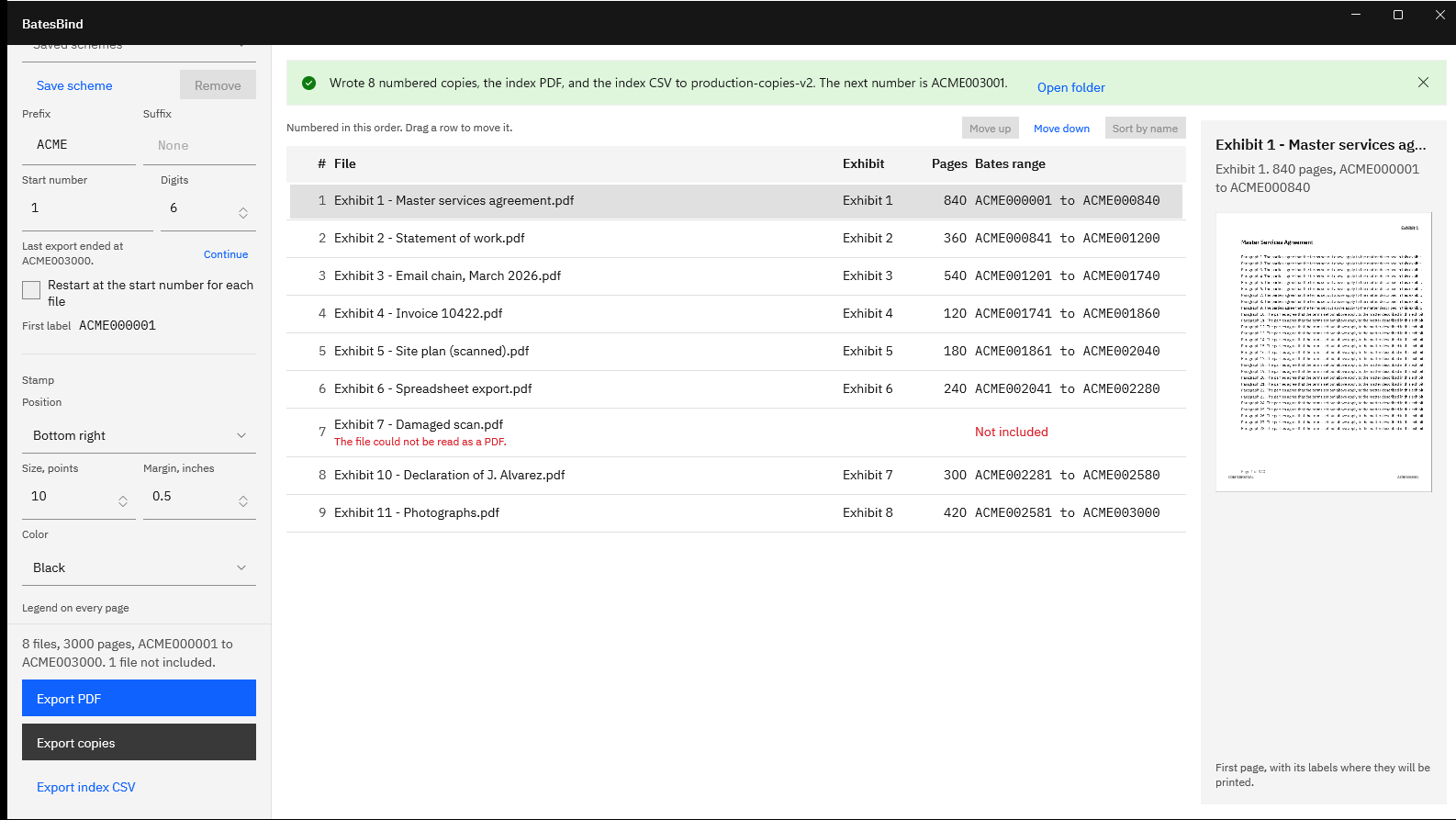
- Export the bound PDF. Choose “Export PDF” and name the file. BatesBind writes one PDF: the index pages first, then every exhibit in order, with a bookmark for the index and one for each exhibit, titled with its label and file name.
- Save an editable copy of the index. Choose “Export index CSV” after the export. The CSV lists each exhibit’s label, file name, pages, first and last label, the page where it starts in the bound PDF, and the bound file’s SHA-256 hash.
Label, number, index, and bookmark an exhibit set in one export.
Get it from Microsoft
The index pages at the front of the bound PDF are not stamped, so the stamped page 1 is the first page of the first exhibit. The index’s “Page” column gives each exhibit’s page in the combined PDF, which is the number a PDF reader shows.
Check the result
- Open the bookmarks pane in your PDF reader and click through every bookmark. Each should land on the exhibit’s first page, with its label visible.
- Compare the index with the brief. The index, the labels, and the bookmarks all come from the same list, so check that list once against the exhibit numbers cited in the brief or declaration. If a file changed after the folder was read, BatesBind stops the export and asks you to refresh.
- Check the size limits. Some courts and hearing offices cap the pages or file size of one upload. Check the cap before you bind a large set, and split the folder into volumes if needed.
When the index belongs to a production
For a discovery production rather than a filing, the index usually travels as a log beside numbered copies, not inside one PDF. “Export copies” writes a numbered copy of each file plus the index as PDF and CSV, with output names and a SHA-256 hash per file. The Bates production log guide covers that format, and adding exhibit labels to PDFs covers label conventions such as numbers for one side and letters for the other.
Limits
- The index lists file names. There is no separate description field, so rename files to read well, or build a styled index page from the CSV in Word or Excel if your filing needs a caption.
- The index page is titled “Bates index” and is printed on Letter-size pages, in landscape when long file names need the room.
- Every page except a skipped first page carries a page label. BatesBind has no mode for exhibit labels alone.
- One exhibit label per file, on its first page.
- BatesBind applies the conventions you choose. It makes no claim about what a court or opposing counsel will accept, and this article is general information, not legal advice. See what BatesBind does not decide.
Frequently asked questions
What is an exhibit index?
An exhibit index is a list of the exhibits in a filing or hearing package, in order, with each exhibit’s label and description, and often its page count, its Bates range, or the page where it starts in a combined PDF. It lets a reader find any exhibit quickly, and it sits in front of the exhibits.
Should exhibits be numbered or lettered?
It depends on the court, the hearing office, or the parties’ agreement. A common convention gives one side numbers and the other letters, but local rules vary, so check yours. BatesBind counts with 1, 2, 3 or A, B, C from any starting value, and continues AA, AB after Z.
Can the index show where each exhibit starts in the combined PDF?
Yes. When BatesBind exports one bound PDF, its index includes a “Page” column with the page where each exhibit begins in that file. The same start pages appear in the CSV from “Export index CSV”. The index pages themselves are not stamped, so stamped page labels begin with the first exhibit.
Can I edit the exhibit index?
Not inside the PDF, but the CSV is yours to edit. Choose “Export index CSV”, open it in Excel, and add descriptions or any columns your filing needs. To change the order or labels themselves, reorder the files in BatesBind and export again; the originals are never changed, so each export starts from clean files.
Try BatesBind
BatesBind is a one-time purchase in the Microsoft Store, and the Store runs a 15-day free trial with every feature, so you can build an exhibit set from your own files before you buy. Nothing uploads. See how it works on the BatesBind product page, read how to Bates number PDFs on Windows, or check the Bates number format guide before you choose page labels.
Make your next exhibit index during the 15-day free trial.
Get it from Microsoft
Last updated 7 October 2026. Published by Automata Labs, a software company in Canada.