To set the scale on a PDF drawing, click both ends of a dimension printed on the sheet and type its real length, or pick the drawing’s standard scale if the PDF is at its full printed size. Then measure a second printed dimension. If it reads what the drawing says, the scale is right for that sheet.
A PDF does not carry a drawing scale that measuring software can use. Each page is a sheet of paper measured in points, 72 points per inch, and the scale exists only as text in the title block. Software has to be told how much building one inch of paper stands for, sheet by sheet, and a wrong answer carries into every quantity measured on that sheet.
Set and check the scale on your own plan PDFs.
Get it from Microsoft
Why the title block scale is not always right for the PDF
The scale printed under a drawing describes the drawing at the paper size it was drawn for. The PDF in front of you may not be that paper.
- Reduced prints. A set drawn on 24 by 36 inch sheets is sometimes saved or printed at 11 by 17 inches. Shrunk to fit, a drawing at 1/4” = 1’-0” (1:48) on the full sheet reads at about 1:105 on the smaller page, a little under half the stated scale, while its title block still says a quarter inch per foot.
- Enlarged details and NTS. Enlarged plans have their own scale, and some details are marked NTS, not to scale. Neither can be measured with the floor plan’s scale.
- Scans. A drawing that went through a scanner or copier may have shrunk or stretched slightly, so a printed scale is a guess until it is checked.
A graphic scale bar is the exception worth looking for. Because it is drawn as part of the drawing, it shrinks with the drawing when a set is reduced, so its length stays true when the printed ratio does not.
Common drawing scales and what they mean
| Scale | Ratio | One inch of paper stands for |
|---|---|---|
| 1/8” = 1’-0” | 1:96 | 8 feet |
| 3/16” = 1’-0” | 1:64 | 5 feet 4 inches |
| 1/4” = 1’-0” | 1:48 | 4 feet |
| 1/2” = 1’-0” | 1:24 | 2 feet |
| 1” = 20’ (engineering) | 1:240 | 20 feet |
| 1:50 (metric) | 1:50 | 50 inches; 1 mm stands for 50 mm |
| 1:100 (metric) | 1:100 | 100 inches; 1 mm stands for 100 mm |
The ratio is the real length divided by the paper length, so reducing a set raises the ratio: a quarter-inch plan on half-size paper reads like an eighth-inch one.
Two ways to set the scale
| Standard scale | Calibrate from a dimension | |
|---|---|---|
| When it fits | The PDF page is the drawing’s full printed size | Any sheet, including reduced prints and scans |
| What you need | The scale from the title block | One long dimension printed on the sheet |
| What goes wrong | Every number is off if the set was reduced | Every number is off if you click the wrong points or the dimension text is wrong |
Calibrating works on any sheet, so it is the safer default. A standard scale still needs the same check.
How to choose the reference dimension
- Use the longest one you can find. An overall building dimension is ideal. A small click error matters less over 40 feet than over 4.
- Pick clear ends. Choose a dimension whose ends are marked by ticks or extension lines you can click on, and zoom in before clicking.
- Stay in the drawing you will measure. Calibrate on the plan, not on a detail drawn at another scale on the same sheet.
- Avoid anything marked NTS. And be wary of a dimension whose text looks wrong for its line; drafters sometimes type over a dimension value.
Check it with a second dimension
After you set the scale, measure a second printed dimension, ideally one running the other direction. If it reads what the drawing says, the scale holds. Checking the other direction also catches a scan that stretched one way more than the other, since a single scale applies to both directions.
If the check is off, look at the page size first: a page smaller than the sheet in the title block is a reduced print, and calibrating from a dimension fixes it. If the page is full size, try a different reference dimension; the first may be mistyped on the drawing.
Meet MeasureSet
MeasureSet sets the scale from a dimension you know, shows how it reads, and then measures every length, area, and count on that sheet in real units.
MeasureSet is a Windows app for construction takeoff from plan PDFs: set the scale from a dimension you know, measure length, area, and counts, and export the totals to Excel, CSV, or a marked-up PDF. It works on your PC with no account, nothing uploads, and the plan PDF is never written over.
Set and check the scale in MeasureSet
- Open the plan. Choose Open > PDF plan. The Sheets list shows each page’s size, such as 36.0 × 24.0 in, and “Not calibrated” until it has a scale.
- Compare the page size with the title block. If the drawing was made for 24 by 36 inch sheets and the page reads 17.0 × 11.0 in, calibrate from a dimension rather than picking a standard scale.
- Standard scale, for a full-size page. Open the Scale box at the bottom of the Sheets panel and pick the scale, such as 1/4” = 1’-0”. The status line reminds you that presets assume a full-size sheet.
- Calibrate, for any page. Choose Calibrate (C) and click both ends of a long printed dimension. The Known length dialog opens. Type the length, such as 40’-0”, 40 ft, 480 in, or 12.19 m. The dialog shows how it reads your entry, and the Calibrate button turns on once the entry reads as a length.
- Share the scale. Tick “Use this scale on all sheets that have none” in the dialog to fill in the rest of a set drawn at one scale. The “Use this scale on all sheets” button under the Scale box also replaces earlier calibrations.
- Check it. Choose Segment (S) and click both ends of a second printed dimension. Its length appears in the Marks list; compare it with the drawing.
- Read the scale. The status bar shows the sheet’s scale as a standard name, such as 1/4” = 1’-0”, when it matches one, or as a plain ratio, such as 1:105, when it does not. An unexpected ratio is worth a second look.
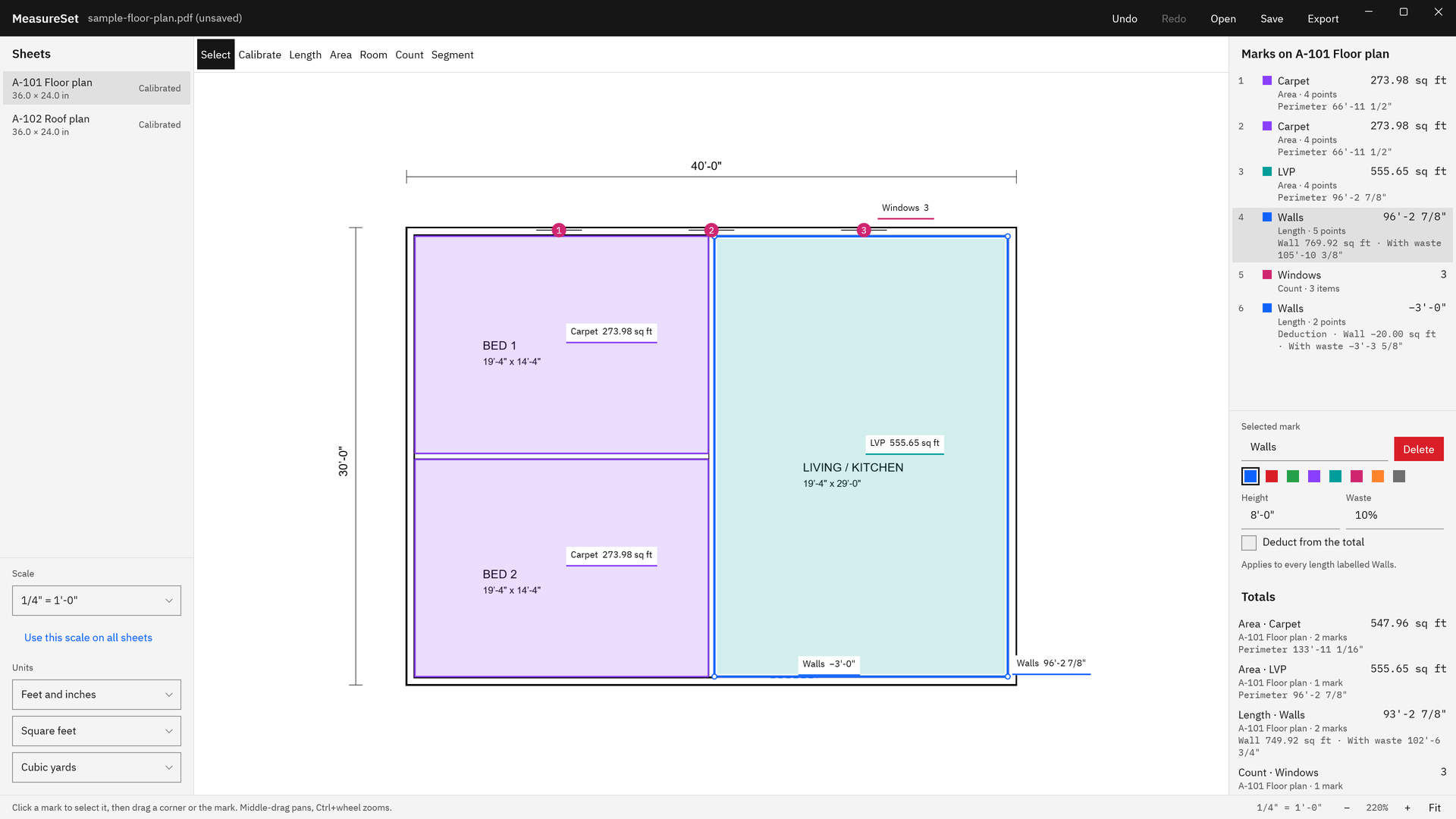
Screenshots use a sample floor plan drawn for software demonstration, not a real building or client.
Calibrate a sheet and check it against a second dimension.
Get it from Microsoft
Once the scale is set, the rest of the takeoff follows: see how to do a takeoff from a PDF plan for the full sequence, or measure PDF drawings to scale for what each measuring tool does.
What the scale does not fix
A measurement is only as good as the calibration and the drawing. A correct scale cannot repair a drawing that is wrong, and a few cases need care whatever tool you use.
- Details at another scale. MeasureSet keeps one scale per sheet, so measure a detail on the sheet where it is drawn at the calibrated scale, or work it out from its dimensions.
- Drawings marked NTS. Read their notes and dimensions; do not measure them.
- Dimension text that disagrees with its line. If two printed dimensions disagree with each other on the same sheet, ask the designer before relying on either.
The MeasureSet FAQ has a short version of these checks.
Frequently asked questions
What does 1/4” = 1’-0” mean on a drawing?
It means a quarter inch on the paper stands for one foot of the real building, a ratio of 1:48. It holds only when the drawing is at the paper size it was drawn for. If the set was reduced to fit smaller paper, a quarter inch on the page stands for more than a foot.
How do I know if a PDF drawing was printed to scale?
Compare the page size with the sheet size named in the title block, then measure a known dimension. If the page is smaller than the sheet it was drawn on, or the dimension reads short, the drawing was reduced. A graphic scale bar, if the sheet has one, reduces along with the drawing and stays usable.
Can a PDF drawing have more than one scale?
Yes. One sheet can hold a plan at one scale and details at others, and some details are not to scale at all. MeasureSet keeps one scale per sheet, so calibrate on the drawing you will measure and take other details from the sheet where they are drawn at that scale.
Do I need to set the scale on every sheet?
Each sheet needs a scale, but you do not have to calibrate each one by hand. In MeasureSet, the calibration dialog can apply the scale to every sheet that has none, and the Sheets list shows which sheets are still not calibrated. Check one dimension on each sheet you measure.
Try MeasureSet
MeasureSet is a one-time purchase in the Microsoft Store, and the Store runs a 15-day free trial with the full app, so you can calibrate your own plan PDFs and check them against dimensions you know before buying. It works on your PC, and nothing uploads. See how it works on the MeasureSet product page.
Try calibration on your own drawings during the free trial.
Get it from Microsoft
Last updated 7 October 2026. Published by Automata Labs, a software company in Canada.