To rename scanned PDF files from an OCR zone, draw a box over the spot where each document prints the details you want in the name, such as an invoice number and date. OCR reads only that box, a pattern pulls out each field, and a template turns the fields into a file name you check before anything is saved.
Scanners and copiers name files after the time of the scan, so a folder fills up with Scan_0915.pdf, Scan_0916.pdf, and so on. Renaming them by hand means opening each file, finding the invoice number, pressing F2, typing it, and hoping you did not swap two digits along the way.
Name scanned PDFs from the page itself, on your own PC.
Get it from Microsoft
What zone OCR is
OCR (optical character recognition) turns the picture of a page into text. A tool can read the whole page and search it for something that looks like an invoice number, or it can read one zone: a rectangle at the same place on every document.
Zone reading suits paper with a shared layout, such as one vendor’s monthly invoices, statements from one bank, or forms your office prints. Because the value always comes from the same spot, it can be checked against a known shape: a date should be a date and an invoice number should be digits. The trade-off is that a document with a different layout puts something else in the zone. Rename PDF based on content compares zone reading with whole-page reading in more depth.
Ways to rename scanned PDFs today
- By hand in File Explorer. Open, read, close, press F2, type. Fine for five files; slow and error-prone for fifty.
- A batch renamer. Renamers that work on existing names, dates, or counters are quick, but they cannot see the text inside a scanned image.
- Make the PDF searchable first. A searchable PDF lets you find and copy the number, but you still paste each name yourself.
- Online renamers. They read the page for you, but the file usually goes to someone else’s server, which many offices avoid for client paperwork.
Meet ScanRoute Local
ScanRoute Local reads one zone you draw, builds each file name and folder from a template, and shows every proposed name before anything is written.
It also splits combined scans at separator sheets, blank pages, or every N pages, so one scan can become many named files in one pass. Text is read with the Windows OCR language installed on your PC. Nothing uploads.
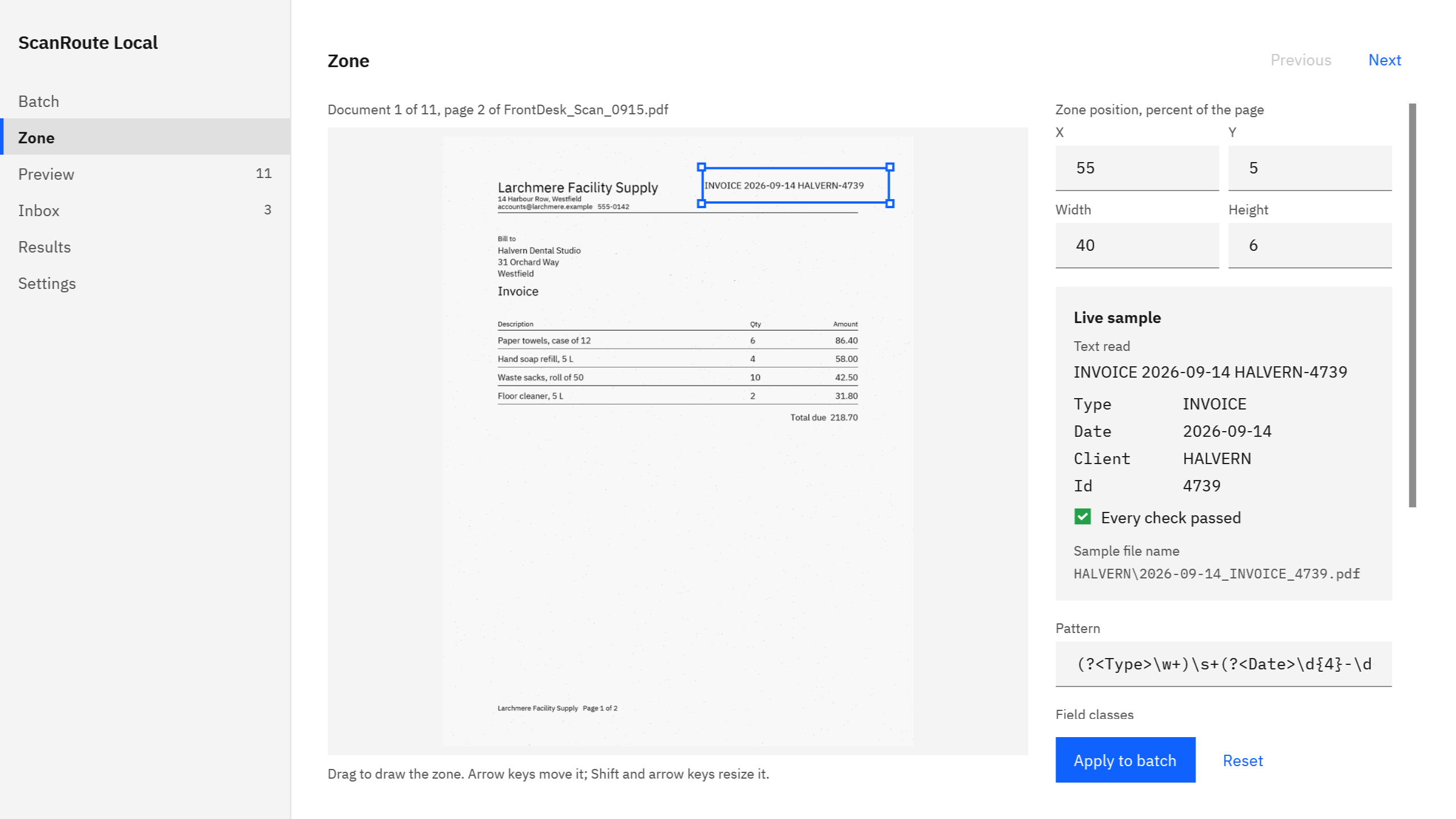
Screenshots show a synthetic batch with fictitious client codes.
Rename scanned PDFs from a zone, step by step
-
Check that Windows has an OCR language. See the section on installing one below.
-
Open a sample batch. Choose Batch > “Open PDFs”, or drop a PDF on the window. ScanRoute splits it using the split mode in Settings.
-
Draw the zone. On the Zone page, drag a box over the reference line on the document’s first page. Arrow keys move the zone, and Shift with the arrow keys resizes it. Use Next and Previous to see where the zone lands on other documents.
-
Keep the zone tight. The pattern has to match all of the text in the zone, so a zone that also catches a logo or a second line fails.
-
Write the pattern. The pattern is a regular expression with a named group for each field. For a zone that reads
INVOICE 2026-09-14 HALVERN-4739, this pattern pulls out four fields:(?<Type>\w+)\s+(?<Date>\d{4}-\d{2}-\d{2})\s+(?<Client>[A-Z]+)-(?<Id>\d+) -
Set the field classes. Give each field a class: Date for
Date, Letters forTypeandClient, Digits forId. -
Build the template. A template such as
{Client}\{Date}_{Type}_{Id}.pdfgivesHALVERN\2026-09-14_INVOICE_4739.pdf. The backslash makes a client folder under your destination. Token names must match the group names exactly, including capital letters. -
Check the live sample. The Zone page shows the text read, each field, and the sample file name. “Every check passed” means this document is ready.
-
Preview, settle the Inbox, and commit. Preview lists every proposed name and folder. Settle the documents in the Inbox, then choose Commit.
Draw one zone and see the proposed name for every document.
Get it from Microsoft
The checks behind each name
Windows OCR does not report how sure it is, so ScanRoute checks each read itself:
- The pattern matches all of the text in the zone.
- Two reads agree. The zone is read twice, the second time from a black-and-white copy, and both reads must say the same thing.
- Each field fits its class. Digits must be only digits and Letters only letters. In this version, the Date class reads dates written year-month-day, such as
2026-09-14; a date printed another way fails and waits for you to type it.
An invoice number read as 47E9 fails the Digits check, so the document waits in the Inbox instead of getting a wrong name.
What happens when a read fails its checks
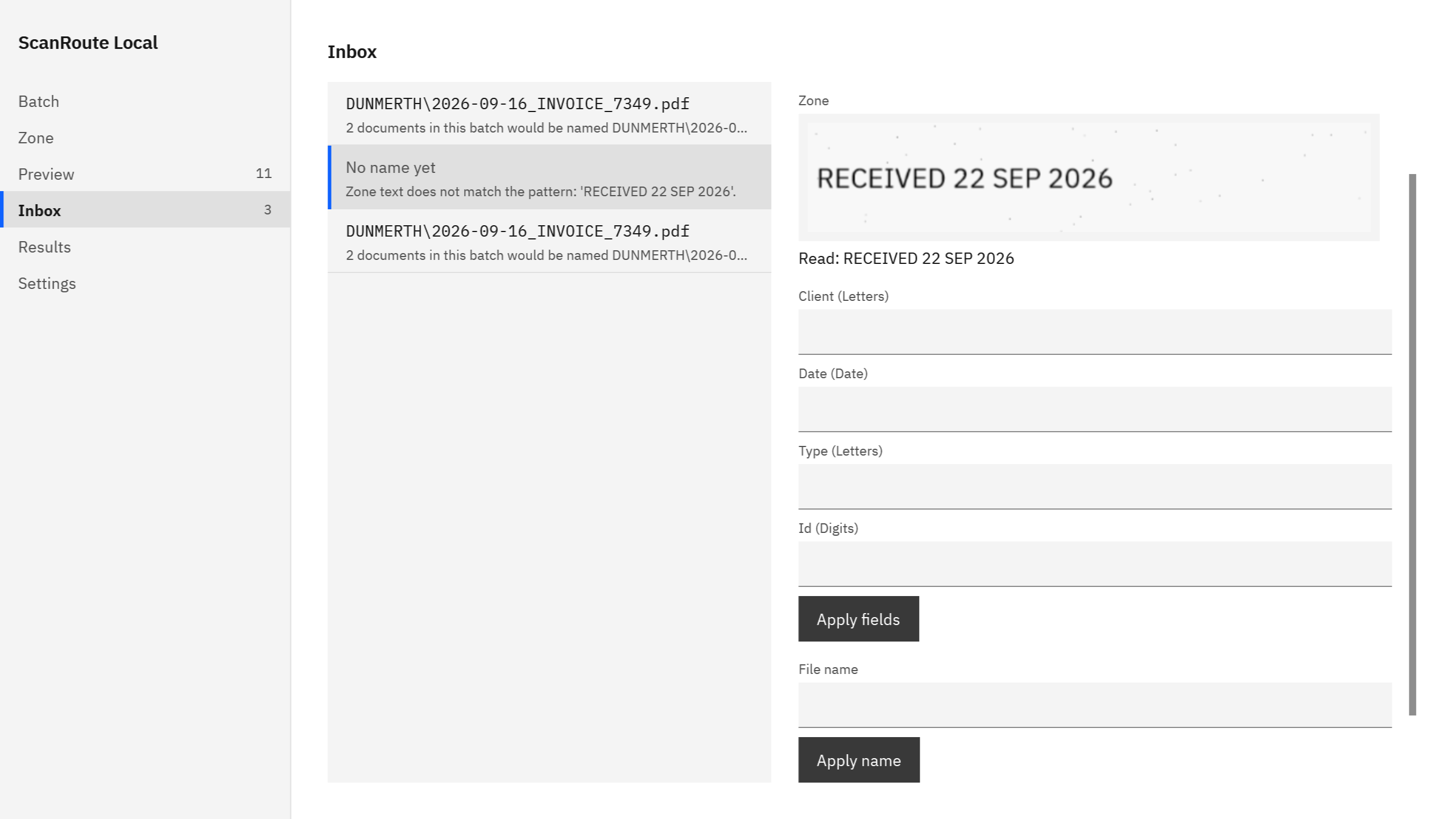
The document goes to the Inbox with its reason, the zone crop, and the text that was read. In the sample batch, one notice had a received stamp where the reference line usually sits, so the zone read RECEIVED 22 SEP 2026, the pattern did not match, and the document showed “No name yet”.
From there you can:
- type the fields and choose Apply fields,
- type the whole file name and choose Apply name,
- choose Accept to keep the values as read, or
- choose Skip to leave the document out of this commit.
If you want to confirm every value yourself, turn on “Send every OCR field to the inbox for confirmation” in Settings.
Installing a Windows OCR language
ScanRoute uses the OCR engine built into Windows and the OCR language installed there. It does not download anything. To add a language, open Windows Settings > Time & language > Language & region and add the language your paperwork is printed in. If ScanRoute finds no OCR language, it shows a banner that opens that settings page.
Without an OCR language, splitting still works, and the zone fields wait in the Inbox for you to type them. The product page FAQ explains how reliable the text reading is.
Check every name before you commit
OCR and barcodes can misread. ScanRoute shows every proposed name in Preview and holds unsure documents in the Inbox. Nothing is written until you commit. Your original PDFs keep their names and are only read; ScanRoute writes the named copies as new files and never overwrites an existing one.
Limits
- One zone per document, read on the document’s first page.
- The zone sits at the same place on every document, so batches with mixed layouts send more documents to the Inbox.
- PDF files in folders on this PC only.
For a full month of client paperwork, see splitting scanned invoices and receipts for bookkeeping. To add the document type from a separator sheet, see splitting a scanned PDF at barcode separator sheets.
FAQ
What is zone OCR?
Zone OCR reads text from one rectangle at the same place on every document, instead of the whole page. Because the value always comes from a known spot, it can be checked against a known shape, such as a date or a number. It suits invoices, statements, and forms that share a layout.
Can ScanRoute read more than one zone?
No. ScanRoute reads one zone per document, on the document’s first page. A pattern can pull several fields out of the text in that zone, such as the type, date, client code, and invoice number, so one well-placed zone over a reference line often gives everything a file name needs.
What happens if no OCR language is installed?
Splitting still works, and any file name fields that come from the zone wait in the Inbox for you to type them. ScanRoute shows a banner that opens the Windows language settings, where you can add the language your paperwork is printed in. ScanRoute itself never downloads or installs anything.
Does the text read from my documents leave my PC?
No. ScanRoute reads the zone with the Windows OCR engine on your PC and uses the fields only to name the files it writes on this PC. It makes no network connection, has no account, and collects no telemetry. If your destination is a folder OneDrive manages, OneDrive may copy the files under its own settings.
Try ScanRoute Local
ScanRoute Local is a one-time purchase in the Microsoft Store, and the Store offers a free trial so you can draw a zone on your own paperwork first. It runs on Windows 10 version 2004 or later, or Windows 11, on an x64 PC. Nothing uploads. See how it works on the ScanRoute Local product page.
Rename your next batch of scanned PDFs from one zone.
Get it from Microsoft
Last updated 5 October 2026. Published by Automata Labs, a software company in Canada.