You can save an iPhone text message conversation as a PDF on a Windows PC, with no Mac. Open the iPhone backup already on your PC in BackupPaper, pick the conversation, and choose Export PDF. The backup must hold your messages, so check Messages in iCloud first.
The task usually starts with one request: someone asked for the texts, or a long thread needs to live somewhere other than a phone. Screenshots capture one screen at a time, which gets slow for a conversation that runs for months. If the iPhone has been backed up to this PC with iTunes or Apple Devices, the conversation may already be sitting on your drive, inside that backup.
Open the backup you already have and save the conversation as a PDF.
Get it from Microsoft
What you need
| Item | Detail |
|---|---|
| Windows | Windows 10 version 2004 or later, or Windows 11 |
| A backup on the PC | Made with iTunes or Apple Devices |
| The backup password | Needed only if the backup is encrypted |
| BackupPaper | Opens the backup and writes the PDF |
Should I check Messages in iCloud first?
Yes. Apple says a backup made on a computer leaves out iMessages and text (SMS) and multimedia (MMS) messages that already sync to iCloud. If Messages in iCloud is on, the backup may hold few or no conversations. BackupPaper then says the backup has no conversations.
Apple explains the setting in its guide, Set up iCloud for Messages on all your devices. The rule comes from Backup methods for iPhone or iPad. Use the free trial to see what your backup holds before you buy. Our guide on whether an iPhone backup includes text messages covers this in more detail.
Meet BackupPaper
BackupPaper turns one conversation in the iPhone backup on your PC into a PDF or CSV file you can keep.
BackupPaper is a Windows app that saves one conversation from an iPhone backup on your PC as a PDF or CSV file. It opens backups made by iTunes or Apple Devices for Windows, including the default backup folders, and it reads encrypted backups when you type the password you set.
- Local. It makes no network connections, so nothing is uploaded. There is no account and no iCloud sign-in, and the iPhone does not need to be connected.
- Untouched. It opens the backup read-only and never changes it. Every export is a new file that you name.
- Checkable. It shows the SHA-256 of each file it writes, so you can check the file with
certutil -hashfilenow or later. - Pay once. It is a one-time purchase in the Microsoft Store, with a 15-day free trial run by the Store.
How to save a conversation as a PDF with BackupPaper
- Make or find the backup. In Apple Devices or iTunes on Windows, connect the iPhone with a cable and select it. Choose to back up to this computer, then choose Back Up Now. Apple’s backup page has details. Already have one? See where iPhone backups are stored on Windows.
- Open the backup in BackupPaper. Choose the backup folder, the one named with the iPhone’s long device ID. For an encrypted backup, type the password you set. On our test PC the password check took about five seconds.
- Pick the conversation. BackupPaper lists the conversations with message counts and last dates, newest first. Select one to read it, with the time, sender and text of each message, plus reactions, replies and attachment names.
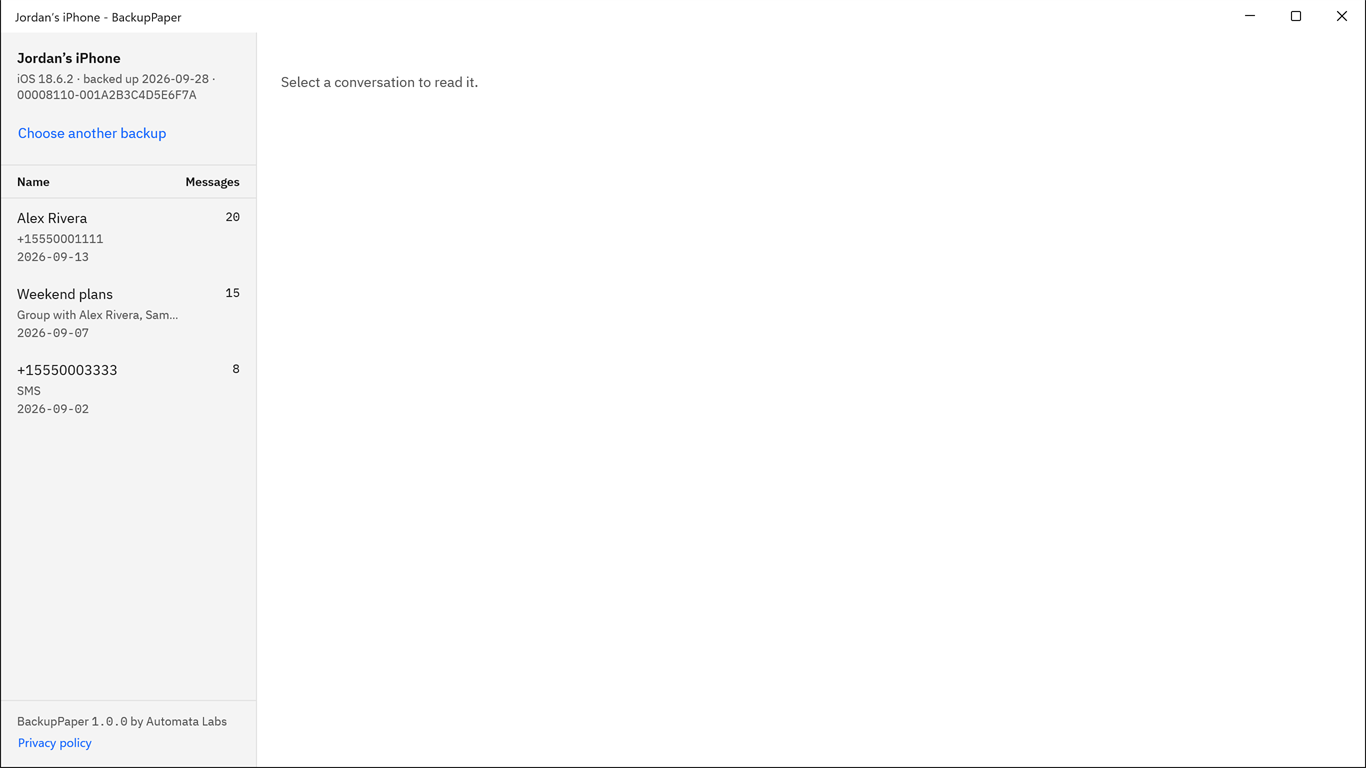
Screenshots use a synthetic backup with fictitious names.
- Choose Export PDF and name the file. Name the new file in the Windows Save dialog. BackupPaper refuses to save inside the backup folder, so pick Documents or another folder you use.
- Check the SHA-256. BackupPaper shows the SHA-256 of the file it wrote. To check it, run this command in a Command Prompt with your own file path:
certutil -hashfile "C:\Users\YourName\Documents\conversation.pdf" SHA256If the result matches, the file has not changed since BackupPaper wrote it. The SHA-256 is a fingerprint of the exported file. It says nothing about the messages before you made the backup.
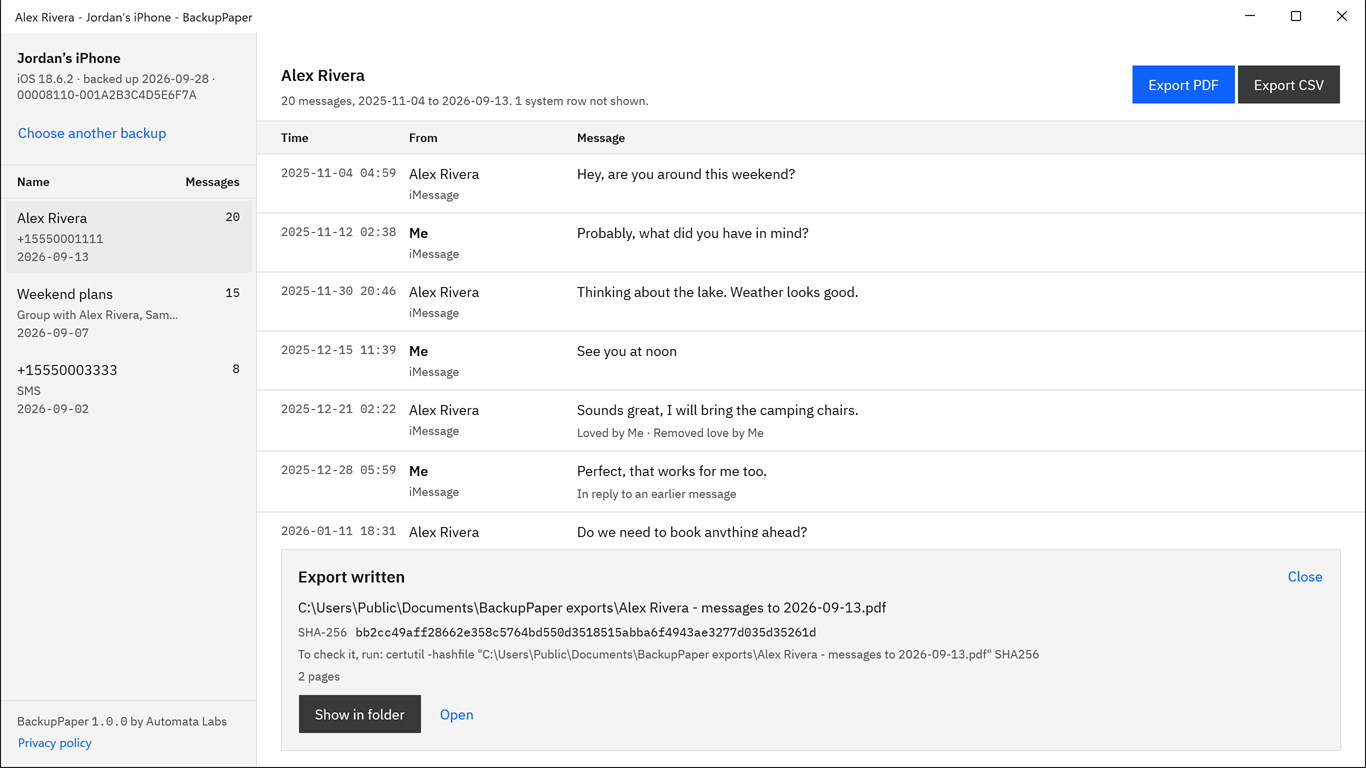
Pick the conversation, choose Export PDF, and keep the SHA-256 with the file.
Get it from Microsoft
What does the PDF contain?
The PDF opens with a header, then lists the messages. The header describes the device, the conversation and the export. Each row shows the time, sender and message, plus reactions, replies and attachment names. Every page is US Letter size and has a page number.
| Header line | What it shows |
|---|---|
| Device | The device the backup came from |
| Backup date | The date of the backup |
| Participants | Who is in the conversation |
| Service | iMessage or SMS |
| Messages | Message total, with the first and last dates and times |
| Not shown | How many system rows, such as group renames, were left out |
| Exported | When BackupPaper wrote the PDF, and that it opened the backup read-only |
BackupPaper shows contact names when the backup includes the address book; otherwise it shows phone numbers and email addresses. Group conversations work the same way as one-to-one threads. It lists attachments by name, and it does not place photos or videos in the PDF.
Need paper rather than a file? Print the PDF from any PDF viewer; our page on printing iPhone text messages on Windows walks through it. Need a spreadsheet? Choose Export CSV instead, as described in exporting iPhone text messages to Excel.
What other ways are there to do it?
Screenshots, a Mac, a phone restore or an app that reads the PC backup can all work. The table shows what each does well and what to watch for.
| Method | Works well for | Watch for |
|---|---|---|
| Screenshots | A few messages, with nothing to install | One screen per shot, so long conversations need many |
| Printing from a Mac | People with a Mac, because the print dialog can save a PDF | You need a Mac that has the messages |
| Restoring the backup to an iPhone | Putting the backup’s information back on a phone | You need a phone to restore, and you still need a way to make a file |
| Reading the backup on the PC with BackupPaper | A whole conversation from a backup already on your PC | The backup must hold the messages |
Why reading the backup on the PC is the practical route
The backup is already on your drive, so there is nothing to restore and no Mac to borrow. BackupPaper reads it where it sits, writes the whole conversation to one file with a header and page numbers, and leaves the backup as it was. Because it makes no network connections, the messages never leave the PC on the way to a PDF.
Limits
- BackupPaper reads the Messages app only: iMessage and SMS texts. It does not read other chat apps, such as WhatsApp or Signal.
- It needs a backup already on the PC. It does not read the phone, iCloud backups or Messages in iCloud.
- It shows the messages the backup holds. It does not bring back deleted messages.
- It exports one conversation per file.
- An encrypted backup needs its password.
- Arabic and Indic scripts print in the PDF as separate letters. The CSV keeps the text exactly.
The app is in English.
Frequently asked questions
Can I save iPhone text messages as a PDF without a Mac?
Yes. Make a backup with iTunes or Apple Devices on your Windows PC, then open that backup in BackupPaper and choose Export PDF. You do not need a Mac. Check Messages in iCloud first, because Apple says a computer backup leaves out messages that already sync to iCloud.
Does BackupPaper upload my text messages?
No. BackupPaper makes no network connections, so it uploads nothing. It has no account and no iCloud sign-in. It reads the backup only on your PC and writes the PDF as a new file that you name. You do not need to connect the iPhone.
Can I save more than one conversation at once?
No. BackupPaper exports one conversation per file. Pick the next conversation and choose Export PDF again. Each export is a new PDF with its own SHA-256. The backup stays unchanged because BackupPaper opens it read-only. Repeat the steps for every conversation you need.
Can I save the conversation for Excel instead of as a PDF?
Yes. Choose Export CSV instead of Export PDF. The CSV is UTF-8, with one row for each message and each reaction, and it carries both UTC and local times, so a spreadsheet such as Excel can open it. The CSV also keeps text exactly, including scripts the PDF prints as separate letters.
Try BackupPaper
BackupPaper is a one-time purchase in the Microsoft Store, with a 15-day free trial run by the Store. The trial has every feature, with no watermark and no message limit, so you can open your own backup and see what it holds before you pay. The Store installs and updates the app, and the receipt comes from Microsoft. See the BackupPaper product page for screenshots and the FAQ.
Try it on your own backup during the 15-day free trial.
Get it from Microsoft
Last updated 5 October 2026. Published by Automata Labs, a software company in Canada.
iPhone, iMessage and iTunes are trademarks of Apple Inc., registered in the U.S. and other countries and regions. BackupPaper is not affiliated with or endorsed by Apple.