To split a PDF at blank pages, put a blank sheet between documents, scan the stack into one PDF, and run it through a splitter that starts a new file at each blank page and leaves the blank out. It suits quick jobs, as long as your scanner keeps the blank sheets and adds no others.
Blank sheets are the separator every office already has. Take a few from the printer tray, slip one between each document, and scan the stack in one pass. The trouble usually starts with two scanner settings: two-sided scanning, which adds blank pages, and blank-page removal, which takes them away.
Split combined scans at blank pages, on your own PC.
Get it from Microsoft
How blank-page separators work
A blank-page splitter looks at every page and decides whether it is blank. A scanned blank sheet is rarely pure white: there is speckle, a hole-punch shadow, or faint show-through from the other side. Meanwhile, a content page with only a page number on it is almost blank. The splitter has to draw a line between “blank enough to be a separator” and “a page with something on it”, and no single line suits every scanner.
That is why a good blank-page split always ends with a check of the result before the files are written.
Scanner settings that add or remove blank pages
Look at these settings in your scanner or copier software before you rely on blank sheets:
| Scanner setting | What it does to blank pages | For blank-page splitting |
|---|---|---|
| Two-sided (duplex) scanning | Every sheet becomes two pages, so each one-sided page gets a blank back | Scan one-sided, or switch to barcode sheets |
| Blank-page removal (“skip blank pages”) | Drops blank pages before the PDF is saved, including your separator sheets | Turn it off |
| Two-sided with blank-page removal | Removes the blank backs and the blank separators alike | Use barcode sheets instead, and leave removal on |
Two more cases to know:
- A blank separator sheet scanned two-sided gives two blank pages in a row. That is fine in ScanRoute: consecutive separator pages count as one break.
- A document that has a truly blank page inside it, such as the empty back of a two-sided form, will be split at that page. If your documents contain blank pages, use barcode separator sheets.
Ways to do it without a dedicated splitter
- A PDF reader. Scroll through the scan, note where each blank page sits, extract each range, and delete the blanks. It works, but it is slow for a long stack.
- Your copier’s blank-page removal. It tidies the output, but it also removes the sheets that marked your documents, so you are left with one long file.
- Your copier’s page-count split. Useful only when every document has the same length.
Meet ScanRoute Local
ScanRoute Local splits one combined scan into separate, named PDFs at blank pages, barcode separator sheets, or every N pages, and shows every result before anything is written.
It runs on your Windows PC, has no account, and makes no network connection. Nothing uploads.
Screenshots show a synthetic batch with fictitious client codes.
Split a PDF at blank pages in ScanRoute
- Choose the split mode. In Settings, under Splitting, set Split mode to “Blank page”. If some stacks also use barcode sheets, choose “Barcode or blank page”.
- Leave Blank page sensitivity at its default to start. If a test shows separators being missed, or near-empty pages being taken for separators, try another level (Low, Medium, or High) and run the test scan again.
- Choose a destination. Under Destination, pick a folder on this PC for the split files.
- Set the file name template. On the Zone page,
{Source}_{Seq}.pdfnames each part after the scan with a running number. To name files from the page itself, draw one zone. - Scan one-sided with blank-page removal off. Use your scanner or copier software to save the stack as a PDF.
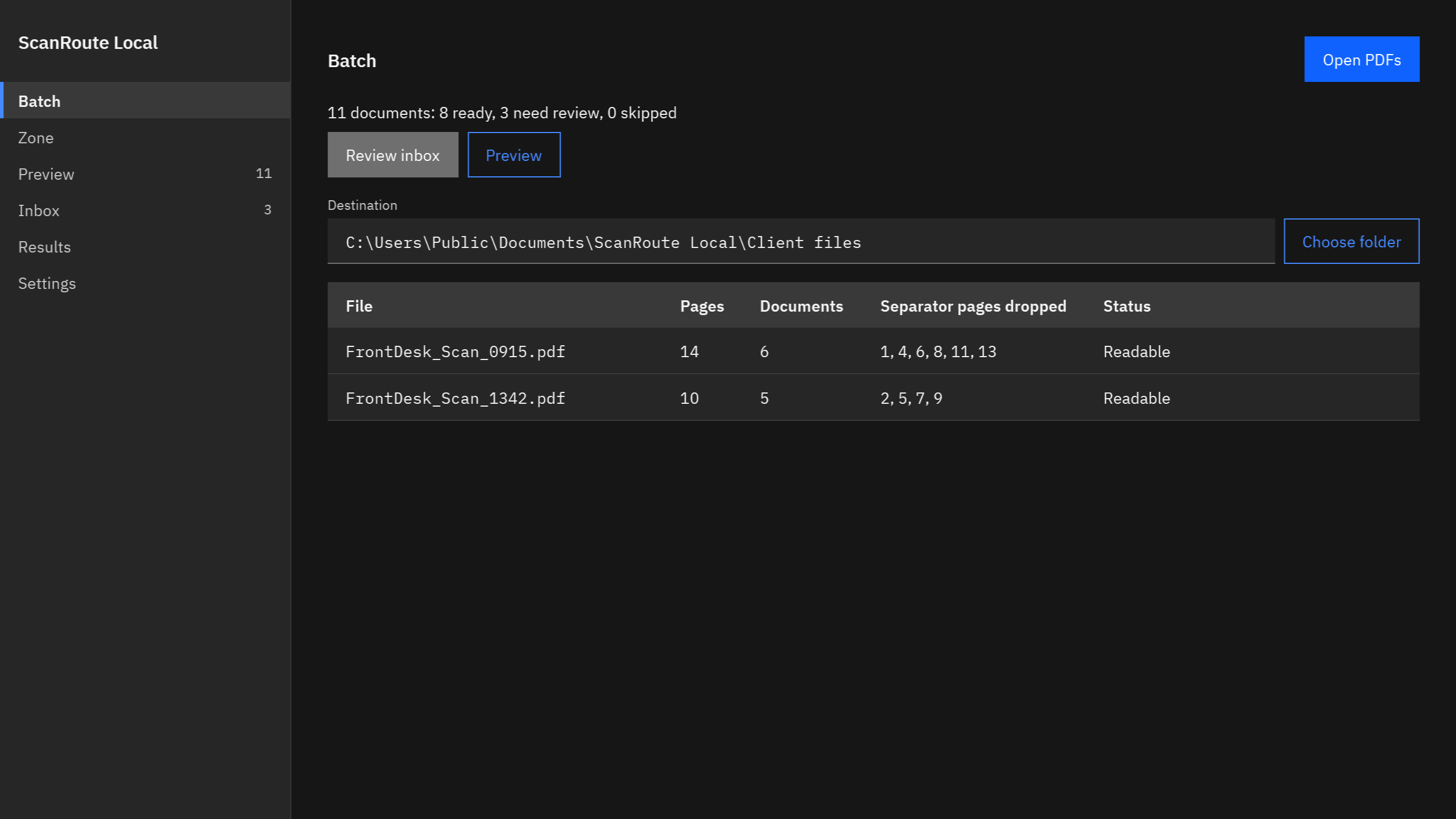
- Open the PDF. Drop it on the window or choose Batch > “Open PDFs”. The Batch page lists, for each file, how many documents it found and which separator pages were dropped.
- Check Preview. Each proposed name is listed with its pages and the reason for the split, such as “Blank page”.
- Commit. Settle anything in the Inbox, then choose Commit in Preview.
Blank separator pages are always left out of the output. “Keep barcode separator pages in the output” applies to barcode sheets only.
Check every blank-page split in Preview before anything is written.
Get it from Microsoft
Choosing blank page, barcode, or both
| Split mode | Starts a new document at | Use it when |
|---|---|---|
| ”Blank page” | Each blank page, with a run of blanks counted as one break | You scan one-sided and documents have no blank pages inside |
| ”Barcode or blank page” | A barcode sheet that matches your prefix, or a blank page | Different people stack the paper different ways |
| ”Barcode” | A barcode sheet only; blank pages stay in as content | You scan two-sided with blank-page removal on, or documents contain blank pages |
| ”Every N pages” | A fixed page count | Every document has the same length |
To switch to barcode sheets, print our free printable separator sheets in Letter or A4, and see how to split a scanned PDF at barcode separator sheets.
Every N pages for fixed-length forms
If every document is the same length, such as a two-page application form, you need no separators at all. Set Split mode to “Every N pages” and “Pages per document” to the form’s length. The count alone decides, so blank pages and barcodes are treated like any other page. If the last pages do not fill a whole document, that leftover part waits in the Inbox as a missing separator. Front-desk forms are a common case; see split scanned patient intake forms.
Checking the split in Preview
Preview shows the pages of every document, which is where blank-page problems show up:
- A document with too many pages usually means a separator was missed, perhaps because of show-through or a smudge. A document longer than the maximum page count in Settings also waits in the Inbox as a missing separator.
- A document cut in two usually means a near-empty page, such as a page with only a footer, was taken for a separator.
Either way, adjust Blank page sensitivity and try the scan again, or switch that stack to barcode sheets.
Check before you commit
OCR and barcodes can misread, and blank-page detection depends on how clean your scans are. ScanRoute shows every proposed name in Preview and holds unsure documents in the Inbox. Nothing is written until you commit. Your original PDFs are only read, never changed, moved, or deleted, and no existing file is overwritten.
Limits
- PDF input only; ScanRoute does not control your scanner or change its settings.
- Folders on this PC only, not shared drives.
- Blank pages inside documents will split them in “Blank page” mode; use barcode sheets for those.
If your scans arrive from a copier, see copier scan to folder.
FAQ
Why did my blank-page split make too many documents?
The usual cause is two-sided scanning: every one-sided page gets a blank back, and each blank back looks like a separator. Scan one-sided, or switch to barcode sheets and turn on your scanner’s blank-page removal. A page with very little on it can also be taken for blank; try another Blank page sensitivity level.
Do the blank separator pages end up in the split files?
No. ScanRoute always leaves blank separator pages out of the output, and two or more blank pages in a row count as one break, so you never get an empty document. Barcode separator sheets are also left out by default, unless you turn on “Keep barcode separator pages in the output”.
Can one stack use blank sheets and barcode sheets?
Yes. Set Split mode to “Barcode or blank page”. ScanRoute then starts a new document at a barcode sheet whose value starts with your separator prefix, or at a blank page. This suits offices where different people prepare the stacks, as long as stacks with blank sheets are scanned one-sided.
Try ScanRoute Local
ScanRoute Local is a one-time purchase in the Microsoft Store, and the Store offers a free trial so you can test blank-page splitting with your own scanner. It runs on Windows 10 version 2004 or later, or Windows 11, on an x64 PC. Nothing uploads. See how it works on the ScanRoute Local product page.
Split your next blank-sheet stack into separate PDFs on this PC.
Get it from Microsoft
Last updated 5 October 2026. Published by Automata Labs, a software company in Canada.