To split scanned invoices into separate PDFs, put a separator sheet on top of each invoice, receipt, or credit note, scan the client’s paper in one pass, and split the PDF at each sheet. Then name each file from the invoice number and date on the page, file it in that client’s folder, and check every name before saving.
Month-end often arrives as an envelope or a shoebox: vendor invoices, till receipts, a couple of credit notes, a bank statement. Scanning the pile takes five minutes. Turning one long PDF into separate documents with names like 2026-09-14_4739.pdf, in the right client folder, is where the afternoon goes, and where a transposed digit slips in.
Split a client’s month of paper into named PDFs, on your own PC.
Get it from Microsoft
How bookkeepers handle scanned paper today
- Scan each document on its own. No splitting needed, but it means many trips to the scanner, and every file is still named by the time of the scan.
- Scan the stack and split by hand. Extract each page range in a PDF reader and type each name. Getting every name right depends on attention late in the day.
- Use the copier’s page-count split. Invoices and receipts vary in length, so a fixed count rarely lines up.
- Send the scan to an online service. It may split and name the files, but your clients’ financial paperwork goes to someone else’s server, under someone else’s terms.
Meet ScanRoute Local
ScanRoute Local turns one scan of a client’s paper into separate, named PDFs in that client’s folder on your PC, and shows every proposed name before anything is written.
It splits at barcode separator sheets, blank pages, or every N pages, reads one zone you draw with the Windows OCR language on your PC, and holds unsure documents in an inbox for you to settle. Nothing uploads.
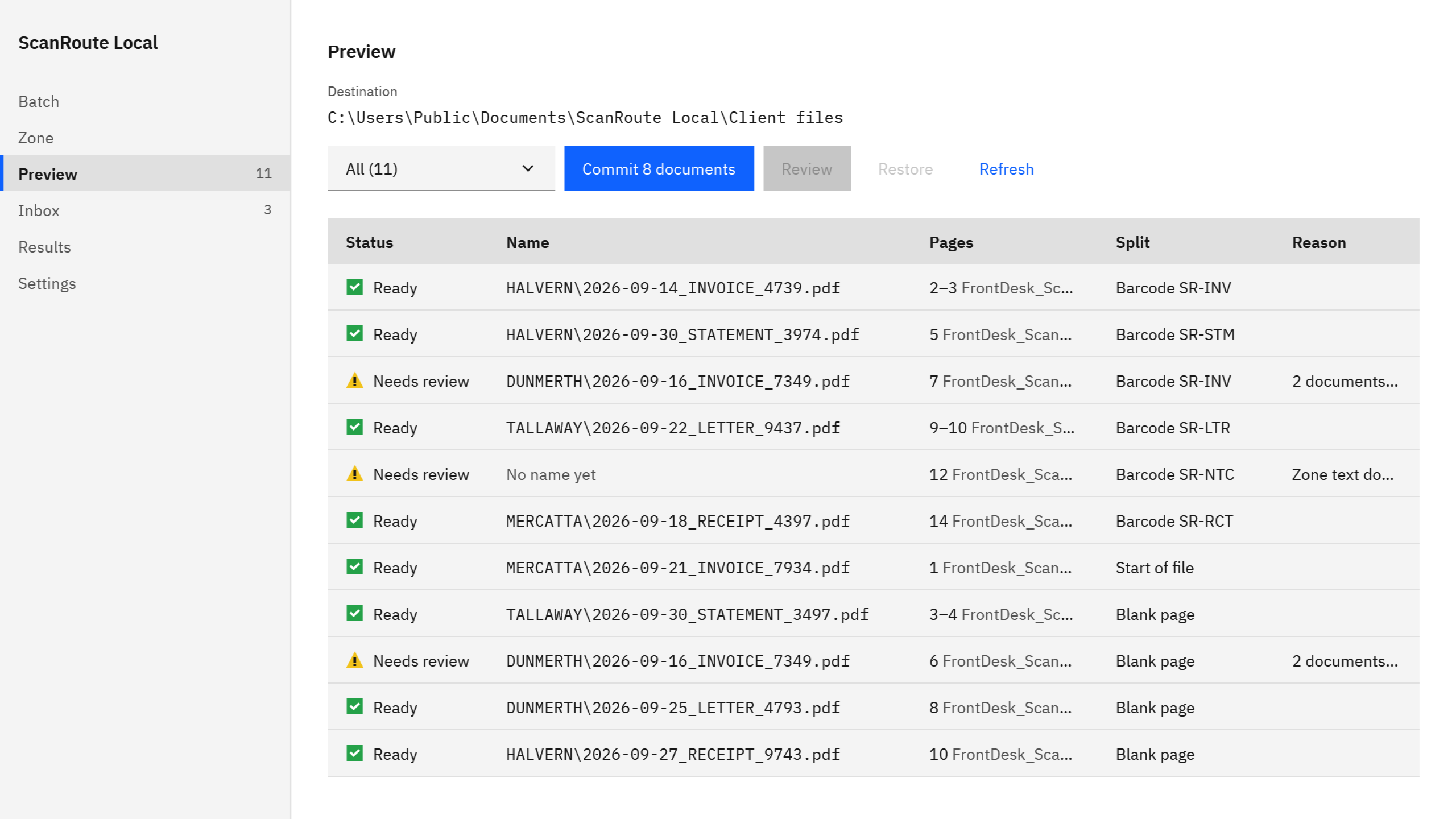
Screenshots show a synthetic batch with fictitious client codes.
Separator sheets by document type
Our free printable separator sheets come with three document types: SR-INV (Invoice), SR-RCT (Receipt), and SR-CRD (Credit), each as a Code 128 barcode and as a QR code. Download them in Letter or A4, print at actual size, and keep a small pile of each by the scanner.
With Split mode set to “Barcode” and “Separator prefix” set to SR-, ScanRoute starts a new PDF at each sheet and leaves the sheet out. The {Barcode} token puts the sheet’s value in the file name or folder, so the document type comes from the sheet you chose while sorting. You can print your own sheets for other types, such as SR-STM for statements, as long as each carries one barcode starting with SR-. The separator sheet guide covers printing and testing.
A zone and pattern for invoice number and date
To name files from the page, draw one zone over the line that holds the invoice number and date, and write a pattern with a named group for each field. The OCR zone guide walks through the zone, the pattern, and the field classes.
Two things to know before you rely on it:
- The zone sits at the same place on every document. It suits paper that shares a layout: a client’s own sales invoices, one vendor’s monthly bills, statements from one bank. Receipts from ten different shops put ten different things in the zone, and those documents wait in the Inbox for you to type the fields.
- Dates are read year-month-day in this version, such as
2026-09-14. A date printed another way fails its check and waits in the Inbox for you to type it.
Rename PDF based on content explains when zone reading is the right fit.
Folders per client and per document type
Set Destination to the client’s folder before you plan that client’s batch. The template’s folder part then sorts the files inside it:
| Batch | Template | Example result |
|---|---|---|
| Mixed receipts with different layouts | {Barcode}\{BatchDate}_{Seq}.pdf | SR-RCT\2026-10-03_004.pdf |
| Invoices that share a layout | {Barcode}\{Date}_{Id}.pdf | SR-INV\2026-09-14_4739.pdf |
| A client code printed in the zone line | {Client}\{Date}_{Type}_{Id}.pdf | HALVERN\2026-09-14_INVOICE_4739.pdf |
ScanRoute keeps one template at a time, so change it on the Zone page between a receipts batch and an invoices batch.
Step by step: one client’s month of paper
- Sort and insert sheets. Put an
SR-INV,SR-RCT, orSR-CRDsheet on top of each document. - Scan the stack to PDF with your scanner or copier software.
- Set Settings. Under Destination, choose the client’s folder. Under Splitting, set Split mode to “Barcode” and “Separator prefix” to
SR-. - Set the zone and template on the Zone page, using one of the templates above.
- Open the scan. Drop the PDF on the window or choose Batch > “Open PDFs”.
- Check Preview. Every proposed name and folder is listed with its pages and the sheet that started it.
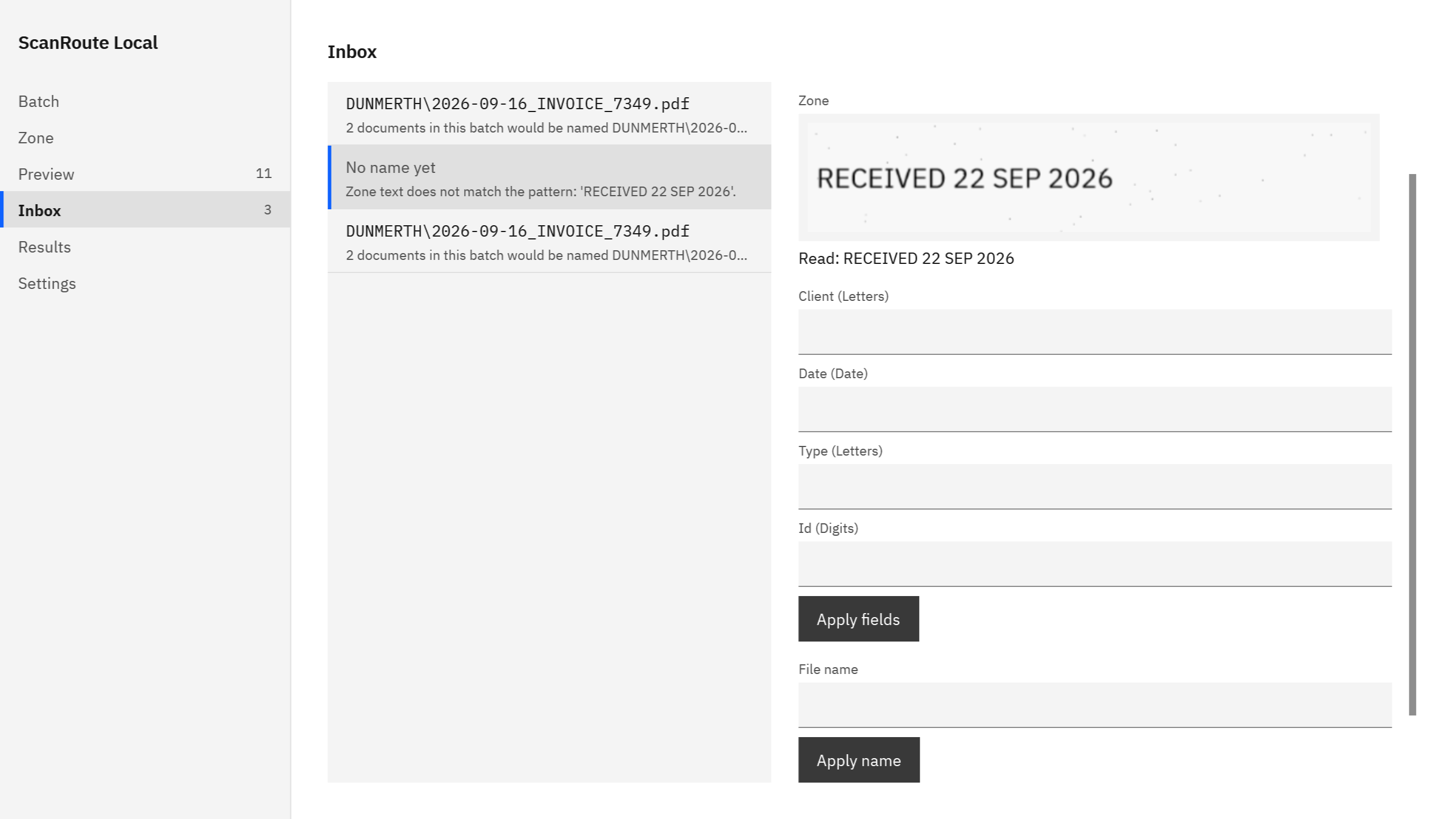
- Settle the Inbox. Type the fields and choose Apply fields, fix the name with Apply name, Accept the values as read, or Skip.
- Commit. Choose Commit in Preview, then Results > “Open manifest” to see what was written.
Try it on one client’s paper before month-end.
Get it from Microsoft
Reviewing exceptions
The Inbox is where month-end paper earns its keep. Each document there shows its reason and, for a failed read, the zone crop and the text that was read. Common cases:
- A duplicate. The same invoice scanned twice, or two documents that would get the same name. ScanRoute never overwrites a file, so it asks you to decide.
- A read that did not pass its checks. A stamp over the invoice number, a date in another format, or a vendor with a different layout.
- A missing separator. A file with no separator sheet, or a document longer than the maximum page count in Settings.
- A bad file name, such as an empty field.
If you would rather confirm every value yourself, turn on “Send every OCR field to the inbox for confirmation” in Settings.
Keeping client documents on your PC
ScanRoute Local has no account, collects no telemetry, and makes no network connection. Client documents, file names, and the values read from them stay on this PC. If your destination is a folder that a sync app such as OneDrive manages, that app may copy the files elsewhere under its own settings. The privacy section has the details.
Your original scans are only read, never changed, moved, or deleted. Each commit writes a CSV manifest in the destination folder listing every file written with its SHA-256 hash, which makes a tidy record for your working papers. With a Windows OCR language installed, upright scanned pages without text also get an invisible text layer so you can search them; see make a scanned PDF searchable offline.
Check every name before you commit
OCR and barcodes can misread. ScanRoute shows every proposed name in Preview and holds unsure documents in the Inbox, and nothing is written until you commit.
Limits
- PDF input only; scan with your own scanner or copier software first.
- One zone per document, on its first page.
- Folders on this PC only, not shared drives.
FAQ
Can ScanRoute read the invoice number from any vendor’s invoice?
It reads one zone at the same place on every document in a batch. That works well for invoices that share a layout, such as one vendor’s bills or a client’s own sales invoices. Invoices with other layouts put different text in the zone, so they wait in the Inbox for you to type the fields.
Which date formats can it read?
In this version, the Date field class reads dates written year-month-day, such as 2026-09-14. A date printed another way, such as 14 Sep 2026, fails its check and waits in the Inbox, where you type it. Splitting and the other fields are not affected, and every proposed name still appears in Preview.
Can everyone in our practice use one purchase?
No. Microsoft Store purchases are per user, so each person who uses ScanRoute Local gets it with their own Microsoft account. There is no volume license. Each person can install it, try it with the free trial in the Store, and buy it as a one-time purchase.
Do client documents leave my PC?
No. ScanRoute Local makes no network connection, has no account, and collects no telemetry. It reads the scans and writes the split PDFs and the CSV manifest on this PC. The only exception is a destination folder managed by a sync app such as OneDrive, which may copy files under its own settings.
Try ScanRoute Local
ScanRoute Local is a one-time purchase in the Microsoft Store, and the Store offers a free trial so you can run one client’s paper through it first. It runs on Windows 10 version 2004 or later, or Windows 11, on an x64 PC. Nothing uploads. Get the free printable separator sheets from the separator sheets section of the ScanRoute Local product page.
Print the sheets, scan one client’s month, and check every name.
Get it from Microsoft
Last updated 5 October 2026. Published by Automata Labs, a software company in Canada.