To split a scanned PDF into separate files on Windows without uploading it, use a desktop tool that splits at one of three markers: a barcode sheet before each document, a blank page between documents, or a fixed page count. Choose the marker that matches how the paper was stacked, check the result, and save the files on your PC.
The job usually looks like this: a stack of mixed paper went through the copier in one pass, and now there is a single 30-page PDF where there should be twelve separate documents. Splitting it by hand means counting pages, extracting ranges one at a time, and typing names. Many browser-based tools mean sending client paperwork to a server you do not control.
Split combined scans into separate PDFs on your own PC.
Get it from Microsoft
The three split methods and when each fits
Every splitter needs to know where one document ends and the next begins. A scanned page has no hidden marker, so you either add one when you stack the paper or rely on a page count.
| Method | What you do at the scanner | Good fit | Watch for |
|---|---|---|---|
| Separator sheets | Put a sheet with one Code 128 or QR barcode on top of each document | Mixed stacks of any length | You print the sheets once and reuse them |
| Blank pages | Put a blank sheet between documents | Quick jobs with nothing to print | Two-sided scanning, and documents that contain blank pages |
| Every N pages | Nothing; the count does the work | Forms that always have the same number of pages | One missing or extra page shifts every split after it |
If you are unsure, start with separator sheets. They are explicit, they work with documents of any length, and a barcode can also put the document type into the file name.
Options you already have
- A PDF reader. Most readers can extract a page range into a new file, and Windows includes a PDF printer that can print a page range to a new PDF. Both work for a few documents. For a whole stack, you count every range and type every name.
- Your copier’s page-count split. Many copiers can split a scan job every N pages. That suits identical forms and little else.
- Online splitters. Most send your file to someone else’s server. For invoices, statements, and letters with names, addresses, and account numbers, that is a step many offices would rather not take.
- Desktop splitters. These run on your PC. Check which split methods they support, whether they name the files, and whether you can see the result before anything is written.
Why local processing matters for client files
Scanned paperwork is full of personal details. When a splitter runs on your own PC, the documents, the file names, and any text read from the pages stay on that PC, and the output lands in folders you already manage. For many small offices, that is simpler than reading another service’s data terms. One caveat applies to any local tool: if the destination is a folder that a sync app such as OneDrive manages, that app may copy the files elsewhere under its own settings.
Meet ScanRoute Local
ScanRoute Local turns one combined scan into separate, named PDFs on this PC. Nothing uploads.
It supports all three methods: Code 128 or QR separator sheets, blank pages, and every N pages, plus a “Barcode or blank page” mode for stacks that mix both. It has no account, collects no telemetry, and makes no network connection. The privacy section of the product page has the details.
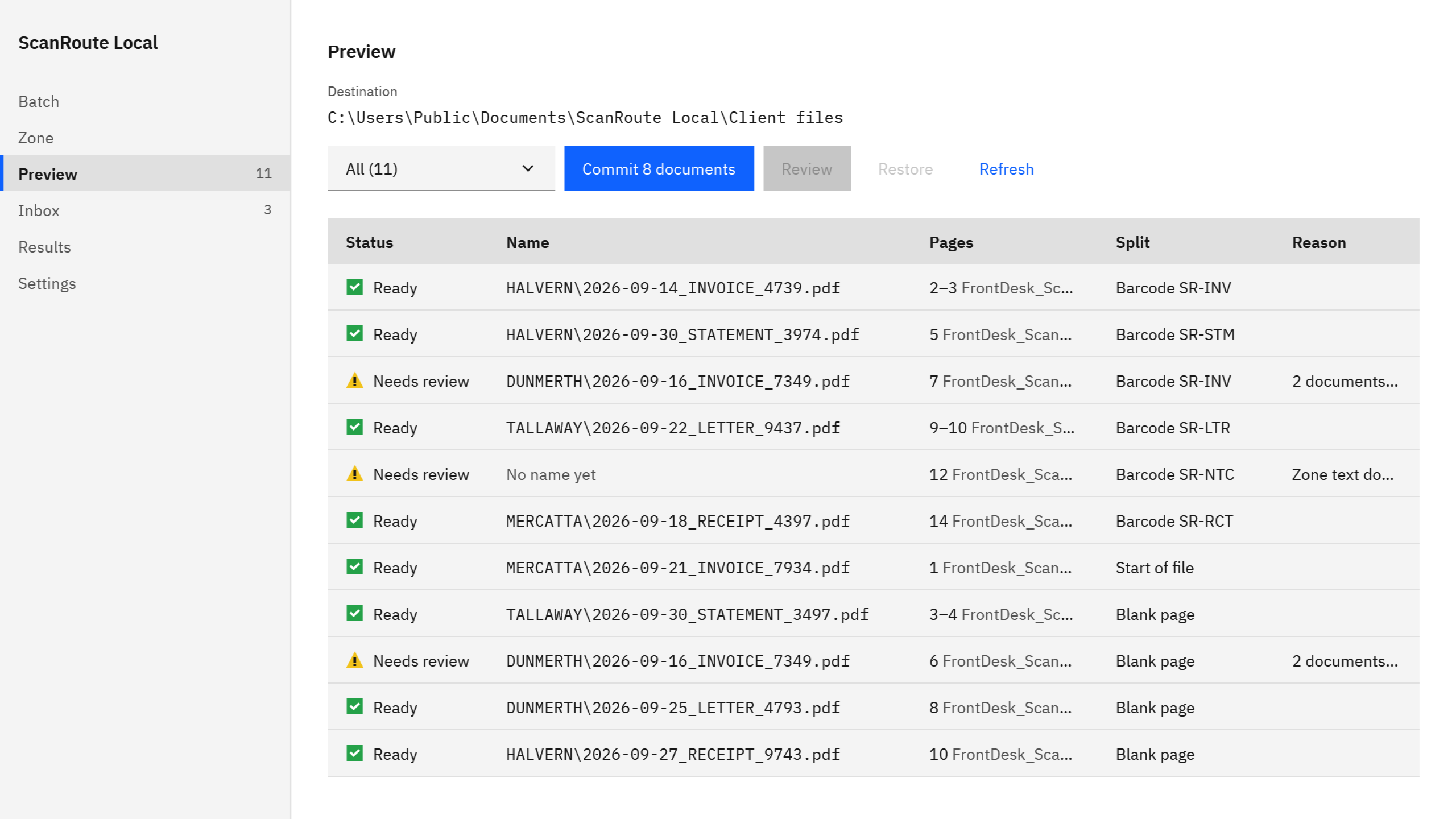
Screenshots show a synthetic batch with fictitious client codes.
Split a scanned PDF in ScanRoute, step by step
- Choose a destination. In Settings, under Destination, pick a folder on this PC for the split files. ScanRoute refuses a destination that is the same as a source folder.
- Choose a split mode. Under Splitting, set Split mode to “Barcode”, “Blank page”, “Barcode or blank page”, or “Every N pages”.
- Fill in the mode’s setting. For barcodes, type a “Separator prefix” such as
SR-. For every N pages, set “Pages per document”. - Set a file name template. On the Zone page, a template such as
{Source}_{Seq}.pdfnames each part after the scan it came from, with a running number, and{Barcode}adds a separator sheet’s value. To name files from text on the page, draw one zone; see how to rename scanned PDFs from an OCR zone. - Open the combined PDF. Drop it on the window, or choose Batch > “Open PDFs” and select one or several files.
- Check Preview. Every proposed name and folder is listed, with the pages each document came from and why it was split there.
- Settle the Inbox. Documents that need a decision wait here: type the fields and choose Apply fields, fix the name with Apply name, Accept, or Skip.
- Commit. Choose Commit in Preview. Only ready documents are written. Results > “Open manifest” shows the record of the commit.
Pick a split method and check every result before anything is written.
Get it from Microsoft
Splitting at separator sheets
Print a sheet, put one on top of each document, and scan the stack. ScanRoute starts a new PDF at each sheet and leaves the sheet out unless you turn on “Keep barcode separator pages in the output”. Set a prefix so a barcode printed on an invoice is not taken for a separator. Our free printable separator sheets come in Letter and A4; the separator sheet guide walks through printing and settings.
Splitting at blank pages
Put a blank sheet between documents and set Split mode to “Blank page”. Blank separator pages are always left out of the output, and two blank pages in a row count as one break. Check your scanner’s two-sided and blank-page-removal settings first, since both change which blank pages reach the PDF. Splitting a PDF at blank pages explains each case.
Splitting every N pages
Set Split mode to “Every N pages” and “Pages per document” to the length of your form. Separators are ignored in this mode; the count alone decides. If the last pages do not fill a whole document, that leftover part waits in the Inbox as a missing separator instead of being written as if it were complete.
Keeping originals untouched
Your original PDFs are only read. ScanRoute never changes, moves, or deletes them, and it never overwrites an existing file; a name that is already taken goes to the Inbox as a duplicate. Each commit writes a CSV manifest in the destination folder that lists every file written with its SHA-256 hash, so you have a record of exactly what was created.
With a Windows OCR language installed, upright scanned pages without text also get an invisible text layer, so you can search the split PDFs. Rotated pages and some others are skipped, and the manifest records each skip. More on that in make a scanned PDF searchable offline.
Check before you commit
OCR and barcodes can misread. That is why ScanRoute lists every proposed name in Preview and holds unsure documents in the Inbox. Nothing is written until you commit, and you can commit the ready documents while others wait.
Limits
- PDF files only. Scan to PDF with your scanner or copier software first.
- Folders on this PC only: sources, the watched folder, and the destination cannot be shared drives in this version.
- Splits come from separator sheets, blank pages, or a page count, not from words in the page text.
- One zone per document for naming.
Office-specific setups, such as property management document scanning, follow the same steps with their own templates.
FAQ
Which split method should I start with?
Start with separator sheets if your documents vary in length. They are explicit, reusable, and can put the document type in the file name. Use blank pages for quick jobs when you have nothing to print, and every N pages only for forms that always have the same number of pages.
Can I split several scanned PDFs at once?
Yes. Drop several PDFs on the ScanRoute window, or choose Open PDFs and select more than one. They are planned as one batch, so duplicate names across files show up in the Inbox before anything is written. Preview lists every proposed name and folder for the whole batch.
Does splitting change my original scan?
No. ScanRoute only reads your original PDFs. It never changes, moves, or deletes them, and it never overwrites an existing file. The split documents are new files in the destination folder you choose, and each commit writes a CSV manifest listing every file written with its SHA-256 hash.
Try ScanRoute Local
ScanRoute Local is a one-time purchase in the Microsoft Store, and the Store offers a free trial so you can split a real scan before you buy. It runs on Windows 10 version 2004 or later, or Windows 11, on an x64 PC. Nothing uploads. See how it works on the ScanRoute Local product page.
Split your next combined scan into separate PDFs on this PC.
Get it from Microsoft
Last updated 5 October 2026. Published by Automata Labs, a software company in Canada.