ContextCleaner: see every entry in the Windows 11 right-click menu, and which app added it — on the Microsoft Store.

Last updated:

Guided workflow variation

Ask Windows to stay awake.Do not fake a mouse.

StayGreen takes a documented power request, the same mechanism a media player uses during playback. Nothing moves your cursor and nothing presses keys — which also means it cannot pretend you are at your desk.

StayGreen uses the Windows Power Request API — no synthetic input, no cursor movement, no keystrokes. That makes it clean and predictable, and it also means it does not fake activity.

Pay once. Own it forever.

One-time purchase on the Microsoft Store · No subscription · Instant install

Buy through the Microsoft Store—instant install, automatic updates, and a Microsoft receipt for easy expensing. No account needed on our site, and no subscription on Store purchases.

Full StayGreen overview
One-time purchase No telemetry Local-first

windows · local-first · one-time purchase · no telemetry

If this sounds like your week

Faking input is a workaround for a request you can just make.

Mouse jigglers, both the software kind and the little USB dongles, work by lying to the input system. It does prevent sleep, and it also moves your pointer, can land clicks in whatever has focus, interferes with anything watching input, and looks exactly like what it is if anyone checks.

Where tooling usually breaks

And Windows already has a supported way to ask.

The operating system exposes an API for precisely this: an application declares that it needs the system or the display to stay available, and Windows honours it while the request is held. Media players use it so a film does not pause. Nothing about the problem requires synthetic input, so a tool that reaches for input first is solving it the hard way.

Where StayGreen lands

Hold a request while you need it, release it when you do not.

StayGreen creates a power request tagged with a human-readable reason, and sets system-required, display-required, or both depending on the scope you choose. Nothing is simulated. Because the request is a first-class OS concept, you can see it in Windows' own power tooling alongside every other application holding one, and it disappears when StayGreen releases it or exits. There is no residual state, no modified power plan, and no cleanup to do if the app is closed.

Pay once. Own it forever.

One-time purchase on the Microsoft Store · No subscription · Instant install

Buy through the Microsoft Store—instant install, automatic updates, and a Microsoft receipt for easy expensing. No account needed on our site, and no subscription on Store purchases.

Learn more about StayGreen

windows · local-first · one-time purchase · no telemetry

What you get

Feature highlights

No Polling, No Fake Input

Holds a documented Windows power request and reacts to system events, instead of a polling loop or simulated mouse movement.

Hardware Interlocks

Auto-pauses on battery, when Battery Saver is on, or when the lid closes with no external display attached — and resumes on its own.

Per-App Targeting

Keep awake only when specific apps like `ms-teams.exe` are active.

One-time purchase, perpetual license. Pay once, own it forever on the Microsoft Store.

One-time purchase, perpetual license. Pay once, own it forever on the Microsoft Store.

Engineering Proof

Event-driven · no polling loop

A power request, not a background loop.

StayGreen holds a Windows power request — created with PowerCreateRequest and set with PowerSetRequest — to ask Windows directly for the awake state. No fake mouse movement, no periodic wake pings, and no loop burning cycles to pretend the user is active.

It deliberately does not use the older SetThreadExecutionState flag, which is thread-affine: the flag belongs to the thread that set it. StayGreen changes its awake state from several threads — the command handler, the timed-session task, and the Win32 event worker — and a thread-affine flag produced inconsistent releases. The request API does not have that problem.

  • No polling loop: a foreground event hook, and one scheduled wake per timed session
  • No synthetic input events to trigger EDR or policy suspicion
  • No administrator rights, and no power plan or policy is modified

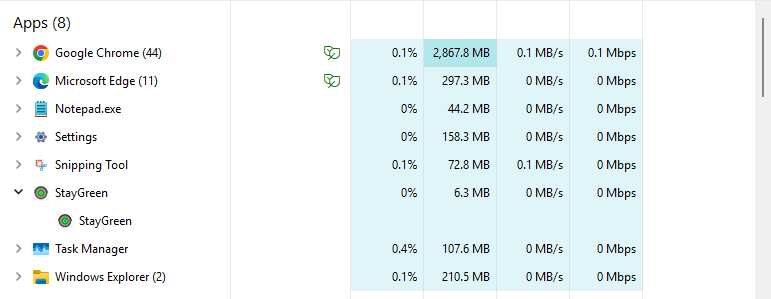
Task Manager, one machine, at idle

A single capture on one PC rather than a benchmark — we publish no averaged CPU or memory figure, because the app ships no measurement harness to produce one.

Windows Task Manager listing StayGreen at idle alongside other running applications

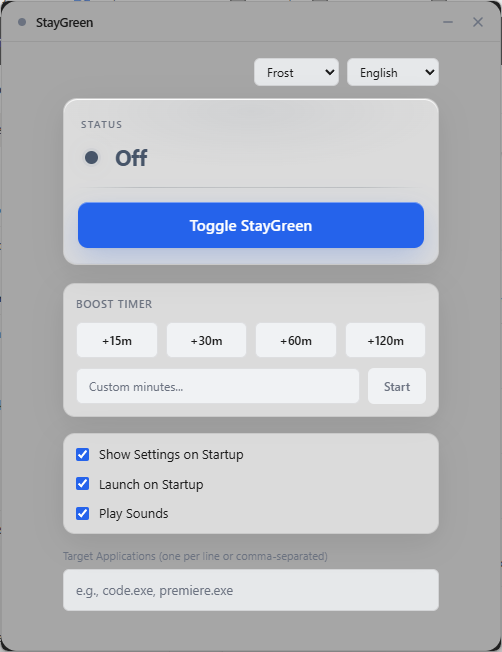
Product Interface

The StayGreen window showing the keep-awake switch, timed session presets, and per-app rule controls

A control panel built for intentional power-state overrides.

The StayGreen interface keeps the important decisions obvious: when to override sleep, how long to hold the state, and which app should trigger it. No command-line dance. No clutter disguised as enterprise UX.

Timed session: 15, 30, 60, or 120-minute presets, or a custom length, for meetings, uploads, renders, or overnight monitoring — so the hold releases itself instead of staying on indefinitely. Extend by 30 minutes or end it early.
Per-app rules: Name executables and StayGreen follows the foreground window, holding while one is in front and releasing when it is not — part of the workflow rather than a blanket machine-wide override.
Guardrails you can see: It pauses on battery, on Battery Saver, and when the lid closes with no display attached — each with its reason shown, and each resuming on its own.

Especially when

  • Keep a Windows machine awake without fake mouse movement or CPU-heavy polling loops
  • Prevent sleep during Teams, Slack, dashboards, uploads, meetings, or overnight monitoring
  • Work around aggressive Windows sleep policies with charger and lid guardrails

Who benefits

Real-world scenarios

The pointer that will not sit still

A jiggler keeps nudging your cursor while you are reading or drawing, and occasionally interacts with something.

A power request touches no input at all. Your pointer stays exactly where you left it.

The machine you have to explain

You need something you can describe accurately to whoever administers the machine.

It is a documented power request, visible in Windows' own power tooling, requiring no administrator rights and modifying no policy or power plan.

The honest expectation

You are hoping this will also keep a chat app showing you as available.

It will not, by itself. A power request generates no input events, so the idle timer those apps read keeps counting. That is covered honestly on its own page.

Deep dive

Power request versus synthetic input, and the one place they differ that matters

These two approaches produce the same outcome for sleep and completely different outcomes for everything else.

A power request is a declaration. The application creates a request object carrying a reason string, then sets the flags it needs — system-required to prevent sleep, display-required to keep the panel powered. Windows honours it for as long as it is held and stops the moment it is cleared. It is inspectable: the operating system can list which applications are currently holding requests and why, so the behaviour is auditable rather than mysterious. StayGreen sets a reason string stating plainly that it is keeping the PC awake at the user's request.

One implementation detail explains a real reliability difference. There is an older API for this that sets an execution-state flag, and it is thread-affine — the flag belongs to the thread that set it. StayGreen sets and clears its awake state from several places: the command thread handling your clicks, the task that expires a timed session, and the worker receiving Windows power and lid events. With a thread-affine flag that produces inconsistent behaviour, which is documented in the source as the reason the newer request API was chosen instead. So if you have used keep-awake utilities that sometimes did not release properly, that class of bug is what this avoids.

Synthetic input is a lie, and Windows knows. Injected input is flagged as such at the OS level, and any monitoring tool can read that flag. It is not stealthy. It also has real side effects: the pointer moves, keystrokes land somewhere, and anything watching input for its own purposes sees traffic that did not come from a person.

Where they genuinely differ. A power request does not generate input events, so it does not reset the system idle timer. Anything that infers presence from that timer — collaboration status indicators, most obviously — is unaffected by it. A jiggler does reset it, which is precisely why people reach for one. If your actual goal is a green status icon rather than a machine that stays on, these are different problems and a keep-awake tool is not a solution to the first.

On that, StayGreen is not entirely without an answer, and it is careful about it. There is an optional presence mode that sends a single innocuous key signal on a slow interval. It is off by default and cannot be enabled without an explicit consent step; the setting is re-validated whenever configuration is loaded or written, so it cannot be switched on by editing a file. It only emits while a power request is genuinely held, never while the session is locked, and only inside optional active hours. The interface states outright that this is detectable, because injected input carries that OS-level flag and pretending otherwise would be dishonest. If your environment has a policy about this, that policy applies — and the feature is built so that using it is a deliberate decision rather than a default you did not notice.
Trusted by pragmatic desktop users

Built for people who prefer tools that stay local.

Real workflows: focus timers that stay visible, batches that never leave the disk, and renames you can rewind.

Customer review 01

PinPoint: Always On Top saves me so much time as I can organize all my report materials without having to flip between windows or tabs. I love the fact that it is straightforward and simple.

Senior Accountant · Manufacturing Company · United States · PinPoint Reviewed About PinPoint
Customer review 02

I used to get so frustrated when my Taskbar would freeze and disappear. Taskbar Sentinel has eliminated that pain without subjecting me to another subscription.

Darren · Calgary, Alberta, Canada · Taskbar Sentinel Reviewed About Taskbar Sentinel
Customer review 03

OpticBatch and MetaForge are a lifesaver for me as a person with a passion for photography. They give me the ability to stay organized and keep personal information confidential when I post pictures online.

Sherri · United States · OpticBatch & MetaForge Reviewed Browse the full catalog

Quotes are shown with customer permission; names and locations appear as reviewers provided them.

Our Core Moat

Engineered to respect your system boundaries.

Lightweight Native Stack

Compiled Rust core wrapped inside an optimized Tauri shell. No heavy background node loops or duplicate Chromium engines cooking your memory footprint (<25MB idle RAM).

100% Local-First Privacy

Executes entirely on-device with full offline isolation. Absolute zero background telemetry policies, no metrics aggregation, and zero mandatory cloud-sync accounts.

Perpetual Fallback Licenses

Pay a single, clear one-time purchase price. Own your specific native software utility execution tier permanently without artificial subscription paywalls or ongoing usage tax.

FAQ

Straight answers—no glossary dump

How does StayGreen prevent sleep without moving the mouse?

It takes a Windows power request — a documented API where an application declares that the system or display must stay available. Windows honours it while it is held. Media players use the same mechanism during playback.

Is a power request better than a mouse jiggler?

For preventing sleep, yes: nothing moves, nothing is typed, no application receives stray input, and Windows can list which apps hold requests and why. The one thing a jiggler does that a request does not is reset the idle timer.

Why not use the older execution-state API?

Because it is thread-affine — the flag belongs to whichever thread set it. StayGreen changes its awake state from several threads, and the source documents that the thread-affine flag produced inconsistent behaviour, which is why the request API is used instead.

Does StayGreen ever send fake input?

Not by default and not without an explicit consent step. There is an optional presence mode that sends one innocuous key signal on a slow interval, off unless you deliberately enable it. The app states plainly that injected input is detectable by monitoring software.

Do I need administrator rights?

No. Power requests are per-process and per-user. Nothing is elevated, no power plan is edited, and no policy is changed — so uninstalling leaves the machine exactly as it was.

What does it need to run?

Windows 11, or Windows 10 version 1809 and later, plus the Microsoft Edge WebView2 runtime, which is already present on Windows 11 and updated Windows 10. It runs as a standard user, requests no administrator rights, and edits no power plan or registry power setting.

Is it private, and how do I get it?

StayGreen makes no network requests — there is no HTTP client in the build, no networking permission requested from Windows, and a content policy with no outbound destination. No telemetry, no account, nothing to opt out of. It needs no administrator rights and changes no power plan. It is a one-time purchase on the Microsoft Store; use the Microsoft Store button on this page for the current listing and price.

No fake mouse input.
No busy-wait “keep awake” hacks.

StayGreen holds a documented Windows power request — no fake input, no polling loop — with interlocks that pause on battery, on Battery Saver, and when the lid closes with no display attached, plus per-app rules that follow the foreground window.

Pay once. Own it forever.

One-time purchase on the Microsoft Store · No subscription · Instant install

Buy through the Microsoft Store—instant install, automatic updates, and a Microsoft receipt for easy expensing. No account needed on our site, and no subscription on Store purchases.

Open full product page

Technical specifications

Technical specifications for procurement

Spec Implementation
Data Sovereignty Sleep-prevention state is local; no remote presence or activity reporting
Telemetry Status None
Core Runtime Native Windows binary using SetThreadExecutionState / execution-state APIs
Network Requirements Fully functional offline
Deployment Compatibility Windows 10 and 11 (x64); direct purchase and Microsoft Store
System footprint Near-zero idle CPU; no polling loops or fake input injection
Hardware guardrails Auto-pause on battery unplug or lid close