What is MeshMedic?
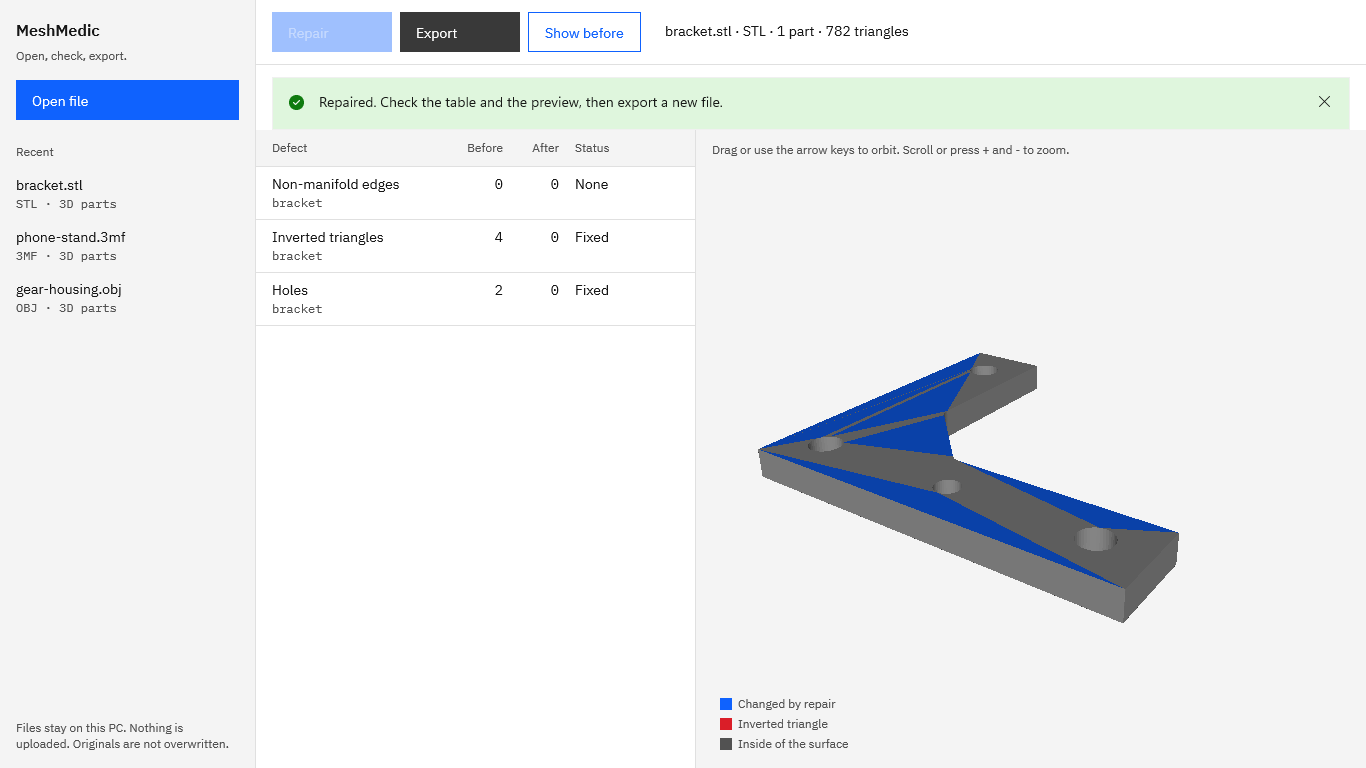
MeshMedic is a Windows app that repairs a broken STL, OBJ, or 3MF file and shows you what changed before you export. It counts non-manifold edges, inverted triangles, and holes, repairs them in one step, draws every changed triangle in blue in a 3D preview, and writes a new file with a short before and after note. The original is never overwritten, and nothing uploads.
How do I repair a file with it?
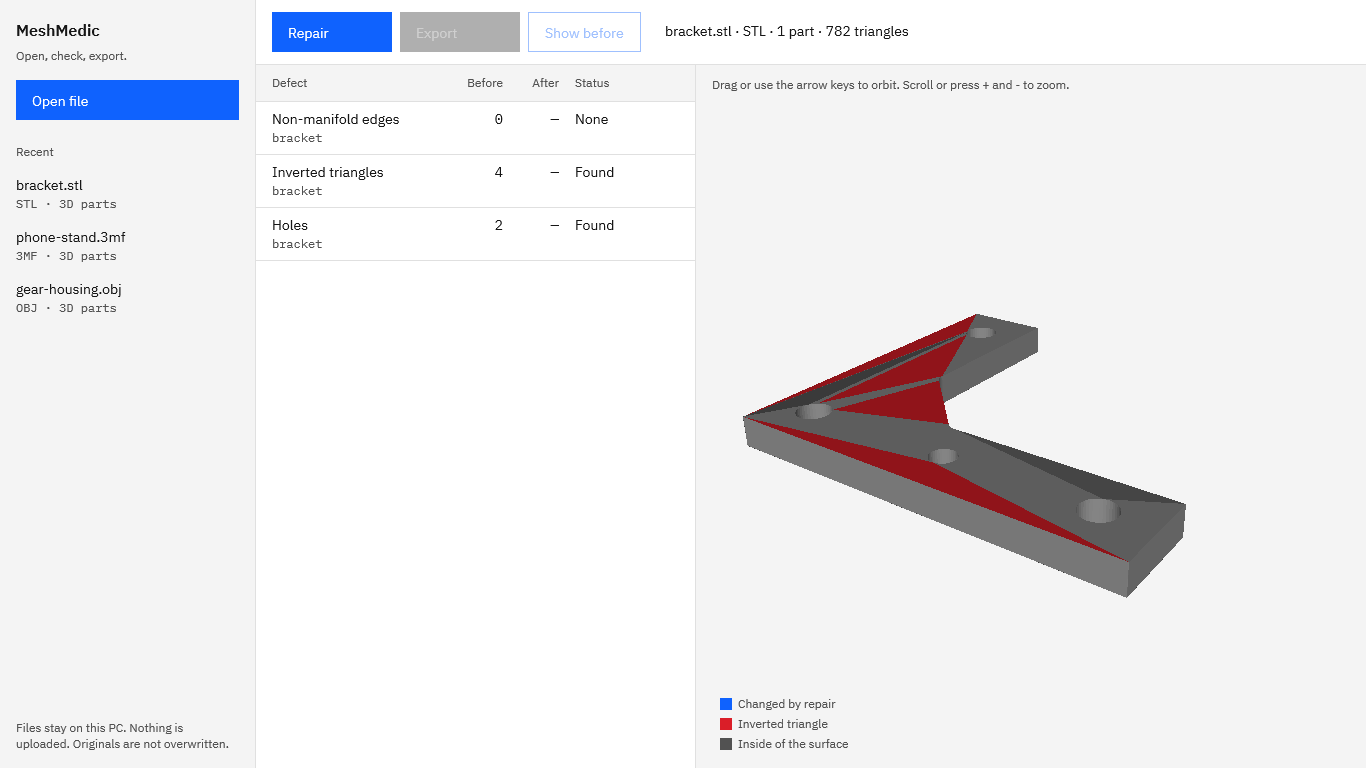
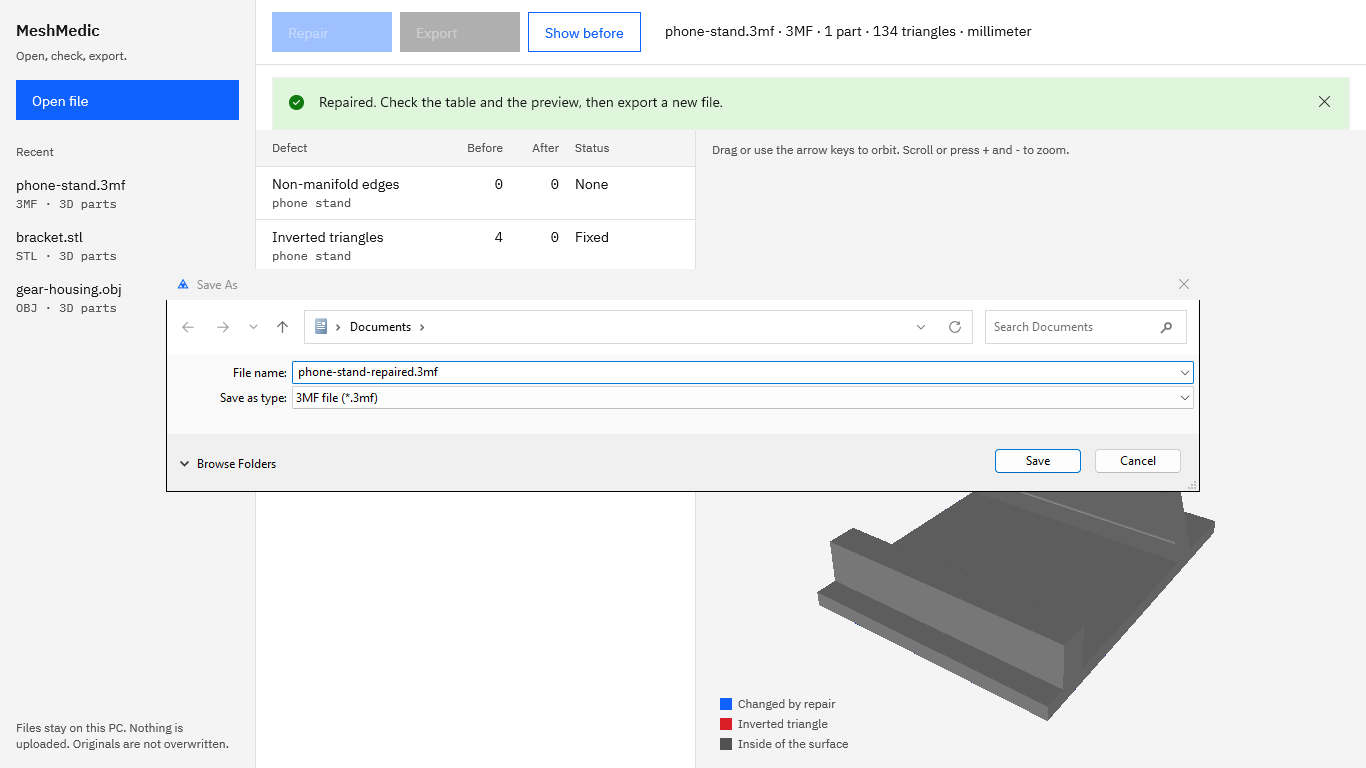
Choose Open file and pick an STL, OBJ, or 3MF. Read the Before column in the table, then choose Repair. Check the After column and the blue triangles in the preview, and use Show before to compare. Choose Export and save a new file; MeshMedic suggests the original name with -repaired added, and the note appears as soon as the file is written.
Which defects does it find and fix?
Non-manifold edges, where three or more triangles share an edge; inverted triangles, which face the wrong way; and holes, which are loops of open edges. It also removes zero-area and duplicate triangles, welds coincident vertices, splits bow-tie vertices, and clears stray fragments too small to enclose a volume. Each defect gets a row with Before, After, and Status.
Which file formats does it open and export?
MeshMedic opens STL (binary and ASCII), OBJ, and 3MF, and exports the same format it opened. A binary STL stays binary and an ASCII STL stays ASCII. An OBJ keeps its objects, groups, materials, and smoothing groups. A 3MF keeps its colors, materials, components, build items, metadata, and thumbnail, with only the repaired mesh changed.
Will a 3MF keep its colors and components?
Yes. MeshMedic copies every entry in the 3MF package byte for byte except the model parts that hold a repaired object, and inside those it replaces only the vertices and triangles. Each triangle keeps its color or material reference through the repair, components and build items come through as they were, and an object used twice is repaired once.
How do I see what the repair changed?
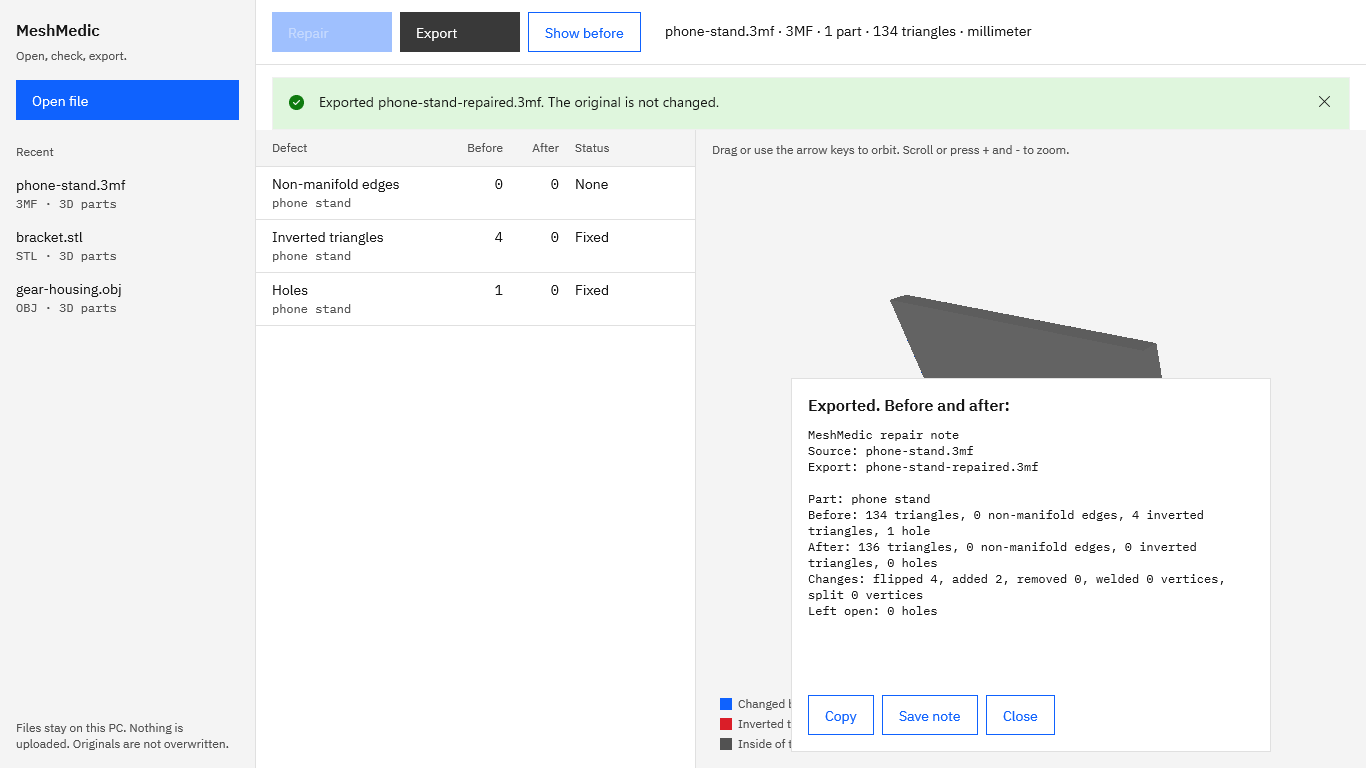
Three ways. The table shows each defect before and after, with a status such as Fixed. The 3D preview draws every triangle the repair flipped or added in blue, and Show before switches back to the mesh as it was, with inverted triangles in red. After the export, the note lists the counts and every change.
What is in the before and after note?
The source and export file names, then for every part the triangles, non-manifold edges, inverted triangles, and holes before and after the repair, and the changes: triangles flipped, added, and removed, and vertices welded and split. Copy puts the note on the clipboard, and Save note writes it as a .txt file to keep with the job.
What happens to my original file?
It stays exactly as it was. Every export is a new file you name in the Windows save dialog. MeshMedic refuses to save over the original, even through a shortcut folder (junction), a hard link, a network path, or after the original was renamed or moved. Because the whole file is read when you open it, the export works even if the original has moved since.
Does MeshMedic work offline?
Yes, fully. MeshMedic runs in the Windows app sandbox with no declared capabilities, makes no network connections, has no account, and collects no telemetry. It opens only the files you pick in the Windows open dialog and writes only the files you name in the save dialog, so customer and client models stay on your PC.
Can I reopen files I worked on earlier?
Yes. The Recent list in the left pane keeps your last 25 files with their format and folder. Click one to reopen it without the open dialog, even after a restart. If a file has since been moved or deleted, MeshMedic says so by name and takes it off the list.
What does it cost, and is there a trial?
MeshMedic is a one-time purchase in the Microsoft Store, and the listing shows the current price in your currency. The Store runs a 15-day free trial with every feature, and there is nothing to activate in the app. There is no subscription.
What Windows version do I need?
Windows 10 version 2004 or later, or Windows 11, on an x64 PC. A Direct3D 11 graphics card is recommended for the 3D preview, which falls back to software drawing without one. Plan on about 1 GB of available memory per million triangles; 8 GB of RAM covers meshes up to about 5 million triangles in binary STL, 3MF, or OBJ.