ContextCleaner: see every entry in the Windows 11 right-click menu, and which app added it — on the Microsoft Store.
Guided workflow variation

Everything Twinkle Tray does —then the part that saves real time.

MonitorPilot matches the polished brightness control, then adds app-aware automation, docking-safe memory, input switching, and window tools a single-purpose slider leaves out. Native Rust, fully offline.

MonitorPilot matches Twinkle Tray's brightness control, then adds app-aware automation, docking-safe workspaces, input switching, and window management — native Rust and offline.

Pay once. Own it forever.

One-time purchase on the Microsoft Store · No subscription · Instant install

Buy through the Microsoft Store—instant install, automatic updates, and a Microsoft receipt for easy expensing. No account needed on our site, and no subscription on Store purchases.

Full MonitorPilot overview
One-time purchase No telemetry Local-first

windows 11 · ddc/ci · no drivers · offline · no telemetry

If this sounds like your week

Twinkle Tray nails brightness. The rest of your desk is still manual.

Twinkle Tray is a well-loved, polished way to slide external brightness from the tray and run a couple of time-based schedules, and for many people that's plenty. But it's built around that one job: it doesn't carry whole-desk profiles, react to the foreground app, restore your panels after docking, switch inputs, or arrange windows.

Where tooling usually breaks

The hard problems in this category aren't the slider.

The complaints that actually cost you time are "it forgot my setup after I undocked," "I still reconfigure everything when I switch tasks," and "it controls the wrong panel." A brightness-and-schedule tool, however nice, was never meant to answer those.
Where MonitorPilot lands

Keep the easy brightness — gain the layer Twinkle Tray doesn't cover.

MonitorPilot adjusts brightness, contrast, input, volume, and colour just as readily, then adds app-aware profiles, a conditional rules engine, docking-safe workspaces keyed to hardware identity, software KVM, sync groups, and full window management. It's built in Rust with a WebView2 front end and targets well under the memory a bundled-browser app idles at — and it makes no network calls at all.

Pay once. Own it forever.

One-time purchase on the Microsoft Store · No subscription · Instant install

Buy through the Microsoft Store—instant install, automatic updates, and a Microsoft receipt for easy expensing. No account needed on our site, and no subscription on Store purchases.

Learn more about MonitorPilot

windows 11 · ddc/ci · no drivers · offline · no telemetry

What you get

Feature highlights

Control every external display from one window or the tray

brightness, contrast, input source, volume, color temperature, and power over standard DDC/CI—no kernel drivers required.

Named profiles (Work, Gaming, Night, or your own) switch every monitor at once, and per-app automation applies a profile, preset, or custom brightness the moment an app takes focus.

Named profiles (Work, Gaming, Night, or your own) switch every monitor at once, and per-app automation applies a profile, preset, or custom brightness the moment an app takes focus.

Advanced rules engine

combine foreground app, window title, time of day, sunrise/sunset, battery state, idle time, full-screen, and virtual desktop with AND/OR/NOT logic and optional gradual transitions.

Workspaces and window management

restore your whole multi-monitor desk in one click after docking, and move, snap, center, or maximize windows across screens with global hotkeys.

Reliable by design

monitors are keyed by a hardware EDID hash so settings never land on the wrong screen, a serialized bus-safe queue protects fragile DDC/CI controllers, and settings are crash-safe.

Featherweight, native, and private

built in Rust with WebView2 (not Electron), under 15 MB idle RAM target, sub-250 ms cold start, 100% offline with no account, no telemetry, and no network access.

Product Interface

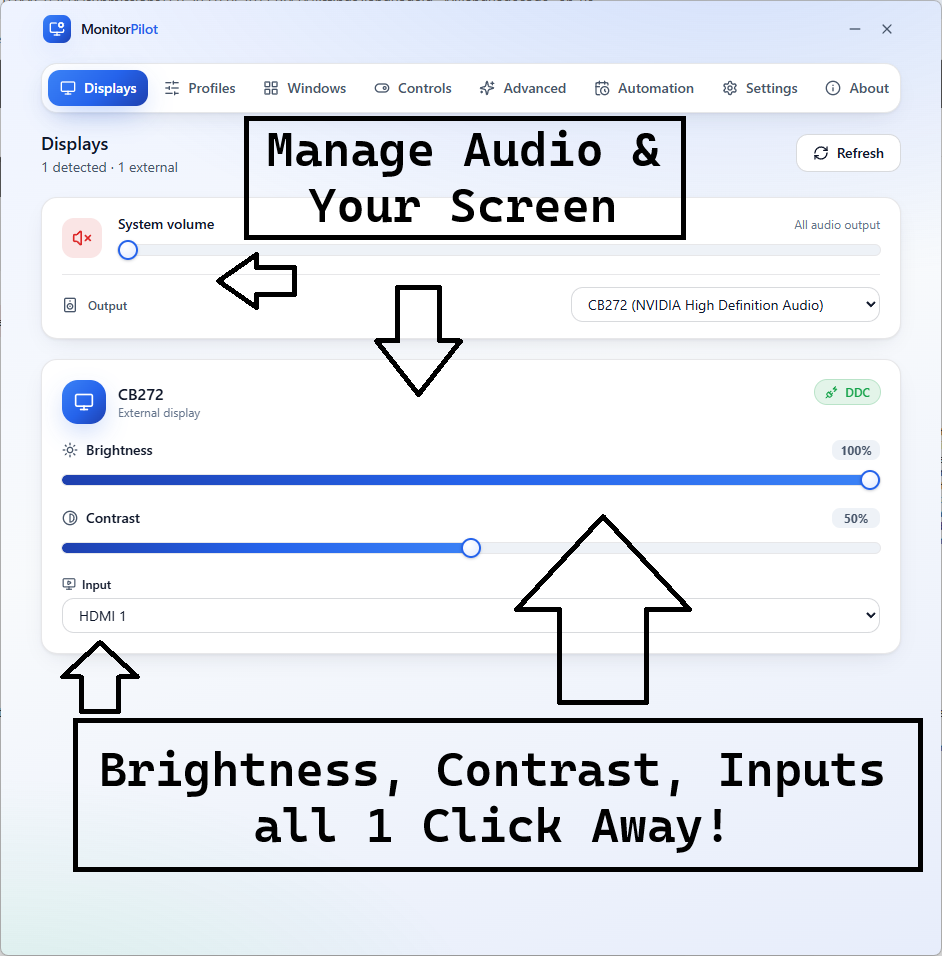
MonitorPilot dashboard showing each external display as a card with brightness, contrast, and volume sliders
Every external display in one window — brightness, contrast, input, volume, and colour at a glance, straight from the tray.

Control every monitor, then let your desk run itself.

MonitorPilot drives brightness, contrast, input, volume, and colour over standard DDC/CI—no drivers—then adds the automation and reliability layer free slider tools skip.

Profiles & per-app rules: switch the whole desk in a click, or apply settings automatically when an app takes focus.
Docking-safe by design: panels are keyed by hardware EDID, so settings never land on the wrong screen after a reconnect.
Native & private: Rust + WebView2 (not Electron), under 15 MB idle RAM, 100% offline, no account, no telemetry.

Enterprise managed deployment available: MonitorPilot is available in an enterprise managed deployment version for organizations rolling out multi-monitor fleets, under any of the three per-seat licensing options . Contact [email protected] to request an evaluation copy and discuss volume licensing.

Especially when

  • Control external monitor brightness, contrast, input, volume, and color on Windows 11 without fumbling with the buttons under the bezel
  • Automate per-app and time-of-day monitor settings across a multi-monitor desk instead of adjusting each screen by hand
  • Restore the correct display settings after docking or undocking without Windows reshuffling which monitor is which

Who benefits

Real-world scenarios

The task switcher

You want a bright, crisp look for spreadsheets and a dim, warm one for the evening film, but you reset every monitor by hand each time you change activity, several times a day.

You save two MonitorPilot profiles and a per-app rule; now opening the editor brightens the desk and starting a movie warms it automatically, with no slider-dragging at all.

The daily docking shuffle

Every time you dock the laptop the desk is wrong again — levels reset, the primary panel moved, windows piled on the built-in screen — and you rebuild it by hand before you can start work.

You save the arrangement as a MonitorPilot Workspace and restore it in one click; because it identifies panels by hardware EDID, every setting lands on the correct screen, and it reports what restored.

The disappearing brightness slider

You plug a desktop monitor into your laptop and the Windows brightness slider stops working — it only ever dimmed the built-in panel, and now you're reaching under the bezel for tiny buttons every evening.

MonitorPilot exposes brightness, contrast, and colour for that external display as tray sliders, so dimming the screen at night is one click instead of a hunt for unlabelled hardware buttons.

Deep dive

Twinkle Tray vs MonitorPilot — where the line really falls

Twinkle Tray earned its following honestly: it is a polished, friendly way to set external-monitor brightness from the tray, supports multiple displays, and can shift levels on a time schedule. For someone whose entire need is "drag brightness, maybe dim in the evening," it is genuinely a good fit, and MonitorPilot does that same job just as smoothly. The honest comparison is not about the slider — it is about everything past it.

MonitorPilot is built for the whole desk rather than one control. It adds named profiles that capture brightness, contrast, colour, and inputs together; per-app context switching and a conditional rules engine spanning app, window title, time, sunrise and sunset, battery, idle, full-screen, and virtual desktop; workspaces that restore your panels after docking by hardware EDID so settings never land on the wrong screen; software KVM input switching; sync groups with per-monitor offsets; and full window management. Under the hood it is a Rust core with a WebView2 front end rather than a bundled browser runtime, so the idle footprint target is small and the cold start fast, and it makes no network calls at all — no account, no telemetry. The reasonable way to choose: if you want a free, single-purpose brightness widget, Twinkle Tray is excellent; if you want automation and docking reliability across a multi-monitor setup, that is the gap MonitorPilot fills. One caveat applies to both: DDC/CI control needs a supporting monitor, and laptop panels usually do not qualify.

Trusted by pragmatic desktop users

Built for people who prefer tools that stay local.

Real workflows: focus timers that stay visible, batches that never leave the disk, and renames you can rewind.

Customer review 01

PinPoint: Always On Top saves me so much time as I can organize all my report materials without having to flip between windows or tabs. I love the fact that it is straightforward and simple.

Senior Accountant · Manufacturing Company · United States · PinPoint Reviewed About PinPoint
Customer review 02

I used to get so frustrated when my Taskbar would freeze and disappear. Taskbar Sentinel has eliminated that pain without subjecting me to another subscription.

Darren · Calgary, Alberta, Canada · Taskbar Sentinel Reviewed About Taskbar Sentinel
Customer review 03

OpticBatch and MetaForge are a lifesaver for me as a person with a passion for photography. They give me the ability to stay organized and keep personal information confidential when I post pictures online.

Sherri · United States · OpticBatch & MetaForge Reviewed Browse the full catalog

Quotes are shown with customer permission; names and locations appear as reviewers provided them.

Our Core Moat

Engineered to respect your system boundaries.

System Resource Monitor (Idle State Comparison)
Automata Labs low idle memory footprint compared to generic Electron applications

Lightweight Native Stack

Compiled Rust core wrapped inside an optimized Tauri shell. No heavy background node loops or duplicate Chromium engines cooking your memory footprint (<25MB idle RAM).

100% Local-First Privacy

Executes entirely on-device with full offline isolation. Absolute zero background telemetry policies, no metrics aggregation, and zero mandatory cloud-sync accounts.

Perpetual Fallback Licenses

Pay a single, clear one-time purchase price. Own your specific native software utility execution tier permanently without artificial subscription paywalls or ongoing usage tax.

FAQ

Straight answers—no glossary dump

How is MonitorPilot different from Twinkle Tray?

Twinkle Tray is a capable way to adjust external brightness, and MonitorPilot covers that same control. The difference is everything after the slider: MonitorPilot adds whole-desk profiles, per-app and conditional automation, workspaces that restore displays after docking by hardware identity, software KVM input switching, and full window management. It is a native Rust app, not a browser wrapper, and makes no network calls — no account, no telemetry.

Is MonitorPilot heavier than a simple brightness app?

It is built to stay light. MonitorPilot uses a Rust core with a WebView2 front end rather than a bundled browser runtime, targeting well under the memory such wrappers idle at and a fast cold start to the tray. You get far more capability — automation, workspaces, window management — without the footprint people usually associate with a do-everything app, and with no telemetry.

Will MonitorPilot work with my monitor and my laptop screen?

MonitorPilot controls external displays that support DDC/CI, which covers most modern monitors (some need it enabled in their on-screen menu). Laptop built-in panels generally do not expose DDC/CI and can't be controlled this way — a hardware limitation, not a MonitorPilot one. Window management, global hotkeys, and system volume still work regardless, so a laptop setup keeps real value.

Is MonitorPilot a subscription, and how do I get it?

MonitorPilot is a one-time purchase on the Microsoft Store — no subscription and no account required for core use. Because DDC/CI support is hardware-dependent, trying it on your own displays is the best way to confirm they respond. Use the Microsoft Store button on this page for the current listing and price.

Free tools adjust sliders.
MonitorPilot runs your whole desk.

MonitorPilot controls every external display over DDC/CI—brightness, contrast, input, volume, and color—then automates the desk with profiles, per-app rules, workspaces, and window management. Native Rust, under 15 MB idle RAM, 100% offline, no drivers, no account.

Pay once. Own it forever.

One-time purchase on the Microsoft Store · No subscription · Instant install

Buy through the Microsoft Store—instant install, automatic updates, and a Microsoft receipt for easy expensing. No account needed on our site, and no subscription on Store purchases.

Open full product page

Technical specifications

Technical specifications for procurement

Spec Implementation
Data Sovereignty Profiles, rules, workspaces, and per-monitor names are stored locally; no cloud sync or remote backup
Telemetry Status None; no account, no analytics, and no outbound network access by policy
Core Runtime Rust core with a WebView2 front end (not Electron); controls displays over standard DDC/CI
Network Requirements Fully functional offline; sunrise/sunset and adaptive brightness are computed on-device with no location lookups
Deployment Compatibility Windows 11 only; controls external DDC/CI displays (laptop built-in panels generally do not expose DDC/CI)
Controls Brightness, contrast, input source, volume, color temperature, and power per display
Automation Profiles, per-app context switching, and a rules engine over app/time/solar/battery/idle/full-screen/virtual desktop
Reliability EDID-hash stable identity, serialized bus-safe DDC queue, and crash-safe transactional settings
Footprint Target under 15 MB idle RAM and sub-250 ms cold start (verified on QA hardware)