Taskbar Sentinel: back up your pinned apps & restore your taskbar in one click — on the Microsoft Store.
Guided workflow variation

Dock, undock, and find yourdesk exactly where you left it.restore monitor setup after docking Windows

MonitorPilot's Workspaces restore every panel in one click and recognise each by its hardware EDID, so reconnecting never lands your settings on the wrong screen. It tells you precisely what was restored.

MonitorPilot restores your whole desk in one click after reconnecting, keying each panel by hardware EDID so settings always reattach to the correct physical screen.

$14.99 USD — Perpetual License

One-time purchase · Lifetime updates · Delivered via the Microsoft Store

Purchased and updated securely through the Microsoft Store. No account needed on our site, no subscription, and a Microsoft receipt for easy corporate expensing.

Full MonitorPilot overview
One-time purchase No telemetry Local-first

windows 11 · ddc/ci · no drivers · offline · no telemetry

If this sounds like your week

Every dock and undock scrambles which monitor is which.

You reconnect the laptop and the desk is wrong again: levels reset, the primary panel moved, windows piled onto the built-in screen, settings reattached to the wrong display. Windows keys monitors by a volatile path like \\.\DISPLAY1 that gets reshuffled on every replug, so nothing stays where you put it.

Where tooling usually breaks

Re-fixing the arrangement after each reconnect quietly burns time.

A couple of minutes restoring screens and dragging windows, repeated at every dock and undock, adds up to real lost focus — and it stings precisely because you already set it up correctly yesterday. Tools that track displays by system path can't solve this; they lose the mapping the instant Windows renumbers it.
Where MonitorPilot lands

Bring the whole desk back in one click — to the right screens.

MonitorPilot's Workspaces capture the complete state of every panel as one named arrangement you restore in a single click after reconnecting. Because it fingerprints each display by its hardware EDID rather than the shifting system path, settings reattach to the correct physical screen every time. If a saved monitor is absent, it reports exactly what was and wasn't restored rather than dropping it silently.

$14.99 USD — Perpetual License

One-time purchase · Lifetime updates · Delivered via the Microsoft Store

Purchased and updated securely through the Microsoft Store. No account needed on our site, no subscription, and a Microsoft receipt for easy corporate expensing.

Learn more about MonitorPilot

windows 11 · ddc/ci · no drivers · offline · no telemetry

What you get

Feature highlights

Control every external display from one window or the tray

brightness, contrast, input source, volume, color temperature, and power over standard DDC/CI—no kernel drivers required.

Named profiles (Work, Gaming, Night, or your own) switch every monitor at once, and per-app automation applies a profile, preset, or custom brightness the moment an app takes focus.

Named profiles (Work, Gaming, Night, or your own) switch every monitor at once, and per-app automation applies a profile, preset, or custom brightness the moment an app takes focus.

Advanced rules engine

combine foreground app, window title, time of day, sunrise/sunset, battery state, idle time, full-screen, and virtual desktop with AND/OR/NOT logic and optional gradual transitions.

Workspaces and window management

restore your whole multi-monitor desk in one click after docking, and move, snap, center, or maximize windows across screens with global hotkeys.

Reliable by design

monitors are keyed by a hardware EDID hash so settings never land on the wrong screen, a serialized bus-safe queue protects fragile DDC/CI controllers, and settings are crash-safe.

Featherweight, native, and private

built in Rust with WebView2 (not Electron), under 15 MB idle RAM target, sub-250 ms cold start, 100% offline with no account, no telemetry, and no network access.

Product Interface

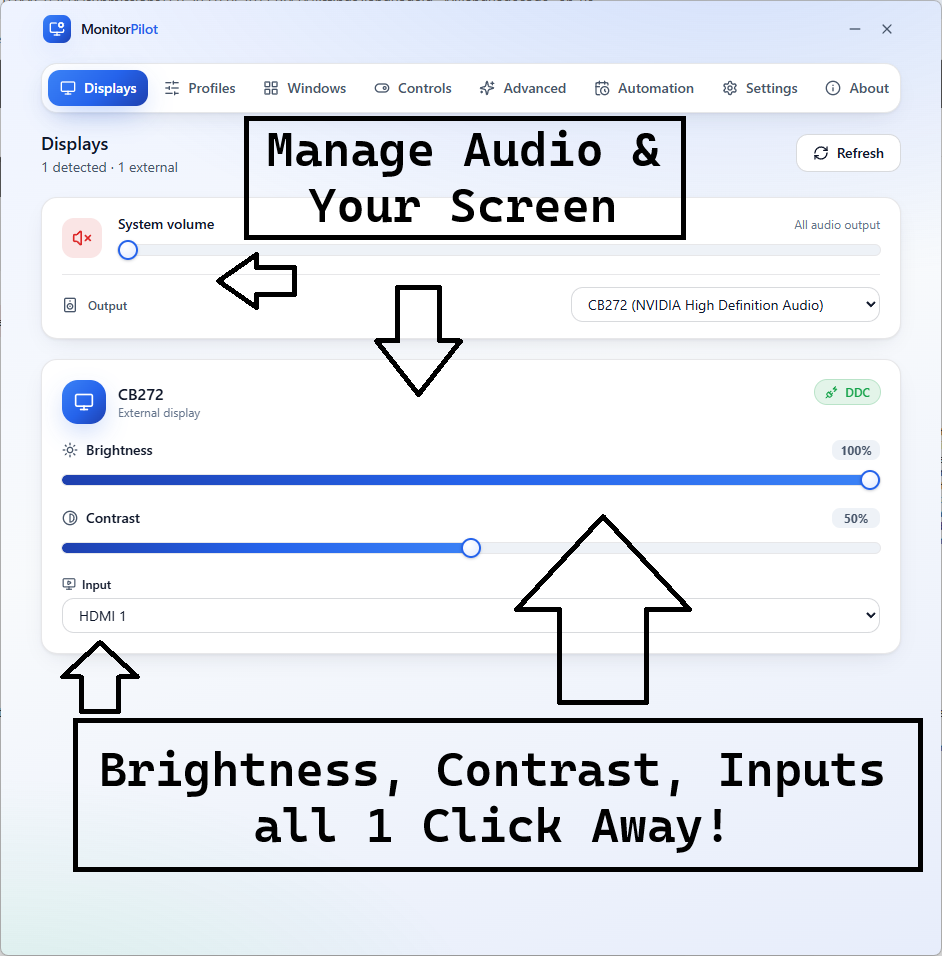
MonitorPilot dashboard showing each external display as a card with brightness, contrast, and volume sliders
Every external display in one window — brightness, contrast, input, volume, and colour at a glance, straight from the tray.

Control every monitor, then let your desk run itself.

MonitorPilot drives brightness, contrast, input, volume, and colour over standard DDC/CI—no drivers—then adds the automation and reliability layer free slider tools skip.

Profiles & per-app rules: switch the whole desk in a click, or apply settings automatically when an app takes focus.
Docking-safe by design: panels are keyed by hardware EDID, so settings never land on the wrong screen after a reconnect.
Native & private: Rust + WebView2 (not Electron), under 15 MB idle RAM, 100% offline, no account, no telemetry.

Especially when

  • Control external monitor brightness, contrast, input, volume, and color on Windows 11 without fumbling with the buttons under the bezel
  • Automate per-app and time-of-day monitor settings across a multi-monitor desk instead of adjusting each screen by hand
  • Restore the correct display settings after docking or undocking without Windows reshuffling which monitor is which

Who benefits

Real-world scenarios

The daily docking shuffle

Every time you dock the laptop the desk is wrong again — levels reset, the primary panel moved, windows piled on the built-in screen — and you rebuild it by hand before you can start work.

You save the arrangement as a MonitorPilot Workspace and restore it in one click; because it identifies panels by hardware EDID, every setting lands on the correct screen, and it reports what restored.

The window wrangler

You spend the day dragging windows between three monitors and snapping them into place, and after a reboot or an app update your careful arrangement is scattered again.

MonitorPilot moves and snaps windows with global hotkeys, parks each app on the right monitor as it opens, and rebuilds a saved layout instantly, so the arrangement reassembles itself.

The task switcher

You want a bright, crisp look for spreadsheets and a dim, warm one for the evening film, but you reset every monitor by hand each time you change activity, several times a day.

You save two MonitorPilot profiles and a per-app rule; now opening the editor brightens the desk and starting a movie warms it automatically, with no slider-dragging at all.

Deep dive

Why docking scrambles your displays — and how stable identity fixes it

Windows refers to monitors by enumerated paths such as \\.\DISPLAY1, assigned in the order devices are detected. Dock, undock, swap a cable, or change a port and that order changes, so the path that meant your left monitor yesterday can point at a different panel today. Any tool that stores settings against those paths inevitably reattaches them to the wrong screen after a reconnect — which is the single loudest complaint in the external-monitor category, and the reason so many utilities feel unreliable on a docked laptop. MonitorPilot keys every display by a hash of its hardware EDID — the identity block baked into the panel itself — instead of the volatile system path. That fingerprint survives reboots, cable swaps, and docking, so a saved profile or workspace always reattaches to the physical monitor it was captured from. Workspaces go further and capture the complete state of the desk — brightness, contrast, inputs, and arrangement — as one named setup you restore in a single click. If a monitor from the saved setup isn't currently connected, MonitorPilot tells you exactly what was and wasn't restored rather than silently dropping it, so you are never left guessing whether the restore finished. The result is a docking experience where your two-minute reconfiguration ritual collapses into one button, and the right settings reliably find the right panels.

Trusted by pragmatic desktop users

Built for people who prefer tools that stay local.

Real workflows: focus timers that stay visible, batches that never leave the disk, and renames you can rewind.

Customer review 01

PinPoint: Always On Top saves me so much time as I can organize all my report materials without having to flip between windows or tabs. I love the fact that it is straightforward and simple.

Senior Accountant · Manufacturing Company · United States · PinPoint

Learn more
Customer review 02

I used to get so frustrated when my Taskbar would freeze and disappear. Taskbar Sentinel has eliminated that pain without subjecting me to another subscription.

Darren · Calgary, Alberta, Canada · Taskbar Sentinel

Learn more
Customer review 03

OpticBatch and MetaForge are a lifesaver for me as a person with a passion for photography. They give me the ability to stay organized and keep personal information confidential when I post pictures online.

Sherri · United States · OpticBatch & MetaForge

Learn more

Quotes are shown with customer permission; names and locations appear as reviewers provided them.

Our Core Moat

Engineered to respect your system boundaries.

System Resource Monitor (Idle State Comparison)
Automata Labs sub-5MB idle memory footprint compared to generic Electron applications

Lightweight Native Stack

Compiled Rust core wrapped inside an optimized Tauri shell. No heavy background node loops or duplicate Chromium engines cooking your memory footprint (<5MB idle RAM).

100% Local-First Privacy

Executes entirely on-device with full offline isolation. Absolute zero background telemetry policies, no metrics aggregation, and zero mandatory cloud-sync accounts.

Perpetual Fallback Licenses

Pay a single, clear one-time purchase price. Own your specific native software utility execution tier permanently without artificial subscription paywalls or ongoing usage tax.

FAQ

Straight answers—no glossary dump

Why do my monitor settings reset or land on the wrong screen after docking?

Windows identifies monitors by an enumerated path that changes when devices are re-detected, so docking, undocking, or swapping a cable reshuffles which display is which. MonitorPilot fingerprints each panel by its hardware EDID instead, so saved profiles and workspaces always reattach to the correct physical screen. Restore the whole desk in one click, and it reports exactly what was and wasn't restored.

Does MonitorPilot require drivers, an account, or an internet connection?

None of the three. MonitorPilot controls monitors over standard DDC/CI with no kernel drivers, needs no account or sign-in, and makes no network calls — it is fully functional offline. It is a native Rust app with a WebView2 front end, targeting under 15 MB of idle RAM and a quick cold start, so it stays quietly in the tray until you need it.

Will MonitorPilot work with my monitor and my laptop screen?

MonitorPilot controls external displays that support DDC/CI, which covers most modern monitors (some need it enabled in their on-screen menu). Laptop built-in panels generally do not expose DDC/CI and can't be controlled this way — a hardware limitation, not a MonitorPilot one. Window management, global hotkeys, and system volume still work regardless, so a laptop setup keeps real value.

Is MonitorPilot a subscription, and how do I get it?

MonitorPilot is a one-time purchase on the Microsoft Store — no subscription and no account required for core use. Because DDC/CI support is hardware-dependent, trying it on your own displays is the best way to confirm they respond. Use the Microsoft Store button on this page for the current listing and price.

Free tools adjust sliders.
MonitorPilot runs your whole desk.

MonitorPilot controls every external display over DDC/CI—brightness, contrast, input, volume, and color—then automates the desk with profiles, per-app rules, workspaces, and window management. Native Rust, under 15 MB idle RAM, 100% offline, no drivers, no account.

$14.99 USD — Perpetual License

One-time purchase · Lifetime updates · Delivered via the Microsoft Store

Purchased and updated securely through the Microsoft Store. No account needed on our site, no subscription, and a Microsoft receipt for easy corporate expensing.

Open full product page

Technical specifications

Technical specifications for procurement

Spec Implementation
Data Sovereignty Profiles, rules, workspaces, and per-monitor names are stored locally; no cloud sync or remote backup
Telemetry Status None; no account, no analytics, and no outbound network access by policy
Core Runtime Rust core with a WebView2 front end (not Electron); controls displays over standard DDC/CI
Network Requirements Fully functional offline; sunrise/sunset and adaptive brightness are computed on-device with no location lookups
Deployment Compatibility Windows 11 only; controls external DDC/CI displays (laptop built-in panels generally do not expose DDC/CI)
Controls Brightness, contrast, input source, volume, color temperature, and power per display
Automation Profiles, per-app context switching, and a rules engine over app/time/solar/battery/idle/full-screen/virtual desktop
Reliability EDID-hash stable identity, serialized bus-safe DDC queue, and crash-safe transactional settings
Footprint Target under 15 MB idle RAM and sub-250 ms cold start (verified on QA hardware)