Taskbar Sentinel: back up your pinned apps & restore your taskbar in one click — on the Microsoft Store.
Guided workflow variation

Brightness control for the screenWindows pretends isn't there.control external monitor brightness Windows 11

MonitorPilot puts brightness, contrast, input, volume, and colour for every external display one click from the tray — over standard DDC/CI, with no drivers and no bezel buttons. Native, offline, no telemetry.

MonitorPilot controls external-monitor brightness, contrast, input, volume, and colour from the tray over standard DDC/CI — no drivers, fully offline, with no telemetry.

$14.99 USD — Perpetual License

One-time purchase · Lifetime updates · Delivered via the Microsoft Store

Purchased and updated securely through the Microsoft Store. No account needed on our site, no subscription, and a Microsoft receipt for easy corporate expensing.

Full MonitorPilot overview
One-time purchase No telemetry Local-first

windows 11 · ddc/ci · no drivers · offline · no telemetry

If this sounds like your week

Windows 11 gives you one brightness slider — and it ignores your external monitor.

The Settings brightness slider only moves a laptop's built-in panel. Plug a desktop display into the same machine and that software control simply vanishes. Your only recourse is the cluster of tiny buttons under the bezel and a clunky hardware menu you navigate half-blind, just to dim a screen at night or raise contrast in daylight.

Where tooling usually breaks

Crouching under the bezel is not a brightness control.

Those physical buttons are unlabelled, easy to miss, and laid out differently on every panel. Multiply that by two or three displays and "make everything a little dimmer" turns into a button-mashing ritual you repeat every single evening.
Where MonitorPilot lands

Every external display, controlled from your tray.

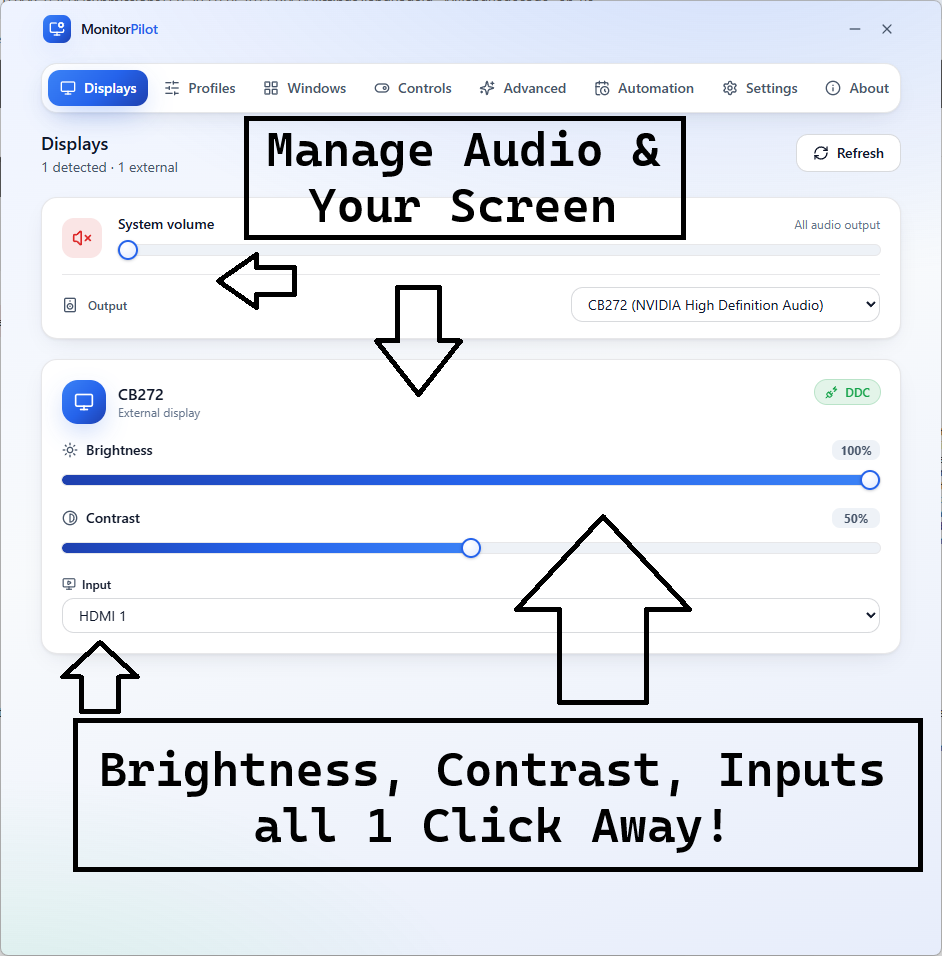
MonitorPilot exposes brightness, contrast, input, volume, colour temperature, and power as clean tray sliders for each connected screen. It paces commands through a protective queue so rapid drags never flicker or stall the panel, identifies screens by hardware fingerprint so a setting never lands on the wrong one, and runs entirely on your machine with no account and no telemetry.

$14.99 USD — Perpetual License

One-time purchase · Lifetime updates · Delivered via the Microsoft Store

Purchased and updated securely through the Microsoft Store. No account needed on our site, no subscription, and a Microsoft receipt for easy corporate expensing.

Learn more about MonitorPilot

windows 11 · ddc/ci · no drivers · offline · no telemetry

What you get

Feature highlights

Control every external display from one window or the tray

brightness, contrast, input source, volume, color temperature, and power over standard DDC/CI—no kernel drivers required.

Named profiles (Work, Gaming, Night, or your own) switch every monitor at once, and per-app automation applies a profile, preset, or custom brightness the moment an app takes focus.

Named profiles (Work, Gaming, Night, or your own) switch every monitor at once, and per-app automation applies a profile, preset, or custom brightness the moment an app takes focus.

Advanced rules engine

combine foreground app, window title, time of day, sunrise/sunset, battery state, idle time, full-screen, and virtual desktop with AND/OR/NOT logic and optional gradual transitions.

Workspaces and window management

restore your whole multi-monitor desk in one click after docking, and move, snap, center, or maximize windows across screens with global hotkeys.

Reliable by design

monitors are keyed by a hardware EDID hash so settings never land on the wrong screen, a serialized bus-safe queue protects fragile DDC/CI controllers, and settings are crash-safe.

Featherweight, native, and private

built in Rust with WebView2 (not Electron), under 15 MB idle RAM target, sub-250 ms cold start, 100% offline with no account, no telemetry, and no network access.

Product Interface

MonitorPilot dashboard showing each external display as a card with brightness, contrast, and volume sliders
Every external display in one window — brightness, contrast, input, volume, and colour at a glance, straight from the tray.

Control every monitor, then let your desk run itself.

MonitorPilot drives brightness, contrast, input, volume, and colour over standard DDC/CI—no drivers—then adds the automation and reliability layer free slider tools skip.

Profiles & per-app rules: switch the whole desk in a click, or apply settings automatically when an app takes focus.
Docking-safe by design: panels are keyed by hardware EDID, so settings never land on the wrong screen after a reconnect.
Native & private: Rust + WebView2 (not Electron), under 15 MB idle RAM, 100% offline, no account, no telemetry.

Especially when

  • Control external monitor brightness, contrast, input, volume, and color on Windows 11 without fumbling with the buttons under the bezel
  • Automate per-app and time-of-day monitor settings across a multi-monitor desk instead of adjusting each screen by hand
  • Restore the correct display settings after docking or undocking without Windows reshuffling which monitor is which

Who benefits

Real-world scenarios

The disappearing brightness slider

You plug a desktop monitor into your laptop and the Windows brightness slider stops working — it only ever dimmed the built-in panel, and now you're reaching under the bezel for tiny buttons every evening.

MonitorPilot exposes brightness, contrast, and colour for that external display as tray sliders, so dimming the screen at night is one click instead of a hunt for unlabelled hardware buttons.

The fullscreen gamer

Mid-match the screen feels too bright, but the only way to fix it is to break focus, minimise, and dig through a menu — by which point the moment, and maybe the round, is gone.

You press a MonitorPilot global hotkey and the panel dims two notches without leaving the game, or scroll the tray icon between rounds — no alt-tab, no lost concentration.

The daily docking shuffle

Every time you dock the laptop the desk is wrong again — levels reset, the primary panel moved, windows piled on the built-in screen — and you rebuild it by hand before you can start work.

You save the arrangement as a MonitorPilot Workspace and restore it in one click; because it identifies panels by hardware EDID, every setting lands on the correct screen, and it reports what restored.

Deep dive

How MonitorPilot controls your monitor without drivers

External monitors expose a standard control channel called DDC/CI (Display Data Channel Command Interface) over the same cable that carries your picture. It is how the buttons under the bezel change brightness, contrast, input source, and more, and it can be driven from software with no kernel driver required. MonitorPilot speaks DDC/CI directly, so the controls you would normally reach for on the panel become sliders and toggles in your tray: brightness, contrast, input source, volume, colour temperature, and power, per display. That bus is also genuinely fragile. Send commands too fast, or from two places at once, and you can cause flicker, dropped updates, or a locked-up monitor controller that needs a power-cycle to recover. MonitorPilot routes every command through a single serialized queue with a mandatory recovery pause and write coalescing, so rapid slider drags and automation never overwhelm the hardware. Controls are optimistic with rollback: they respond instantly and revert to the last confirmed value if a monitor rejects a change, with a clear explanation rather than a silent failure. It also reads what each panel reports it supports and hides controls it cannot drive, so you are not staring at sliders that do nothing. Two honest caveats apply: the monitor must support DDC/CI — some ship with it switched off in the on-screen menu — and laptop built-in panels generally do not expose it, though window management, hotkeys, and system volume still work regardless.
# What MonitorPilot drives over DDC/CI (no driver install):
#   Brightness   (VCP 0x10)
#   Contrast     (VCP 0x12)
#   Input source (VCP 0x60)  -> software KVM / input presets
#   Volume       (VCP 0x62)
#   Color temp / RGB gain, and power state
#
# Every command is serialized and paced to protect the monitor controller.

Trusted by pragmatic desktop users

Built for people who prefer tools that stay local.

Real workflows: focus timers that stay visible, batches that never leave the disk, and renames you can rewind.

Customer review 01

PinPoint: Always On Top saves me so much time as I can organize all my report materials without having to flip between windows or tabs. I love the fact that it is straightforward and simple.

Senior Accountant · Manufacturing Company · United States · PinPoint

Learn more
Customer review 02

I used to get so frustrated when my Taskbar would freeze and disappear. Taskbar Sentinel has eliminated that pain without subjecting me to another subscription.

Darren · Calgary, Alberta, Canada · Taskbar Sentinel

Learn more
Customer review 03

OpticBatch and MetaForge are a lifesaver for me as a person with a passion for photography. They give me the ability to stay organized and keep personal information confidential when I post pictures online.

Sherri · United States · OpticBatch & MetaForge

Learn more

Quotes are shown with customer permission; names and locations appear as reviewers provided them.

Our Core Moat

Engineered to respect your system boundaries.

System Resource Monitor (Idle State Comparison)
Automata Labs sub-5MB idle memory footprint compared to generic Electron applications

Lightweight Native Stack

Compiled Rust core wrapped inside an optimized Tauri shell. No heavy background node loops or duplicate Chromium engines cooking your memory footprint (<5MB idle RAM).

100% Local-First Privacy

Executes entirely on-device with full offline isolation. Absolute zero background telemetry policies, no metrics aggregation, and zero mandatory cloud-sync accounts.

Perpetual Fallback Licenses

Pay a single, clear one-time purchase price. Own your specific native software utility execution tier permanently without artificial subscription paywalls or ongoing usage tax.

FAQ

Straight answers—no glossary dump

How do I control the brightness of an external monitor on Windows 11?

The built-in Windows brightness slider only controls a laptop's internal panel, not external displays. MonitorPilot adds software control over DDC/CI — the standard protocol your monitor already supports — so brightness, contrast, input, volume, and colour become tray sliders. There are no drivers to install; you may only need to enable DDC/CI in the monitor's menu if it ships disabled.

Does MonitorPilot require drivers, an account, or an internet connection?

None of the three. MonitorPilot controls monitors over standard DDC/CI with no kernel drivers, needs no account or sign-in, and makes no network calls — it is fully functional offline. It is a native Rust app with a WebView2 front end, targeting under 15 MB of idle RAM and a quick cold start, so it stays quietly in the tray until you need it.

Will MonitorPilot work with my monitor and my laptop screen?

MonitorPilot controls external displays that support DDC/CI, which covers most modern monitors (some need it enabled in their on-screen menu). Laptop built-in panels generally do not expose DDC/CI and can't be controlled this way — a hardware limitation, not a MonitorPilot one. Window management, global hotkeys, and system volume still work regardless, so a laptop setup keeps real value.

Is MonitorPilot a subscription, and how do I get it?

MonitorPilot is a one-time purchase on the Microsoft Store — no subscription and no account required for core use. Because DDC/CI support is hardware-dependent, trying it on your own displays is the best way to confirm they respond. Use the Microsoft Store button on this page for the current listing and price.

Free tools adjust sliders.
MonitorPilot runs your whole desk.

MonitorPilot controls every external display over DDC/CI—brightness, contrast, input, volume, and color—then automates the desk with profiles, per-app rules, workspaces, and window management. Native Rust, under 15 MB idle RAM, 100% offline, no drivers, no account.

$14.99 USD — Perpetual License

One-time purchase · Lifetime updates · Delivered via the Microsoft Store

Purchased and updated securely through the Microsoft Store. No account needed on our site, no subscription, and a Microsoft receipt for easy corporate expensing.

Open full product page

Technical specifications

Technical specifications for procurement

Spec Implementation
Data Sovereignty Profiles, rules, workspaces, and per-monitor names are stored locally; no cloud sync or remote backup
Telemetry Status None; no account, no analytics, and no outbound network access by policy
Core Runtime Rust core with a WebView2 front end (not Electron); controls displays over standard DDC/CI
Network Requirements Fully functional offline; sunrise/sunset and adaptive brightness are computed on-device with no location lookups
Deployment Compatibility Windows 11 only; controls external DDC/CI displays (laptop built-in panels generally do not expose DDC/CI)
Controls Brightness, contrast, input source, volume, color temperature, and power per display
Automation Profiles, per-app context switching, and a rules engine over app/time/solar/battery/idle/full-screen/virtual desktop
Reliability EDID-hash stable identity, serialized bus-safe DDC queue, and crash-safe transactional settings
Footprint Target under 15 MB idle RAM and sub-250 ms cold start (verified on QA hardware)