Before you send audio to a client, check every file against their delivery spec on twelve points: integrated loudness, true peak, short-term and momentary maxima, loudness range, sample rate, bit depth, channel layout, container and bit rate, noise floor, room tone, duration and file names, and metadata. Then send a report that shows the numbers, so the client’s QC confirms what you already know.
A delivery spec is a promise about the files, and the client’s QC desk checks it the moment they arrive. A broadcaster’s sheet, a podcast host’s upload page and the ACX audiobook rules differ in their numbers, but they ask the same kinds of questions. This checklist groups them so you can run the same routine on every job.
Run all twelve checks on a whole batch, and correct what fails, in one pass.
Get it from Microsoft
The checklist
| # | Check | What passing looks like | How WavSpec handles it |
|---|---|---|---|
| 1 | Integrated loudness, or RMS | Within the target’s tolerance, such as -23 LUFS ±1.0 LU | Measured per BS.1770-5 and corrected to the target |
| 2 | True peak, or sample peak | At or below the ceiling, such as -1 dBTP | Measured 4× oversampled and held with a look-ahead limiter |
| 3 | Short-term and momentary maxima | Below any limit the spec sets, such as -18 LUFS short-term | Checked against the limit, with a timeline showing where |
| 4 | Loudness range | Within the limit or guidance, such as 18 LU | Checked as a limit or as guidance, per the spec |
| 5 | Sample rate | The rate the spec allows, usually 48 or 44.1 kHz | Checked, and resampled with a windowed-sinc converter |
| 6 | Bit depth | 16- or 24-bit PCM, or float where allowed | Checked, and converted with TPDF dither |
| 7 | Channel layout | Mono, stereo, 5.1 or 7.1 as allowed, and consistent across the batch | Checked per file, with a batch rule for all mono or all stereo |
| 8 | Container and bit rate | PCM WAV, or MP3 at a constant bit rate such as 192 kbps | Delivered as PCM WAV or CBR MP3 through the Windows encoder |
| 9 | Noise floor | At or below the limit, such as -60 dB RMS for ACX | Measured as the quietest 500 ms and checked against the limit |
| 10 | Room tone at head and tail | Inside the range, such as 1 to 5 seconds | Checked, then padded with the file’s own room tone or trimmed |
| 11 | Duration and file names | Under the maximum length, with names the platform accepts | Checked, with delivered copies renamed to plain names |
| 12 | Metadata and the record | BWF chunks intact, loudness fields current, a report to send | Chunks kept, verified loudness written to bext, report saved |
Level: checks 1 to 4
Integrated loudness is the headline number on every sheet, measured per ITU-R BS.1770 over the whole file. Hit the target, not just the window: a file at the edge of the tolerance passes your meter and can fail a QC tool that reads a tenth differently. True peak comes next, because the gain you add for loudness raises every peak. If you need a refresher on the units, our explainer on LUFS, LKFS, dBTP and LRA covers each one, and how to fix true peak overs in WAV files walks through the correction.
Short-term and momentary maxima catch moments that jump out, which matters most in promos and commercials. EBU R 128 s1 sets -18 LUFS short-term for short-form content. Loudness range describes the spread between quiet and loud passages; UK DPP gives 18 LU and ARD, ZDF and ORF give 20 LU as guidance. Both depend on the mix itself, so check them before the mix is signed off.
Format: checks 5 to 8
Sample rate and bit depth are the most common reasons a file bounces for reasons nobody can hear. Broadcast specs usually want 48 kHz, audiobooks and podcast ads 44.1 kHz. Converting from 32-bit float to 24- or 16-bit PCM needs dither, and a file at the wrong rate needs a clean resampler rather than a quick export.
Channel layout matters twice: each file has to use an allowed layout, and some specs, ACX among them, want every file in the batch mono or every file stereo. The container closes the format checks. A broadcaster wants PCM WAV; ACX and Spotify audio ads want MP3 at a constant bit rate of 192 kbps or higher, at 44.1 kHz.
Voice and edges: checks 9 to 11
Voice specs add checks that loudness alone does not cover. The noise floor is the level of the room when nobody is talking, and ACX caps it at -60 dB RMS. Room tone is the quiet stretch at each end of a chapter, which ACX wants between one and five seconds; Spotify audio ads want at least half a second of silence at the top and tail. Duration limits catch an overlong chapter or ad, such as the ACX maximum of 120 minutes or a 60-second mid-roll. File names matter for upload portals that accept only plain letters and digits. The ACX requirements check covers the audiobook rules in detail.
Metadata and the record: check 12
Broadcast Wave files carry bext and iXML chunks with time references and scene and take data, and losing them in a gain change breaks the client’s conform. EBU R 128 also expects loudness metadata to state the actual programme loudness, so the bext fields have to match the delivered audio. Finish with a report: the measured values before and after, the spec you delivered against, and a hash of each file so the record points at the exact bytes you sent.
Ways to run the checklist
| Method | How it works | Good fit |
|---|---|---|
| Meter, editor and spreadsheet | Play or analyze each file, fix it in the editor, type the numbers into a sheet | A few files on a one-off job |
| Batch processing in an audio editor | Apply a saved chain of loudness and format steps to a folder | Repeat jobs where you meter the results separately |
| Batch QC against a named spec, such as WavSpec | Measure every file against the client’s spec, correct what the spec needs, re-measure the delivered files, and save the report | Recurring deliveries to named specs, where the client expects the numbers in writing |
Meet WavSpec
WavSpec runs this checklist on a whole batch against a named client spec, corrects what can be corrected, re-measures every delivered file from disk, and writes the report.
WavSpec is a Windows app with ten built-in delivery specs, each cited to its source document: EBU R 128 broadcast, EBU R 128 s1 short-form, UK DPP AS-11 broadcast, ARD/ZDF/ORF TV (2025), ATSC A/85 (2026) full-mix / short-form, Apple Podcasts, Spotify audio ads, ACX audiobook (Audible), Author’s Republic audiobook, and Generic post delivery 48k/24. You can build your own for each client. Originals are never overwritten, and nothing uploads.
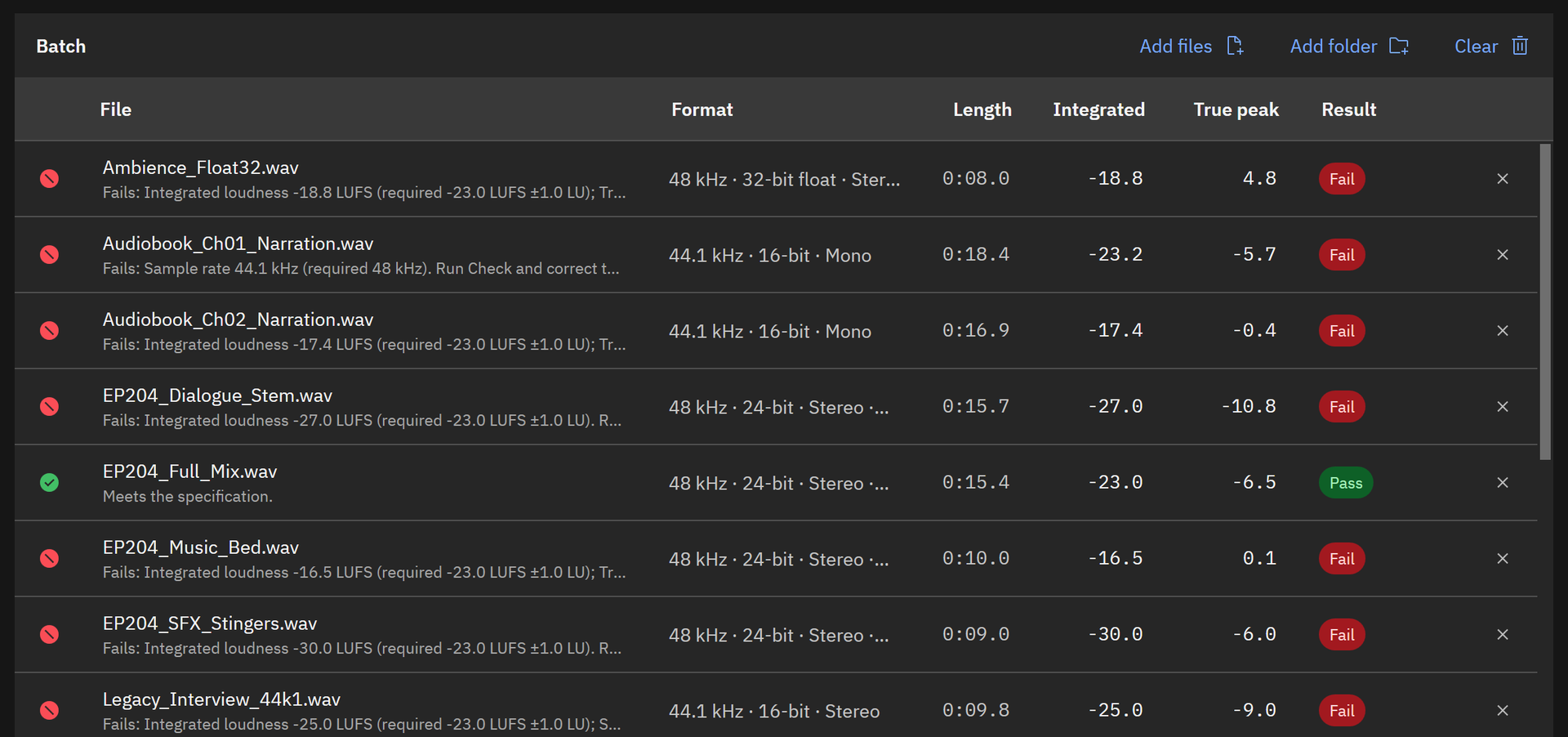
Screenshots show WavSpec’s own sample batch, with synthesized speech, music and effects.
Run the checklist in WavSpec
- Set up the client. Open “Client specifications” from the gear button in the header. Choose a built-in preset, or select one and choose “Duplicate” to make the client’s own version, then set the target, the ceiling, the allowed formats, and the room-tone and file-name rules. Choose “Save”.
- Add the batch. Drag the files or folders into the main window, or use “Add files” and “Add folder”.
- Fill in the report header. Choose the document button in the “Delivery report” pane and enter “Prepared by”, “Client”, and “Project or job reference”. They print on every report format.
- Check only. Press “Check only” (F6). Every file is marked “Pass” or “Fail” with the reason, and nothing is written. Select a file to see each criterion with its measured and required values.
- Correct and deliver. Press “Check and correct batch” (F5). Files that need it are corrected and written to the “Delivery folder”; tick “Copy already-compliant files to the delivery folder” to include the files that already pass, so the folder holds the whole delivery.
- Read the verdict. The “Delivery report” pane shows the verdict and the counts of “Unchanged”, “Corrected” and “Attention” files.
- Send the report. The report is saved beside the files as PDF, HTML, CSV and JSON. Choose “Open PDF” to check it, then send it with the audio.
Set up one client spec and run your next delivery through it.
Get it from Microsoft
Make it routine
For recurring work, point the “Watch folder” at the folder your editor exports to and choose “Start watching” (Ctrl+W). Each new file is picked up once it has finished writing, checked and corrected under the selected spec, and added to a report that grows with the batch. For scripted pipelines, the command line runs the same check on files or folders with a spec name and a delivery folder, and returns an exit code your script can test. To share a spec with a colleague or a freelancer, select it and choose “Export”; they bring it in with “Import”.
For spec-specific walkthroughs, see normalize audio to EBU R 128, the ATSC A/85 loudness check, normalizing a podcast to -16 LUFS, and batch normalize WAV files to LUFS.
Frequently asked questions
What is audio delivery QC?
It is the check that the files you send match the client’s technical spec: loudness, peaks, format, and any voice, duration or naming rules, plus the metadata the client’s system reads. Broadcasters, podcast hosts and audiobook platforms run their own QC when the files arrive, so running it first saves a round trip.
Which checks fail most often?
Integrated loudness and true peak, followed by sample rate and bit depth. Gain added for loudness pushes peaks over the ceiling, and a session at 44.1 kHz or a float export catches people out on broadcast jobs. For audiobooks, room tone at the head and tail is a frequent one. WavSpec corrects all of these in the same run.
Should I send a report with the files?
Yes, when the client has a spec. A report with before and after values, the spec name and a hash per file answers the QC desk’s questions before they are asked. WavSpec saves it as PDF for people, HTML with timelines, and CSV and JSON for spreadsheets and scripts.
Can one tool cover broadcast, podcast and audiobook specs?
Yes. WavSpec ships presets for broadcast, podcast, ad and audiobook delivery, switches between LUFS and RMS and between true peak and sample peak as each spec requires, and lets you add a spec for every client you deliver to.
Try WavSpec
WavSpec is a one-time purchase in the Microsoft Store, and the Store runs a 15-day free trial of the full product. Run this checklist on a delivery you have already sent and compare the report with what the client accepted. The WavSpec product page shows the screens, the built-in specs, and everything each report contains.
Run the full delivery checklist on your own files during the 15-day free trial.
Get it from Microsoft
ACX and Audible are trademarks of Audible, Inc. or its affiliates. Apple Podcasts is a trademark of Apple Inc. Spotify is a trademark of Spotify AB. WavSpec is not affiliated with or endorsed by them.
Last updated 15 October 2026. Published by Automata Labs, a software company in Canada.