To bookmark a construction drawing set, give the PDF one bookmark per sheet, in page order, whose text is the sheet number and title, such as A-101 - FIRST FLOOR PLAN. You can type each one in a PDF editor that can add bookmarks, or read them from every title block with a tool and check the list before saving.
Sets often arrive as one combined PDF with an empty bookmarks panel. The architect’s sheets, the structural engineer’s sheets and the mechanical and electrical sheets were merged or scanned into a single file, and reaching S-201 means scrolling through thumbnails. A bookmark list turns that file into something you can navigate by sheet name on a desktop, a laptop in the site office, or a tablet in the field.
Read the sheet names from the title blocks instead of typing every bookmark.
Get it from Microsoft
What a useful bookmark list for a drawing set looks like
A bookmark, also called an outline entry, is a named link to a page that a PDF viewer lists in its navigation pane. For a drawing set, the list is most useful when it mirrors the sheet index on the cover sheet.
| Choice | What works | Why |
|---|---|---|
| Text | Sheet number, then title: A-101 - FIRST FLOOR PLAN | People search by number and recognize by title |
| Coverage | One bookmark for every sheet | A missing entry is a sheet nobody can jump to |
| Order | Page order, which usually follows discipline order | The list reads like the drawing index |
| Number format | Exactly as printed in the title block | A1.01 and A-101 are different sheets to a reader |
| Structure | A flat list, or folders per discipline | Folders help on very large sets; a flat list is quicker to make |
Keep the text consistent. If the title block says FIRST FLOOR PLAN, avoid shortening it to 1st Flr in one bookmark and spelling it out in another.
Option 1: Bookmark the set by hand in a PDF editor
Most full PDF editors can add bookmarks. The routine is the same in all of them:
- Open the set and show the bookmarks panel.
- Go to page 1, zoom into the title block, and read the sheet number and title.
- Add a bookmark for the current page and type the text.
- Move to the next page and repeat, keeping the entries in page order.
- Save, ideally as a new file so the received set stays untouched.
This works, and it gives you full control, including nested folders by discipline. The trade-offs are time and typing. A large set means many separate entries, each one read from small print and typed by hand, and the whole job starts over when a reissued set replaces this one. Many basic readers only display bookmarks, so the work usually falls to whoever has a paid editor.
Option 2: Ask for a bookmarked set
If the set came from a design team, ask whether they can reissue it with bookmarks. The software that produced the drawings may be able to write one bookmark per sheet when the set is published, which costs the issuer little and saves everyone downstream from doing it. It is worth asking before you bookmark anything yourself, though it does not help with sets that were scanned from paper or merged from several sources.
Option 3: Read the bookmarks from the title blocks
Every sheet already prints its number and title in the title block. A tool that reads that one area on every page can propose the whole bookmark list, and you check it instead of typing it. The catch is that text recognition can misread, so the check matters: the tool should show you what it read, flag what it is unsure of, and let you fix any entry before it writes the file.
Meet SheetStamp
SheetStamp reads the sheet number and title from each title block in a plan-set PDF, lets you check them in a review table, and saves a new copy with one bookmark per sheet.
It runs on your Windows PC with the text recognition built into Windows. It has no account, makes no network connections, and never changes the PDF you open. It does not need a paid PDF editor, and it does one job: it names the sheets. There is no takeoff, estimating or measurement.
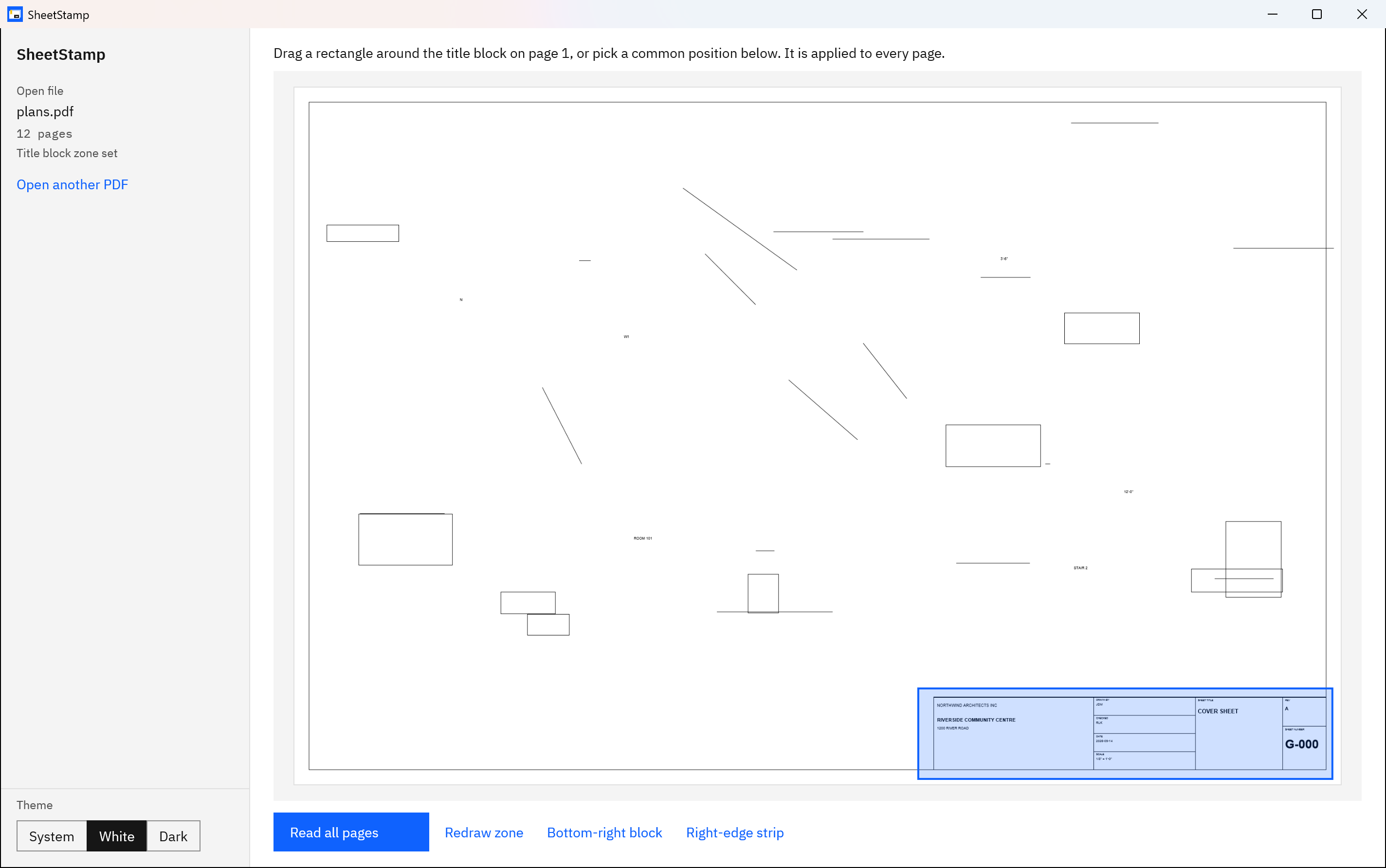
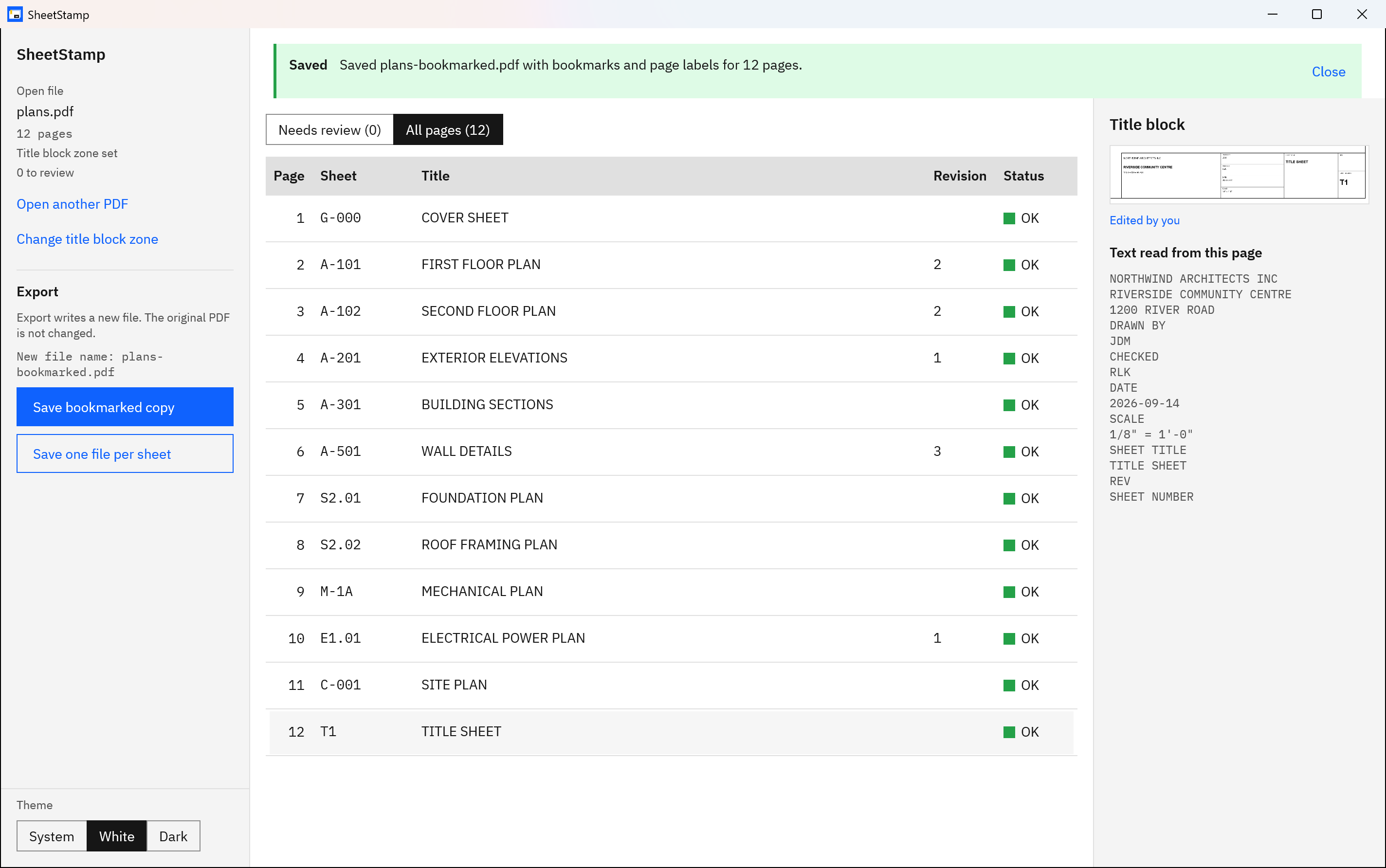
Screenshots use a synthetic sample plan set with a fictitious project and firm.
Bookmark a drawing set in SheetStamp, step by step
- Open the set. Choose Open PDF and pick the combined plan-set PDF. The left pane shows the file name and page count.
- Mark the title block once. Drag a rectangle around the title block on page 1. If the block sits in the bottom-right corner or runs as a strip along the right edge, choose Bottom-right block or Right-edge strip instead. The zone is applied to every page; Redraw zone starts over.
- Read the pages. Choose Read all pages. Progress shows the page being read, and Cancel stops it.
- Check the flagged rows. If anything needs a look, the table opens on Needs review. Select a row to see the title block crop, the text read from that page, and the reason it was flagged, such as “Sheet number not found”. Type the correct value into the Sheet, Title or Revision cell.
- Read down the whole list. Switch to All pages and scan the Sheet and Title columns. A number misread in its usual spot is only flagged when it duplicates another sheet, so this pass is yours.
- Save the bookmarked copy. Choose Save bookmarked copy. The Export panel shows the suggested name, such as
plans-bookmarked.pdfforplans.pdf; change it in the save dialog if you like. SheetStamp confirms the number of pages it wrote.
Try it on a set you already have, and check every row before you save.
Get it from Microsoft
What the bookmarked copy contains
- One bookmark per page, in page order, with the text sheet number, a spaced hyphen and title. A page with no sheet number gets a bookmark that starts with “Page” and its page number.
- A flat list. SheetStamp does not create discipline folders. In a set ordered by discipline, the entries still read in groups; add folders afterwards in a PDF editor if you need them.
- Page labels for every page, equal to the sheet number, so viewers that support page labels show
A-101in the page box instead of2. Browser PDF viewers ignore page labels but still show the bookmarks. The page labels guide explains the difference. - No revision in the text. The revision is read and shown in the table for checking, but the bookmark is the number and title only.
- Old bookmarks replaced. If the source already had bookmarks or page labels, the copy replaces them rather than mixing old and new. Links and layer settings in the source are not carried over.
For more on how the bookmark text is put together, see PDF bookmarks from sheet names.
Limits
- Text recognition can misread. Very short marks, such as a one-letter revision or a two-character sheet number like
T1, can be missed. A missed sheet number is flagged; a missed letter revision is not. - One title block zone covers the whole set. A sheet whose title block sits elsewhere is flagged for you to type.
- A PDF that needs a password to open is refused.
- Windows needs a text recognition (OCR) language installed. If none is, SheetStamp names the Settings page where you add one.
See the full list under Good to know before you buy and how reliable the text reading is.
Frequently asked questions
Can I bookmark a drawing set without a paid PDF editor?
Yes. SheetStamp reads the sheet numbers and titles from the title blocks and writes the bookmarks into a new copy of the PDF itself, so no paid editor is involved. Many basic PDF readers can only display bookmarks, not add them, which is why the hand method usually needs an editor.
Will the bookmarks work in a browser PDF viewer?
Yes. Bookmarks appear in viewers that show a PDF’s outline, including browser PDF viewers. The page labels SheetStamp writes alongside them are different: browser viewers ignore page labels and keep showing plain page numbers. People who read the set in a browser will use the bookmarks panel to jump between sheets.
Does SheetStamp change the original set?
No. The PDF you open is read-only to SheetStamp, and the bookmarks go into a new file you name. If you pick the original file as the save target, SheetStamp refuses before writing anything. Your received set stays exactly as it arrived, so you can always compare against it.
What if a page has no title block?
A page without a title block, such as a specification page bound into the set, is flagged as “Sheet number not found”. You can type a sheet number and title into its row, or leave it blank; a blank row gets a bookmark that starts with “Page” and its page number.
Try SheetStamp
SheetStamp is a one-time purchase in the Microsoft Store, with a 15-day free trial that has every feature. It runs on Windows 10 version 2004 or later and Windows 11, and nothing uploads. See how it works on the SheetStamp product page. If you need single-sheet files instead of a bookmarked copy, read how to split a plan set PDF into individual sheets, and for what the numbers themselves mean, see construction drawing sheet numbers explained.
Draw the title block once and let the bookmarks follow from it.
Get it from Microsoft
Last updated 7 October 2026. Published by Automata Labs, a software company in Canada.