ContextCleaner: see every entry in the Windows 11 right-click menu, and which app added it — on the Microsoft Store.
Windows 10 & Windows 11 Updated 2026-10-07

Name every page of a plan set from its own title block.

SheetStamp is a Windows app from Automata Labs that names the pages of a plan-set PDF from their title blocks. Draw one box around the title block and it reads each page’s sheet number, title and revision with the text recognition built into Windows. You check the results in a review table, then save a new copy with bookmarks and page labels, or one PDF per sheet. Your original is never changed, and nothing uploads.

One-time purchase · 15-day free trial in the Microsoft Store · One-time purchase. No subscriptions. Local-first.
Pay once. Own it forever.

One-time purchase on the Microsoft Store · No subscription · Instant install

Buy through the Microsoft Store—instant install, automatic updates, and a Microsoft receipt for easy expensing. No account needed on our site, and no subscription on Store purchases.

How it works See the screens

one title block zone · review table · bookmarks and page labels · original unchanged · nothing uploads

Sold and installed by the Microsoft Store under the Microsoft Standard Application License Terms. Publisher: Automata Labs. Privacy policy.

SheetStamp review table

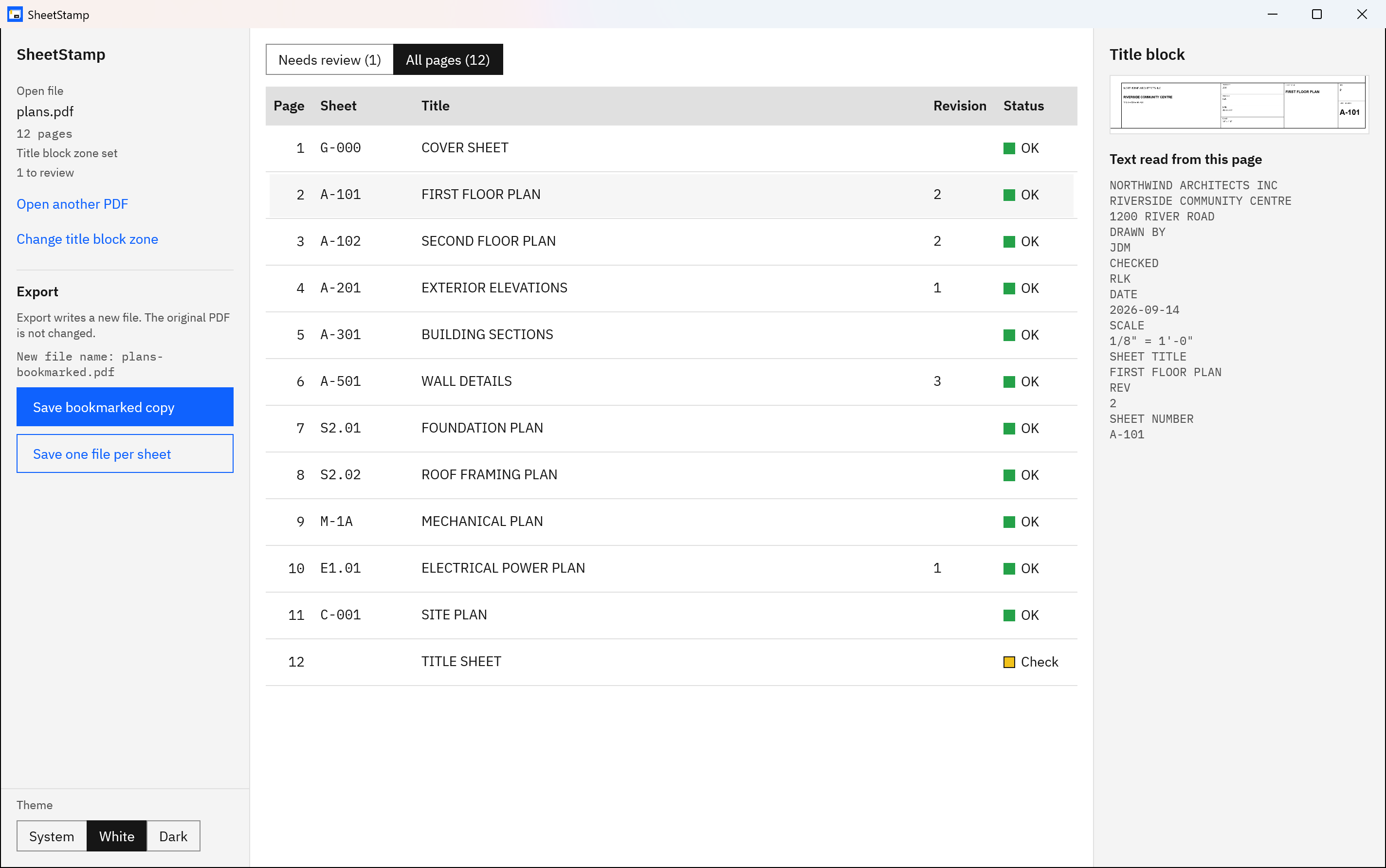
SheetStamp review table for a 12-page sample plan set, with sheet numbers such as G-000, A-101 and S2.01, titles, revisions, and one row marked Check.
Check each page’s sheet, title and revision. Pages that need a look are flagged, and the detail pane shows the title block crop and the text read from it.

The problem

The set arrived as one PDF. Finding A-101 means paging through.

Plan sets often arrive as one PDF of mixed sheets, with no bookmarks, and a page box that says 37 when the callout says A-501. Naming the pages by hand means opening each one, reading its title block, and typing the number and title into a bookmark or a file name, then doing it all again when the next issue arrives.

With SheetStamp

Draw one box. Check the table. Save a named copy.

SheetStamp reads the sheet number, title and revision from every title block, puts the pages that need a look first, and lets you fix any cell by typing. Then it writes a new PDF whose bookmarks read A-101 - FIRST FLOOR PLAN and whose page box shows A-101, or one PDF per sheet. Everything happens on your PC.

Key benefits

Read once, check every row, write a new file

One box for the whole set

Drag one rectangle around the title block on page 1, or choose Bottom-right block or Right-edge strip. SheetStamp reads that zone on every page, including scanned pages, pages exported from drawing software, rotated pages and vertical title strips.

A review table, flagged rows first

Sheet numbers not found, low-confidence reads, duplicates, and numbers written unlike the rest of their discipline are flagged with the reason and the title block crop. Every cell can be edited.

Bookmarks and page labels

A new PDF with one bookmark per page, such as A-101 - FIRST FLOOR PLAN, and page labels, so viewers that support them show A-101 instead of 2.

Or one PDF per sheet

Save one file per sheet writes each page into a folder you pick, named by sheet number and title, at its original sheet size. An existing file is never replaced.

Your original is never changed

The source PDF is opened read-only, saving over it is refused, and every export is a new file. No account, no sign-in, and nothing uploads.

How it works

Open, mark, check, save

  1. Step 1

    Open the plan-set PDF

    Choose Open PDF and pick the file. SheetStamp shows page 1, the file name and the page count. A PDF that needs a password to open is refused with a message that says so.

  2. Step 2

    Mark the title block once

    Drag a rectangle around the title block on page 1, or choose Bottom-right block or Right-edge strip. The zone is applied to every page. Choose Read all pages; Cancel stops the read and returns to this step.

  3. Step 3

    Check the review table

    When anything is flagged, the table opens on Needs review, each row with its reason, the title block crop and the text read from it. Type in any cell to fix it. All pages shows the whole set.

  4. Step 4

    Save a new file

    Save bookmarked copy writes a new PDF with bookmarks and page labels; for plans.pdf it suggests plans-bookmarked.pdf. Save one file per sheet writes one PDF per page into a folder you pick.

Text recognition can misread, so SheetStamp flags what it is unsure of and lets you fix any cell before you save. Read how reliable the text reading is.

See it in action

The zone, the table, and the saved copy

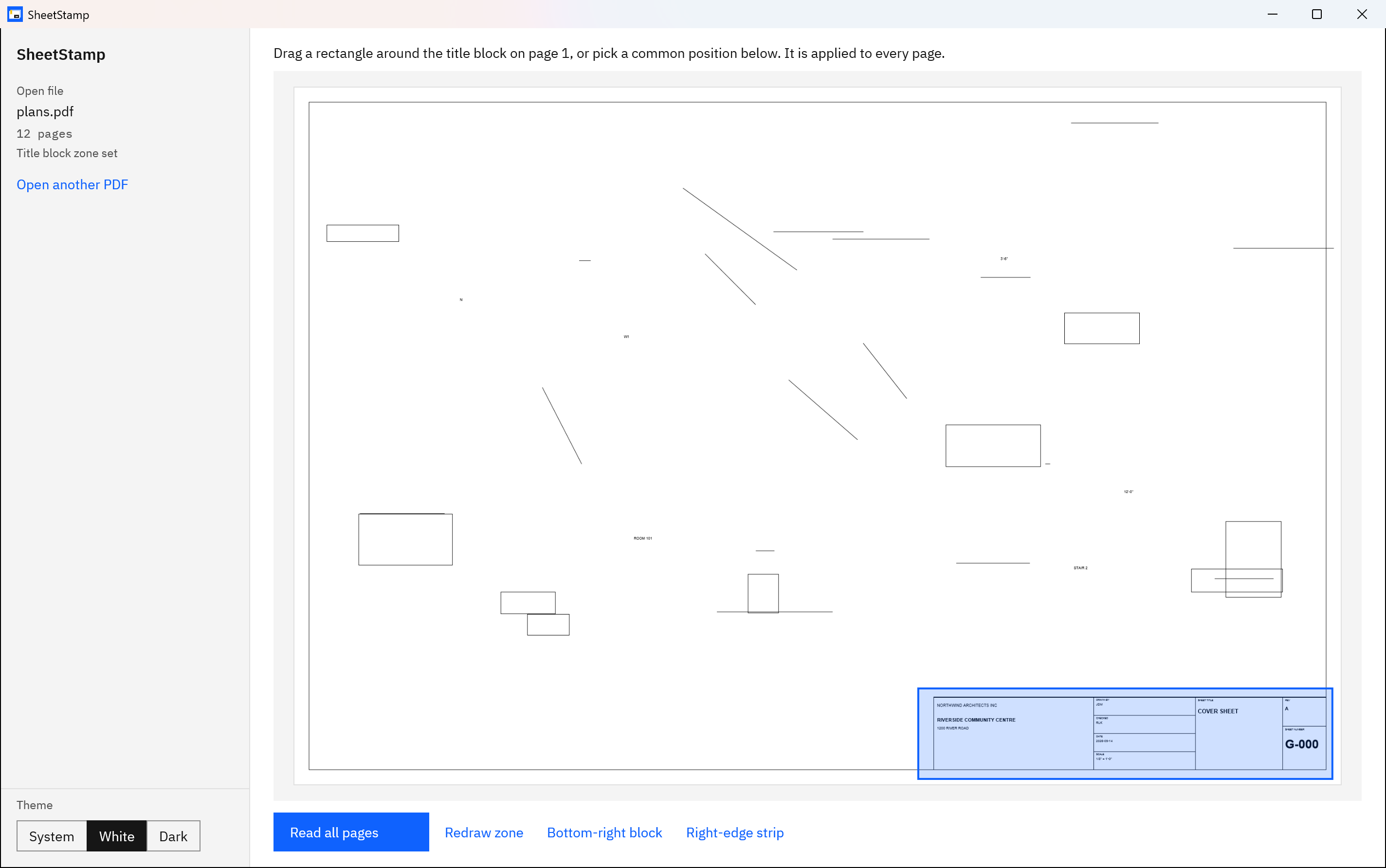
SheetStamp zone step showing page 1 of a sample plan set with a blue rectangle around the bottom-right title block, and the Read all pages, Redraw zone, Bottom-right block and Right-edge strip buttons.
Draw one box around the title block. The same zone is read on every page, and Bottom-right block or Right-edge strip sets it without dragging.
SheetStamp review table with page 12 marked Check because no sheet number was found, and the A-101 title block crop and recognized text in the detail pane.
Check each page’s sheet, title and revision. Every cell can be edited before you export.
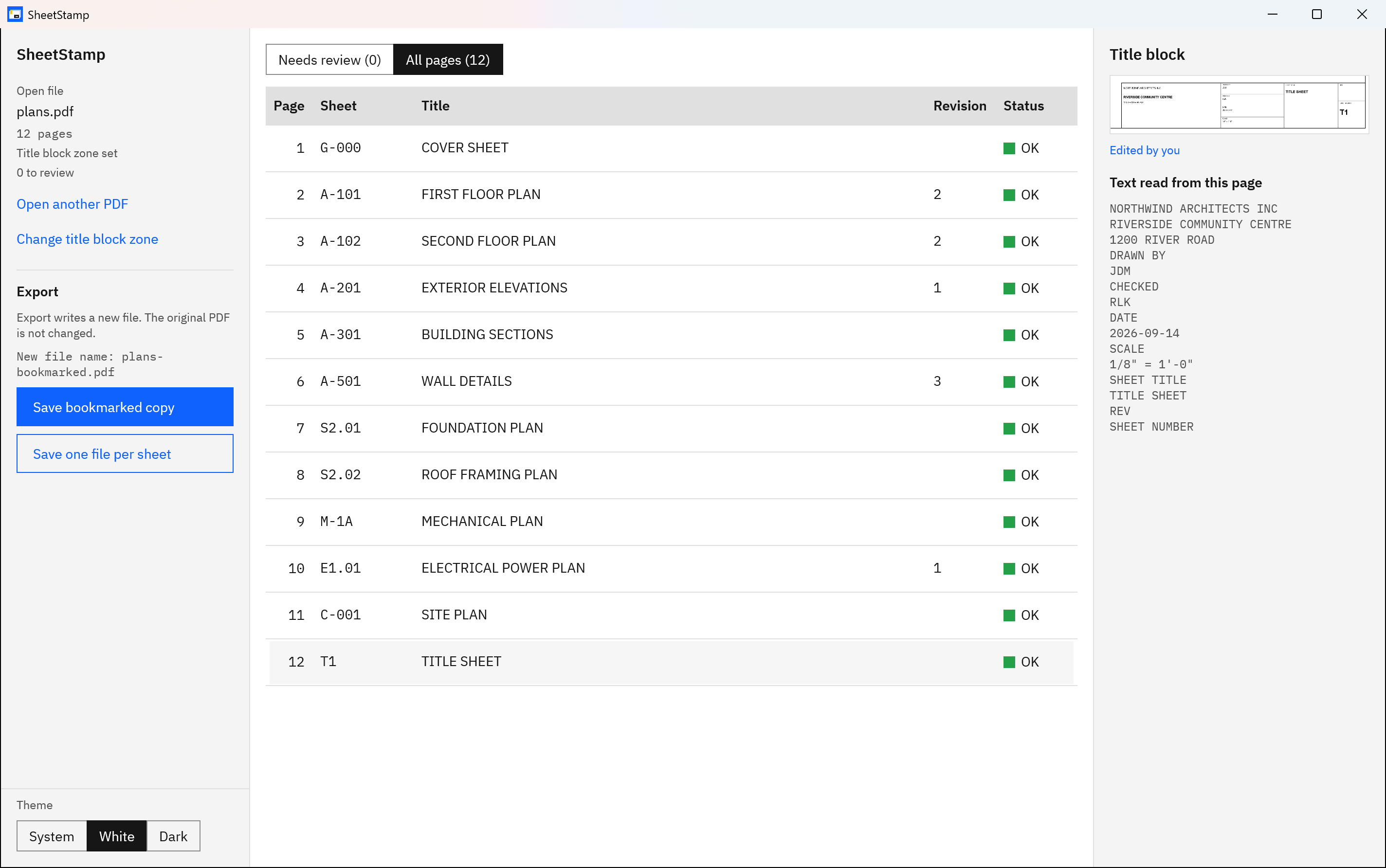
SheetStamp Export panel showing the new file name plans-bookmarked.pdf, the Save bookmarked copy and Save one file per sheet buttons, and page 12 marked Edited by you.
Save a new copy. The original stays as is. Here the missed sheet number T1 was typed by hand.
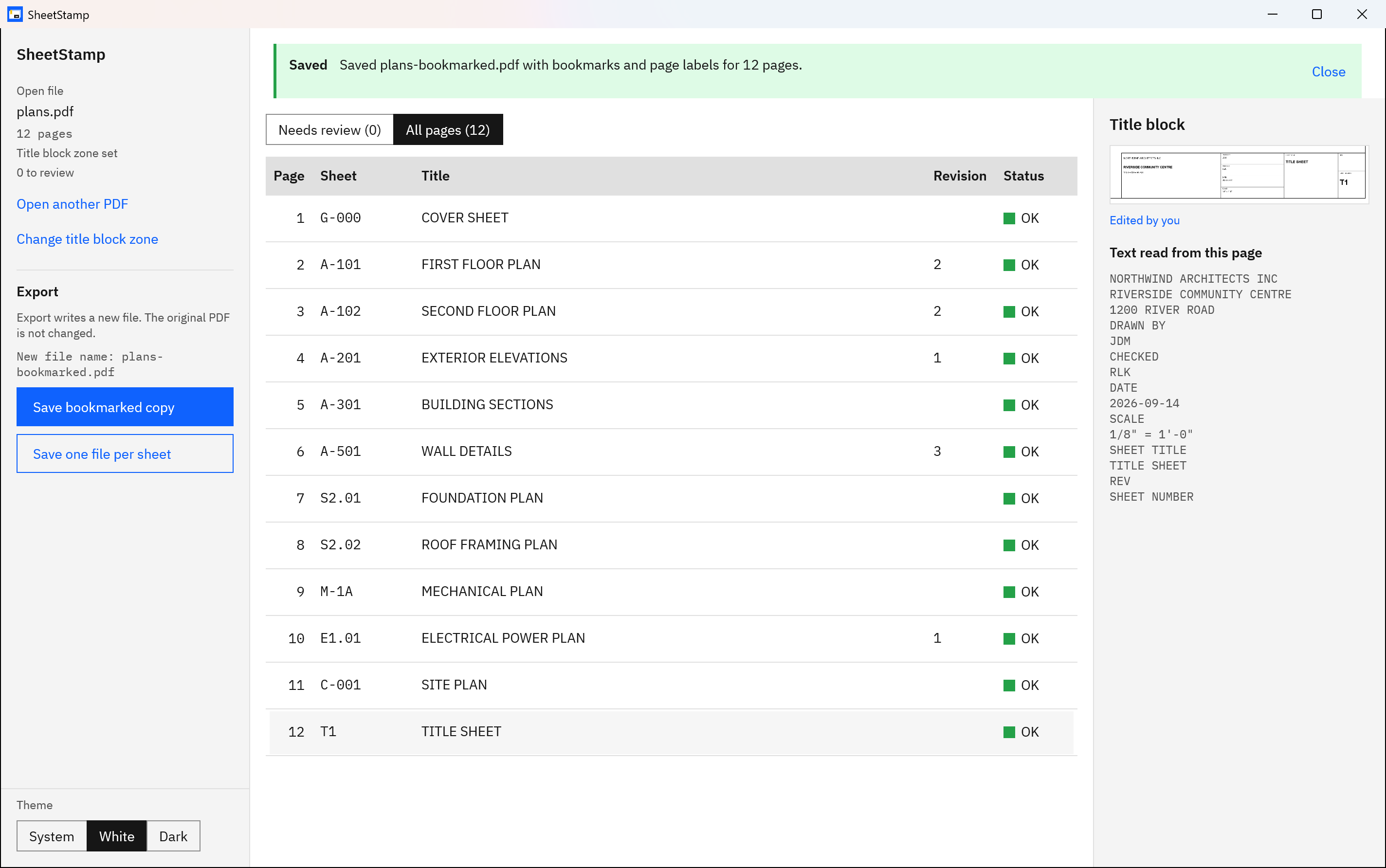
SheetStamp after saving, with the message Saved plans-bookmarked.pdf with bookmarks and page labels for 12 pages above a table where every row reads OK.
Saved. Every row reads OK. The copy has a bookmark and a page label for each of the 12 pages.

Screenshots show a synthetic sample plan set with a fictitious project and firm.

Privacy

Nothing uploads

SheetStamp runs on your PC inside the Windows app sandbox, with no account, no sign-in, no telemetry and no network connections. Text is read with the recognition built into Windows. The app reads only the PDF you pick and writes only to the file or folder you pick.

If the app fails, a short error log stays in its own folder on your PC and is never sent anywhere. If you save into a folder that a sync app such as OneDrive manages, that app may copy the file elsewhere under its own settings.

Good to know before you buy

  • It names sheets only: no takeoff, no estimating, no measurement, and no CAD editing.
  • Text recognition can misread. Very short marks, such as a one-letter revision or a sheet number like T1, can be missed; a missed sheet number is flagged, a missed letter revision is not.
  • One title block zone per set. A sheet whose title block sits somewhere else is flagged for you to type.
  • Bookmarks and file names use the sheet number and title. The revision is shown for checking but is not written into them.
  • Page labels show in viewers that support them. Browser PDF viewers ignore page labels but still show the bookmarks.
  • There is no spreadsheet or CSV export of the sheet list, and no page-range filter for splitting.
  • A PDF that needs a password to open is refused. Existing bookmarks and page labels are replaced in the copy; links and layer settings are not carried over.
  • Windows needs an OCR language installed. While a set is open, plan for memory of about five times the PDF’s size.

SheetStamp does not need a paid PDF editor, and it is not one. The 15-day free trial is the easiest way to see how it reads your own title blocks.

Try it on your next plan set first.

The Microsoft Store runs a 15-day free trial with every feature. Open a set you already have, draw the title block once, and look through the review table before you save anything. If it fits the way you work, buy it once. There is no subscription.

Pay once. Own it forever.

One-time purchase on the Microsoft Store · No subscription · Instant install

Buy through the Microsoft Store—instant install, automatic updates, and a Microsoft receipt for easy expensing. No account needed on our site, and no subscription on Store purchases.

Who uses it

  • General contractors and builders who receive one combined PDF of mixed sheets and want bookmarks and named files for the project folder
  • Subcontractors who need their trade’s sheets as separate PDFs named by sheet number
  • Print shops that need to find, reprint or send individual sheets from a customer’s combined set
  • Project coordinators and office staff preparing an issued set for the field with bookmarks and page labels

FAQ

Quick answers about SheetStamp

What is SheetStamp?

SheetStamp is a Windows app that names the pages of a plan-set PDF from their title blocks: it reads each sheet number, title and revision, lets you check them in a review table, and saves a new copy with bookmarks and page labels, or one PDF per sheet. It runs on your PC, and nothing uploads.

How do I name plan-set pages from the title block?

Choose Open PDF and pick the set. Drag a rectangle around the title block on page 1, or choose Bottom-right block or Right-edge strip, then choose Read all pages. Check the rows under Needs review and type any fixes. Then choose Save bookmarked copy or Save one file per sheet.

What does the export contain?

Save bookmarked copy writes a new PDF with one bookmark per page, such as A-101 - FIRST FLOOR PLAN, and a page label per page, so viewers that support labels show A-101 instead of 2. Save one file per sheet writes each page as its own PDF, named the same way, into a folder you pick.

How reliable is the text reading?

SheetStamp reads with the text recognition built into Windows, and OCR can misread. Rows with a missing, low-confidence, duplicate or oddly written sheet number are flagged with the reason and the crop. Very short marks, such as a one-letter revision, can be missed without a flag, so read down the whole table before you save.

Which sheet number formats does it read?

Formats such as A-101, A101, A1.01, S2.01, M-1A, FP-101 and A-401B: one to three discipline letters, then the number. OCR lookalikes such as the letter O for a zero are read as digits inside the number. It recognizes common English and French title block labels, such as SHEET NUMBER, SHEET TITLE and REV.

Does it work on scanned sets and rotated pages?

Yes. SheetStamp reads the title block as an image, so scans and PDFs exported from drawing software are read the same way. Pages rotated 90 or 270 degrees, portrait sheets, mixed sheet sizes and vertical title strips along the right edge are handled. Faint or low-resolution scans produce more flagged rows to check.

Do I need a paid PDF editor?

No. SheetStamp reads the PDF and writes the bookmarks, page labels and split files itself. Open the result in the PDF reader you already use. Bookmarks show in browser viewers too; page labels show only in viewers that support them.

Does anything leave my PC?

No. Text recognition runs on your PC, and the app makes no network connections. There is no account, no sign-in and no telemetry. SheetStamp reads only the PDF you pick and writes only to the file or folder you pick.

Will it change my original PDF?

No. The original is opened read-only and every export is a new file. If you pick the original as the save target, SheetStamp refuses before writing anything. Split files never replace an existing file; a file with the same name gets a new name instead.

Does it do takeoff, estimating or measurement?

No. SheetStamp does one job: it names the sheets. It has no takeoff, estimating, measurement or CAD editing, and it does not change what is drawn on a page. It reads the title block and writes bookmarks, page labels and file names.

What does it cost, and is there a trial?

SheetStamp is a one-time purchase in the Microsoft Store, and the listing shows the current price in your currency. The Store runs a 15-day free trial with every feature, so you can run your own plan sets through it before you buy. There is no subscription.

What Windows version do I need?

Windows 10 version 2004 or later, or Windows 11, on an x64 or Arm64 PC. Windows needs a text recognition (OCR) language installed; if none is, SheetStamp says so and names the Settings page where you add one.
Still stuck? Email [email protected] after checking the Support Center.

Technical specifications

Technical specifications

Spec Implementation
Data Sovereignty Reads only the plan-set PDF you pick; writes only the bookmarked copy you name or the single-sheet PDFs in the folder you pick; the original is opened read-only and never changed; the theme setting and a local error log stay in the app’s own data folder
Telemetry Status None; no account, no sign-in, no telemetry, and no usage data collected
Core Runtime .NET 10 and WinUI 3 (Windows App SDK 2.5), self-contained and packaged as MSIX, running in the Windows app sandbox (AppContainer) with no declared capabilities; text is read with the built-in Windows OCR engine
Network Requirements Fully functional offline; the app makes no network connections and nothing is uploaded
Deployment Compatibility Windows 10 version 2004 or later and Windows 11, x64 and Arm64; one-time purchase in the Microsoft Store with a 15-day free trial
Input One PDF at a time, scanned or exported from drawing software; PDFs that need a password to open are refused
Reading One title block zone per set (drawn, or the Bottom-right block and Right-edge strip presets), read with the installed Windows OCR language; English and French title block labels
Review Table of page, sheet, title, revision and status; not-found, low-confidence, duplicate and inconsistently written sheet numbers flagged with the reason, crop and recognized text; every cell editable
Outputs A new PDF with one bookmark and one page label per page, or one single-page PDF per sheet named sheet number - title; no CSV or spreadsheet export
Originals Opened read-only; saving onto the original is refused; split files never replace an existing file
Memory Plan for peak memory of about five times the PDF size while a set is open

Deep Dive

Adobe Acrobat vs SheetStamp for Bookmarking and Splitting a Plan Set PDF

How Acrobat bookmarks, page labels and splits a drawing set, step by step, where the manual work piles up, and when SheetStamp is the faster route.

Workflow

How to Check That the Sheet Index Matches the Plan Set Before You Submit

Permit offices flag sets whose cover sheet index lists missing sheets or misses sheets that are there. A fast way to cross-check the index on Windows.

Workflow

Plan Set PDF Lost Its Bookmarks After Print to PDF? Why It Happens and How to Rebuild Them

Why a plan set loses its bookmarks when it goes through Print to PDF, how to avoid it, and how to rebuild sheet bookmarks from the title blocks on Windows.

Windows Tips & Tools

Read Sheet Numbers From a Scanned Plan Set on Windows: Snipping Tool, PowerToys Text Extractor or SheetStamp?

Three ways to read title blocks on a scanned plan set with OCR on your PC: Snipping Tool, PowerToys Text Extractor, and SheetStamp for the whole set.

Windows Tips & Tools

Bluebeam AutoMark vs SheetStamp: Two Ways to Bookmark a Plan Set From Its Title Blocks

How Bluebeam Revu's AutoMark and SheetStamp turn title-block text into plan set bookmarks, where each works best, and what each costs.

Workflow

Permit Plan Set Bookmark Requirements: How to Bookmark Sheets by Number and Title for Electronic Plan Review

Many permit offices reject plan sets without one bookmark per sheet by number and title. What the rules say, real examples, and how to bookmark a set quickly.

Name the sheets once. Find every one by name.

SheetStamp reads each title block, lets you check every row, and saves a copy with bookmarks and page labels, or one PDF per sheet. Your original is never changed, and nothing uploads.

One-time purchase. No subscriptions. Local-first.

Pay once. Own it forever.

One-time purchase on the Microsoft Store · No subscription · Instant install

Buy through the Microsoft Store—instant install, automatic updates, and a Microsoft receipt for easy expensing. No account needed on our site, and no subscription on Store purchases.

Browse catalog