Before you burn a screen, check every film positive for ten things: true size, a sheet big enough for the art and its marks, identical registration marks, a readable label, the right orientation, a choked underbase, traps between colors, a halftone ruling that suits the mesh, dot-gain compensation, and a plate count and print order that fit the press. Underbase lets you check all ten on screen before any film is written.
A bad positive costs more than the film it was printed on. It costs the emulsion, the exposure, the washout, the reclaim, and the press slot that sat idle while the screen was redone. Most film problems are visible before exposure if you know where to look, so this checklist goes in the order you would check a sheet at the light table.
See every item on this checklist before the film is printed.
Get it from Microsoft
The film positive checklist
| # | Check | Looks right when | Where Underbase shows it |
|---|---|---|---|
| 1 | Size and sheet fit | The print size matches the order, and the art plus marks and labels fits the film | ”Print width” and the Film tab note, such as “fits Super B 13 x 19 in” |
| 2 | Registration marks | Every plate carries the same marks in the same place | Identical marks and center ticks on every plate |
| 3 | Labels | Each sheet names the job, plate, ink, and mesh | A label on every plate, plus a large plate number on single-plate sheets |
| 4 | Orientation | Right-reading or mirrored, to match how you expose | ”Mirror (emulsion down)”, recorded in each sheet’s footer |
| 5 | Underbase choke | White sits just inside the colors on top | ”Choke” and “Show underbase plate” |
| 6 | Traps | Lighter colors tuck under darker neighbors | ”Spread (+) or choke (-)” and “Apply to all inks” |
| 7 | Halftone ruling | The line count suits the mesh | ”Suggest ruling from mesh” and the “Mesh” field |
| 8 | Dot gain | Midtones are thinned for press gain | ”Dot gain compensation” |
| 9 | Clean, dense dots | Every pixel is solid black or clear at the output resolution | 1-bit TIFFs and the “Output dots” preview |
| 10 | Plate count and order | The plates fit the press, in the order the crew will print | The plate budget tile and the production ticket |
Going through the checklist
Size and sheet fit
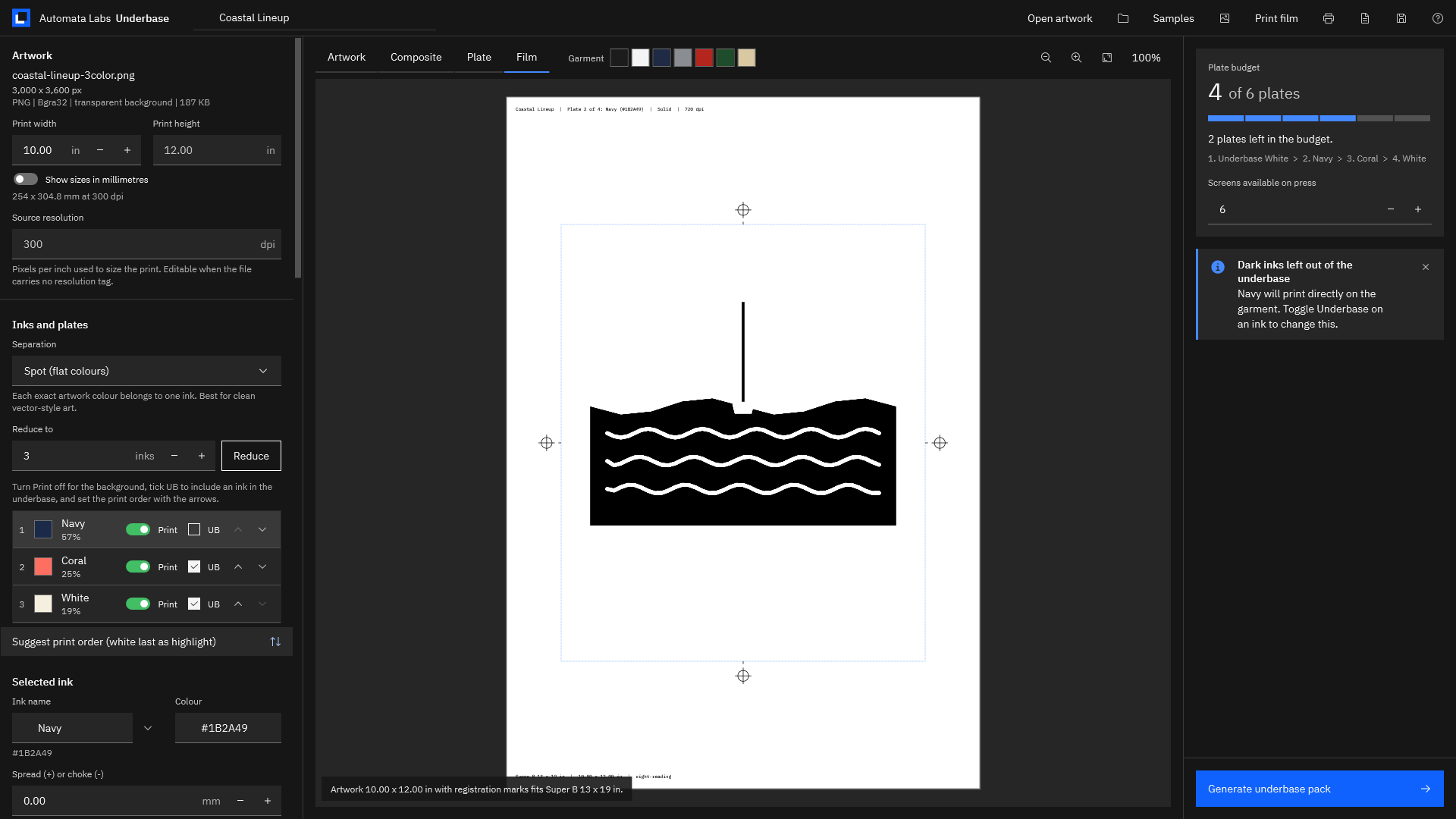
Measure the artwork on film against the size on the order. A driver that scales a page to fit the paper is a common cause of positives that are a few percent small, and they will not register with the others. In Underbase, the print size comes from “Print width”, and the Film tab confirms the fit in plain words. If the sheet is too small, Underbase names the largest print width that fits.
Marks and labels
Every plate should carry the same registration marks in the same spot, so the screens line up on press. Center ticks on the art edges help you place the film on the screen. A label on each sheet stops films from getting mixed up in the screen room. Underbase prints the job name, plate number, ink and hex value, screening, offset, mesh, and dpi on each sheet.
Orientation
Check whether your shop exposes with the printed side up or against the mesh, and print the film to match. Underbase mirrors the film, labels included, when “Mirror (emulsion down)” is on, and the footer says “Mirrored (emulsion down)” or “Right-reading”.
Choke and traps
On a dark shirt, hold the underbase film over a top color film. The white should sit slightly inside every edge. Where two colors meet, the lighter one should overlap the darker one a little. In Underbase, “Show underbase plate” shows the choked base on its own, and the “Spread (+) or choke (-)” value of each ink is printed on its label.
Halftones
For halftoned plates, match the ruling to the mesh, allow for dot gain, and check that dots are clean at the output resolution. Underbase sets the ruling from the mesh with “Suggest ruling from mesh”, thins halftones by the “Dot gain compensation” you enter, and renders the real dots with “Output dots”. Its film TIFFs are 1-bit, so every pixel is pure black or clear, ready for a RIP or a dense-black printer setting.
Plate count and order
Count the plates, including the underbase, against the heads on the press, and confirm the print order. Underbase counts both on the plate budget tile and writes the order, mesh, and coverage on the production ticket.
Meet Underbase
Underbase separates limited-color artwork and writes true-size film with registration marks, plate labels, and a production ticket, so every item on this checklist is visible before you print a sheet.
It is a Windows app for small custom-apparel shops. It opens PNG, TIFF, JPEG, BMP, GIF, WebP, SVG, PDF, and Illustrator (.ai) files, runs entirely on your PC, and has no account.
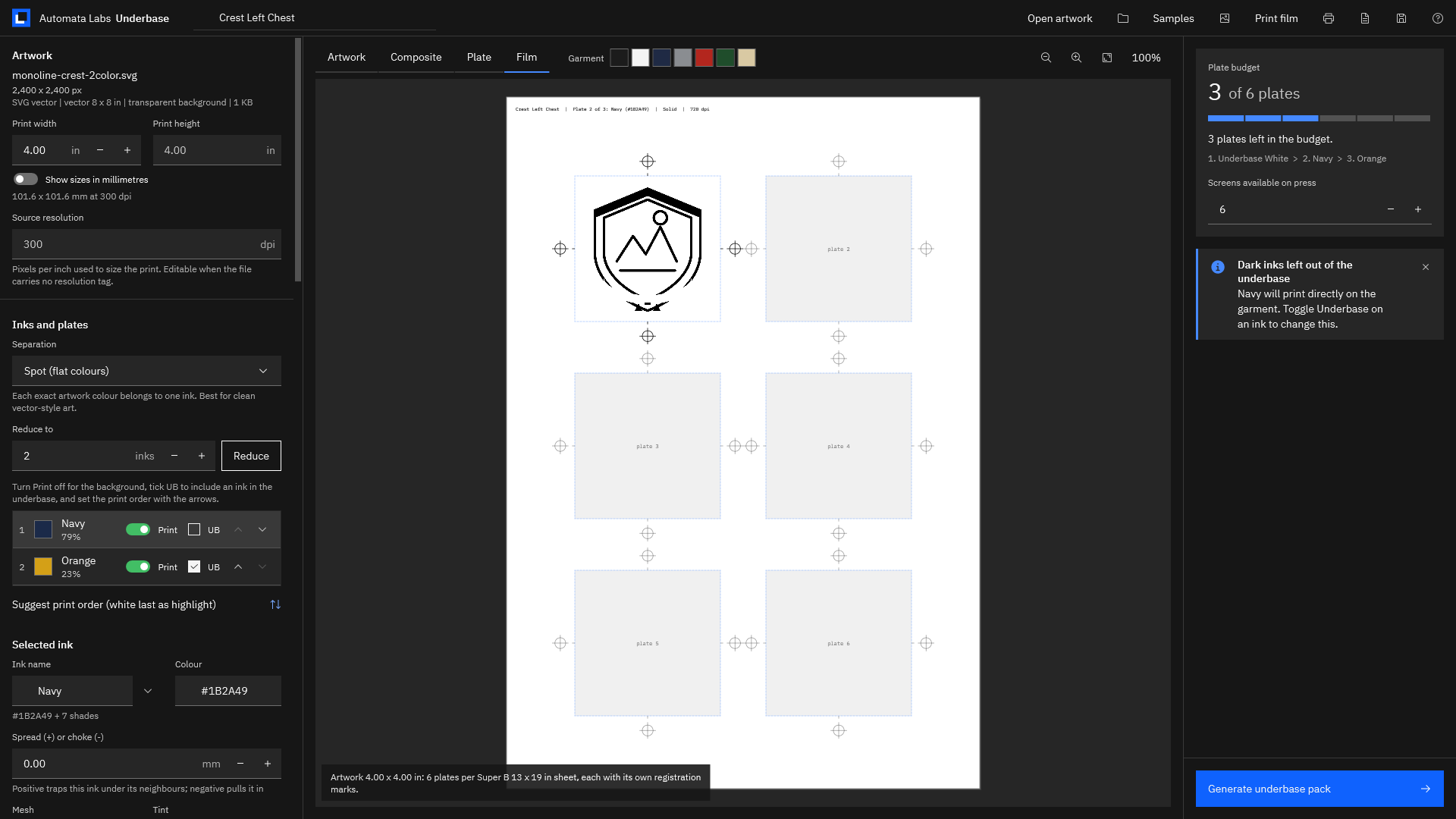
Screenshots use the sample artwork bundled with Underbase. Illustrator is a trademark of its owner; Underbase is not affiliated with or endorsed by the trademark owner.
Run the checklist in Underbase
- Open the job. Choose “Open artwork” (Ctrl+O), or open a saved job from its .underbase file.
- Check the size. Under Artwork, confirm “Print width” and “Print height” against the order.
- Pick the film. Under “Film and output”, choose the “Film size” and “Sheet layout”, then open the Film tab and read the fit note.
- Set orientation. Turn “Mirror (emulsion down)” on or off to match your exposure.
- Check the base. Choose “Show underbase plate”, and adjust “Choke” if white would show.
- Check the traps. Select each ink and read its “Spread (+) or choke (-)” value, or choose “Apply to all inks”.
- Check the halftones. For each halftoned plate, choose “Suggest ruling from mesh”, set “Dot gain compensation”, and turn on “Output dots” in the Plate tab.
- Check the budget and order. Read the plate budget tile, set “Screens available on press”, and choose “Suggest print order (white last as highlight)” if you want the standard order.
- Generate. Choose “Generate underbase pack” (Ctrl+G), then open the “Film PDF” and the “Ticket”.
- Print the film. Choose “Print film” for any Windows printer, or send the 1-bit TIFFs from the film-tiff folder to your RIP.
Run the checklist on a job you have already burned.
Get it from Microsoft
New to the vocabulary? Our screen printing separation terms guide defines every word on this list, and how to make color separations for screen printing covers the whole job from the customer’s file. For film output in depth, see halftone film positives for screen printing, and for dark garments, the white underbase for dark shirts.
Frequently asked questions
What resolution should a film positive be?
Underbase writes film at 600, 720, 1200, or 1440 dpi, with 720 as the default. Higher settings give finer halftone dots and larger files. Every film TIFF is 1-bit, so each pixel is pure black or clear.
Why do my film positives not line up?
Usually because one was scaled by the printer driver, or the marks were placed by hand. Print every plate at true size from the same file, with identical registration marks. Underbase places the same marks on every plate and checks that the art and marks fit the sheet.
Should film be printed mirrored?
Print it to match how you expose. If the printed side of the film faces the mesh, print it mirrored, called emulsion down. In Underbase, turn on “Mirror (emulsion down)”, and the footer of each sheet records which way it was printed.
Can I put several small plates on one sheet?
Yes. Set “Sheet layout” to “Gang plates on each sheet”, and Underbase places as many plates as fit, each with its own registration marks and label. A 4 x 4 in crest fits six to a Super B sheet.
Try Underbase
Underbase is a one-time purchase in the Microsoft Store, with a 15-day free trial run by the Store. It runs on Windows 11 version 24H2 or later, and your artwork never leaves your PC. Read how it works on the Underbase product page, or start with spot color separations for t-shirts.
Check your next film against this list during the 15-day free trial.
Get it from Microsoft
Last updated 15 October 2026. Published by Automata Labs, a software company in Canada.