To fix flipped normals in an STL file, turn every triangle that faces into the part so it faces outward like its neighbors, then save the corrected mesh as a new file. A 3D modeling app with a recalculate or flip command can do it face by face. MeshMedic finds the inverted triangles for you, flips them in one repair, shows each flip in blue, and exports a new STL on your Windows PC.
“Flipped normals” and “inverted triangles” describe the same problem: some triangles point the wrong way, so software can no longer tell which side of the surface is solid, and the slicer has to guess.
Find and flip inverted triangles in your next STL, on your own PC.
Get it from Microsoft
What a flipped normal is
An STL file is a list of triangles. Each one stores three corners and a normal, a short vector meant to point away from the part. The order of the corners also sets direction: seen from outside, they run counter-clockwise, which is the right-hand rule.
A flipped normal is a triangle whose corners run the wrong way compared with its neighbors, so it faces into the part. Most software trusts the corner order over the stored normal, and so does MeshMedic: it reads direction from the winding and recomputes the normal when it writes the file. When every triangle of a closed shell faces inward, the whole part is inside out.
How flipped normals show up
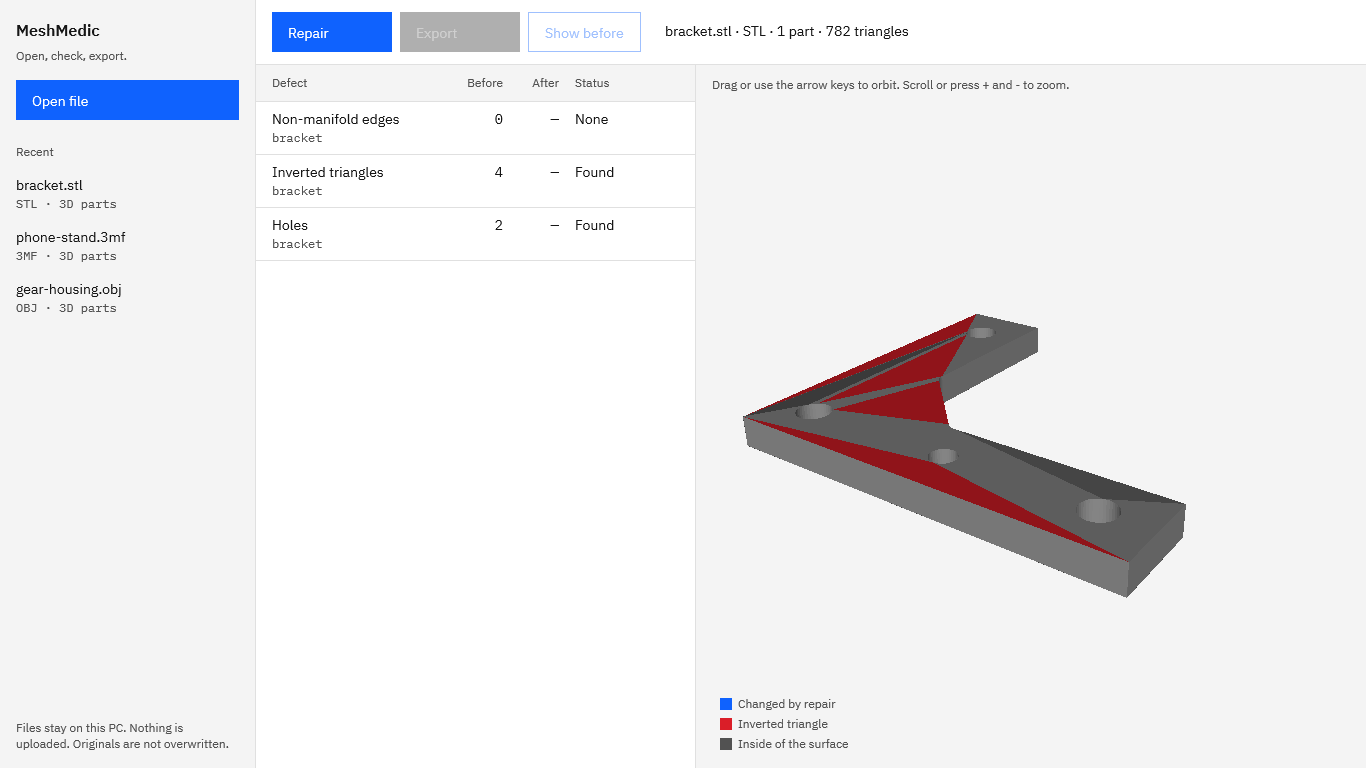
- In a viewer. Patches look dark or see-through, or faces vanish when you orbit to one side. In MeshMedic’s preview, inverted triangles are drawn in red, and any inside of the surface that shows through is drawn in dark gray.
- In the slicer. A warning about errors, a wall that disappears, infill where there should be air, or a whole part treated as empty.
- Where they come from. Mirrored parts exported from CAD, meshes edited by hand, scripts that write corners in the wrong order, and models stitched together from files made by different programs.
Your options on Windows
| Method | How it works | Good fit | What to weigh |
|---|---|---|---|
| Flip faces in a 3D modeling app | Select the wrong faces, run a recalculate or flip command, export again | People who already work in that app every day | You find the faces yourself, and there is a full toolset to learn |
| Let the slicer repair the model on import | Many slicers try to mend a mesh when they load it | Quick checks on your own parts | The fix usually stays inside that slicer, with no corrected file and no list of changes |
| An online repair service | Upload the file, wait, download the result | Non-sensitive one-off files | The model leaves your PC |
| MeshMedic | Open file, Repair, Export | Makers and shops that want a corrected STL and a record of what changed | Why it works: the Inverted triangles row counts the problem before and after, every flip is drawn in blue, and the original is never overwritten |
Meet MeshMedic
MeshMedic repairs a broken STL, OBJ, or 3MF, including inverted triangles, holes, and non-manifold edges, and shows you every change before it writes a new file.
MeshMedic is a Windows app from Automata Labs. It runs on Windows 10 version 2004 or later and Windows 11, on x64 PCs, inside the Windows app sandbox. It makes no network connections and has no account, so the files you open stay on your PC.
Screenshots show sample parts made for testing.
How to fix flipped normals in MeshMedic
- Open the file. Choose “Open file” and pick the STL, or click it in the “Recent” list. The label above the table shows the name, the format, the number of parts, and the triangle count, for example
bracket.stl · STL · 1 part · 782 triangles. - Read the Inverted triangles row. The table has the columns “Defect”, “Before”, “After”, and “Status”. The “Before” column counts the triangles that face the wrong way in each part, and the status reads “Found”.
- Look at the preview. Inverted triangles are drawn in red. Drag or use the arrow keys to orbit, scroll or press + and - to zoom, and press Home to reset the view.
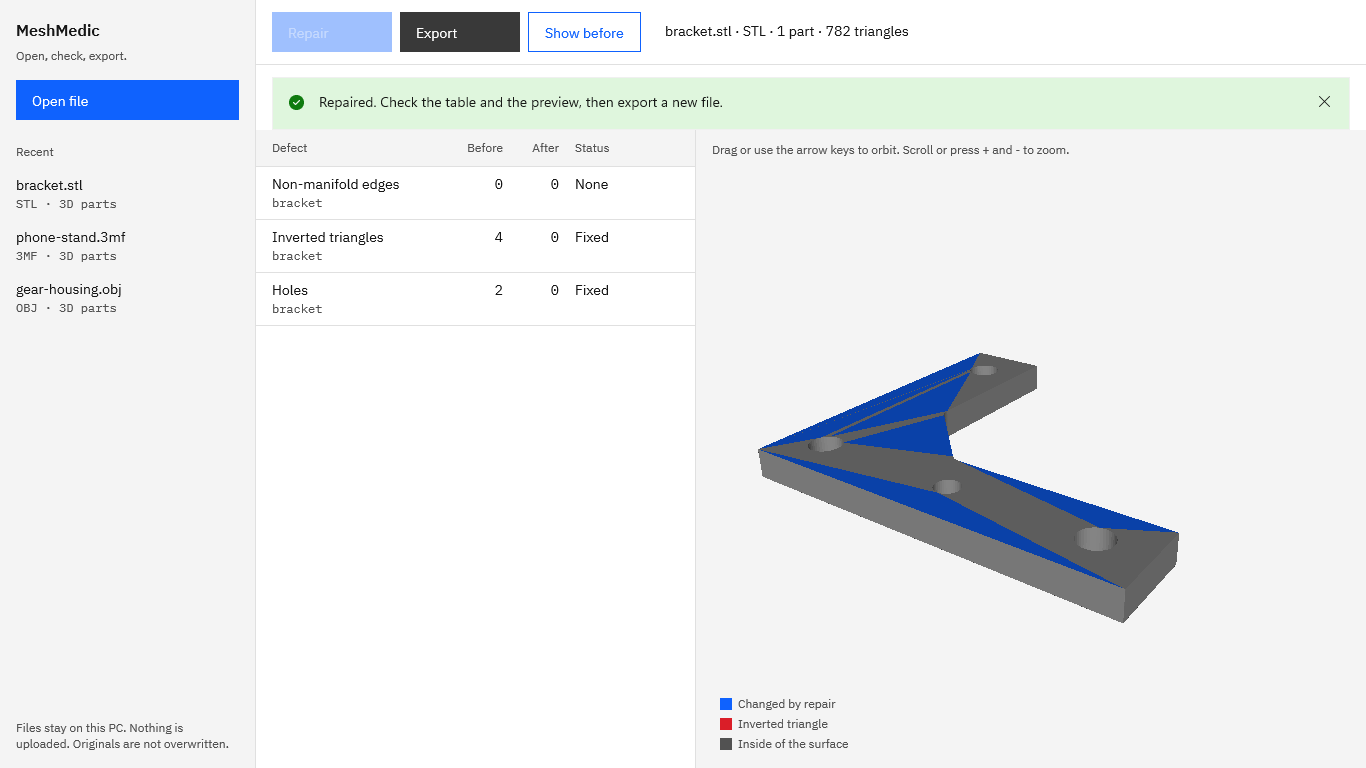
- Choose “Repair”. MeshMedic walks each shell across its shared edges and turns every triangle to face outward. A closed shell that is entirely inside out is flipped as a whole. The same pass also caps holes and splits non-manifold edges, so the other rows are handled too. The bar reads “Repaired. Check the table and the preview, then export a new file.”
- Check the result. The “After” column for Inverted triangles reads 0 and the status reads “Fixed”. Every flipped triangle is drawn in blue, labeled “Changed by repair”. Turn on “Show before” to switch back to the red triangles and compare.
- Choose “Export”. The Windows save dialog suggests the original name with -repaired added, such as
bracket-repaired.stl. A binary STL is written as binary and an ASCII STL as ASCII, with normals recomputed from the corrected winding. - Keep the note. The panel “Exported. Before and after:” lists the counts before and after and a line such as
Changes: flipped 4, added 2, removed 0. Choose “Copy” to paste it into an email, or “Save note” to keep it as a .txt file with the job.
Run these steps on the STL your slicer flagged and compare the counts.
Get it from Microsoft
Check the fixed file
- Reopen the export. Open the new file in MeshMedic. The Inverted triangles row starts at 0, and a file with nothing left to repair shows “No defects found”.
- Slice the new file. Use the repaired copy from now on, so every slicer and every printer gets the same corrected mesh.
When the same file also has holes or edges shared by too many triangles, our guides to repairing an STL file and fixing non-manifold STL cover those rows. For what each error means, read STL mesh errors explained.
Frequently asked questions
What is the difference between a flipped normal and an inverted triangle?
They are two names for the same thing: a triangle facing the wrong way compared with the rest of its shell. MeshMedic’s table calls them inverted triangles, counts them for each part, and draws them in red in the preview.
Can a whole part be inside out?
Yes. If every triangle of a closed shell faces inward, the shell is inside out, which software sees as a hollow with nothing solid around it. MeshMedic measures each closed shell and flips one that is inside out as a whole, then counts those triangles in the Inverted triangles row so you can see the change.
What does flipping a triangle change?
Only the direction it faces. Its three corners stay where they were, and their order is reversed so the triangle points outward. The shape of the part stays the same. In a 3MF, the triangle keeps its color or material reference, with the corner values swapped to match the new order.
Can MeshMedic fix flipped normals in OBJ and 3MF files too?
Yes. The same repair runs on STL, OBJ, and 3MF, and the export keeps the format you opened. An OBJ keeps its objects, groups, materials, and smoothing groups, and a 3MF keeps its colors, materials, components, and build items. Our comparison of 3MF vs STL for 3D printing explains what each format holds.
Try MeshMedic
MeshMedic is a one-time purchase in the Microsoft Store, and the Store runs a 15-day free trial with every feature, so you can fix the file that failed last week and compare the result before you buy. Nothing uploads, and the original is never overwritten. See how it works and the screenshots on the MeshMedic product page, and when the error is in a 3MF, read about 3MF repair that keeps colors and parts.
Flip inverted triangles and export a new STL during the 15-day free trial.
Get it from Microsoft
Last updated 15 October 2026. Published by Automata Labs, a software company in Canada.