To make color separations for screen printing, split the artwork into one plate per ink, add a white underbase if the garment is dark, set traps where colors meet, and print each plate as a true-size film positive with registration marks. A separation app such as Underbase does all of that from the customer’s file in one window on your Windows PC.
Most shop jobs follow the same path. A customer sends a logo as a PNG, a JPEG, or a PDF. Someone decides how many inks it really uses, which need white beneath them on a black tee, and the print order. Then the film has to come out at the ordered size, with marks that line up.
Separate your next order and print the film on your own PC.
Get it from Microsoft
What a separation is
A separation is a set of grayscale or black-and-white images, one for each ink, that together rebuild the design on press. Each one becomes a film positive: a clear sheet with the plate printed in solid black. The film is laid on a coated screen and exposed, and the black areas become the open mesh that ink passes through. A three-color logo on a black shirt usually means four plates: a white underbase and the three colors.
Two kinds of separation cover most limited-color apparel work. Spot color separations give each flat color in the design its own ink. Index separations handle shaded art by dithering every pixel between a small set of inks. Our screen printing separation terms guide explains both, along with chokes, traps, and halftones.
Your options on Windows
| Method | How it works | Good fit |
|---|---|---|
| Separating by hand in a design program | Select each color, save it as a channel or layer, build the underbase and registration targets yourself | Designers who already work in that program every day |
| A separation plugin for a design program | Adds separation commands inside a host program, usually under its own license | Shops that keep the host program open all day anyway |
| An outside separation service | Send the art, get separated files back, paid per design | Occasional jobs where turnaround time is not tight |
| A standalone separation app such as Underbase | Open the customer’s file, confirm the inks, generate film and a ticket | Small custom-apparel shops separating limited-color art every week: one app from file to film, bought once |
The fewer hand-built steps between the customer’s file and the film, the fewer chances for a missed color or a target that drifts.
Before you separate
- Get the largest file the customer has. A vector PDF or SVG, or a raster at full print size, gives cleaner edges than a thumbnail from an email signature.
- Know the garment color. It decides whether you need an underbase and which inks can print straight on the shirt.
- Count your screens. The press has a fixed number of heads. The plate count, including the underbase, has to fit.
- Know your mesh and your dot gain. If any plate will be halftoned, the screen ruling should suit the mesh, and the midtones should allow for how much ink spreads on fabric.
Meet Underbase
Underbase turns limited-color customer artwork into screen printing separations, a choked white underbase, true-size film with registration marks, and a production ticket, all on your Windows PC.
It opens PNG, TIFF, JPEG, BMP, GIF, WebP, SVG, PDF, and Illustrator (.ai) files, separates them in spot or index mode, and writes 1-bit film TIFFs, a film PDF, unscreened channels, and a ticket into one job folder. There is no account and nothing uploads.
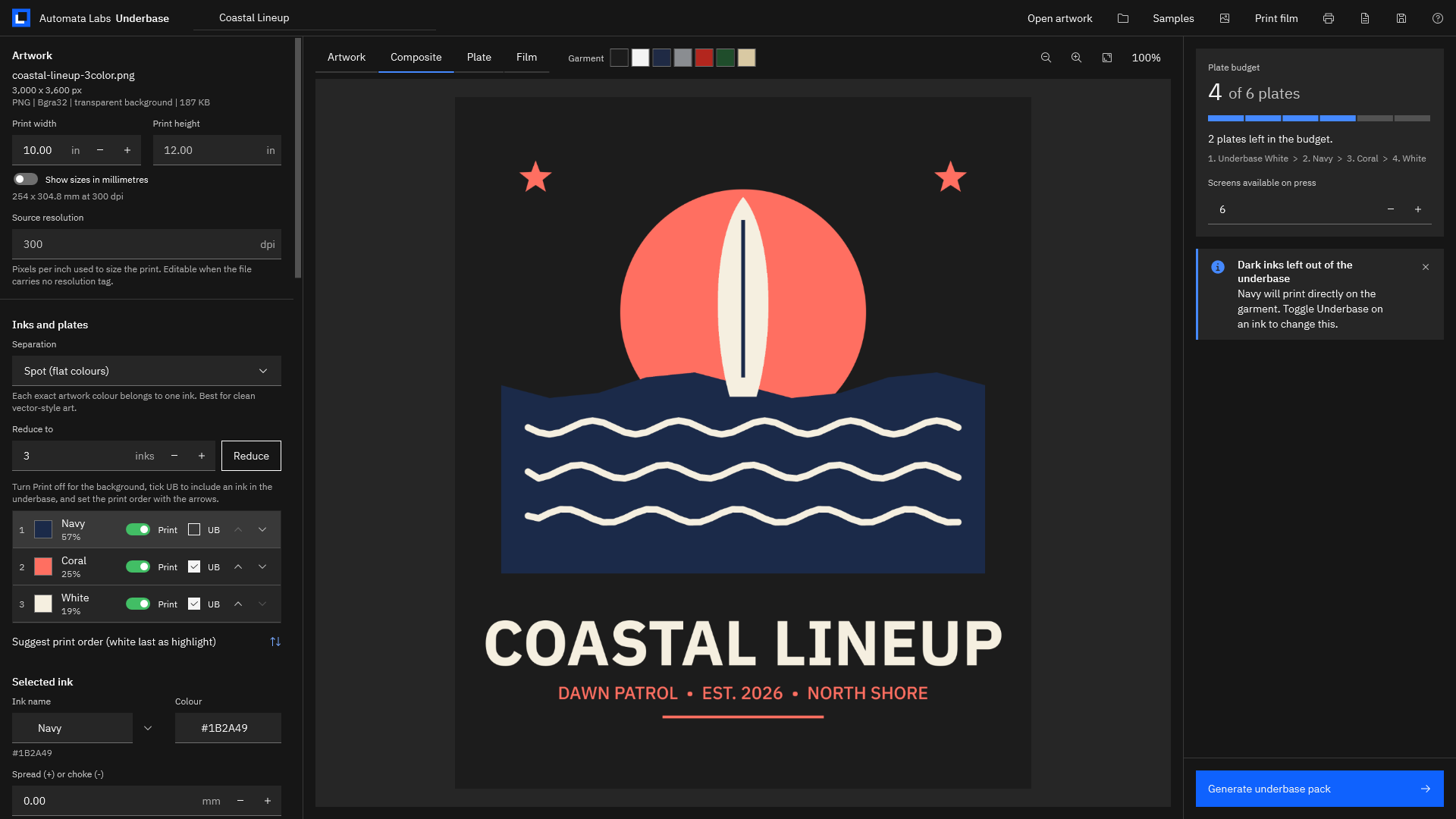
Screenshots use the sample artwork bundled with Underbase. Illustrator is a trademark of its owner; Underbase is not affiliated with or endorsed by the trademark owner.
How to separate a design in Underbase
- Open the artwork. Choose “Open artwork” (Ctrl+O), drop the file on the window, or choose “Samples” to try a bundled design. Underbase reads the print size from the file’s resolution tag and rasterises vector files at 300 dpi.
- Set the print size. Under Artwork, type the “Print width”; the height follows. Turn on “Show sizes in millimetres” if you work in metric. If the file has no resolution tag, Underbase says so and lets you edit “Source resolution”.
- Check the separation mode. Flat art opens in “Spot (flat colours)”. Shaded art opens in “Index (dither soft edges and gradients)”, with a “Dither strength” control. Change it in the “Separation” list if you want to compare.
- Confirm the inks. In “Inks and plates”, each ink shows its coverage. Select one to change its “Ink name” or “Colour”, or pick a stock name. Use “Merge this ink into” to combine two inks, or set “Reduce to” and choose “Reduce”. Turn “Print” off for anything that is really the shirt.
- Set the underbase. Turn on “Print a white underbase first”, tick “UB” on each ink that needs white beneath it, and set “Choke”. Dark inks start unticked so they print straight on the garment. Choose “Show underbase plate” to see it.
- Trap the colors. Select an ink and set “Spread (+) or choke (-)”, or set “Default trap” and choose “Apply to all inks” to tuck every ink under the darkest.
- Set the print order. Use the arrows on each row, or choose “Suggest print order (white last as highlight)”.
- Set halftones if you need them. Turn on “Halftone this plate”, set “Screen ruling” and “Screen angle”, or choose “Suggest ruling from mesh”. Enter your press gain in “Dot gain compensation”.
- Watch the plate budget. Set “Screens available on press”. If the job is over, choose “Merge inks to fit the budget”.
- Pick the film. Under “Film and output”, choose the “Film size”, the “Sheet layout”, the “Output resolution (dpi)”, and “Mirror (emulsion down)” if your film prints that way. Set the “Output folder”.
- Fill in the ticket. Add the “Client”, “Garment”, “Quantity”, “Due” date, and “Notes for the press”.
- Generate. Choose “Generate underbase pack” (Ctrl+G). When it finishes, the “Open folder”, “Film PDF”, and “Ticket” links open the results.
Run these steps on artwork you have already printed and compare the film.
Get it from Microsoft
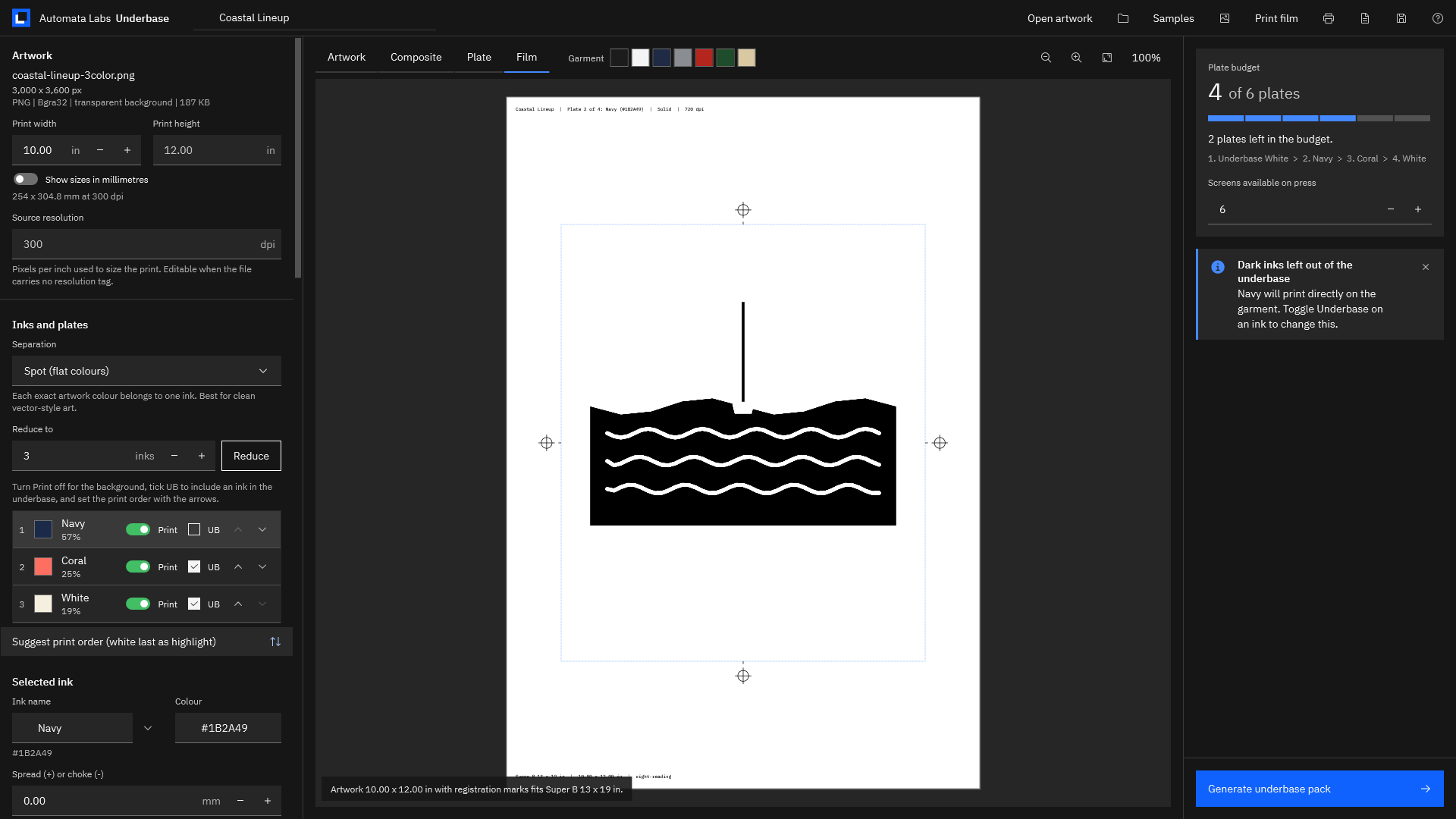
Check the film before you burn
- The Film tab. It shows each plate on the sheet you chose and confirms that the artwork with its registration marks fits, for example “Artwork 10.00 x 12.00 in with registration marks fits Super B 13 x 19 in.”
- The plate preview. In the Plate tab, “Show plate on garment” lays a plate over the shirt color, and “Output dots” shows it exactly as the film will carry it.
- The job folder. It holds the film PDF, one 1-bit film TIFF per plate in film-tiff, unscreened channels in channels, the ticket as PDF and JSON, a preview, and the .underbase job file.
- The ticket. It lists the print order, mesh, screening, offset, tint, and coverage for each plate, with sign-off boxes for the screen room and the press.
Our film positive checklist walks through every check in order. For the parts that differ by job, see spot color separations for t-shirts, the white underbase for dark shirts, and index separations for screen printing.
Frequently asked questions
Can I make color separations from a PNG or JPEG?
Yes. Underbase opens PNG and JPEG files directly, along with TIFF, BMP, GIF, WebP, SVG, PDF, and Illustrator (.ai) files. Flat PNG logos separate in spot mode, and shaded JPEGs open in index mode, where the shading is dithered between a fitted set of inks.
How many colors can a design have?
As many as your press has screens for. In Underbase, “Screens available on press” goes up to 16, and the underbase counts as a plate. If the job needs more screens than you set, “Merge inks to fit the budget” or “Reduce to” brings it down.
Do I need an underbase on every job?
Use one when bright inks print on a dark garment. Turn on “Print a white underbase first” and tick “UB” on the inks that need it. On white or light shirts, leave the underbase off and the plate count drops by one.
How do I print the film?
Choose “Print film” to send true-size pages to any Windows printer, or send the 1-bit TIFFs from the film-tiff folder to your film printer’s RIP. Both carry the same registration marks and labels.
Try Underbase
Underbase is a one-time purchase in the Microsoft Store, and the Store runs a 15-day free trial, so you can separate a job you have already printed and compare the film before you buy. It runs on Windows 11 version 24H2 or later, and nothing uploads. See how it works and the screenshots on the Underbase product page, or read about choosing screen printing color separation software.
Separate a design and print its film during the 15-day free trial.
Get it from Microsoft
Last updated 15 October 2026. Published by Automata Labs, a software company in Canada.