To preflight a PDF for print without expensive software, check four things on your PC: every font is embedded, each image has enough pixels at its printed size, the color spaces suit the printer, and the trim and bleed are set. A PDF reader covers part of this, and a local checker covers all four in one pass.
The job usually looks like this: a client emails a brochure, a flyer or a set of business cards as a PDF, and someone at the shop, or the designer before sending it, needs to know whether it will print the way it looks on screen. Professional preflight suites answer that with hundreds of checks and a price to match. Most small shops and freelancers need the handful of checks that catch the common faults, and a clear answer they can pass on.
Check a client PDF on your own PC, with a one-page report to send back.
Get it from Microsoft
What a preflight check looks at
These five checks catch the faults printers send back most often.
| Check | Why it matters | What to look for |
|---|---|---|
| Fonts embedded | A font that is not in the file is replaced on the printer’s system, and text can reflow | Every font that draws text shows as embedded or embedded subset |
| Image resolution | An image stretched over too many inches prints soft or blocky | Effective ppi at the placed size, against your printer’s minimum |
| Color spaces | RGB and Lab are converted somewhere before ink goes on paper | CMYK or whatever the printer asks for; spot inks named as intended |
| Page size | The finished size has to match the order | The trim box, or the page size when there is none, equals the ordered size |
| Bleed | Artwork that stops at the trim can leave a white edge after cutting | Artwork and bleed box past the trim by the printer’s amount, often 3 mm or 0.125 in |
A full preflight goes further: text kept inside a safe margin, overprint, transparency, rich black, total ink and PDF/X conformance. Those need a page render or a professional tool, and the limits section below says what that means for a low-cost check.
Low-cost ways to check, and their trade-offs
- A PDF reader’s document properties. Many readers have a Fonts tab under Document Properties that marks each font as embedded or embedded subset. It does not tell you which pages use each font or whether a listed font draws any text, and it says nothing about images, color or bleed.
- Measuring images by hand. Find each image’s pixel width, measure how wide it prints, and divide. That works for one image and gets slow for twenty, and an image used twice at different sizes is easy to miss. Our guide to what effective ppi means walks through the arithmetic.
- Page boxes in a viewer. Some readers can draw the trim and bleed boxes over the page. That shows whether the boxes exist, but you still work out the bleed on each side yourself.
- Command-line PDF utilities. Open-source utilities can list fonts, per-image ppi and page boxes. They print the numbers but give no verdict, and they assume you are comfortable in Command Prompt.
- Online checkers. Several web services cover all five checks, and some return a corrected file. You upload the client’s artwork to someone else’s server, some cap file size or checks per day, and some ask for an email address before you get the report.
- The printer’s own upload check. Many printers check files as you place an order. That helps, but you find out after choosing that printer, and the result stays on their site.
Meet ProofSlip
ProofSlip checks a client PDF for print on your Windows PC and gives a one-page PASS or FAIL report you can send back, without uploading the file.
ProofSlip is a Windows app that checks a PDF for print on your PC and gives a one-page PASS or FAIL report on its embedded fonts, page size, trim and bleed boxes, color spaces, and effective image resolution. It opens the file read-only and never writes to it. It has no account, no telemetry and no network capability, so nothing uploads. ProofSlip is a check, not a fix: it reports what it finds and leaves the changes to the app that made the PDF.
Preflight a PDF in ProofSlip
- Open the file. Choose Open PDF and pick the PDF in the Windows Open dialog. Long files show “Checking page” progress with a Cancel button.
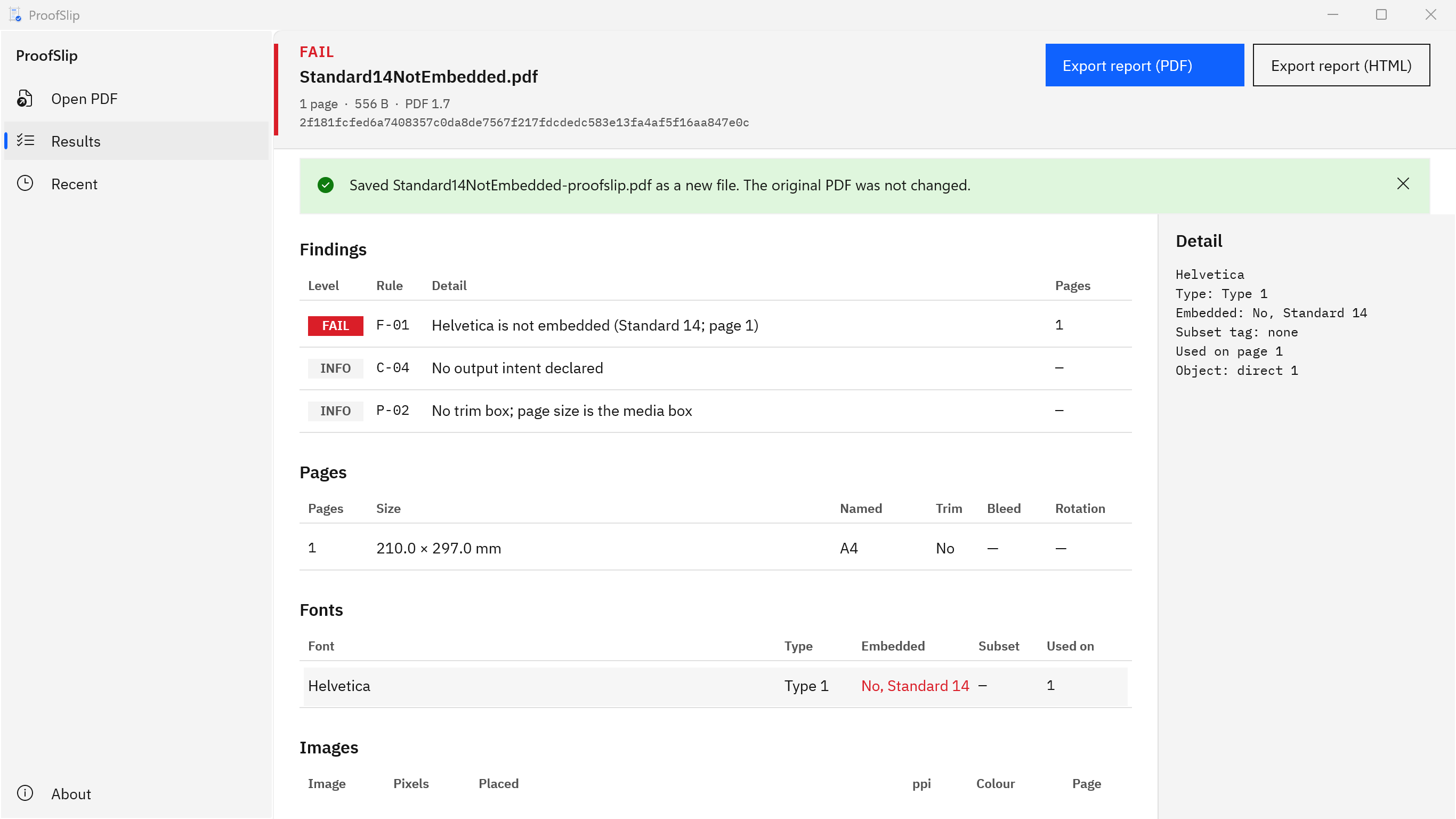
- Read the verdict band. It reads PASS or FAIL above the file name, with the page count, file size, PDF version and the file’s SHA-256 underneath.
- Work through Findings. Each row has a Level (FAIL, WARN or INFO), a Rule such as F-01 or I-01, the detail, and the pages. FAIL rows come first.
- Check the tables. Pages shows size, named size, trim and bleed. Fonts shows Type, Embedded, Subset and Used on. Images shows Pixels, Placed and ppi, lowest first. The Colour summary lists each color space with its pages.
- Select a row. The Detail pane on the right shows every page box in points and the bleed on each side, a font’s embedding and object number, or each placement of an image with its ppi.
- Export the report. Choose Export report (PDF) for a one-page summary, or Export report (HTML) for the full lists, and save the new file. The suggested name adds -proofslip to the original name.
- Send it back, or move on. Attach the report to your reply when the file needs work. When the client exports again, open the new file and check it.
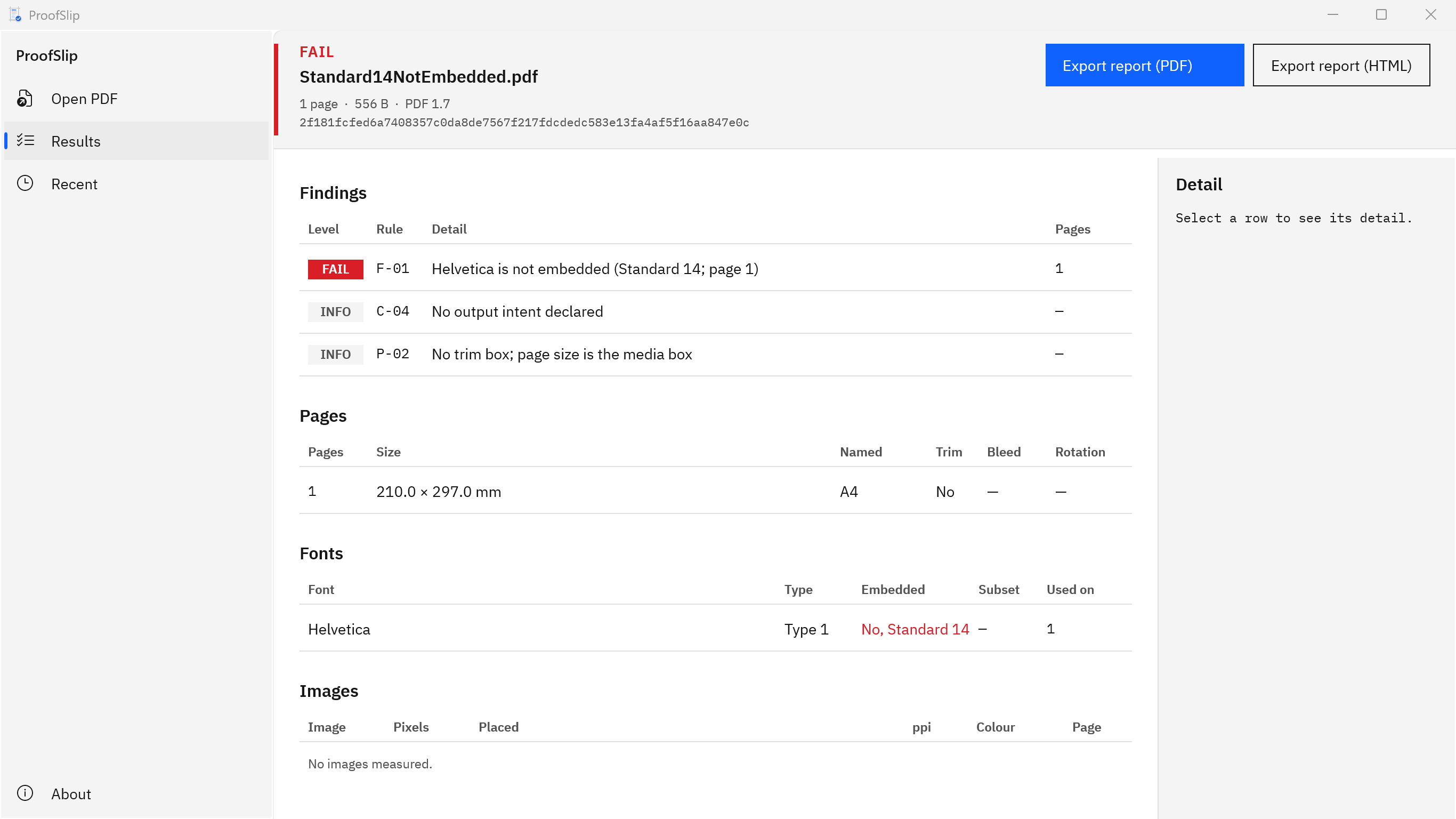
Screenshots show small test PDFs generated for ProofSlip’s own test suite. They contain no client work.
Run these steps on the last file that caused trouble during the 15-day free trial.
Get it from Microsoft
How to read the levels
| Level | What it means | Examples |
|---|---|---|
| FAIL | The file fails | A font that draws text is not embedded; a color or grayscale image under 150 ppi; a 1-bit image under 300 ppi; content that cannot be read |
| WARN | Needs a decision, but does not fail the file | Images from 150 to 299 ppi; 1-bit images from 300 to 599 ppi; RGB or Lab color; bleed under 3 mm; a trim box with no bleed box; mixed page sizes |
| INFO | Context worth knowing | No trim box; spot colors; no output intent; rotated pages |
These limits are fixed in this version. If your printer’s spec sheet is stricter, for example 300 ppi for photos, read the matching warnings as failures for that job. The full table is in what ProofSlip checks.
What a low-cost preflight cannot tell you
- Whether the artwork reaches the bleed. ProofSlip reads page boxes and does not render pages. A typical office export with no trim box and no bleed passes with an RGB warning and a no-trim-box note, so look at the edges yourself.
- Safe margins, overprint, transparency, rich black and total ink. These are not checked.
- PDF/X conformance. ProofSlip shows the PDF/X version a file declares and states that it does not validate it.
- What the job needs. ProofSlip does not know the ordered size or your printer’s bleed. Compare the Pages table with the job ticket.
- The fix. ProofSlip never embeds fonts, converts color, resamples images or adds bleed. Changes happen in the app that made the PDF.
The product page lists everything to know before you buy. For a fuller pass that includes the checks you do by eye, use the print-ready PDF checklist.
Frequently asked questions
Can I preflight a PDF without a full PDF editor?
Yes, for the common faults. A PDF reader shows embedded fonts, image ppi can be worked out by hand, and a local checker such as ProofSlip covers fonts, image resolution, color spaces, page size and bleed boxes in one pass. Checks such as overprint, ink limits and PDF/X validation still need professional preflight software.
Is an online PDF checker safe for client files?
That depends on the client and on the service’s terms. An online checker means uploading the artwork to someone else’s server, which some clients and some shop policies do not allow. If the file must stay on your PC, use a reader and a local checker instead; ProofSlip makes no network connections, and nothing uploads.
Does a PASS mean the printer will accept the file?
No. A PASS from ProofSlip means no failing finding: fonts are embedded, no image is below the fail limits, and every page could be read. RGB color and missing bleed are warnings, not failures, and ProofSlip does not render pages or validate PDF/X. Read the warnings and compare them with your printer’s spec sheet.
What does ProofSlip do when it finds a problem?
It reports it. Each finding names the rule, the detail and the pages, and the exported report carries the same list. ProofSlip does not change the file. Send the report to whoever made the PDF, ask for a corrected export, then open the new file and check it again before it goes to print.
Try ProofSlip
ProofSlip is a one-time purchase in the Microsoft Store, with a 15-day free trial of the full app run by the Store, so you can check your own files before you buy. Nothing uploads. It runs on Windows 10 version 2004 or later and on Windows 11. See how it works on the ProofSlip product page, or read the guides to a PDF preflight check on Windows and to checking whether fonts are embedded in a PDF.
Check your next client PDF before it goes to the press.
Get it from Microsoft
Last updated 7 October 2026. Published by Automata Labs, a software company in Canada.