ContextCleaner: see every entry in the Windows 11 right-click menu, and which app added it — on the Microsoft Store.
Windows 10 & Windows 11 Updated 2026-10-07

Check a client PDF for print, and get a one-page PASS or FAIL.

ProofSlip is a Windows app from Automata Labs that checks a PDF for print on your PC. It reports embedded fonts, page size, trim and bleed boxes, color spaces, and effective image resolution, gives one PASS or FAIL verdict, and exports the result as a one-page PDF or an HTML report. It never writes to your original, and nothing uploads.

One-time purchase · 15-day free trial in the Microsoft Store · One-time purchase. No subscriptions. Local-first.
Pay once. Own it forever.

One-time purchase on the Microsoft Store · No subscription · Instant install

Buy through the Microsoft Store—instant install, automatic updates, and a Microsoft receipt for easy expensing. No account needed on our site, and no subscription on Store purchases.

How it works What it checks

fonts · page size · trim and bleed · color · image ppi · nothing uploads

Sold and installed by the Microsoft Store under the Microsoft Standard Application License Terms. Publisher: Automata Labs. Privacy policy.

ProofSlip results screen

ProofSlip results for a sample PDF: a red FAIL band, a Findings table led by rule F-01 for a font that is not embedded, and the Pages and Fonts tables below.
One file in, one verdict out. Every finding is graded FAIL, WARN or INFO, with the Pages, Fonts and Images tables below it.

The problem

The PDF looks fine on screen. The press finds the problems.

A client sends artwork as a PDF. A font was never embedded, a photo was enlarged far past its pixels, the colors are RGB, and the page has no bleed. None of it shows in a viewer, and checking each property by hand, one dialog at a time, takes longer than the job deserves. Professional preflight software is priced for prepress departments, and online checkers want the file uploaded.

With ProofSlip

Open the file. Read one verdict. Send the report.

ProofSlip reads the PDF on your PC and lists what it found, graded FAIL, WARN or INFO, under one verdict at the top. Select a row for its detail, then export a one-page PDF or an HTML report as a new file to send back with the job. It is a check, not a fix: the original stays exactly as it was.

Key benefits

The technical checks a printer cares about, in one pass

One verdict, and a report to send

Findings are graded FAIL, WARN or INFO under a single PASS or FAIL. Export the result as a one-page PDF report, Letter or A4 to match the file, or as an HTML report with the full lists. Both are new files, and the original is never written.

Fonts, with the pages that use them

Every font with its type, subset tag, and whether it is embedded. Fonts that only sit in a page’s resources, or only draw invisible OCR text, are not counted as used.

Image ppi where it is placed

Effective ppi for every placement, measured from the page itself and sorted lowest first. Select an image to see its pixels, filters and each placement.

Trim, bleed and page size

Size from the trim box or media box, named sizes such as A4 and Letter, and bleed on each side in millimeters, with a warning under 3 mm.

Color spaces, page by page

Gray, RGB, CMYK, Lab and spot colors with the pages that use them, every spot name, and the output intent. RGB and Lab are warnings, and nothing is converted.

How it works

Open, read, select, export

Open

Choose Open PDF and pick the file in the Windows Open dialog, or reopen it from Recent. ProofSlip reads it on your PC and shows page progress on long files, with Cancel.

Read the verdict

The verdict band reads PASS or FAIL. Below it, the Findings table lists each finding with its level, rule and pages, followed by the Pages, Fonts and Images tables and the Colour summary.

Select a row

The Detail pane shows what sits behind a row: every box of a page in points and its bleed on each side, a font’s embedding and object number, or an image’s pixels, filters and each placement’s ppi.

Export

Choose Export report (PDF) or Export report (HTML) and save the new file, suggested as brochure-proofslip.pdf for brochure.pdf. Saving over the PDF being checked is refused.

A PASS means no failing finding, not a promise about the printed result. Read what ProofSlip does not check.

What it checks

What fails a file, what only warns

The verdict is FAIL when any finding is a FAIL, and PASS otherwise. Warnings and notes are listed in the app and in both reports, but they never fail the file on their own.

Area What it reports FAIL WARN INFO
Fonts Every font with its type, subset tag, whether it is embedded, and the pages that use it A font that paints visible text is not embedded — A declared font that draws nothing is not embedded
Images Effective ppi for every placement, lowest first, with pixel size, color and filters Color or grayscale under 150 ppi; 1-bit under 300 ppi Color or grayscale 150 to 299 ppi; 1-bit 300 to 599 ppi Placements that could not be measured
Pages Size from the trim box or media box, named size, trim and bleed boxes, bleed per side, rotation — Mixed page sizes; trim box without bleed box; bleed under 3 mm; boxes outside the page No trim box; rotated pages
Color Gray, RGB, CMYK, Lab and spot colors with their pages, spot names, output intent, declared PDF/X version — RGB or Lab anywhere in the file Spot colors; no output intent
Document Page count, file size, PDF version, producer, SHA-256 Content on a page cannot be read — Encrypted, opened read-only; annotations without an appearance

These limits are fixed in this version. Compare them with your printer’s or your shop’s spec sheet; if the spec asks for 300 ppi or more bleed, treat the matching warnings as failures for that job.

See it in action

The verdict, the detail, and the report

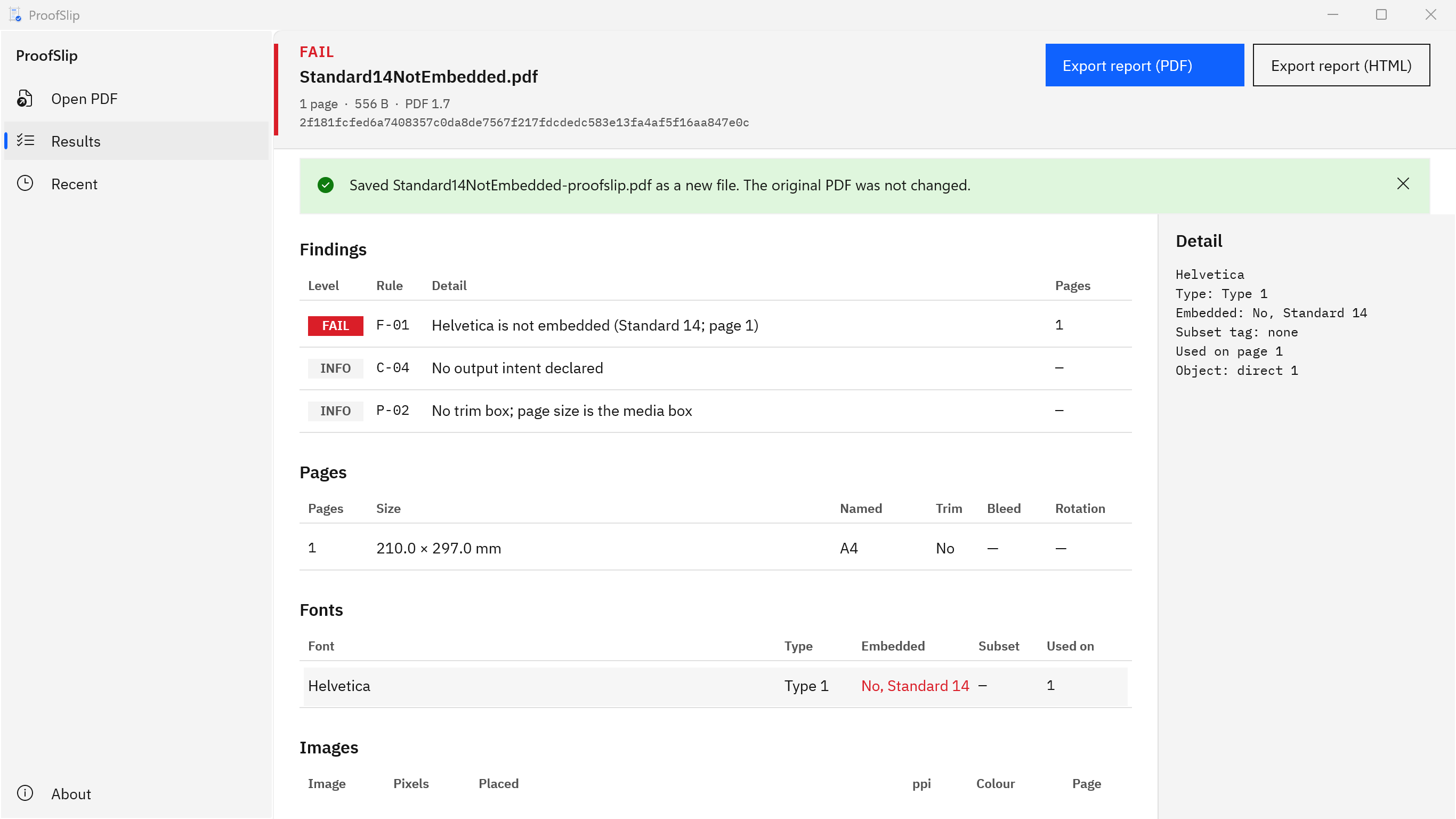
ProofSlip showing FAIL for a sample A4 PDF: F-01 for a standard 14 font that is not embedded on page 1, plus INFO notes for no output intent and no trim box.
Open a client PDF and get a one-page PASS or FAIL. Here the file fails because a font is used but not embedded. Nothing is uploaded.
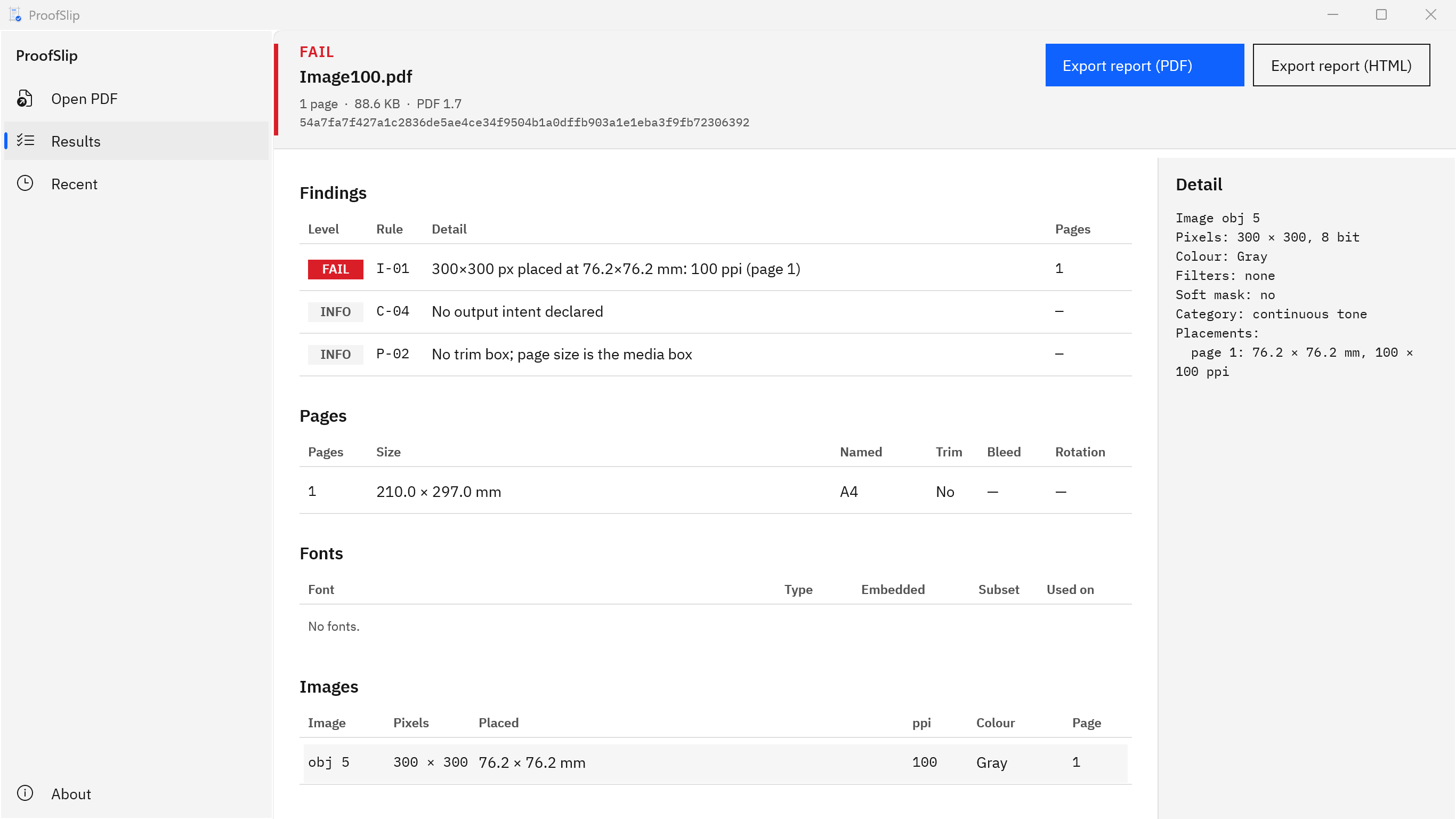
ProofSlip with an image row selected: a 300 × 300 pixel grayscale image placed at 76.2 mm and 100 ppi, failing rule I-01, with the Detail pane listing its placement.
Select a row to see its detail. This image is placed at 100 ppi, below the default 150 ppi limit for continuous-tone images, so the file fails.
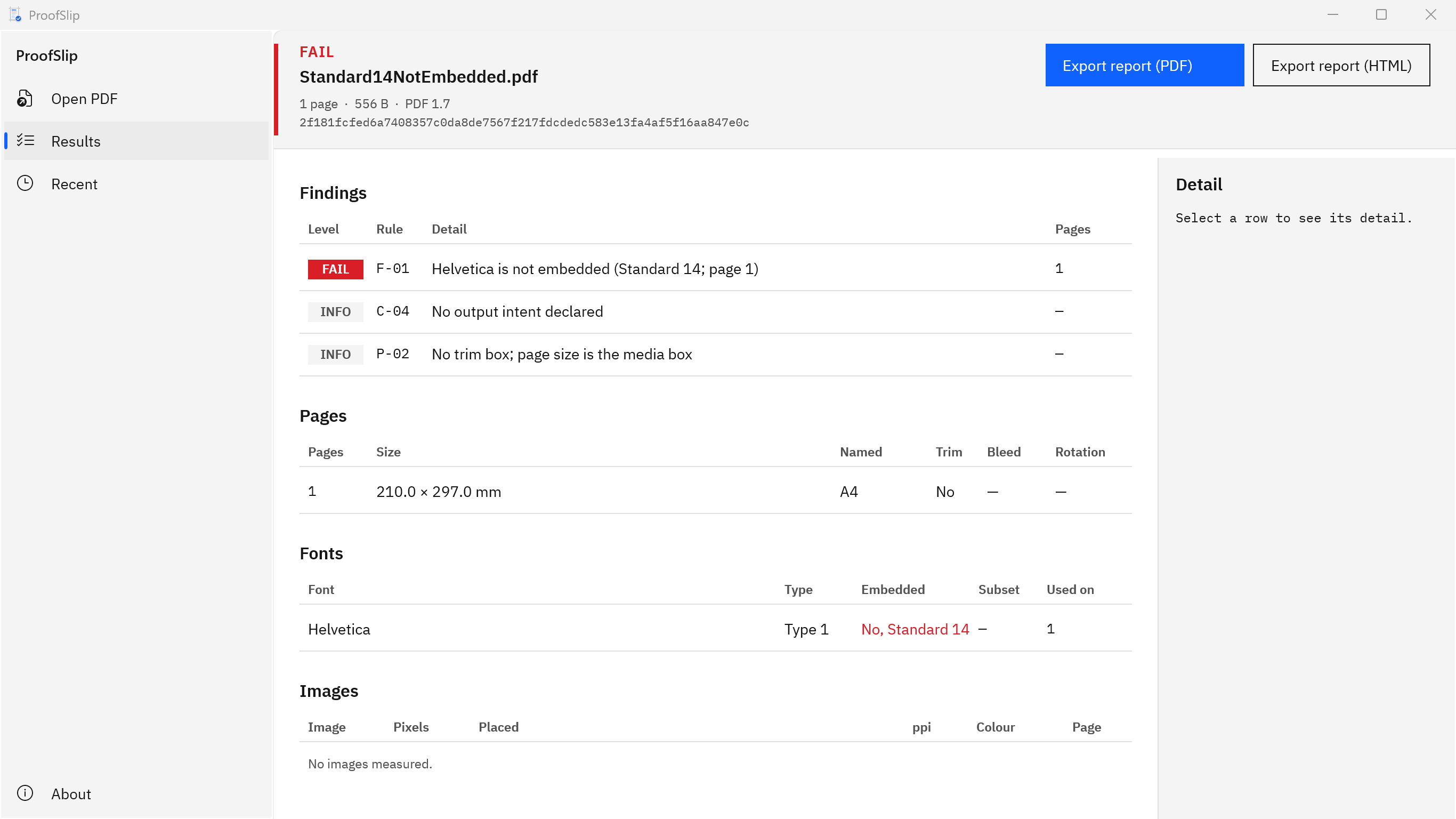
ProofSlip with a green status line reading Saved Standard14NotEmbedded-proofslip.pdf as a new file. The original PDF was not changed.
Export a one-page PDF report or an HTML report. Each one is saved as a new file. ProofSlip never writes to your original PDF.
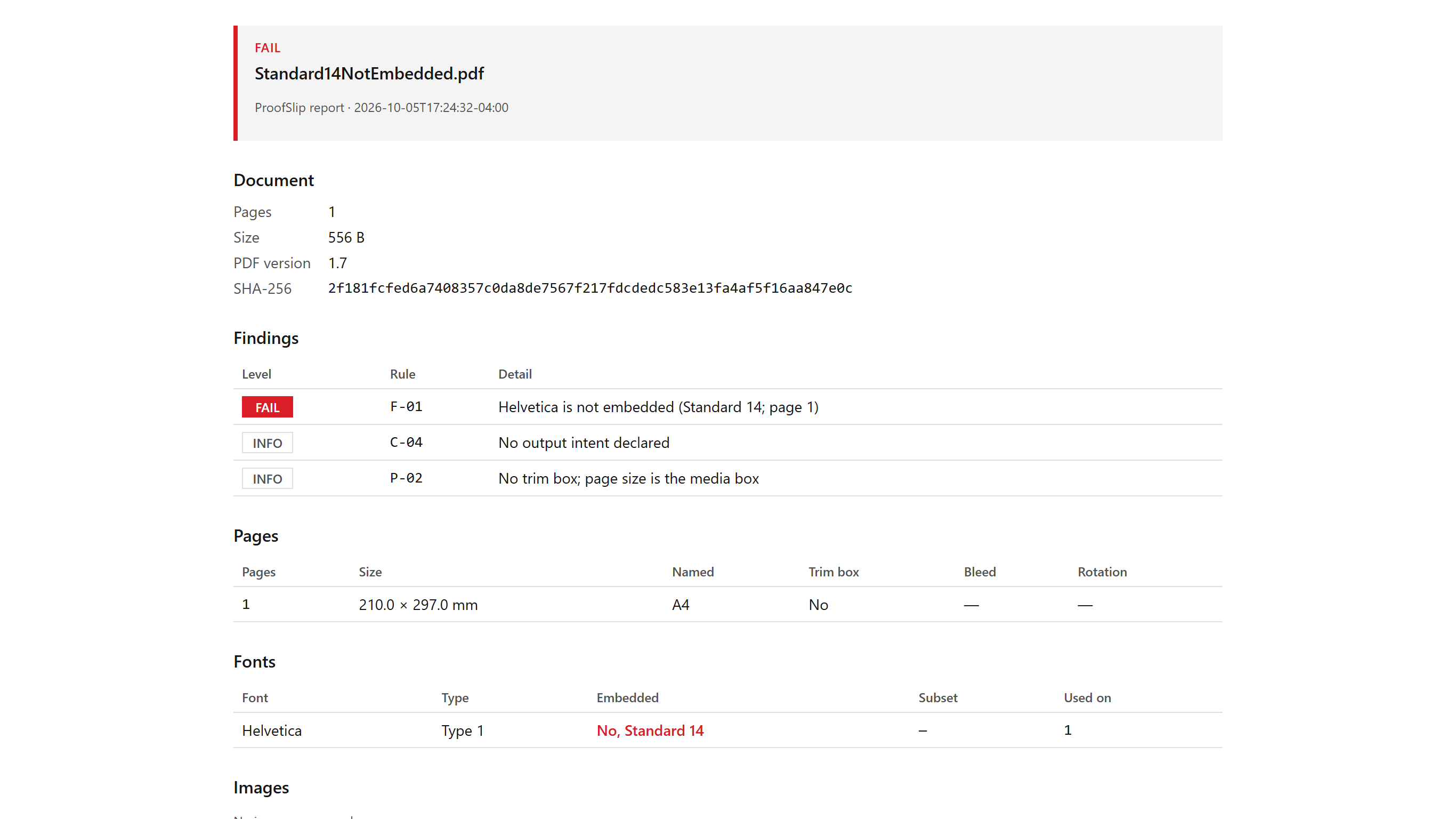
The exported HTML report for a sample PDF: a FAIL band, the Document block with pages, size, PDF version and SHA-256, then the Findings, Pages and Fonts tables.
The finished report: the verdict, findings, page size, fonts, images and colour spaces in one file you keep. Nothing is uploaded.

Screenshots show small test PDFs generated for ProofSlip’s own test suite. They contain no client work.

Privacy

Nothing uploads

ProofSlip runs in a Windows app container and declares no capabilities: no network access and no broad access to your files. It reads only the PDF you pick in the Windows Open dialog and writes only the report you save. There is no account and no telemetry, so client artwork stays on this PC.

The Recent list remembers up to 20 files you opened, on this PC only. If something goes wrong, ProofSlip keeps a small local error log of error types, never file names or contents, and never sends it anywhere.

Good to know before you buy

  • It is a check, not a fix. It does not embed fonts, convert color, resample images, add bleed or flatten anything.
  • The limits are fixed in this version: 150 and 300 ppi for color and grayscale images, 300 and 600 ppi for 1-bit images, and 3 mm of bleed. Match them against your printer’s spec sheet.
  • A PASS means no failing finding. RGB color and thin or missing bleed are warnings, so a typical office export with no bleed can pass. Read the warnings.
  • It does not render pages, so there is no page preview, and it cannot see whether artwork actually runs into the bleed or sits too close to the trim.
  • It does not check overprint, transparency, hairlines, rich black or total ink, and it does not validate PDF/X conformance.
  • One file at a time. There is no batch checking, and reports carry no shop name or logo.
  • Files that need a password to open are refused. The app and its reports are in English.
  • File names in Japanese, Arabic, Hebrew, Thai or emoji show as empty boxes in the PDF report. The app and the HTML report show them correctly.

This is not prepress software and not a PDF editor. The 15-day free trial is the easiest way to see what it reports on your own files.

Try it on a client file first.

The Microsoft Store gives you a 15-day free trial of the full app. Open the last file that caused trouble, read the findings, and export the report. If it earns a place in your workflow, buy it once. There is no subscription.

Pay once. Own it forever.

One-time purchase on the Microsoft Store · No subscription · Instant install

Buy through the Microsoft Store—instant install, automatic updates, and a Microsoft receipt for easy expensing. No account needed on our site, and no subscription on Store purchases.

Who uses it

  • Small print, copy and sign shops checking customer PDFs at the counter before a job goes into the queue
  • Freelance designers checking fonts, image ppi and bleed before sending artwork to a printer
  • Print coordinators and brokers who need a one-page report to send back when a client file has problems
  • Offices that will not upload client artwork to an online checker and want the check done on their own PC

FAQ

Quick answers about ProofSlip

What is ProofSlip?

ProofSlip is a Windows app that checks a PDF for print on your PC and gives a one-page PASS or FAIL report on its embedded fonts, page size, trim and bleed boxes, color spaces, and effective image resolution. It never writes to the original, and nothing uploads.

What makes a file FAIL?

Four things: a font that paints visible text is not embedded, a color or grayscale image is placed below 150 ppi, a 1-bit image is below 300 ppi, or content on a page cannot be read. Everything else is a WARN or an INFO note, and warnings never fail the file.

Does a PASS mean the file will print as intended?

No. A PASS means no failing finding. RGB color and thin or missing bleed are warnings, so a typical office export can pass; read them. ProofSlip does not render pages, so it cannot see artwork that stops short of the bleed or text too close to the trim. Your printer’s spec sheet has the final word.

Can I change the limits, such as requiring 300 ppi?

Not in this version. The limits are fixed: 150 and 300 ppi for color and grayscale images, 300 and 600 ppi for 1-bit images, and 3 mm of bleed. Compare them with your printer’s spec sheet, and where it is stricter, treat the matching warnings as failures for that job.

Will it fix or convert my file?

No. ProofSlip is a check, not a fix. It does not embed fonts, convert color, resample images, add bleed or flatten anything. Make changes in the app that made the PDF, export again, and open the new file in ProofSlip to check it.

Does it check PDF/X?

It shows the PDF/X version the file declares and any output intent, with the statement that it reports the declaration and does not validate it. ProofSlip does not test PDF/X conformance.

What does the report look like?

Two formats, both saved as new files. The PDF report is one page, Letter or A4 to match the file, with the verdict, findings, pages, fonts, images and color; long lists end with a line pointing to the HTML report. The HTML report is one self-contained file with the full lists, no scripts and no external links.

Will it change my original PDF?

No. The PDF is opened read-only and never written. Reports are new files with suggested names such as brochure-proofslip.pdf, and ProofSlip refuses to save a report over the PDF being checked.

Does anything leave my PC?

No. ProofSlip runs in a Windows app container that declares no network capability. There is no account and no telemetry. It reads only the PDF you pick and writes only the report you save.

Can it open password-protected PDFs?

A file that needs a password to open is refused with a message naming the file. A file protected only against editing opens read-only, and the report notes that it is encrypted.

Can it check several files at once?

No. ProofSlip checks one PDF at a time. The Recent list keeps the last 20 files you opened, so you can go back to one without searching for it again.

What does it cost, and is there a trial?

ProofSlip is a one-time purchase in the Microsoft Store, and the listing shows the current price in your currency. The Store gives you a 15-day free trial of the full app, so you can check your own files before you buy. There is no subscription.

What Windows version do I need?

Windows 10 version 2004 or later, or Windows 11, on an x64 or ARM64 PC. The Microsoft Store installs everything it needs, and the app and its reports are in English.
Still stuck? Email [email protected] after checking the Support Center.

Technical specifications

Technical specifications

Spec Implementation
Data Sovereignty Reads only the PDF you pick in the Windows Open dialog, read-only; writes only the report you save as a new file; the Recent list (up to 20 files) and window size stay in the app’s own settings on this PC
Telemetry Status None; no account, no analytics, and no crash upload (a local error log keeps error types only, never file names or contents)
Core Runtime .NET 10 and WinUI 3 (Windows App SDK), packaged as MSIX; runs in an AppContainer that declares no capabilities
Network Requirements Fully functional offline; no network capability is declared, and the app makes no network connections
Deployment Compatibility Windows 10 version 2004 or later and Windows 11, x64 and ARM64; one-time purchase on the Microsoft Store with a 15-day free trial
Checks Embedded fonts, page size and named size, trim and bleed boxes with bleed per side, color spaces with spot names and output intent, and effective image resolution per placement
Verdict FAIL for a used font that is not embedded, color or grayscale images under 150 ppi, 1-bit images under 300 ppi, or unreadable content; WARN and INFO for the rest; limits are fixed in this version
Reports One-page PDF report (Letter or A4, matched to the file) and a self-contained HTML report with the full lists, both saved as new files
Originals Opened read-only and never written; saving a report over the file being checked is refused
Input One PDF at a time; files that need a password to open are refused, and files with only an owner password open read-only
Not included No fixing, color conversion or flattening; no page preview, batch checking or PDF/X validation

Quick Tip

EPUBCheck RSC-007, RSC-008 and RSC-012 Errors Explained: How to Fix Broken Links in an EPUB

What EPUBCheck's RSC-007, RSC-008 and RSC-012 errors mean, the usual causes, including file name case and missing manifest items, and how to fix each one.

Quick Tip

Will Comments and Annotations in a PDF Print? Checking a Print File Before You Send It

A sticky note or markup left in a print PDF can end up on paper, or get the file sent back. How PDF comments print, what KDP says, and how to check a file.

Deep Dive

Total Ink Limit (TAC) Explained: 240, 300 or 320 Percent, and How to Check a PDF

What total area coverage (TAC) means, why printers ask for 240, 300 or 320 percent, how to spot overloaded areas in a PDF, and how to fix them.

Quick Tip

KDP Paperback Cover Check: Spine Width Formula, Spine Text Rules and the Barcode Area

Check a KDP paperback cover before upload: the spine width formula by paper, the page count for spine text, the barcode area, and common rejection causes.

Deep Dive

Rich Black, Hairlines and White Overprint: Three PDF Problems That Look Fine on Screen and Fail on Press

Why rich black text, hairlines and white overprint look fine on screen but fail in print, and how to find each one in a PDF before press.

Quick Tip

How to Check a Canva PDF Before You Send It to a Printer: Bleed, Color, Image Resolution and Fonts

Canva's PDF Print export is a good start, but printers still reject files. Check bleed, RGB color, image resolution and fonts in a Canva PDF on Windows first.

Know what is wrong with the file before the press does.

ProofSlip checks fonts, page size, trim and bleed, color spaces and image resolution on your PC, gives one PASS or FAIL, and writes a report you can send. Your original is never written, and nothing uploads.

One-time purchase. No subscriptions. Local-first.

Pay once. Own it forever.

One-time purchase on the Microsoft Store · No subscription · Instant install

Buy through the Microsoft Store—instant install, automatic updates, and a Microsoft receipt for easy expensing. No account needed on our site, and no subscription on Store purchases.

Browse catalog