To tell if a PDF is print-ready, check it against the printer’s spec: the finished size and bleed, embedded fonts, image resolution at the printed size, the color mode, and anything the job asks for, like a page count or PDF/X. Some of that you can read from the file; the rest needs your eyes and the job ticket.
Print-ready is not a single setting. It means the file matches what this printer needs for this product. A business card for one shop and a poster for another can come with different bleed, resolution and color rules, so start with the printer’s spec sheet, keep the order details next to it, and then go through the file one item at a time.
Read the technical half of this checklist from the file in one pass.
Get it from Microsoft
The print-ready checklist
| # | Check | Print-ready looks like | Can ProofSlip read it? |
|---|---|---|---|
| 1 | Finished size | The trim box, or the page size when there is none, matches the ordered size | Yes: size in mm and named sizes such as A4 or Letter; you compare it with the order |
| 2 | Bleed | Artwork and bleed box run past the trim by the printer’s amount, often 3 mm or 0.125 in | Partly: bleed per side when trim and bleed boxes exist, with a warning under 3 mm; it cannot see the artwork |
| 3 | Safe margin | Text and logos sit inside the trim by the printer’s margin | No |
| 4 | Fonts | Every font that draws text is embedded, fully or as a subset | Yes: FAIL for a used font that is not embedded |
| 5 | Image resolution | Each image has enough pixels at its placed size | Yes: effective ppi per placement, FAIL under 150 and WARN under 300 for color and grayscale |
| 6 | Color | CMYK, or what the printer accepts, with spot inks named as intended | Yes: pages per color space and spot names, WARN for RGB and Lab |
| 7 | Output intent and PDF/X | Present when the printer asks for them | Shows what the file declares; does not validate PDF/X |
| 8 | Page count and order | The right count in the right order; saddle-stitched booklets need a multiple of four | Shows the page count and warns on mixed sizes; the order is yours to check |
| 9 | Overprint, transparency, rich black, hairlines | Set the way the printer expects | No |
| 10 | Opens cleanly | No password needed to open, no damaged content | Yes: refuses files that need a password; FAIL for content that cannot be read |
Going through the checklist
1 and 2: size and bleed
A PDF page can declare a trim box, the finished size after cutting, and a bleed box, the area artwork extends into so the cut lands inside it. When the trim box exists, compare it with the order. Many office exports and browser prints have no trim box at all, so the page size is the finished size and there is no bleed. Where artwork should touch the edge, open the page in a viewer and look: a background that stops exactly at the page edge needs bleed added in the app that made it. A bleed of 0.125 inch is about 3.2 mm, so it clears a 3 mm requirement. Our guide to checking PDF bleed and trim boxes goes deeper.
3: safe margin
Text close to the trim can be cut off or look cramped after trimming. The printer’s spec gives the margin. A box check cannot measure it, because it needs the page drawn; zoom in on each edge in a viewer and look at where the text sits.
4: fonts
Every font that draws text should be embedded, either in full or as a subset with a six-letter tag before its name. A font that is not embedded is replaced on the printer’s system, and the replacement can change line breaks. See how to check if fonts are embedded in a PDF.
5: image resolution
What matters is effective ppi, the pixels per inch at the size the image is placed, not the ppi tag stored in the image file. The explainer on effective ppi and why 72 ppi images fail covers the arithmetic.
6 and 7: color, output intent and PDF/X
Find out whether your printer wants CMYK only or accepts RGB, and whether it wants a particular PDF/X version. Then look at which color spaces the file uses, page by page, and which spot inks it names. A file that declares PDF/X has made a claim; checking conformance is a separate job for professional preflight software.
8 to 10: pages, special settings and a clean file
Count the pages and check their order against the proof. Ask the printer how it handles overprint and transparency if the design relies on them. Finally, make sure the file opens without a password and every page displays.
Meet ProofSlip
ProofSlip reads items 1, 2, 4, 5, 6, 7 and 10 from the file on your Windows PC and turns them into a one-page PASS or FAIL report.
ProofSlip is a Windows app that checks a PDF for print on your PC and gives a one-page PASS or FAIL report on its embedded fonts, page size, trim and bleed boxes, color spaces, and effective image resolution. It opens the file read-only and never writes to it, and nothing uploads.
Run the checklist in ProofSlip
- Choose Open PDF and pick the file in the Windows Open dialog, or reopen it from Recent.
- Read the verdict band. PASS means no FAIL finding. Read every WARN row as well, because RGB color and thin bleed are warnings.
- Size and bleed (items 1 and 2). In the Pages table, compare Size and Named with the order, then look at Trim and Bleed. Select the row to see each box in points and the bleed on all four sides.
- Fonts (item 4). In the Fonts table, every font marked Used on a page should read Yes under Embedded.
- Images (item 5). The Images table lists effective ppi lowest first. Compare it with your printer’s minimum.
- Color and PDF/X (items 6 and 7). The Colour summary lists each color space with its pages, the spot names, the output intent, and any PDF/X version the file declares.
- Export the report. Choose Export report (PDF) or Export report (HTML). Each one is saved as a new file you can keep with the job or send to the client.
- Do the rest by eye. Items 3, 8 and 9 stay with you: margins, page order, overprint and transparency.
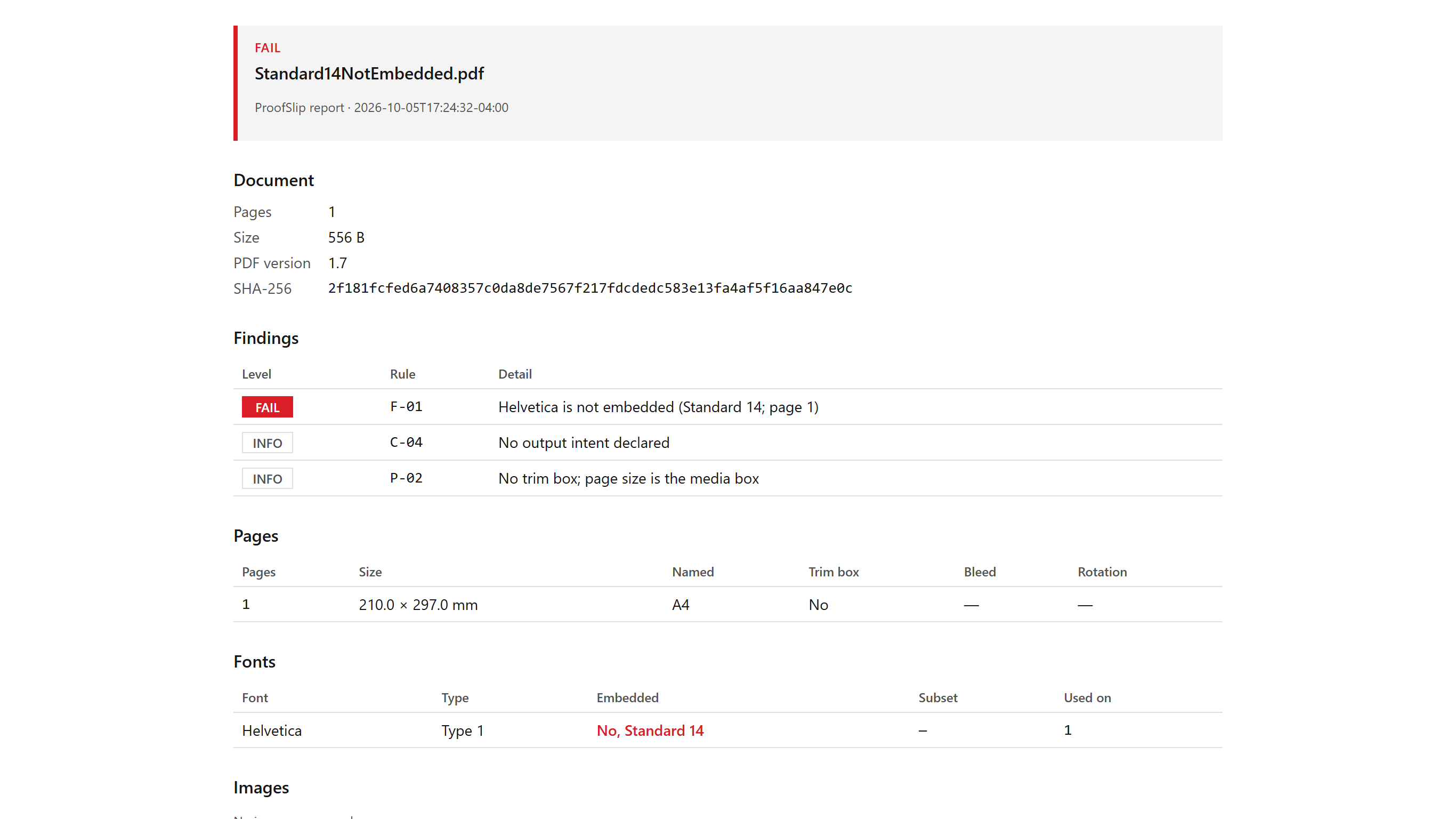
Screenshots show small test PDFs generated for ProofSlip’s own test suite. They contain no client work.
Keep a report with every job you check, saved as a new file.
Get it from Microsoft
What ProofSlip will not tell you
ProofSlip is a check, not a fix. It does not embed fonts, convert color, add bleed or change anything in the PDF. It does not render pages, so it cannot see whether artwork reaches the bleed or text sits too close to the trim, and it does not check overprint, transparency, rich black, hairlines or total ink. Its limits are fixed in this version: 150 and 300 ppi for color and grayscale images, 300 and 600 ppi for 1-bit images, and 3 mm of bleed. Where your printer’s spec is stricter, read the matching warnings as failures. The product page lists everything to know before you buy.
Frequently asked questions
What does print-ready mean for a PDF?
A print-ready PDF matches the printer’s specification for the product: the right finished size, enough bleed where artwork meets the edge, embedded fonts, images with enough resolution at their printed size, and the color mode the printer asks for. It also opens cleanly. The exact numbers come from the printer, so check the spec sheet first.
What bleed should a print-ready PDF have?
Whatever your printer’s spec sheet asks for; 3 mm or 0.125 inch on each side is common. Bleed is only needed where artwork runs to the edge of the finished piece. ProofSlip measures the bleed on each side when the file has trim and bleed boxes, and warns when it is under 3 mm.
Do I need PDF/X for a print-ready file?
Only if the printer asks for it. PDF/X is a family of standards for exchanging print files, and some printers request a particular version. ProofSlip shows the version a file declares and its output intent, and states that it does not validate the declaration; checking conformance needs professional preflight software.
Can a PDF be print-ready if it is RGB?
Sometimes. Some print workflows accept RGB and convert it with a profile of their choosing, and others ask for CMYK only. Ask your printer. ProofSlip warns on RGB and lists the pages that use it, so you can decide before the file goes to press instead of after the proof comes back.
Try ProofSlip
ProofSlip is a one-time purchase in the Microsoft Store, with a 15-day free trial of the full app run by the Store. Nothing uploads, and your original PDF is never written. It runs on Windows 10 version 2004 or later and on Windows 11. See what it checks on the ProofSlip product page, or read how to preflight a PDF for print without expensive software.
Try the checklist on your own files during the 15-day free trial.
Get it from Microsoft
Last updated 7 October 2026. Published by Automata Labs, a software company in Canada.