To split a plan set PDF into individual sheets, save each page as its own PDF named after the sheet number and title in its title block, such as A-101 - FIRST FLOOR PLAN.pdf. A PDF editor or the Windows PDF printer does it one page at a time; a title-block reader proposes every name for you to check.
The need usually comes from downstream. The architect issues one combined file, but the electrical contractor wants only the E sheets, the steel fabricator wants the structural pages, and the print shop needs three drawings at full size. Single-sheet files named by sheet number can be forwarded, sorted and found in File Explorer without opening anything.
Split the set into named sheets without typing every file name.
Get it from Microsoft
First decide: split files or a bookmarked set?
Splitting is not always the right answer. If people only need to find sheets inside the set, a bookmarked copy keeps everything in one file.
| You need to | Split into single sheets | Keep one bookmarked file |
|---|---|---|
| Send one trade only its sheets | Yes, forward just those files | No, they get the whole set |
| Reprint a few sheets | Yes, each file is one sheet | Possible, by page range |
| Navigate the whole set on a tablet | Awkward, many files | Yes, bookmarks list every sheet |
| Keep the set together for the record | No | Yes |
If a bookmarked file is what you need, see how to bookmark a construction drawing set instead.
A file naming pattern that sorts well
Put the sheet number first, then the title: A-101 - FIRST FLOOR PLAN.pdf. Sorting by name then groups the files by discipline, because every A sheet starts with A, every S sheet with S, and so on. A few rules keep names usable:
- Copy the number exactly as printed.
A1.01,A101andA-101sort differently, so do not mix formats inside one set. - Avoid characters Windows rejects. File names cannot contain
\ / : * ? " < > |. A title such asDOOR/WINDOW SCHEDULEneeds the slash replaced. - Keep names reasonably short. Very long titles make paths long, and long paths cause trouble when folders are copied or synced.
Option 1: Extract pages in a PDF editor
A full PDF editor can extract pages or split a document into single pages. That handles the cutting, but the output files are often named from the source file plus a number, so each one still has to be opened, identified and renamed by hand. On a large set, the renaming is most of the work, and it repeats with every reissue.
Option 2: Print each page with Microsoft Print to PDF
Windows includes a PDF printer, so any PDF viewer can save a single page as a new file:
- Open the set in your PDF viewer and go to the sheet.
- Choose Print, pick Microsoft Print to PDF, and set the page range to the current page.
- Choose a paper size that matches the sheet. On Windows 11 the list includes architectural sizes, such as Architecture D.
- Print, then type the file name, such as
A-101 - FIRST FLOOR PLAN, in the save dialog.
It costs nothing extra and nothing leaves your PC. The trade-offs: one page and one typed name per print, paper size and scaling to set each time, and a printed copy of the page rather than the page itself, so check the result at full zoom before sending it.
Option 3: An online splitter
Online tools can split a PDF quickly, but they process the file on someone else’s server. That may be acceptable for a public bid set and is a poor fit for drawings under a confidentiality agreement. Most also leave the naming to you.
Meet SheetStamp
SheetStamp reads the sheet number and title from each title block in a plan-set PDF, lets you check them in a review table, and writes one PDF per sheet named from them.
It runs on your Windows PC with the text recognition built into Windows, makes no network connections, and never changes the PDF you open. It does not need a paid PDF editor. It names sheets only: no takeoff, estimating or measurement.
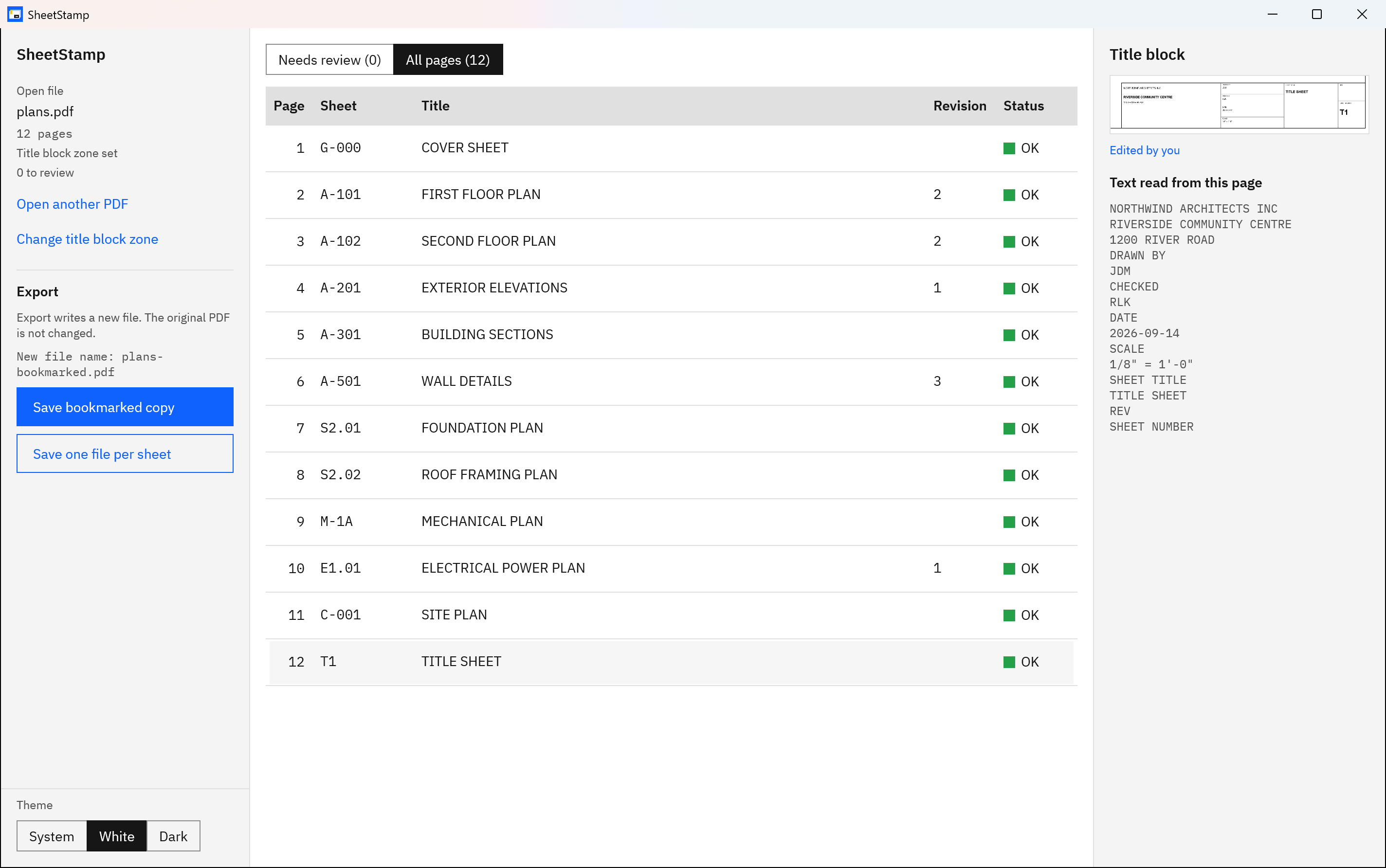
Screenshots use a synthetic sample plan set with a fictitious project and firm.
Split a plan set in SheetStamp, step by step
- Open the set. Choose Open PDF and pick the combined PDF.
- Mark the title block. Drag a rectangle around the title block on page 1, or choose Bottom-right block or Right-edge strip. The zone is used on every page.
- Read all pages. Choose Read all pages and wait for the table.
- Fix what is flagged. The table opens on Needs review when anything is flagged. Select a row to see its title block crop and the reason, then type the correct value in the Sheet or Title cell. The row is marked “Edited by you”.
- Check the rest. Switch to All pages and read down the Sheet column. These values become the file names, and text recognition can misread a number without flagging it.
- Split. Choose Save one file per sheet and pick a destination folder. SheetStamp writes one PDF per page and reports how many files it saved.
Check the sheet numbers once, then write every file in one pass.
Get it from Microsoft
How SheetStamp names and writes the files
- Name format. Sheet number, a spaced hyphen, the title, then
.pdf:S-201 - FOUNDATION PLAN.pdf. Whatever you typed in the table is what the file gets. - No sheet number. A page left without a number is named from its page number, starting with “Page”.
- Unsafe characters. Characters Windows rejects in file names are replaced with spaces. Very long titles are shortened so the name stays within 120 characters before the extension.
- Duplicates. Two pages with the same sheet number are flagged before you export. If you split anyway, the later page gets its page number added, such as
A-101 - FIRST FLOOR PLAN (page 41).pdf. - Existing files. If the folder already holds a file with the same name, Windows gives the new file a different name. An existing file is never replaced.
- What is inside. Each file holds one page at its original sheet size, with one bookmark carrying the sheet name. The revision is shown in the table for checking but is not added to file names.
- Interrupted splits. If Windows refuses a write part-way, SheetStamp stops, removes the unfinished file, and tells you how many files were written.
The split a plan set by sheet number guide compares this with the manual methods, and renaming construction drawings from the title block covers how the names are read.
Limits
- Every page is written; there is no page-range or discipline filter. Sort the folder by name and keep the sheets you need.
- One title block zone covers the whole set. A sheet whose title block sits elsewhere is flagged for you to type.
- Very short marks, such as a sheet number like
T1, can be missed by text recognition. Missed numbers are flagged. - A PDF that needs a password to open is refused.
More on this under Good to know before you buy.
Frequently asked questions
Can I split only the electrical sheets?
Not directly. SheetStamp writes every page of the set as its own file, with no page-range or discipline filter. Because the files are named by sheet number, sorting the destination folder by name puts all the E sheets together, so you can keep or forward those and delete the rest in File Explorer.
Will the split sheets keep their full size?
Yes. Each page is copied into its own PDF as it was drawn, at its original size, so a 24 by 36 inch sheet stays 24 by 36 inches. SheetStamp does not rescale or reprint the page. Each file also carries one bookmark with its sheet number and title.
What happens to the original combined PDF?
Nothing. SheetStamp opens it read-only and writes the single-sheet files into the folder you pick. The combined PDF keeps its name and contents, so you still have the complete set exactly as it was issued, for the record or for anyone who needs every sheet.
Does it work on a scanned plan set?
Yes. SheetStamp reads the title block as an image, so scanned sets and sets exported from drawing software are read the same way. Faint or low-resolution scans are harder for text recognition, so expect more flagged rows and check the crop beside each one before typing a value.
Try SheetStamp
SheetStamp is a one-time purchase in the Microsoft Store, with a 15-day free trial that has every feature. It runs on Windows 10 version 2004 or later and Windows 11, and nothing uploads. See how it works and how reliable the text reading is on the SheetStamp product page. For what the letters and digits in a sheet number mean, read construction drawing sheet numbers explained.
Turn one combined set into named single-sheet PDFs on your own PC.
Get it from Microsoft
Last updated 7 October 2026. Published by Automata Labs, a software company in Canada.