ContextCleaner: see every entry in the Windows 11 right-click menu, and which app added it — on the Microsoft Store.

Last updated:

Guided workflow variation

Docked with the lid shut:awake. In a bag: asleep.

StayGreen treats a closed lid as a question rather than a command. If an external display is attached it keeps working. If there is no monitor at all, it releases and lets the machine sleep.

The lid rule checks the monitor count. Lid closed with an external display attached keeps StayGreen active; lid closed with no monitors pauses it. No power-plan edits and no administrator rights.

Pay once. Own it forever.

One-time purchase on the Microsoft Store · No subscription · Instant install

Buy through the Microsoft Store—instant install, automatic updates, and a Microsoft receipt for easy expensing. No account needed on our site, and no subscription on Store purchases.

Full StayGreen overview
One-time purchase No telemetry Local-first

windows · local-first · one-time purchase · no telemetry

If this sounds like your week

Closing the lid means two completely different things.

On a dock with an external monitor, a closed lid means "I am using the big screen." Away from the desk, the same closed lid means "I am carrying this." Windows offers one lid setting for both, so you either pick the wrong behaviour half the time or keep changing it.

Where tooling usually breaks

The usual workaround makes it permanent.

The standard advice is to set "do nothing" for closing the lid in power options. That works, and now your laptop never sleeps when you shut it, including in a bag. You have traded a small daily annoyance for a warm laptop and a flat battery, and the setting is global and easy to forget.

Where StayGreen lands

Decide from the monitor count, not from a global setting.

StayGreen listens for the lid-state notification and, when the lid closes, checks how many active monitors Windows reports. With an external display present it keeps its hold and the docked session continues. With none, it releases and the machine follows your normal power settings. Your power plan is never modified — the app takes a request while it is running and drops it when it is not, so uninstalling it changes nothing about how the machine behaves.

Pay once. Own it forever.

One-time purchase on the Microsoft Store · No subscription · Instant install

Buy through the Microsoft Store—instant install, automatic updates, and a Microsoft receipt for easy expensing. No account needed on our site, and no subscription on Store purchases.

Learn more about StayGreen

windows · local-first · one-time purchase · no telemetry

What you get

Feature highlights

No Polling, No Fake Input

Holds a documented Windows power request and reacts to system events, instead of a polling loop or simulated mouse movement.

Hardware Interlocks

Auto-pauses on battery, when Battery Saver is on, or when the lid closes with no external display attached — and resumes on its own.

Per-App Targeting

Keep awake only when specific apps like `ms-teams.exe` are active.

One-time purchase, perpetual license. Pay once, own it forever on the Microsoft Store.

One-time purchase, perpetual license. Pay once, own it forever on the Microsoft Store.

Engineering Proof

Event-driven · no polling loop

A power request, not a background loop.

StayGreen holds a Windows power request — created with PowerCreateRequest and set with PowerSetRequest — to ask Windows directly for the awake state. No fake mouse movement, no periodic wake pings, and no loop burning cycles to pretend the user is active.

It deliberately does not use the older SetThreadExecutionState flag, which is thread-affine: the flag belongs to the thread that set it. StayGreen changes its awake state from several threads — the command handler, the timed-session task, and the Win32 event worker — and a thread-affine flag produced inconsistent releases. The request API does not have that problem.

  • No polling loop: a foreground event hook, and one scheduled wake per timed session
  • No synthetic input events to trigger EDR or policy suspicion
  • No administrator rights, and no power plan or policy is modified

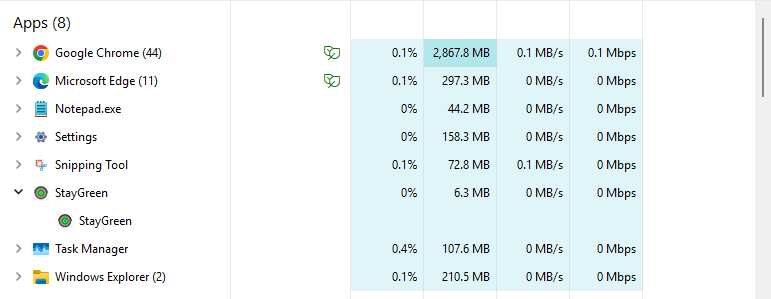
Task Manager, one machine, at idle

A single capture on one PC rather than a benchmark — we publish no averaged CPU or memory figure, because the app ships no measurement harness to produce one.

Windows Task Manager listing StayGreen at idle alongside other running applications

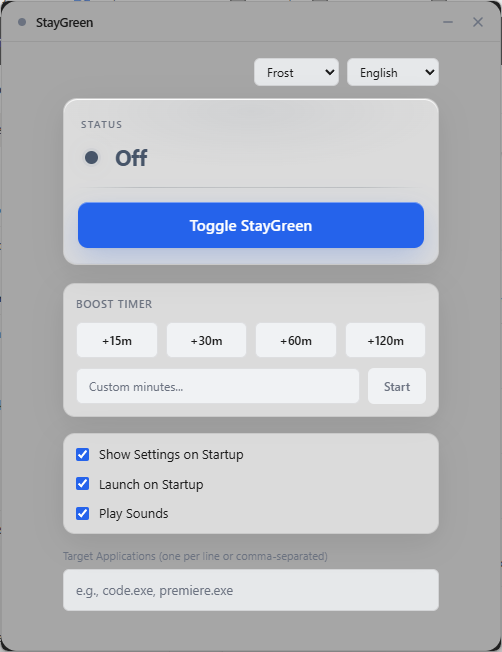
Product Interface

The StayGreen window showing the keep-awake switch, timed session presets, and per-app rule controls

A control panel built for intentional power-state overrides.

The StayGreen interface keeps the important decisions obvious: when to override sleep, how long to hold the state, and which app should trigger it. No command-line dance. No clutter disguised as enterprise UX.

Timed session: 15, 30, 60, or 120-minute presets, or a custom length, for meetings, uploads, renders, or overnight monitoring — so the hold releases itself instead of staying on indefinitely. Extend by 30 minutes or end it early.
Per-app rules: Name executables and StayGreen follows the foreground window, holding while one is in front and releasing when it is not — part of the workflow rather than a blanket machine-wide override.
Guardrails you can see: It pauses on battery, on Battery Saver, and when the lid closes with no display attached — each with its reason shown, and each resuming on its own.

Especially when

  • Keep a Windows machine awake without fake mouse movement or CPU-heavy polling loops
  • Prevent sleep during Teams, Slack, dashboards, uploads, meetings, or overnight monitoring
  • Work around aggressive Windows sleep policies with charger and lid guardrails

Who benefits

Real-world scenarios

The docked workstation

You work with the laptop shut and two external monitors, and you want it to stay awake without permanently disabling lid sleep.

The lid rule sees the attached displays and keeps the hold. Undock later and the same rule lets the machine sleep normally.

The bag test

You close the lid and walk out with the laptop, and you do not want a keep-awake tool cooking it in transit.

No monitors attached means the lid rule releases the hold and hands control back to Windows.

The desktop user

You run StayGreen on a machine with no battery and no lid, and you do not want laptop logic interfering.

When Windows reports no system battery, the battery, Battery Saver, and lid rules are switched off entirely — they only apply to hardware that has them.

Deep dive

How the lid rule decides, and what it deliberately will not do

The lid is not a reliable signal on its own, so StayGreen treats it as one input to a decision rather than a trigger.

Windows broadcasts a power-setting notification when the lid state changes. StayGreen registers for it and, on a close, queries how many active monitors the system reports. If that count is zero, the machine genuinely has no display surface and the honest interpretation is that nobody is looking at it — so the hold is released and the pause reason is recorded as "lid closed". If the count is non-zero, an external display is attached and the session is still in use, so nothing changes. This is the whole rule, and it exists specifically because docking is the common case where the naive interpretation of a closed lid is wrong.

A pause is not an off. When a hardware rule pauses the hold, StayGreen enters a distinct paused state rather than switching off. The tray icon changes colour to show it, and when the condition clears the hold resumes without you touching anything. This matters because the alternative — turning off on the first pause — means you come back to a machine that quietly stopped doing what you asked an hour ago.

The desktop guard. If Windows reports that the system has no battery, the lid rule and both battery rules are disabled entirely. A desktop should not inherit laptop safety logic, and a spurious lid or AC signal on a machine with neither should not pause anything.

What it will not do. It will not stop the machine locking, and it does not try to. When the session locks, StayGreen clears any timed session and releases everything — a keep-awake tool that defeated your lock screen would be a security problem, not a feature. On unlock it does not silently resume; it tells you it turned itself off and waits for you. It also cannot override Modern Standby on battery: on hardware that uses it, the system takes over regardless of what any application asks for, and no application can beat that. StayGreen detects Modern Standby support and shows an advisory so the behaviour is not a mystery, but it does not pretend to work around it.

One more limit worth stating: there is no thermal condition in this. StayGreen detects no temperature or throttling state, and the only reasons it will ever pause are on battery, Battery Saver being on, and the lid rule above.
Trusted by pragmatic desktop users

Built for people who prefer tools that stay local.

Real workflows: focus timers that stay visible, batches that never leave the disk, and renames you can rewind.

Customer review 01

PinPoint: Always On Top saves me so much time as I can organize all my report materials without having to flip between windows or tabs. I love the fact that it is straightforward and simple.

Senior Accountant · Manufacturing Company · United States · PinPoint Reviewed About PinPoint
Customer review 02

I used to get so frustrated when my Taskbar would freeze and disappear. Taskbar Sentinel has eliminated that pain without subjecting me to another subscription.

Darren · Calgary, Alberta, Canada · Taskbar Sentinel Reviewed About Taskbar Sentinel
Customer review 03

OpticBatch and MetaForge are a lifesaver for me as a person with a passion for photography. They give me the ability to stay organized and keep personal information confidential when I post pictures online.

Sherri · United States · OpticBatch & MetaForge Reviewed Browse the full catalog

Quotes are shown with customer permission; names and locations appear as reviewers provided them.

Our Core Moat

Engineered to respect your system boundaries.

Lightweight Native Stack

Compiled Rust core wrapped inside an optimized Tauri shell. No heavy background node loops or duplicate Chromium engines cooking your memory footprint (<25MB idle RAM).

100% Local-First Privacy

Executes entirely on-device with full offline isolation. Absolute zero background telemetry policies, no metrics aggregation, and zero mandatory cloud-sync accounts.

Perpetual Fallback Licenses

Pay a single, clear one-time purchase price. Own your specific native software utility execution tier permanently without artificial subscription paywalls or ongoing usage tax.

FAQ

Straight answers—no glossary dump

Can I keep a laptop awake with the lid closed?

Yes, when an external display is attached. StayGreen checks the active monitor count when the lid closes: with a monitor present it keeps its hold, with none it releases and lets Windows sleep the machine as normal.

Does this change my Windows power settings?

No. StayGreen takes a power request while it is running and drops it when it stops. Your power plan and lid action are never modified, so removing the app leaves the machine behaving exactly as it did before.

What happens when I undock and close the lid?

The monitor count drops to zero, the lid rule releases the hold, and the machine follows your normal power settings. You do not have to remember to turn anything off.

Does it resume by itself when I dock again?

Yes. A hardware pause is a distinct paused state rather than an off state, so when the condition clears the hold resumes on its own. The tray icon shows which state you are in.

Will it keep the machine awake through a screen lock?

No, deliberately. On session lock it clears any timed session and releases everything, and it does not auto-resume on unlock — it tells you it turned itself off. Defeating the lock screen is not something a keep-awake tool should do.

What does it need to run?

Windows 11, or Windows 10 version 1809 and later, plus the Microsoft Edge WebView2 runtime, which is already present on Windows 11 and updated Windows 10. It runs as a standard user, requests no administrator rights, and edits no power plan or registry power setting.

Is it private, and how do I get it?

StayGreen makes no network requests — there is no HTTP client in the build, no networking permission requested from Windows, and a content policy with no outbound destination. No telemetry, no account, nothing to opt out of. It needs no administrator rights and changes no power plan. It is a one-time purchase on the Microsoft Store; use the Microsoft Store button on this page for the current listing and price.

No fake mouse input.
No busy-wait “keep awake” hacks.

StayGreen holds a documented Windows power request — no fake input, no polling loop — with interlocks that pause on battery, on Battery Saver, and when the lid closes with no display attached, plus per-app rules that follow the foreground window.

Pay once. Own it forever.

One-time purchase on the Microsoft Store · No subscription · Instant install

Buy through the Microsoft Store—instant install, automatic updates, and a Microsoft receipt for easy expensing. No account needed on our site, and no subscription on Store purchases.

Open full product page

Technical specifications

Technical specifications for procurement

Spec Implementation
Data Sovereignty Sleep-prevention state is local; no remote presence or activity reporting
Telemetry Status None
Core Runtime Native Windows binary using SetThreadExecutionState / execution-state APIs
Network Requirements Fully functional offline
Deployment Compatibility Windows 10 and 11 (x64); direct purchase and Microsoft Store
System footprint Near-zero idle CPU; no polling loops or fake input injection
Hardware guardrails Auto-pause on battery unplug or lid close