To review addendum drawings before a bid, read the addendum memo, then compare every reissued sheet against the bid set instead of reading only the clouds. Check which sheets are new or removed, read the edited notes and schedules, keep title block edits out of the way, and file a record of which sheets changed and how they touch your scope and price.
Addenda tend to arrive close to the bid date, and often more than one. Each brings a memo, a handful of reissued sheets, and sometimes revised specification pages. The checklist below keeps the review the same every time.
Run your next addendum review on your own PC.
Get it from Microsoft
The addendum review checklist
| # | Check | What to look for | How Drawing Revision Delta helps |
|---|---|---|---|
| 1 | Read the memo | The reissued sheets and specification sections it lists | The Pairs table shows every reissued sheet, listed in the memo or not |
| 2 | Compare the right issues | The addendum against the bid set it modifies, or the latest conformed set | ”Set A · earlier revision” and “Set B · later revision”, each from a folder or files |
| 3 | Pair every reissued sheet | Each new sheet matched to the sheet it replaces | Sheets pair by the number in each title block, across combined PDFs and single files |
| 4 | New and removed sheets | Sheets added by the addendum, and sheets deleted or renumbered | ”Only in A, removed or renumbered” and “Only in B, new or renumbered” lists |
| 5 | Rank the changed sheets | The sheets with the most change, to read first | ”Compare all” and the “Most changed first” view |
| 6 | Unclouded changes | Edits on a reissued sheet with no cloud on the drawing | Clouds come from the comparison, so every change is clouded |
| 7 | Notes, schedules, and dimensions | Edited words and numbers in keynotes, schedules, and dimension strings | Text edits read from the PDF text and listed in words |
| 8 | Title block noise | New dates, revision letters, and initials on every sheet | ”Mask title block” or “Draw mask” keeps them out of the count |
| 9 | Your trade’s sheets | Changes on the disciplines you price | Sheet numbers in the table, and sheet-summary.csv for sorting in Excel |
| 10 | The record for the bid file | Which sheets changed, where, and from which files | change-report.pdf with a SHA-256 hash of every compared file, plus clouded-set.pdf |
Working through the checklist
Checks 1 and 2: the memo and the right two issues
The memo is the architect’s summary, and it is the place to start. It names the sheets reissued and the specification sections revised. Treat it as a guide to where to look, not the full list of what changed. Compare the addendum against the bid set it modifies; if an earlier addendum already changed a sheet, compare against that later issue so its changes are not counted twice.
Checks 3 and 4: pairing, new sheets, and removed sheets
A reissued sheet has to be compared with the sheet it replaces, and in a fifty-sheet combined bid PDF that sheet can be anywhere. New sheets need a full read, since there is nothing to compare them with, and a removed sheet can delete scope as surely as a revised one adds it.
Checks 5 and 6: rank, then look past the clouds
Read the heaviest revisions first. Then check each changed sheet for edits that carry no cloud: late changes, coordination fixes, and edits made while correcting something nearby are the usual ones. Our explainer on revision clouds and delta tags covers why those happen.
Checks 7 and 8: the words and the title block
The changes that move a price are often text: a fixture model in a schedule, a wall type in a keynote, a dimension string. Read them as before-and-after text, not as shapes. Keep the title block out of the count, because every reissued sheet has a new date and revision entry, and that noise hides real edits.
Checks 9 and 10: your scope and the record
Sort the changed sheets by discipline and read your own trade’s sheets twice. Then file what you compared, so a question at buyout has an answer: which sheets changed, in which addendum.
Doing the review by hand or with a compare tool
| Method | Good fit | What to expect |
|---|---|---|
| Memo and clouds only | A one-sheet addendum | Depends on the memo and the clouds being complete |
| Flipping each sheet by hand | A few reissued sheets | Each pair is found and compared by eye |
| Drawing Revision Delta | Addenda of any size, on a Windows PC | Every reissued sheet paired and ranked, every change clouded, text edits in words, and a report for the bid file |
Meet Drawing Revision Delta
Drawing Revision Delta pairs the addendum’s reissued sheets with the bid set, ranks the ones that changed, and clouds every change, on your PC.
Drawing Revision Delta is a Windows 11 app that compares two revisions of a drawing set. It reads sheet numbers from the title blocks, from the PDF text or with the text recognition built into Windows, aligns each pair, and compares the drawings themselves. It exports a PDF change report, a clouded set, and CSV files, and nothing uploads.
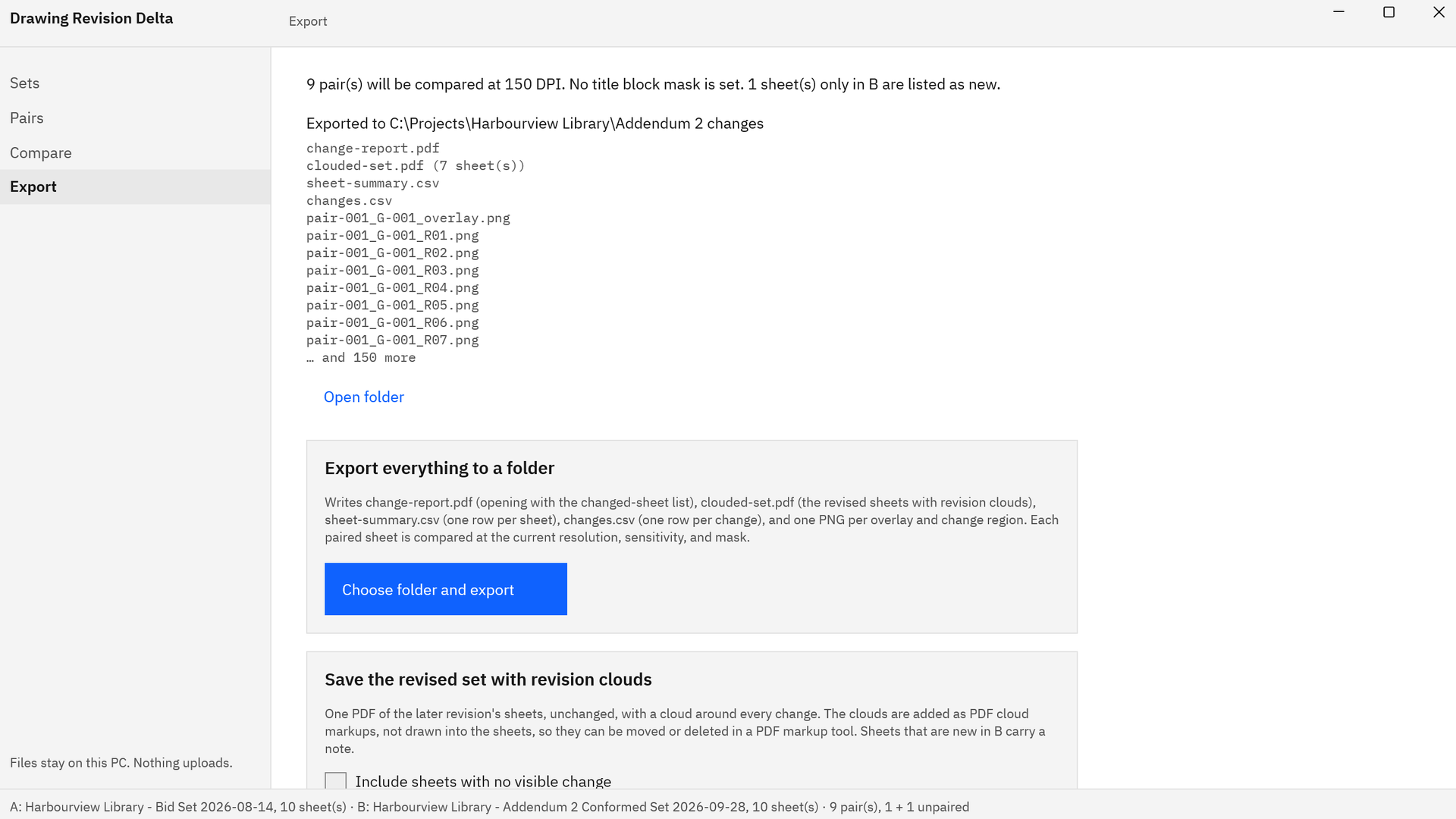
Screenshots use a fictional library drawing set made for software demonstration, with no client’s drawings.
Run the checklist in Drawing Revision Delta
- Load the bid set. In Sets, under “Set A · earlier revision”, choose “Pick files” for the combined bid PDF, or “Pick folder” for a folder of sheets.
- Load the addendum. Under “Set B · later revision”, pick the addendum’s folder or files. The reissued sheets pair with their originals by number, and the bid sheets the addendum did not touch are listed under “Only in A”.
- Check what is new. The “Only in B, new or renumbered” list shows new sheets and pages with no counterpart, such as the memo.
- Compare and rank. Choose “Compare all”, then set the view to “Most changed first”. The summary line counts changed, unchanged, new, and removed sheets.
- Mask the title block. Open a sheet with “Compare selected” and choose “Mask title block”, or “Draw mask” over the exact area. The mask applies to every pair.
- Read each changed sheet. In “Overlay”, red was removed and blue was added. Step through the “Changes” list with ‹ and ›, and read the text edits listed in words.
- Look for unclouded edits. Turn on “Fade unchanged”. An app cloud with no architect’s cloud beside it is a change the memo and the clouds did not mention.
- Export for the bid file. In Export, choose “Choose folder and export” for change-report.pdf, clouded-set.pdf, sheet-summary.csv, changes.csv, and PNG snapshots, then forward the clouded set to your team.
Try the checklist on an addendum you already priced.
Get it from Microsoft
When Addendum 3 arrives, “Recent folders” keeps the folders you picked, and “Use as A” and “Use as B” bring them back with one click. For the addendum-specific details, see compare addendum drawings, and for the step-by-step comparison itself, how to compare two revisions of a drawing set. To forward clouds the field can edit, read about automatic revision clouds.
Frequently asked questions
What should I check first in an addendum?
The memo, then a list of every sheet the addendum reissued. Compare each reissued sheet with the sheet it replaces in the bid set, read the heaviest changes first, and check the notes and schedules on your trade’s sheets.
How do I find changes an addendum did not cloud?
Compare the reissued sheets against the bid set directly. Drawing Revision Delta compares the drawings themselves, so every change is clouded and listed, including edits that have no cloud on the drawing and no line in the memo.
Can I compare only the addendum sheets against the full bid set?
Yes. Pick the full bid set as Set A and only the addendum sheets as Set B. The reissued sheets pair by sheet number wherever they sit in the bid set, and the sheets the addendum left alone are listed separately.
What should I keep on file after an addendum review?
The memo, the reissued sheets, and a record of what changed. Drawing Revision Delta’s change report opens with the ranked list of changed sheets, has a section for each sheet, and lists a SHA-256 hash of every compared file, so the record shows exactly which drawings were compared.
Try Drawing Revision Delta
Drawing Revision Delta is a one-time purchase in the Microsoft Store, and the Store runs a 15-day free trial of the full app. Run the checklist on a past addendum you already priced and compare the result with your notes. It runs on Windows 11 on x64 and ARM64 PCs, and the drawings stay on your PC. See the Drawing Revision Delta product page for the screens and the full feature list.
Review your next addendum sheet by sheet during the 15-day free trial.
Get it from Microsoft
Last updated 15 October 2026. Published by Automata Labs, a software company in Canada.