To turn a print spec sheet into a preflight profile, translate each written rule into a number or a switch a checker can apply: the finished size and how close it must be, the minimum bleed, resolution limits for photos and for line art, a colour policy, the spot inks a job may carry, a transparency rule, and how strictly to treat the output intent. Then name the profile after the press, product, or customer it serves, and check every incoming file against it.
Most shops already have the rules, in a PDF on the shared drive or a laminated sheet by the counter. The work is getting them out of prose and into something that gives the same answer every time, whoever opens the file.
Build a profile from your own spec sheet and check last week’s files with it.
Get it from Microsoft
Why the written sheet is not enough
A spec sheet tells customers what to send; it does not check what they sent. A reader shows little of what matters: not the effective resolution of a placed photo, not whether a font is embedded on page six, not whether a vector logo is RGB. Two people comparing the same file with the same sheet can reach different answers. A preflight profile holds the same rules as numbers, so every file is read the way the press will read it.
Map each line of the sheet to a setting
Go through your spec sheet one line at a time. Almost every line maps to one setting.
| Your spec sheet says | Profile setting in Print Preflight Desk | Example value |
|---|---|---|
| Finished size 8.5 × 11 in | Trim size | US Letter 8.5 × 11 in |
| Landscape files are fine | Accept rotated match | Yes |
| 0.125 in bleed on all sides | Minimum bleed (pt) | 9 (8.5 for 3 mm) |
| Photos at least 150 ppi, 225 preferred | Colour/grey error and warning at or below (ppi) | 149 and 224 |
| Line art at least 550 ppi, 800 preferred | 1-bit error and warning at or below (ppi) | 549 and 799 |
| Embed all fonts | Require embedded fonts | Yes |
| CMYK only, no RGB | Colour policy | Classic CMYK |
| RGB photos accepted with a profile | Colour policy | 2015 delivery |
| No spot colours | Maximum spot colours | 0 |
| One named brand ink allowed | Maximum spot colours and Allowed names | 1, and the ink’s exact name |
| Flatten transparency before sending | Live transparency | Forbid (PDF/X-1a style) |
| PDF/X preferred | Missing output intent | Warning or Error |
The resolution limits are inclusive: with an error value of 149, an image at 149 ppi is an error and one at 150 ppi is not. That is why a sheet that says “at least 150 ppi” becomes 149 in the profile. For the reasoning behind these particular numbers, see our explainer on the GWG 2015 sheetfed CMYK rules.
Ways to apply a spec sheet to incoming files
| Method | How it works | Good fit | Bottom line |
|---|---|---|---|
| Checking by eye against the printed sheet | Open the PDF in a reader and compare it with the sheet | Very low volume, simple jobs | Depends on who is looking, and most faults are invisible on screen |
| Asking customers to self-check | Publish the sheet and trust the designer | Repeat clients with in-house designers | Files still arrive with the same faults, and you find out on press |
| A general preflight suite | Build profiles in a large prepress application | Shops with a dedicated prepress department | Powerful, often priced and staffed for larger plants |
| Print Preflight Desk named profiles | One profile per press, product, or customer; open a PDF and pick the profile | Counter and prepress staff at small and mid-size shops | Why it works: the rules live in a named profile, every miss lists its page, and the report goes straight back to the customer |
Meet Print Preflight Desk
Print Preflight Desk checks a customer PDF against a shop profile you name and set, and gives one verdict, PASS, PASS WITH WARNINGS, or FAIL, with every finding tied to its pages and an HTML and PDF report to send back.
It runs on Windows 10 version 2004 or later and Windows 11, on x64 and Arm64 PCs. It makes no network connection, has no account, and only reads the customer’s file. The first profile, Letter — sheetfed CMYK (GWG 2015), is a sound starting point to duplicate and adjust.
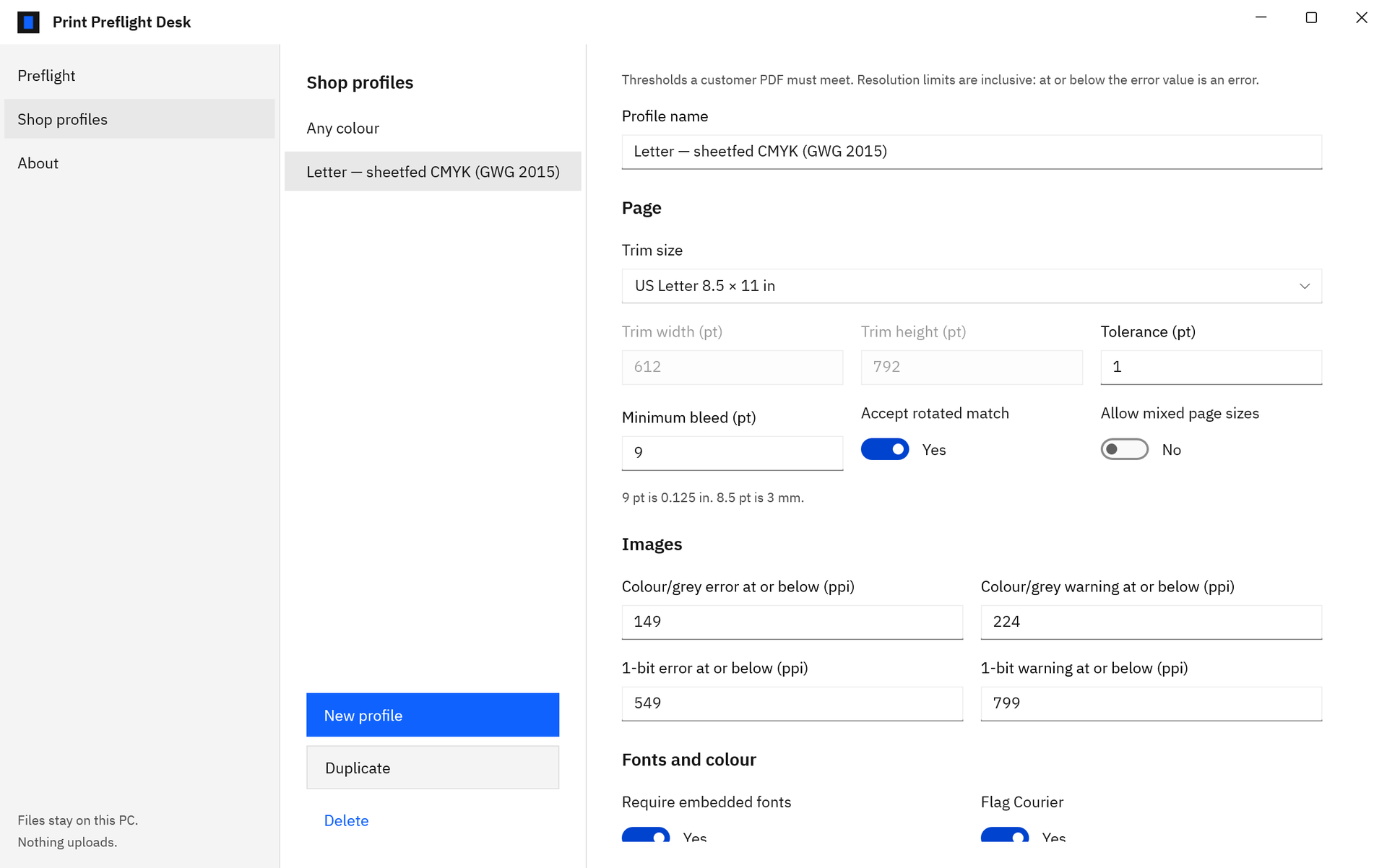
Screenshots use a sample profile and a sample customer flyer generated for testing.
How to build the profile in Print Preflight Desk
- Open Shop profiles. Choose “Shop profiles” in the side navigation. The list shows every profile on this PC.
- Start from a base. Choose “New profile” for a fresh profile with the shop defaults, or select an existing profile and choose “Duplicate” to copy it.
- Name it for the job. Type a “Profile name” that says which press, product, or customer it serves, for example “Digital — postcards — RGB photos OK”.
- Set the page. Pick a “Trim size” preset: “US Letter 8.5 × 11 in”, “US Tabloid 11 × 17 in”, “A4 210 × 297 mm”, “A3 297 × 420 mm”, “Custom (points)”, or “Any size, all pages equal”. Set “Tolerance (pt)” and “Minimum bleed (pt)”, then “Accept rotated match” and “Allow mixed page sizes”. The form reminds you that 9 pt is 0.125 in and 8.5 pt is 3 mm.
- Set the images. Fill in “Colour/grey error at or below (ppi)”, “Colour/grey warning at or below (ppi)”, “1-bit error at or below (ppi)”, and “1-bit warning at or below (ppi)”. Each error value must be lower than its warning value.
- Set fonts and colour. Turn on “Require embedded fonts” and “Flag Courier”, then pick the “Colour policy”: “Classic CMYK: no RGB, no ICC, no Lab (GWG 4.23)”, “2015 delivery: ICC RGB images allowed (GWG 4.24)”, or “Any: report colour spaces, never fail”.
- Set spot colours. Enter “Maximum spot colours”, type any permitted inks under “Allowed names (comma separated, optional)”, and choose whether to “Warn on Separation /All”.
- Set transparency and output intent. Choose “Live transparency”: “Allow and report (PDF/X-4 style)” or “Forbid (PDF/X-1a style)”. Set “Require CMYK blend space”, choose how to treat a “Missing output intent” (Error, Warning, Note, or Ignore), and set “Require CMYK intent profile”.
- Save. Choose “Save profile”. The confirmation names the profile, and it appears in the profile list on the Preflight page straight away.
Test the profile on files you know
- A file that printed well. On the Preflight page, choose “Choose a PDF” and select the new profile in the list above the findings. It should read PASS or PASS WITH WARNINGS. If it fails, either the press tolerated a fault or a threshold is stricter than your real rule.
- A file that caused trouble. Open a job that needed a reprint. The fault should appear as an Error with its page number; select the row and the preview jumps to that page with the boxes drawn.
- Switch profiles on the same file. Pick another profile and the open file is checked again under it, the quickest way to see how two presses differ.
Name profiles the way job tickets do: press first, then product, then the exception, such as “Sheetfed — brochures A4” or “Digital — postcards — RGB photos OK”. The report records the profile name beside the verdict, so a clear name keeps the record clear too. For what goes back to the customer, see the preflight report for customers.
Frequently asked questions
How many profiles should a shop have?
One for each set of rules that actually differs: usually one per press, split further where products differ in size, bleed, or colour. Our page on preflight profiles for print shops walks through every field.
What if a customer’s spec differs from ours?
Make a profile named after that customer with their trim size, bleed, colour policy, and allowed spot names. Their files are checked against their rules, and everyone else’s against yours.
Where do the numbers in the starting profile come from?
From the Ghent Workgroup GWG 2015 sheetfed CMYK specification, with a bleed of 9 pt, which is the trade convention of 0.125 in. Our GWG 2015 explainer covers each number, and the prepress intake checklist shows where the profile fits in the rest of intake.
Try Print Preflight Desk
Print Preflight Desk is a one-time purchase in the Microsoft Store, and the Store runs a 15-day free trial with every feature. Build a profile from your spec sheet, open last week’s files, and compare the verdicts with what your team found. To see the whole intake flow, read how to check customer PDFs against print specs, or go to the Print Preflight Desk product page.
Ghent Workgroup and GWG are names of the Ghent Workgroup. Print Preflight Desk is not affiliated with or endorsed by the Ghent Workgroup.
Last updated 15 October 2026. Published by Automata Labs, a software company in Canada.