What is Print Preflight Desk?
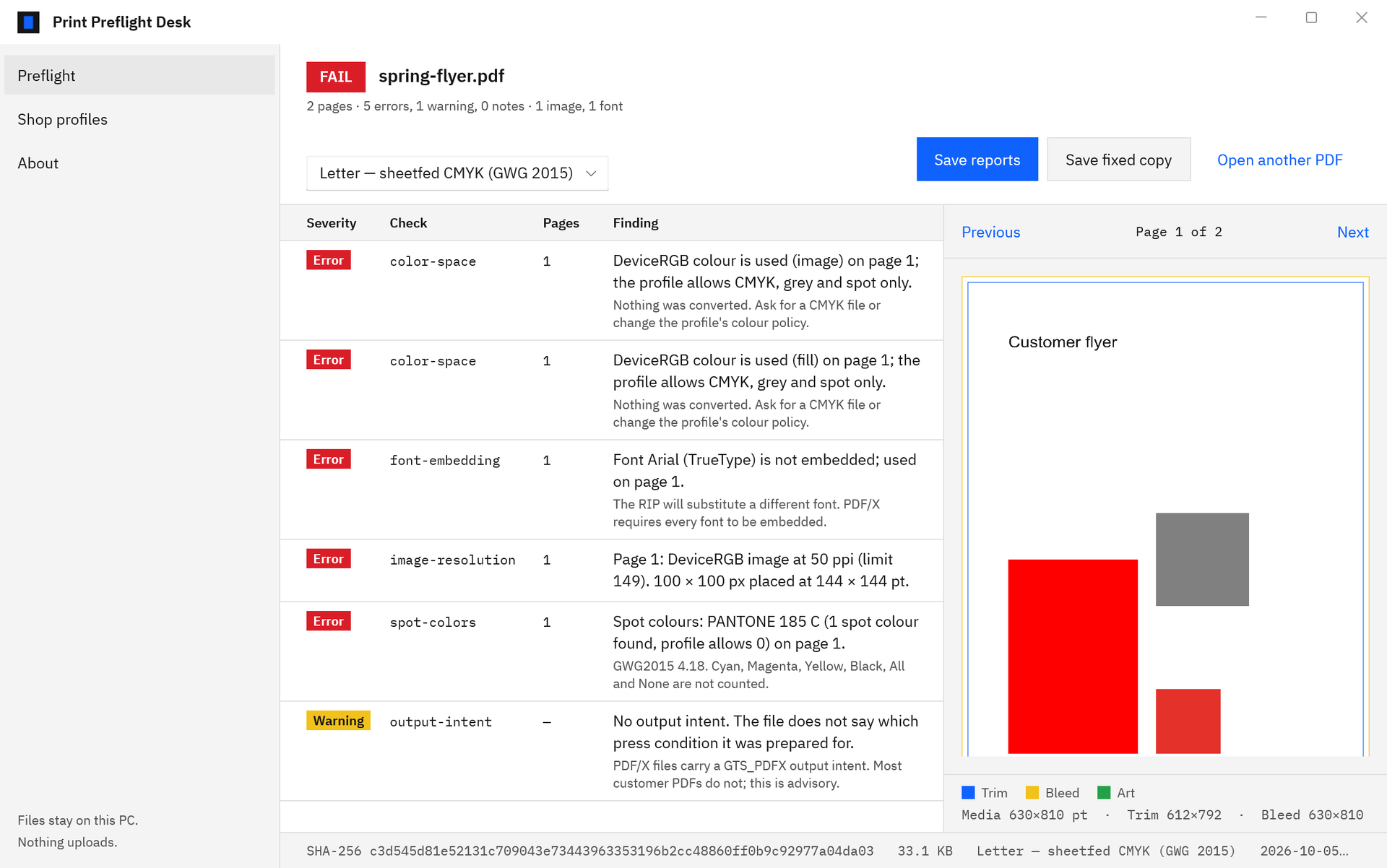
Print Preflight Desk is a Windows app that checks a customer PDF against a shop profile you name and set, and gives one verdict: PASS, PASS WITH WARNINGS, or FAIL. Every finding lists its page numbers, a preview draws the Trim, Bleed, and Art boxes, and Save reports writes an HTML and a PDF report. The file is read on your PC, and nothing uploads.
How do I check a customer PDF?
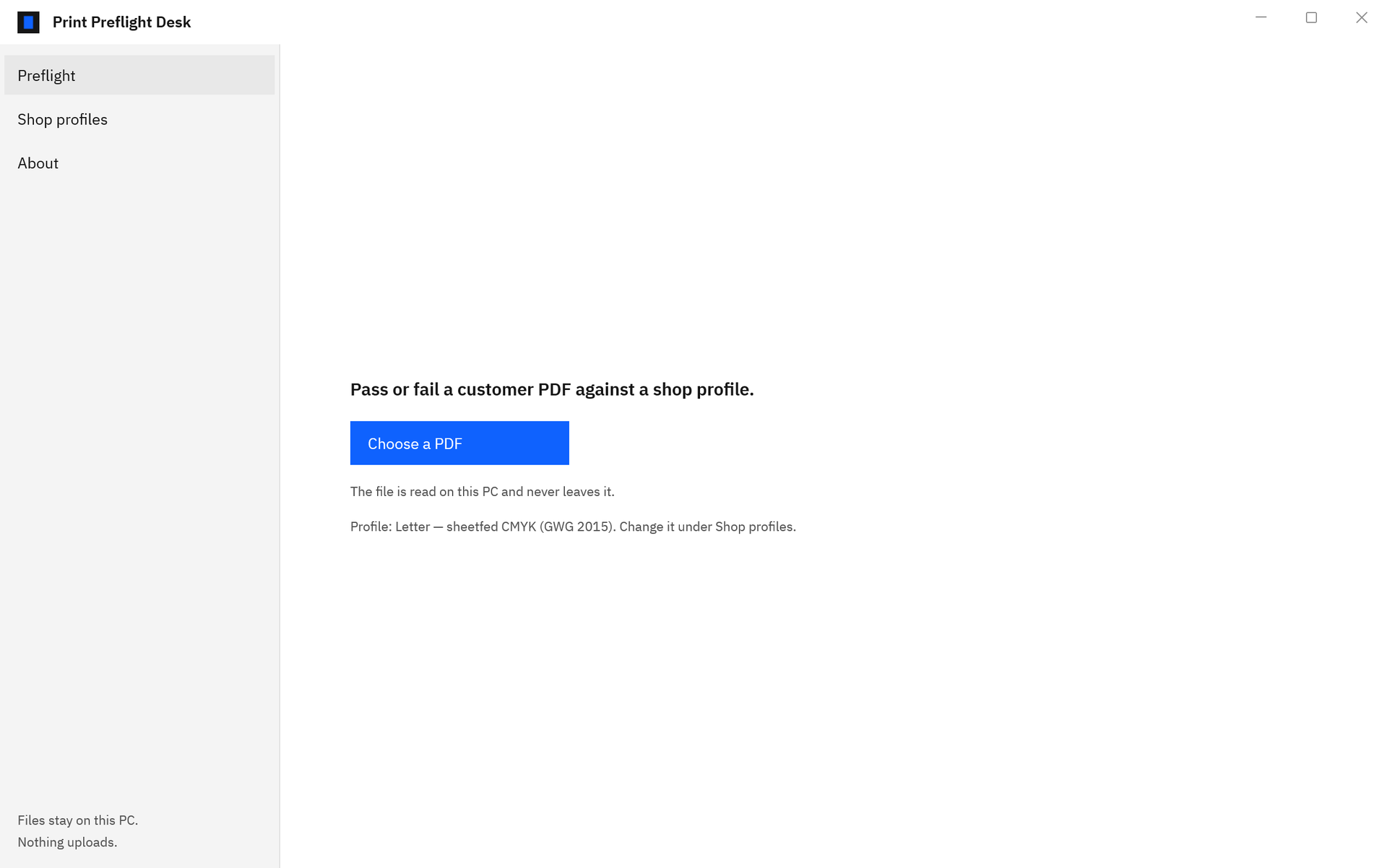
Choose a PDF, or double-click a PDF in File Explorer when Print Preflight Desk is your chosen app, and the file is checked against the current profile. Pick a different shop profile from the list and it is checked again. Read the verdict and the findings table, then choose Save reports to keep the result or send it to the customer.
What does it check?
Page size against the profile’s trim size, the TrimBox, CropBox, and box nesting, bleed on every edge, the effective resolution of every placed image, font embedding and Courier fallbacks, colour spaces, live transparency and its blend space, spot colours and Separation /All, page rotation, and the output intent. Each finding names the check, its severity, and its pages.
Can I keep a profile for each press, product, or customer?
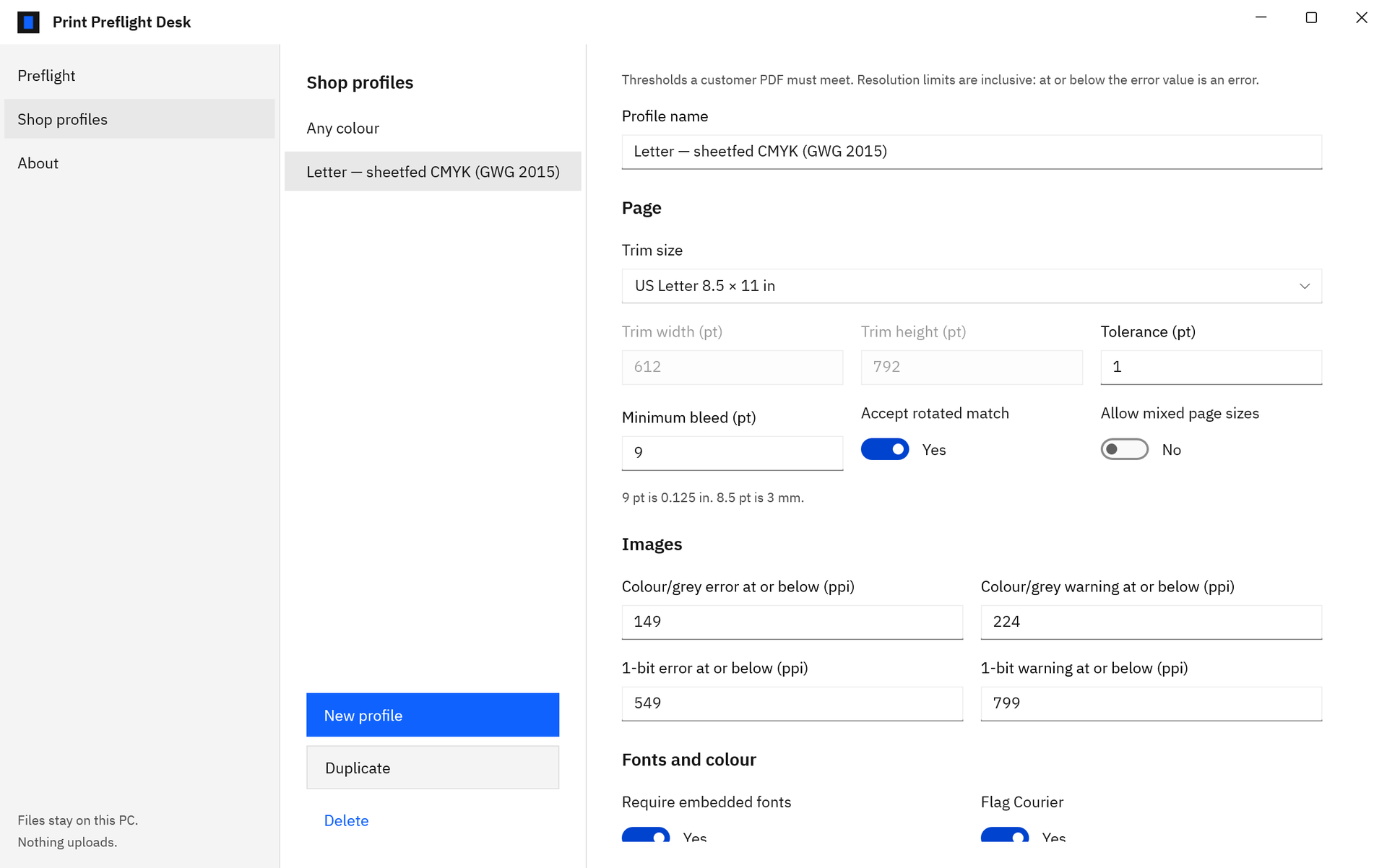
Yes. On the Shop profiles page, choose New profile or Duplicate, give it a name, and set the trim size, tolerance, minimum bleed, resolution limits, colour policy, spot colours, transparency, and output intent. Presets cover US Letter, US Tabloid, A4, and A3, or enter a custom size in points. The app remembers the last profile you used.
What does the starting profile use?
Letter — sheetfed CMYK (GWG 2015) takes its numbers from the Ghent Workgroup GWG 2015 sheetfed CMYK specification: 9 pt of bleed, colour and grey images above 149 ppi with a warning at 224, 1-bit images above 549 ppi with a warning at 799, embedded fonts, CMYK colour, no spot colours, and a warning for a missing output intent. Every value is editable.
What do PASS, PASS WITH WARNINGS, and FAIL mean?
Each finding is an Error, a Warning, or a Note, set by the profile. Any Error makes the verdict FAIL, any Warning makes it PASS WITH WARNINGS, and a file with neither passes; a clean file reads “Every check passed under this profile.” The header sums up the count of errors, warnings, and notes, and the number of images and fonts.
What goes in the report?
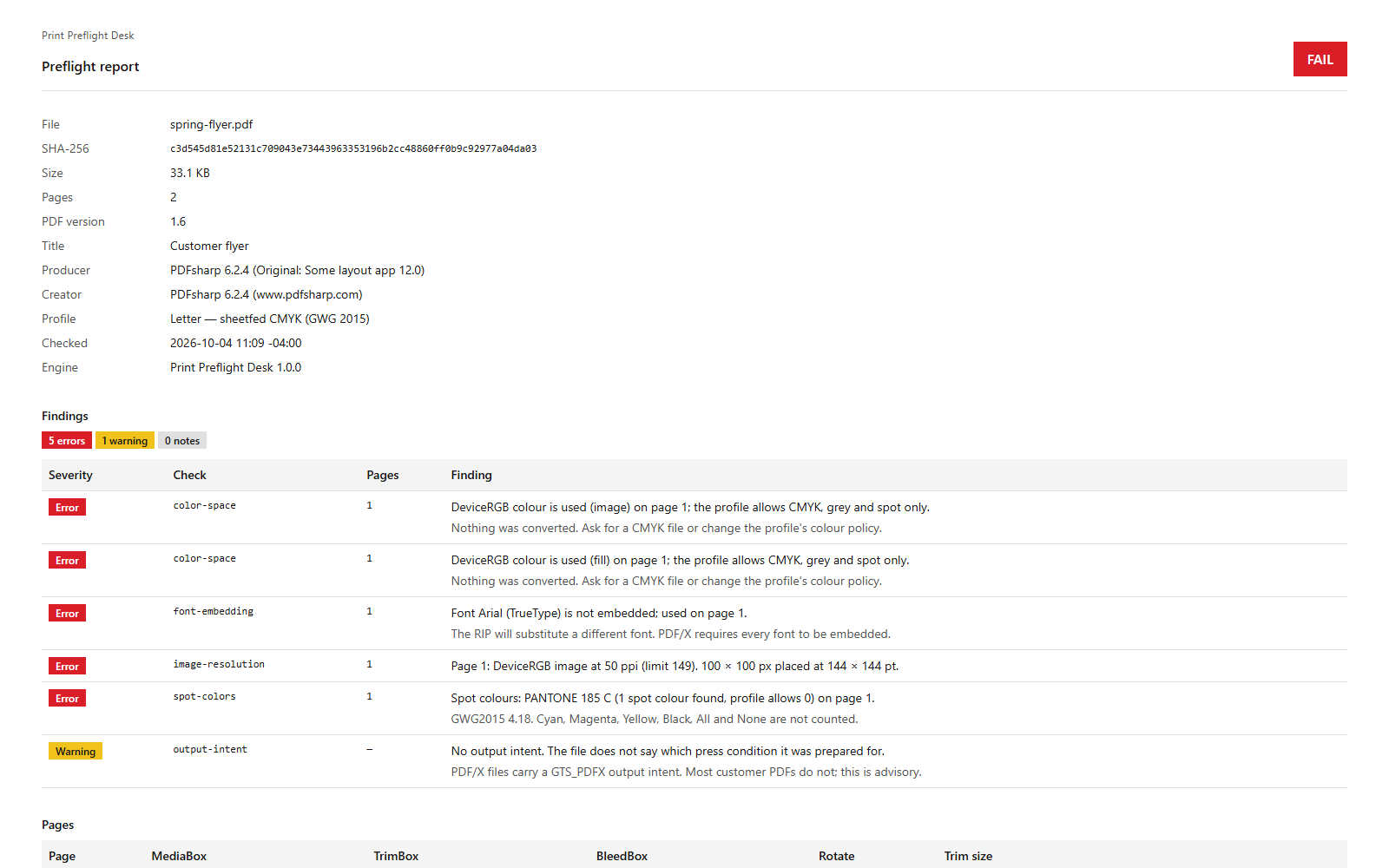
The verdict first, then the file name, its SHA-256, size, page count, PDF version, profile, and check time, then every finding with severity, check, pages, and the reason, followed by tables of pages and boxes, images with effective ppi, fonts, colour and spot names, transparency, and output intent. The HTML report is one self-contained file, and the PDF report carries the same content.
Can it fix the page boxes?
Yes. Save fixed copy writes the TrimBox at the profile’s trim size, centred on the page, and the BleedBox at the profile’s bleed around it, and normalises the Rotate value, into a new PDF you name. A confirmation lists every change with before and after values and the copy’s SHA-256. The artwork, colour, fonts, and transparency stay exactly as supplied.
What happens to the customer’s original file?
It is only read. Print Preflight Desk opens the PDF you choose, works out its SHA-256, and checks it. Reports are new files in the folder you pick, and Save fixed copy writes a new PDF and refuses to replace the original. The customer’s file stays exactly as it arrived.
Where do customer files go?
They stay on your PC. Print Preflight Desk makes no network connection, has no account, and collects no telemetry. It reads only the PDF you choose or double-click, writes reports to the folder you pick once, and saves fixed copies where you name them. Shop profiles are kept in the app’s own local storage.
What does it cost, and is there a trial?
Print Preflight Desk is a one-time purchase in the Microsoft Store, and the listing shows the current price in your currency. The Store runs a 15-day free trial with every feature, and there is nothing to activate in the app. There is no subscription.
What Windows version do I need?
Windows 10 version 2004 or later, or Windows 11, on an x64 or Arm64 PC. The app opens at 1100 by 720 and works down to a 960 by 600 window, in light or dark mode, and every action is reachable from the keyboard.