A prepress intake checklist makes sure every customer PDF is matched to its job, checked against the right print specs, and answered before it reaches imposition. The core checks are the finished size and page boxes, bleed, image resolution, fonts, colour and spot inks, transparency, and the output intent, followed by a verdict, a record tied to the exact file, and a reply to the customer.
Intake is the cheapest place to catch a bad file: once a job is imposed or plated, every correction costs paper, plates, or a press slot. This checklist is for whoever opens the file first.
Run this checklist on every incoming PDF with your own shop profiles.
Get it from Microsoft
The intake checklist
| # | Check | What to confirm | Where you confirm it |
|---|---|---|---|
| 1 | The right job | File name, customer, product, and quantity match the job ticket | Job ticket |
| 2 | The right rules | The profile for this press, product, or customer is selected | Profile list on the Preflight page |
| 3 | Finished size | Every page’s trim matches the ordered size, within tolerance | page-size finding |
| 4 | Page boxes | A TrimBox on every page, CropBox equal to MediaBox, trim inside bleed inside media | trim-box, crop-box, box-nesting findings |
| 5 | Bleed | The profile’s bleed on every edge, measured from the trim | bleed finding, with the smallest edge |
| 6 | Image resolution | Effective ppi of every placed image above the profile’s limits | image-resolution finding, with pixels and placed size |
| 7 | Fonts | Every font embedded; no Courier fallback | font-embedding and font-courier findings |
| 8 | Colour | Colour spaces match the profile’s colour policy | color-space finding, per page |
| 9 | Spot inks | Only the spot colours the job allows, by name | spot-colors and separation-all findings |
| 10 | Transparency and output intent | Live transparency allowed or not, CMYK blending, a CMYK output intent | transparency and output-intent findings |
| 11 | The verdict and the record | PASS, PASS WITH WARNINGS, or FAIL, saved with the file’s SHA-256 | Save reports |
| 12 | The reply | The customer gets the report, or the job moves on | Your email, with the PDF report attached |
Going through the checklist
Checks 1 and 2: the job and the rules
Many intake mistakes happen before anyone looks at the artwork: the wrong file attached to the job, or a file checked against the wrong rules. Match the file to the job ticket, then choose the profile the ticket implies. A business card on the digital press and a brochure on sheetfed are different jobs with different numbers.
Checks 3 to 5: size, boxes, and bleed
The finished size comes from the TrimBox, so a missing box is as serious as a wrong size. Bleed is measured from each trim edge, and the smallest edge is the one that matters at the cutter. When the artwork already runs past the trim but the boxes were never written, the file can be corrected without a round trip; see how to set TrimBox and BleedBox in a PDF.
Checks 6 and 7: images and fonts
Resolution is judged at the placed size, not from the image’s own header, so a photo enlarged to fill a page can fall well below the limit. Fonts must be embedded, or the RIP substitutes another; Courier in a file that never used it is the classic sign.
Checks 8 to 10: colour, spot inks, transparency, and intent
RGB in a CMYK job, a stray spot swatch from a stock graphic, or registration colour used for text are invisible on a monitor and obvious on press. The profile decides which colour spaces pass, which inks are allowed by name, and how to treat transparency and a missing output intent.
Checks 11 and 12: the verdict, the record, and the reply
Every file should leave intake with a verdict and a record that identifies the exact file, because two attachments called final.pdf can hold different artwork. A PASS moves on, a FAIL goes back with the findings, and a PASS WITH WARNINGS gets a decision from someone who can make it.
Ways to run intake
| Method | How it works | Good fit | Bottom line |
|---|---|---|---|
| Visual check in a PDF reader | Zoom in, scroll, read document properties | A handful of simple jobs a week | Most of the checklist is invisible on screen |
| Prepress operator on every file | A specialist opens each file in prepress software | Shops with a full-time prepress department | Thorough, and it ties up your most skilled person on routine files |
| Online file checker | Upload the PDF and read the result | One-off, non-confidential jobs | Client files leave the shop, and the rules are the site’s, not yours |
| Print Preflight Desk at the counter | Open the PDF, pick the profile, read the verdict, save the report | Counters and prepress desks at small and mid-size shops | Why it works: checks 3 to 10 against your own profile and writes the record for 11 and 12 |
Meet Print Preflight Desk
Print Preflight Desk checks a customer PDF against your shop’s own profile, gives PASS, PASS WITH WARNINGS, or FAIL with every finding tied to its pages, and saves an HTML and PDF report to send back.
It runs on Windows 10 version 2004 or later and Windows 11, on x64 and Arm64 PCs. The customer’s file is only read, the app makes no network connection, and there is no account.
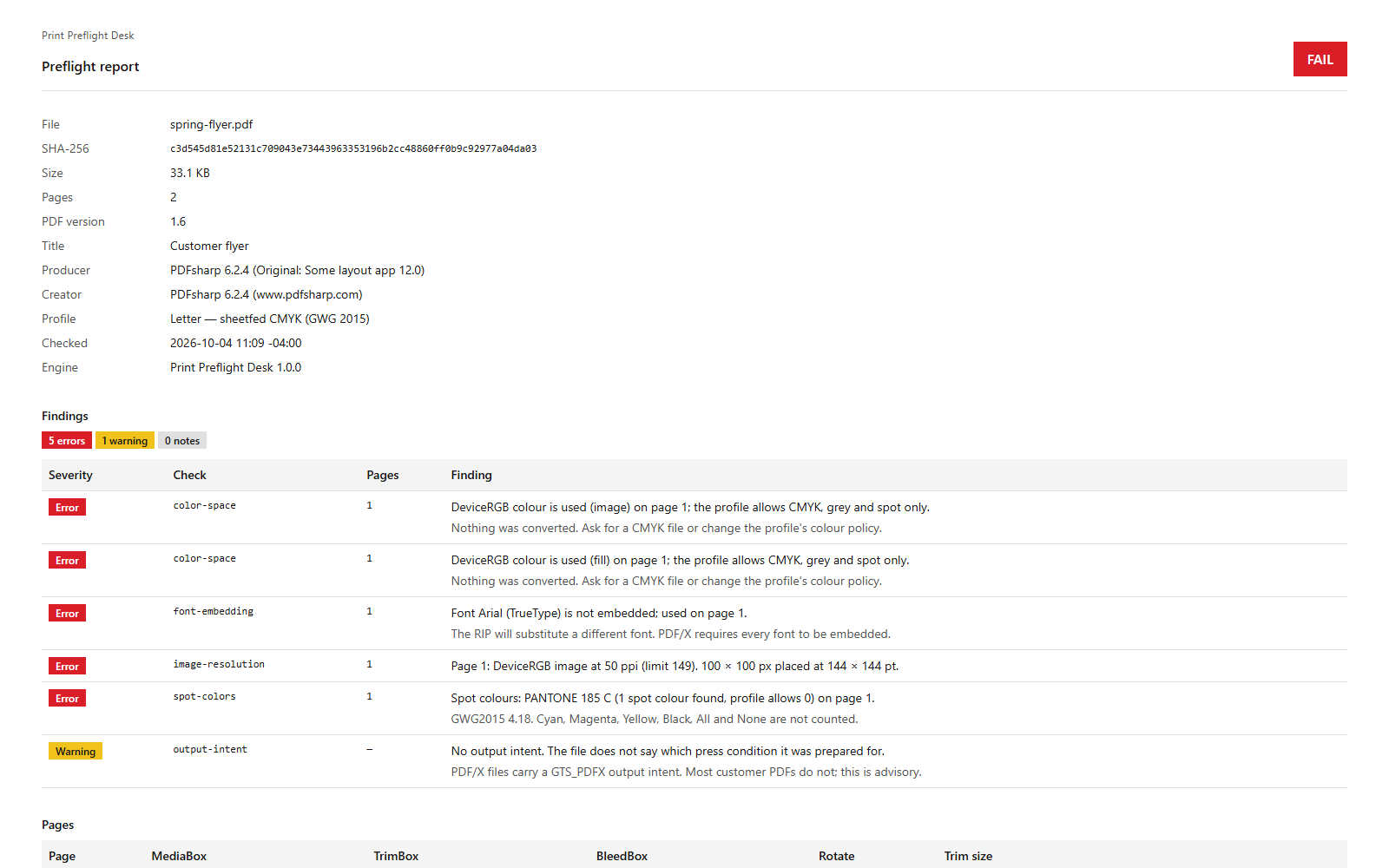
Screenshots use a sample customer flyer generated for testing.
Run the checklist in Print Preflight Desk
- Open the file. Choose “Choose a PDF”, or “Open another PDF” when a file is already open, and pick the customer’s PDF; the picker’s button reads “Check this PDF”. Or double-click the PDF in File Explorer when Print Preflight Desk is your chosen app.
- Pick the profile (check 2). Select the job’s profile in the list above the findings. Switching profiles checks the file again.
- Read the header. The verdict chip reads PASS, PASS WITH WARNINGS, or FAIL, followed by the page count, the number of errors, warnings, and notes, and the number of images and fonts.
- Work through the findings (checks 3 to 10). The table lists “Severity”, “Check”, “Pages”, and “Finding” for every miss. A clean file reads “Every check passed under this profile.”
- Look at the page. Select a finding and the preview jumps to its page, with the Trim, Bleed, and Art boxes outlined and the box sizes in points underneath.
- Correct the boxes when they are all that needs fixing. Choose “Save fixed copy” to write a new PDF with the TrimBox and BleedBox set from the profile, then open it with “Open another PDF” to confirm.
- Save the record (check 11). Choose “Save reports”. The first time, pick a folder with “Use this folder for reports”; after that, reports go straight there as name.report.html and name.report.pdf. The status line shows the file’s SHA-256.
- Reply (check 12). Attach the PDF report to your reply for a FAIL or a PASS WITH WARNINGS, or file it with the job for a PASS.
Keep intake consistent
- One profile per press or product, named the way job tickets are. If staff keep overriding a finding, make a variant; the guide to building a profile from your spec sheet shows how.
- Save a report for every file that moves on. The SHA-256 lets you match the approved artwork to its record later, with Get-FileHash in Windows PowerShell.
- Know where the numbers come from. The starting profile follows the GWG 2015 sheetfed CMYK specification; our GWG 2015 explainer covers each value.
Frequently asked questions
Who should do prepress intake?
Whoever first receives the file, as long as the rules live in a profile. Counter staff then get the same verdict a prepress operator would, and the operator’s time goes to files that need judgement.
What should I send a customer whose file fails?
The PDF report. It names the profile, gives the verdict, and lists each problem with its page and reason, so the designer can fix everything in one pass. See the preflight report for customers.
How do I check many files at the start of the day?
Open each PDF in turn with “Open another PDF”, or double-click it in the shared folder, and sort by verdict: PASS to imposition, PASS WITH WARNINGS for a second look, FAIL back with the report.
Try Print Preflight Desk
Print Preflight Desk is a one-time purchase in the Microsoft Store, and the Store runs a 15-day free trial with every feature. Set up a profile for your busiest product and run the next week’s intake through it. For the detail behind each check, read how to check customer PDFs against print specs, compare options in PDF preflight software for print shops, or visit the Print Preflight Desk product page.
Ghent Workgroup and GWG are names of the Ghent Workgroup. Print Preflight Desk is not affiliated with or endorsed by the Ghent Workgroup.
Last updated 15 October 2026. Published by Automata Labs, a software company in Canada.