GWG 2015 is a set of rules from the Ghent Workgroup for exchanging print-ready PDF files, built on PDF/X-4. Its sheetfed CMYK variant sets the numbers many shops preflight against: colour and grey images must be above 149 ppi, with a warning at 224 ppi or below; 1-bit line art above 549 ppi, with a warning at 799; no spot colours; no RGB in the classic delivery method; embedded fonts; one page size per file; and a CMYK output intent.
The specification comes in variants for different printing processes. This article covers the sheetfed CMYK variant, the one most commercial shops reach for first, and what each rule protects against on press.
Check customer PDFs against GWG 2015 sheetfed CMYK numbers on your own PC.
Get it from Microsoft
The rules at a glance
Requirement numbers below are the section numbers in the GWG 2015 specification. The last column shows what the starting profile in Print Preflight Desk, Letter — sheetfed CMYK (GWG 2015), does with each one.
| Area | GWG 2015 | Sheetfed CMYK value | In the starting profile |
|---|---|---|---|
| Base standard | 4.1 | PDF/X-4, so live transparency is allowed | Live transparency reported as a Note |
| Page scaling | 4.2 | No /UserUnit | Flagged when present |
| CropBox | 4.3 | Equal to the MediaBox when present | Error when it differs |
| Page size and rotation | 4.4 | One trim size per file; /Rotate absent or 0 | Warning for mixed sizes or a /Rotate value |
| Courier | 4.14 | A font named Courier is a likely missing-font fallback | Warning |
| Spot colours | 4.18 | 0 named colorants beyond Cyan, Magenta, Yellow, Black, All, and None | Error for any spot colour |
| Separation All | 4.21 | Print content inside the trim should not use All | Warning |
| Colour, classic delivery | 4.23 | No DeviceRGB, CalRGB, CalGray, ICC-based, or Lab colour | Error, under Classic CMYK |
| Colour, 2015 delivery | 4.24 | ICC-based RGB images allowed | Available as the 2015 delivery colour policy |
| Transparency blend space | 4.25 | Transparency groups blend in CMYK | Error for any other blend space |
| Colour and grey images | 4.26 | Error at 149 ppi or below, warning at 224 or below | Same values |
| 1-bit images | 4.27 | Error at 549 ppi or below, warning at 799 or below | Same values |
| Output intent | 4.30 | A CMYK output intent | Warning when missing, Error when not CMYK |
What each rule protects against
Resolution: why 149 and not 150
GWG writes its resolution rules inclusively: an image shall not be lower than or equal to the table value. So an error value of 149 means 150 ppi passes and 149 fails, and a warning value of 224 means 225 ppi and above is clear. For 1-bit images, such as line art or a signature, the values are 549 and 799, because hard edges need far more pixels before stair-steps disappear. Images 16 pixels or smaller on either side are exempt.
Resolution here is effective ppi: pixels divided by the placed size in inches. A 3,000-pixel photo enlarged to fill a 24-inch poster is 125 ppi, whatever its file header says.
Colour: classic delivery versus 2015 delivery
Classic delivery (4.23) expects a file that is already CMYK. Any RGB, calibrated grey, ICC-based, or Lab colour fails, whether it sits in a photo or a vector shape. The 2015 delivery method (4.24) relaxes this for images: ICC-based RGB photos are allowed, on the understanding that the shop’s workflow converts them with a known profile. DeviceRGB images and RGB vector content still fail under it.
Spot colours and Separation All
The sheetfed CMYK variant allows zero spot colours (4.18). On a four-colour press, a spot ink either needs an extra plate or gets converted in the RIP, and neither should happen by accident. Separation All (4.21) is registration colour: anything drawn in it prints on every plate.
Page boxes and rotation
PDF/X requires a TrimBox or an ArtBox on every page so the finished size is defined, with trim inside bleed inside media. GWG 4.3 asks for the CropBox, when present, to equal the MediaBox, so no viewer hides part of the sheet, and 4.4 expects one trim size across the file and a /Rotate value of 0 or none at all.
The specification states no bleed amount. The trade convention is 0.125 in (9 pt), or 3 mm (8.5 pt) for metric work, which is why bleed is a shop setting rather than a GWG number.
Output intent
A PDF/X file carries an output intent naming the press condition it was prepared for, and GWG 4.30 expects its destination profile to be CMYK. Most customer PDFs carry no output intent at all, so many shops treat its absence as a warning.
Ways to check a PDF against these numbers
| Method | How it works | Good fit | Bottom line |
|---|---|---|---|
| A reader’s document properties | Read the font list and page size by hand | A quick look at one file | Shows little: no effective ppi, no colour per object |
| A general preflight suite with GWG profiles | Load the published profile in a large prepress application | Plants with a dedicated prepress department | Thorough, often priced and staffed for larger operations |
| Print Preflight Desk starting profile | Open the PDF; the GWG 2015 numbers are already in the profile | Counters and prepress desks at small and mid-size shops | Why it works: every value is visible and editable, and findings cite the GWG section next to the page |
Meet Print Preflight Desk
Print Preflight Desk checks a customer PDF against a shop profile and gives PASS, PASS WITH WARNINGS, or FAIL, starting from a profile built on the GWG 2015 sheetfed CMYK numbers.
Every threshold is on the Shop profiles page, so you can keep the GWG values or adjust them. Findings from a GWG rule cite it in their detail line, such as “GWG2015 4.18.” The app runs on your Windows PC, and nothing uploads.
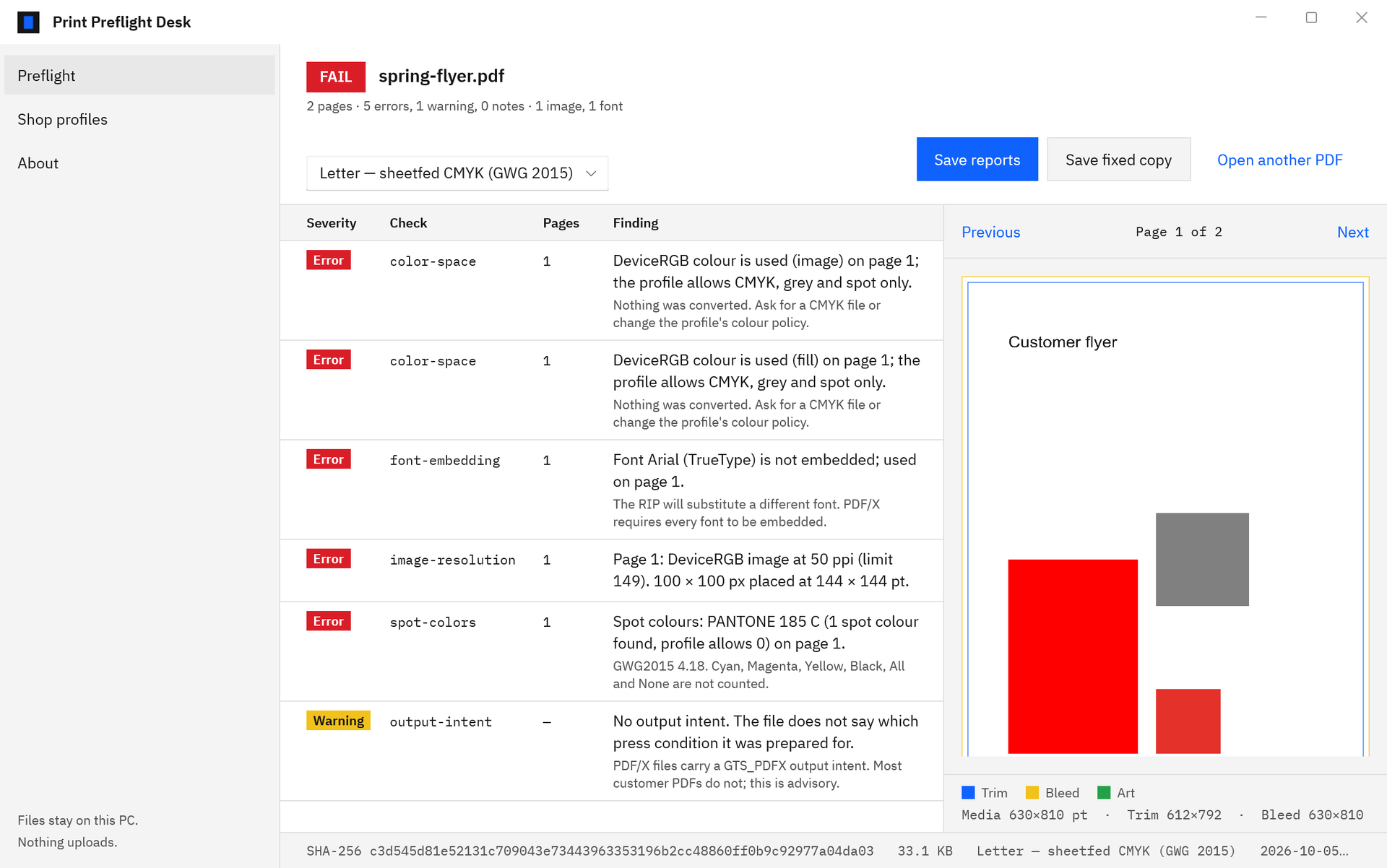
How to check a PDF against GWG 2015 sheetfed CMYK
- Open the file. Choose “Choose a PDF”, or “Open another PDF” when a file is already open, and pick the customer’s PDF in the Windows file picker. You can also double-click a PDF in File Explorer when Print Preflight Desk is your chosen app.
- Pick the profile. In the list above the findings, choose “Letter — sheetfed CMYK (GWG 2015)”. For other sizes, duplicate it on the Shop profiles page and change the “Trim size” to A4, A3, US Tabloid, or a custom size.
- Read the verdict. The chip at the top reads PASS, PASS WITH WARNINGS, or FAIL, followed by the page count and the number of errors, warnings, and notes.
- Read the findings. Each row shows “Severity”, “Check”, “Pages”, and “Finding”. The check names are short and stable, such as image-resolution, color-space, spot-colors, and output-intent.
- Look at the page. Select a row and the preview jumps to its page, with the Trim, Bleed, and Art boxes outlined. Use “Previous” and “Next” to move through the file.
- Save the record. Choose “Save reports” to write an HTML and a PDF report, with the file’s SHA-256 and the profile name, to your reports folder.
Adapting the numbers to your shop
Your press may differ from the reference. A digital press can use the 2015 delivery colour policy, a client’s brand ink can be allowed by name, and a metric shop sets the minimum bleed to 8.5 pt. The guide to building a profile from your spec sheet maps each spec-sheet line to a setting, and preflight profiles for print shops explains every field.
Frequently asked questions
Is GWG 2015 the same as PDF/X-4?
GWG 2015 builds on PDF/X-4 and adds process-specific numbers such as resolution limits and spot colour counts. PDF/X-4 defines the file format rules, such as embedded fonts and page boxes; GWG adds what a particular printing process needs on top.
Why does a missing output intent only warn?
Most customer PDFs are exported without PDF/X, so the starting profile treats a missing output intent as a Warning. Set “Missing output intent” to Error if your shop requires PDF/X.
What do I tell a customer whose file fails a GWG rule?
Send the report. It shows the verdict, the profile, and each finding with its page and reason, so the designer knows what to change. See the preflight report for customers and the prepress intake checklist for the rest of intake.
Try Print Preflight Desk
Print Preflight Desk is a one-time purchase in the Microsoft Store, and the Store runs a 15-day free trial with every feature. Open a few recent customer files against the GWG 2015 starting profile and read the findings. Then see PDF preflight software for print shops or the Print Preflight Desk product page.
Ghent Workgroup and GWG are names of the Ghent Workgroup. Print Preflight Desk is not affiliated with or endorsed by the Ghent Workgroup.
Last updated 15 October 2026. Published by Automata Labs, a software company in Canada.