To compare two lists in Excel, use conditional formatting to color the items both lists share, COUNTIF to flag items missing from the other list, or VLOOKUP or XLOOKUP to pull the matching value across and test whether it agrees. When the lists are exports from two systems, with many columns and thousands of rows, a keyed comparison app such as LedgerPair pairs the rows and reports every difference in one pass.
Which method fits depends on the question. “Is this name on both lists?” is a one-column question, and a formula answers it in a minute. “Which invoices are missing, which amounts changed, and which were entered twice?” is a reconciliation, and it needs every column checked.
Compare two exports by their key without building a single formula.
Get it from Microsoft
The four methods at a glance
| Method | Finds items missing from the other list | Finds changed values in other columns | Handles formatting differences | Good fit |
|---|---|---|---|---|
| Conditional formatting (Duplicate Values) | By color, for one column | No | No | A quick visual check of one short column |
| COUNTIF | Yes, as TRUE or FALSE | No | Partly | Flagging missing items in a single list |
| VLOOKUP or XLOOKUP | Yes, as #N/A or a fallback text | One formula per column | No | A one-off check of a few columns on tidy data |
| A keyed comparison app such as LedgerPair | Yes, listed for each file with row numbers | Yes, every column the files share | Yes: spaces, amounts, and dates are normalized first | Why it works: exports from two systems, many columns, and a record you keep |
Method 1: conditional formatting
Put both lists in one column, or select both ranges with Ctrl held down, then choose Home > Conditional Formatting > Highlight Cells Rules > Duplicate Values. Every value that appears more than once is colored, so items on both lists light up and items on only one stay plain.
It is fast and needs no formulas, but it looks at one column only, so it cannot tell you that invoice 1003 is on both lists with a different amount.
Method 2: COUNTIF
Next to the first list, add a formula that counts how often each item appears in the second list:
=COUNTIF(Sheet2!A:A, A2)=0
Fill it down. TRUE means the item is missing from the second list. Swap the sheets to find items missing from the first. A second COUNTIF on the same list, =COUNTIF(A:A, A2)>1, flags repeats within a list.
COUNTIF answers the missing-item question well. It still checks one column, and a trailing space or a number stored as text makes two identical items look different.
Method 3: VLOOKUP or XLOOKUP
To compare a value as well as the key, pull the matching value from the other sheet and test it:
=XLOOKUP(A2, Sheet2!A:A, Sheet2!C:C, "Missing")
then, in the next column, =C2=D2 to flag a mismatch. VLOOKUP does the same with =VLOOKUP(A2, Sheet2!A:C, 3, FALSE), returning #N/A for a missing key.
This is the classic reconciliation formula, and it works for a few columns on tidy data. It needs one lookup per column, it returns the first match only, so a key entered twice goes unnoticed, and the formulas need repairing whenever a column is inserted. Amounts written as 1,250.00 in one export and 1250 in the other, or dates written two ways, show up as mismatches unless they are cleaned first.
Method 4: a keyed comparison app
A keyed comparison reads both files as tables, pairs rows on the key column you pick, and compares every other column the two files share. Every row lands in one category: matched, changed, only in the first file, only in the second, or a repeated key. This is what reconciliations need, and it is what LedgerPair does.
Meet LedgerPair
LedgerPair compares two CSV or Excel files by the key columns you pick and lists matched, changed, missing, and duplicate rows, then saves the result as a new .xlsx evidence workbook, on your PC with nothing uploaded.
It runs on Windows 10 version 2004 or later and Windows 11. It reads .xlsx workbooks directly, including a chosen worksheet in a multi-sheet file and a workbook that is still open in Excel, as well as CSV files in UTF-8, UTF-16, or Windows-1252 with comma, semicolon, tab, or pipe delimiters.
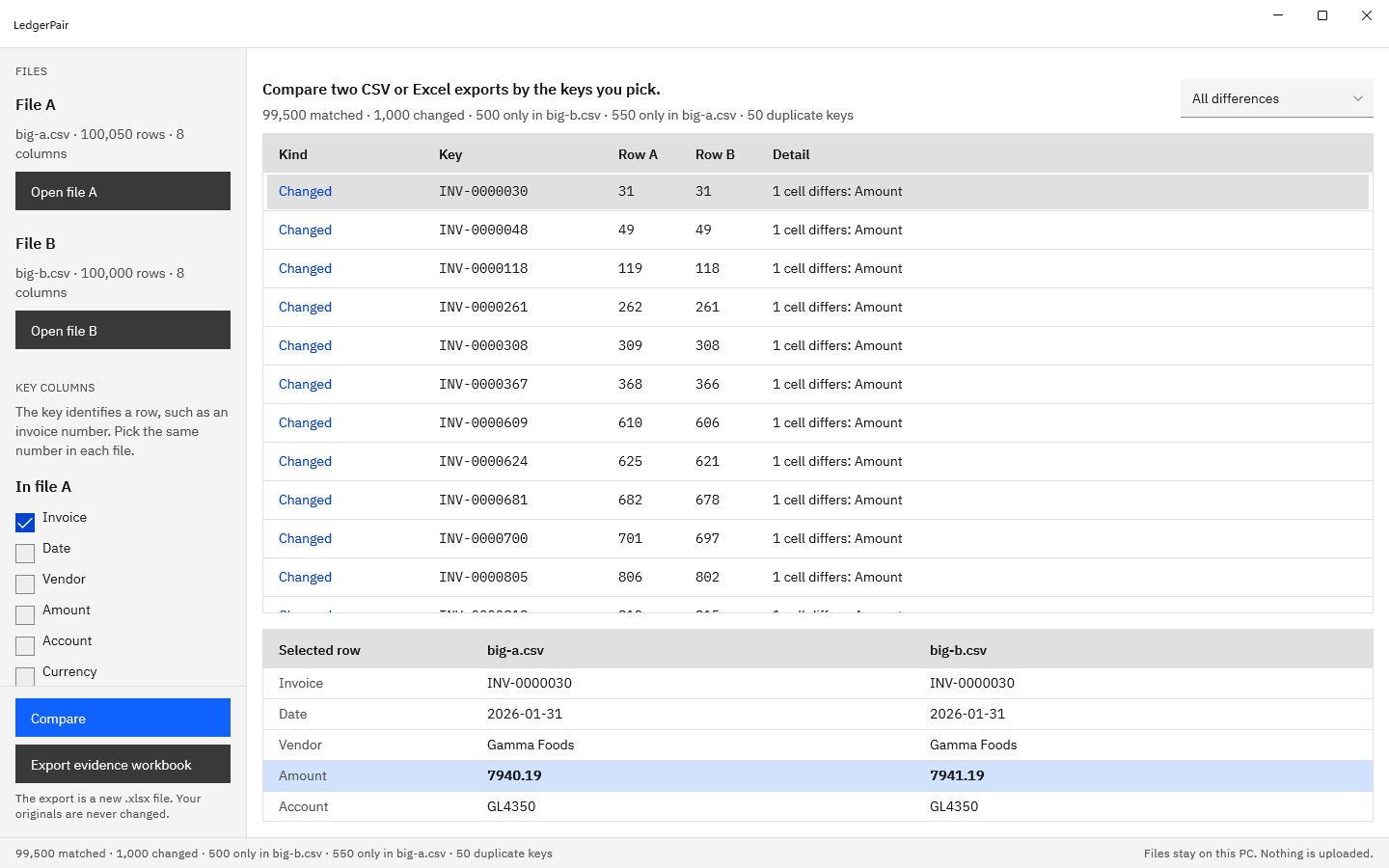
Screenshots use synthetic invoice exports generated for testing.
How to compare two lists in LedgerPair
- Choose “Open file A” and pick the first list, as an .xlsx workbook or a CSV file. If the workbook has several sheets, choose the right one from the worksheet list under the file.
- Choose “Open file B” and pick the second list.
- Check the key under “Key columns”. LedgerPair suggests a column the two files share that looks like an identifier, such as Invoice or SKU. Tick a different one under “In file A” and “In file B” if the headings differ, or tick two columns in each file for a composite key.
- Tick “Dates are day first (31/12/2026)” if your lists write dates that way.
- Press “Compare”. The summary line reads like “4 matched · 1 changed · 1 only in basic-b.csv · 2 only in basic-a.csv · 1 duplicate keys”, and the table lists each difference with its row number in each file.
- Filter and inspect. Use the filter to show “Changed rows”, “Only in file B”, “Only in file A”, or “Duplicate keys”, and select a row to see both files’ values side by side with the changed cell highlighted.
- Choose “Export evidence workbook” to save Summary, Additions, Deletions, Changes, and Duplicates sheets to a new .xlsx file.
Replace the lookup columns with one comparison you can keep.
Get it from Microsoft
What the keyed comparison handles for you
- Order. Rows pair by key, so the two lists can be sorted any way at all.
- Formatting. Spaces are trimmed, 1,250.00 equals 1250, (45.10) equals -45.10, and 2026-03-01 equals 03/01/2026. A leading-zero code such as 007 is kept as text.
- Repeats. A key entered twice is listed as a duplicate key with every row number, and the extra row also appears as only in its file.
- Typos in the key. An unmatched key spelled almost like one in the other file, such as INV-2026-0O42 against INV-2026-0042, is shown as a fuzzy candidate in its own column and never counted as a match.
- The record. The evidence workbook keeps every value as text, exactly as each file had it, plus the normalized form that was compared.
For the CSV side of this, see compare two CSV files; for workbooks, compare two Excel files for differences; and for rows missing from one list, find missing rows between two files.
Tips for any method
- Pick a real identifier. Names and descriptions change spelling; invoice numbers, IDs, and SKUs do not.
- Keep the originals. Work on copies when you add formula columns. LedgerPair needs no copies: it opens both files read-only and writes only a new workbook.
- Write down the result. A reconciliation is finished when someone else can see what was compared and what was found. The terms in our data reconciliation glossary help describe it.
Frequently asked questions
How do I find items in one list that are missing from another in Excel?
Use =COUNTIF(Sheet2!A:A, A2)=0 beside the first list and fill it down; TRUE marks an item missing from the second list. For exports with several columns, a keyed comparison in LedgerPair lists the rows only in each file, with row numbers, and compares the other columns at the same time.
How do I compare two lists with different formatting?
Formulas need the values cleaned first: trimmed spaces, numbers stored as numbers, and dates in one format. LedgerPair normalizes those before comparing, so 1,250.00 and 1250 match, (45.10) and -45.10 match, and dates written two ways match, while real differences are still listed.
Can I compare an Excel list with a CSV file?
Yes. LedgerPair opens .xlsx and .csv files in any combination and compares amounts and dates by value, so a figure from a CSV matches the same figure in a workbook cell. Pick the key in each file and press Compare.
Try LedgerPair
LedgerPair is a one-time purchase in the Microsoft Store, and the Store runs a 15-day free trial with every feature. Your lists stay on your PC, and the originals are never changed. Follow the worked example in how to reconcile two exports before the month-end close, read how to reconcile two spreadsheets, or see the LedgerPair product page.
Compare your next two lists during the 15-day free trial.
Get it from Microsoft
Excel is a trademark of Microsoft Corporation. LedgerPair is made by Automata Labs and is not affiliated with or endorsed by Microsoft.
Last updated 15 October 2026. Published by Automata Labs, a software company in Canada.