To reconcile two exports before the month-end close, export both sides for the same period, pair their rows on a key both systems share, and account for every row: matched, changed, in only one file, or repeated. Then keep a record of the result with the close. A keyed comparison app such as LedgerPair does the pairing in one pass and saves the record as a new Excel workbook.
Every one of these checks is the same job underneath: two lists of records that ought to match, produced by two systems that format everything a little differently.
Pair two exports on their key and keep the evidence, on your own PC.
Get it from Microsoft
Which exports to reconcile at month-end
- Sub-ledger against general ledger. Open invoices from billing against the receivables detail; open bills from purchasing against payables.
- Bank download against the cash account. Transactions downloaded from online banking as CSV against the register exported from your bookkeeping software. The guide to bank reconciliation from a CSV export covers this pair in depth.
- Payroll register against wage postings. Employee by employee, by employee ID.
- Inventory system against a count. Item by item, by SKU, with quantities compared.
Your options
| Method | How it works | Where it works well | What to watch |
|---|---|---|---|
| Two printouts and a highlighter | Tick each line that appears on both | A few dozen lines | Easy to miss a line or tick one twice, and the record is paper |
| Lookup formulas (VLOOKUP, XLOOKUP, COUNTIF) | Pull each value from the other sheet and flag mismatches | One-off checks on tidy, consistently formatted data | Formulas break when a column moves, and the first match hides duplicates |
| Your accounting software’s reconciliation screen | Tick items against an imported statement | The bank and card accounts the software supports | Built for its own accounts rather than any two exports |
| A keyed comparison app such as LedgerPair | Open both exports, pick the key, compare | Any two CSV or Excel exports that share an identifier | Why it works: every row lands in one category, formats are normalized first, and the result is saved as an .xlsx record |
Before you compare: prepare the two exports
- Same period, same scope. Export both sides with the same date range and the same account or entity filters, so every difference is real.
- Keep the identifier column. The key is what identifies one record in both files: an invoice number, an employee ID, a reference, a SKU. Make sure both exports include it.
- Export as CSV or Excel. LedgerPair reads both, in any combination: a CSV from one system and an .xlsx workbook from the other is fine.
- Leave the files as they are. LedgerPair normalizes spaces, dates, and currency formatting when it compares, and it opens the files read-only.
Meet LedgerPair
LedgerPair compares two CSV or Excel exports by the key columns you pick and shows matched, changed, missing, and duplicate rows, then saves the result as a new .xlsx evidence workbook, on your PC with nothing uploaded.
LedgerPair is a Windows app for Windows 10 version 2004 or later and Windows 11, on x64 and ARM64 PCs. It has no network code, no account, and no telemetry, and it never changes the files it compares.
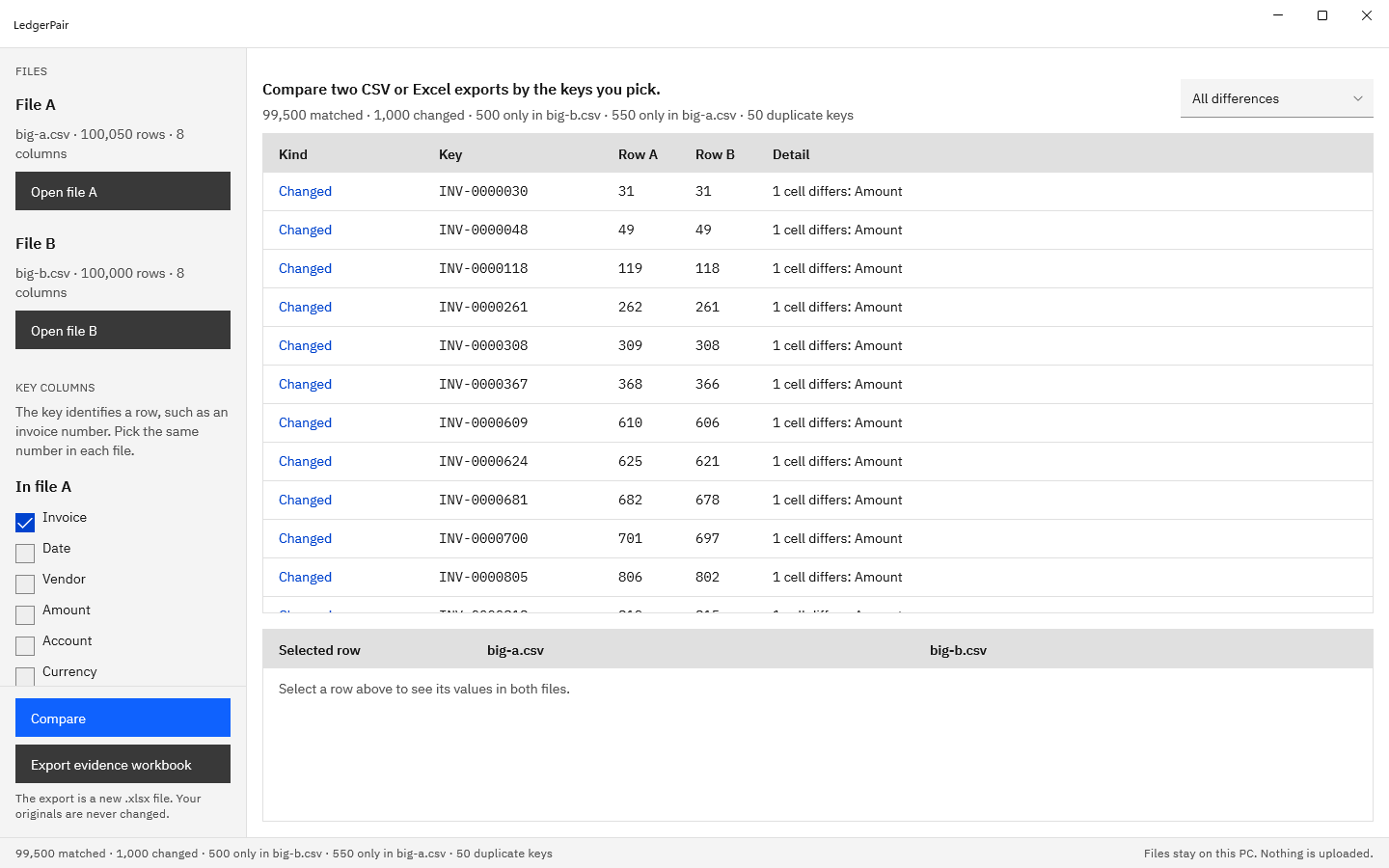
Screenshots use synthetic invoice exports generated for testing.
How to reconcile two exports in LedgerPair
- Open the first export. Choose “Open file A” and pick the file, such as the receivables detail. The slot under File A shows the name, the row count, and the column count.
- Open the second export. Choose “Open file B” and pick the other side, such as the billing export. If a workbook has several sheets, pick the one to compare from the worksheet list under the file.
- Check the key. Under “Key columns”, LedgerPair ticks an identifier column the two files share, such as Invoice. Change it under “In file A” and “In file B” if needed. The names can differ, and several columns can form one key, as long as each file has the same number ticked.
- Set the date order. If your exports write the day first, tick “Dates are day first (31/12/2026)”. When a date such as 03/01/2026 could be read either way, LedgerPair says how many it found and which order it used.
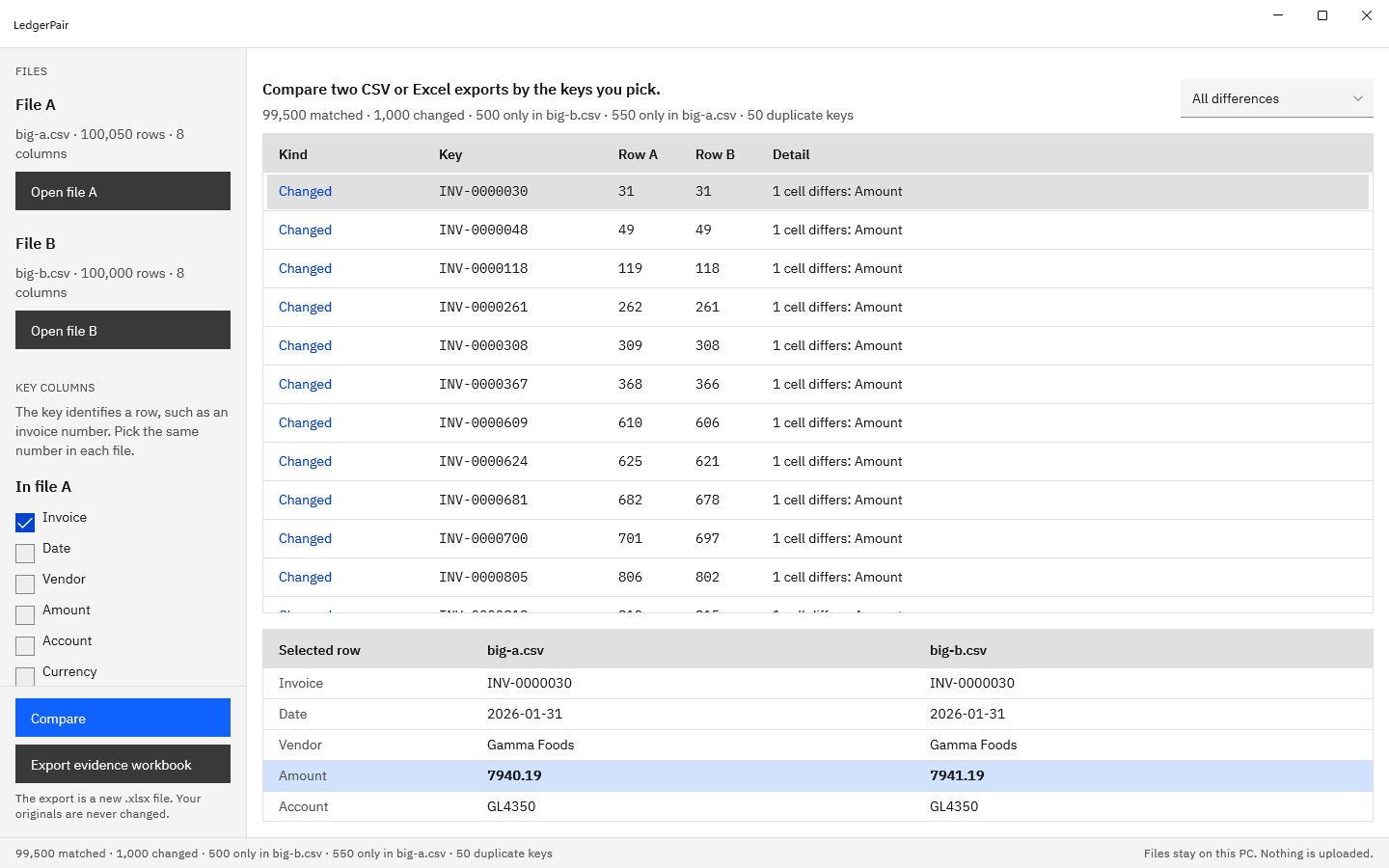
- Press “Compare”. The summary line counts matched rows, changed rows, rows only in each file, and duplicate keys, and the table lists every difference with its kind, key, “Row A”, “Row B”, and a detail such as “1 cell differs: Amount”.
- Work through each kind. Use the filter at the top right to show “Changed rows”, “Only in file B”, “Only in file A”, or “Duplicate keys”. Select a row and the “Selected row” pane shows both files’ values side by side, with the changed cell highlighted.
- Check the near misses. An unmatched row may carry a line such as “Fuzzy candidate: INV-2026-0042”, which points at a key in the other file that is spelled almost the same. It is a suggestion to check, and it is never counted as a match.
- Save the record. Choose “Export evidence workbook”. The save dialog suggests a name built from the two files, such as receivables-vs-billing-evidence.xlsx, and the status bar confirms “Saved” with the file name.
Run these steps on last month’s exports and compare the result with your own.
Get it from Microsoft
Turning the result into reconciling items
Each category in the result maps to a step in the close.
- Changed rows are records both systems have, with a value that disagrees: an amount keyed differently, a date posted a day later, an account code changed in one place. Decide which side is right and correct the other.
- Rows only in file A or only in file B are records one system has and the other does not: an invoice raised but not posted, a payment recorded in the bank but not yet in the books, a timing item that will clear next month. These are your reconciling items.
- Duplicate keys point at a record entered twice. LedgerPair lists every row number, and the extra occurrence also shows as only in its file, marked duplicate key, so it explains the gap it causes.
- Fuzzy candidates are usually typos in the key, such as a letter O typed for a zero. Fix the key at the source and compare again.
Because amounts compare as numbers and dates as calendar dates, a difference that is only formatting, such as 1,250.00 against 1250, never reaches the list. For more on spotting missing records, see find missing rows between two files.
What to file with the close
The evidence workbook is a new .xlsx file with five sheets:
- Summary: when it was made, both file names and worksheets, the key columns on each side, the compared columns, every count, and how dates and numbers were read.
- Additions and Deletions: every column of the rows found only in file B or only in file A, with any fuzzy candidate and its similarity score.
- Changes: one row per changed cell, with the raw value from each file and the normalized form that was compared.
- Duplicates: each repeated key with its file, row, and number of occurrences.
Values are written as text, exactly as each export had them, so a reviewer sees what each system said. File the workbook beside the two exports in the close folder. The terms used on these sheets are defined in our data reconciliation glossary.
Frequently asked questions
What is the key in a reconciliation?
The column, or set of columns, that identifies one record in both files: an invoice number, an employee ID, a reference, or a SKU. Rows with the same key are treated as the same record and compared value by value. A good key is filled in on both sides and unique within each file.
Can I reconcile a CSV against an Excel workbook?
Yes. LedgerPair opens CSV and XLSX files in any combination, picks the worksheet you choose in a workbook, and compares amounts and dates by value, so a figure from a CSV matches the same figure stored in a workbook cell. Our comparison of ways to compare two lists in Excel covers the formula-based alternatives.
Try LedgerPair
LedgerPair is a one-time purchase in the Microsoft Store, and the Store runs a 15-day free trial with every feature, so you can reconcile a month you have already closed and compare the result with your own work. Nothing uploads, and your exports are never changed. See how it works on the LedgerPair product page, or read about how to reconcile two spreadsheets without lookup formulas.
Reconcile your next close during the 15-day free trial.
Get it from Microsoft
Excel is a trademark of Microsoft Corporation. LedgerPair is made by Automata Labs and is not affiliated with or endorsed by Microsoft.
Last updated 15 October 2026. Published by Automata Labs, a software company in Canada.