To export a WhatsApp chat to your PC, use Export chat in the WhatsApp app on your phone, send the export to your computer, and open it there. On Android the option is under More options, then More, then Export chat; on iPhone, tap the chat name and choose Export Chat. To turn the export into a PDF with the photos in place, open it in ThreadBind on Windows.
The export is a text file, plus every photo, voice note and video as separate files when you include media. It is the raw material for a record of the conversation, whether you want to keep a family chat, print a thread, or hand it to someone who asked for it.
Turn the export into a paged PDF with the photos in place.
Get it from Microsoft
Step 1: Export the chat on your phone
WhatsApp’s export lives in the phone app, inside each chat.
On Android
- Open the chat you want to keep.
- Tap More options (the three dots), then More, then Export chat.
- Choose Include media to bring the photos, stickers, voice notes and videos, or Without media for the text alone.
- Pick where to send it: an email to yourself, a cloud drive, or another app on the phone.
On iPhone
- Open the chat.
- Tap the contact or group name at the top.
- Scroll down and choose Export Chat.
- Choose Attach Media or Without Media, then pick where to send it.
Include media whenever the pictures matter. WhatsApp writes each attachment as its own file and names it in the text on the line where it was sent, which is how the PDF puts each photo back beside its message. Our guide to what is inside a WhatsApp chat export explains every file and marker you will see.
Step 2: Move the export to your Windows PC
Any route that lands the files together in one folder on the PC works:
- Email to yourself. Good for a smaller chat. Save every attachment from the email into one new folder, the text file and the media together.
- A cloud drive. Save the export to the drive from the phone, then download it on the PC into one folder.
- A USB cable. Copy the export from the phone’s storage to a folder on the PC.
An iPhone export arrives as a single zip file that holds _chat.txt and the media. Right-click the zip in File Explorer, choose Extract All, and keep the extracted folder. An Android export is a text file named WhatsApp Chat with and the contact or group name, plus one file per attachment; put them all in one folder.
Keep that folder as it is. It is your original, and the PDF will be made from it without changing it.
Step 3: Turn the export into a document
You now have a text file and a set of media files. There are a few ways to make them into something you can read, print, or send.
| Method | What you end up with | Good fit |
|---|---|---|
| Open the .txt file in a text editor | Every line as raw text, dates and names repeated, no photos | Searching for one message quickly |
| Paste it into a word processor | A document you format by hand, inserting each photo yourself | A short chat with a few pictures and time to spare |
| Upload it to an online converter | A file from someone else’s server, after your chat has been uploaded there | Chats with nothing private in them |
| Open the export folder in ThreadBind | A paged PDF with day headings, times, senders, photos inline, and every other file named | Why it works: it reads the export as WhatsApp wrote it, on your PC, and does the layout for you |
Meet ThreadBind
ThreadBind turns a WhatsApp chat export into a paged PDF on your Windows PC, with every photo under the message that sent it and every other file listed by name.
It opens Android and iPhone exports, made with media or without, reads the dates and senders on every line, and shows the whole chat in a table before you export. It runs on Windows 10 version 2004 or later and Windows 11, on x64 and ARM64 PCs, makes no network connections, and has no account. Your export folder is only read.
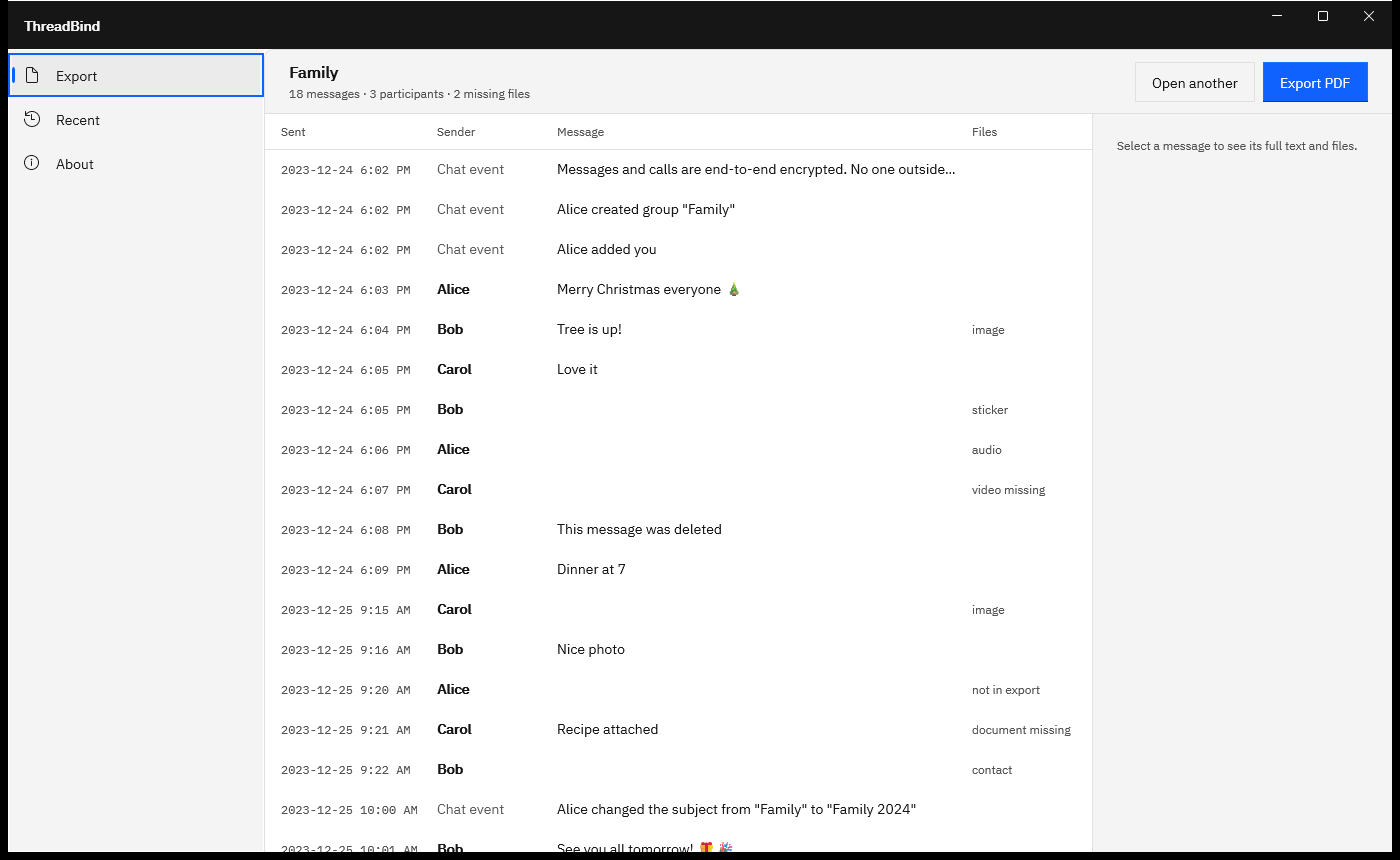
Screenshots use a sample chat export generated for testing, with fictitious names and placeholder pictures.
How to save the chat as a PDF in ThreadBind
- Open the export. Choose “Pick folder” and select the export folder. To start from the text file instead, choose “Pick chat file” and select it together with its photos.
- Read the summary. The toolbar shows the chat name and its counts, such as “18 messages · 3 participants · 2 missing files”.
- Check the messages. The table lists every message under “Sent”, “Sender”, “Message” and “Files”. Group events show “Chat event” in the sender column.
- Look at any message closely. Select a row. The detail pane shows the full text, the full date and time, and each attachment with a thumbnail and a note such as “Image, placed in the PDF”.
- Confirm the dates. If a date order switch appears above the table, choose “Day first” or “Month first” so the dates read the way your phone wrote them.
- Export. Choose “Export PDF”. Under “Page size”, pick “A4” or “Letter”, keep “Include pictures in the PDF” on to place the photos, and check the suggested name.
- Save. Choose “Choose where to save” and name the file. ThreadBind shows “Writing the PDF” with a progress bar.
- Open the result. “Export complete” shows a summary such as “2 pages · 3 pictures placed · 2 files listed by name · 2 missing” and a preview of the first pages. Choose “Open PDF”.
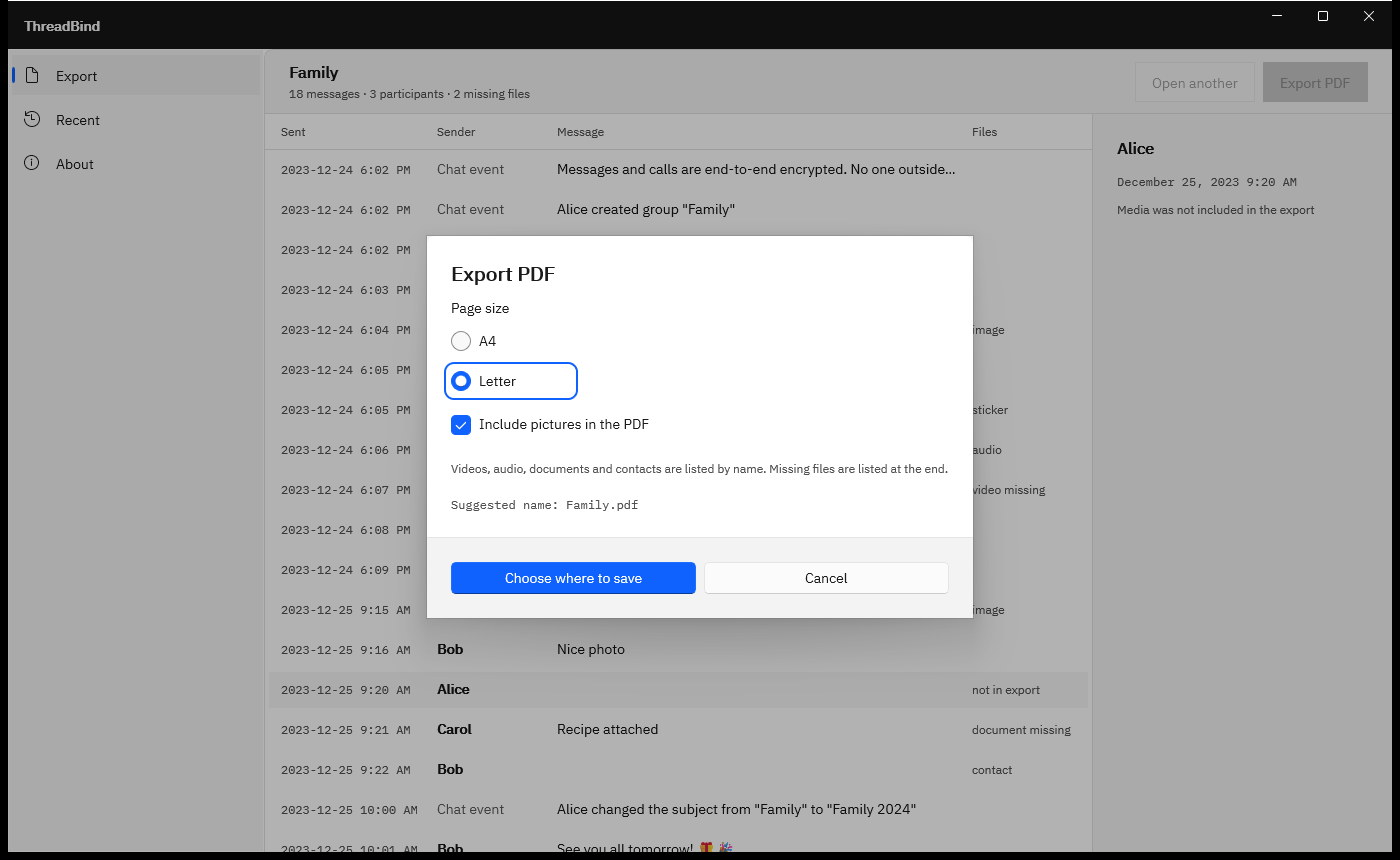
Run these steps on a chat you have already exported.
Get it from Microsoft
Check the PDF before you share it
- The first page. The title block gives the chat name, the number of messages, the first and last dates, the number of participants, and when the PDF was made.
- A day with photos. Each picture sits under the message that sent it, and stickers print small, the way they look in the chat.
- Voice notes and videos. They appear by name, such as “Audio: PTT-20231224-WA0003.opus”, under the message that sent them. Keep the export folder with the PDF so they stay easy to play.
- The last page. If the chat mentioned files the export did not include, a “Missing files” list names each one with the time it was sent.
For a printed copy, see print WhatsApp messages. For chats full of photos and voice notes, see WhatsApp chat with media to PDF, and for the text file on its own, WhatsApp txt to PDF.
Frequently asked questions
Should I include media when I export?
Yes, if the pictures matter. With media, WhatsApp adds each photo, sticker, voice note and video as its own file, and ThreadBind places the photos and stickers under their messages and names the rest. Without media, the text says where something was sent, and the PDF notes each spot with “Media not included in the export”.
What if the dates in the table look wrong?
Phones write dates in their own region’s order, so 03/04 can mean the third of April or March 4. ThreadBind reads the order from the dates in the file. When the file cannot settle it, choose “Day first” or “Month first” above the table, and the whole chat is read again with your choice.
What happens to the export folder?
It is only read. ThreadBind opens the folder or files you pick for reading, writes the PDF as a new file you name, and refuses to save over the chat text or any file the chat refers to. Keep the folder with the PDF as your original.
Try ThreadBind
ThreadBind is a one-time purchase in the Microsoft Store, and the Store runs a 15-day free trial with every feature, so you can export one of your own chats and read the PDF before you buy. Nothing uploads: the app makes no network connections and has no account. See how it works and the screenshots on the ThreadBind product page, and compare other routes in ways to save WhatsApp messages on a PC.
Save your next WhatsApp export as a paged PDF during the 15-day free trial.
Get it from Microsoft
Last updated 15 October 2026. Published by Automata Labs, a software company in Canada.
WhatsApp is a trademark of WhatsApp LLC. iPhone is a trademark of Apple Inc., and Android is a trademark of Google LLC. ThreadBind is not affiliated with or endorsed by WhatsApp LLC, Apple or Google.