To save WhatsApp messages on a PC as a file you can open, read and print, export the chat from your phone and turn the export into a PDF. A WhatsApp backup restores chats to a phone rather than opening as a document, screenshots keep only what fits on the screen, and WhatsApp on the desktop is for reading and replying. ThreadBind turns the export into a paged PDF on Windows, with the photos in place.
Which route fits depends on the job. Moving to a new phone, quoting one message, and keeping a whole conversation for your records are three different tasks, and each of the methods below is built for one of them.
Keep a whole WhatsApp conversation as one paged PDF on your PC.
Get it from Microsoft
The methods compared
| Method | What you keep | Opens on a PC as a document | Good fit |
|---|---|---|---|
| Chat backup to Google Drive or iCloud | A copy WhatsApp restores to a phone | No, it restores inside WhatsApp | Moving your chats to a new phone |
| Screenshots | Images of what was on the screen | As separate images | One or two messages |
| WhatsApp on the web or desktop | A live view of your chats while linked to the phone | Inside the app | Reading and replying at a desk |
| Export chat | A text file plus the media as loose files | As raw text and separate files | The starting point for any record |
| The export opened in ThreadBind | One paged PDF with photos in place and every file named | Yes, as one PDF you can print or send | Why it works: every message with its date, time and sender, every file accounted for, made on your PC |
Option 1: a chat backup
WhatsApp backs up chats to Google Drive on Android and to iCloud on iPhone, and Android phones keep a local backup as well. A backup does one thing well: it brings your chats back when you set up WhatsApp on a phone. It is not a document. You cannot open it on a PC and read a conversation, print it, or hand it to someone.
Keep backups turned on. Just do not count on them as your copy of a conversation outside WhatsApp.
Option 2: screenshots
Screenshots are quick and need nothing extra. For a single message or a short exchange, they are the obvious choice. For a whole conversation they fall apart: a long chat becomes dozens of tall images, dates sit several screens away from the messages they belong to, photos are cropped at the edges, and nothing tells a reader whether anything is missing between two images.
Option 3: WhatsApp on the web or desktop
Linking WhatsApp on a computer puts your chats on a bigger screen, which makes reading and typing easier. It is a window onto the chats, not a file. To keep a conversation as something that lasts outside the app, you still need the export.
Option 4: Export chat
Export chat, in the phone app, is the one route that gives you the conversation as files you own. On Android it is under More options, then More, then Export chat; on iPhone, tap the contact or group name and choose Export Chat. Include media to get every photo, sticker, voice note and video along with the text.
The result is faithful to the chat but hard to read: a text file with a timestamp on every line, hidden characters, and media files with names like IMG-20231224-WA0001.jpg sitting in a separate folder. Our guide to the WhatsApp chat export format explains every part.
Option 5: the export as a paged PDF
Turning the export into a PDF gives you a document that reads like the chat: one message after another, with dates, times and senders, the photos where they were sent, and page numbers. You can do it by hand in a word processor, pasting the text and inserting each photo yourself, which suits a short chat. For anything longer, an app that reads the export does the layout for you.
Meet ThreadBind
ThreadBind turns a WhatsApp chat export into a paged PDF on your Windows PC, with every photo under the message that sent it and every other file listed by name.
It opens Android and iPhone exports, made with media or without, and shows every message in a table before you export. The PDF has a title block with the message count, date range and participants, a heading for each day, the chat name and a page number on every page, and a Missing files list at the end. It makes no network connections, needs no account, and only reads the export.
From export to PDF in ThreadBind
- Export the chat with media on your phone and copy the export to one folder on your PC. Extract it first if it arrived as a zip.
- Choose “Pick folder” in ThreadBind and select that folder.
- Check the table. Every message appears under “Sent”, “Sender”, “Message” and “Files”. Select a row to see the full text and a thumbnail of each picture.
- Choose “Export PDF”. Pick “A4” or “Letter” under “Page size” and keep “Include pictures in the PDF” on.
- Choose “Choose where to save” and name the file.
- Read the result. “Export complete” counts the pages, pictures placed, and files listed by name, and shows a preview. Choose “Open PDF”.
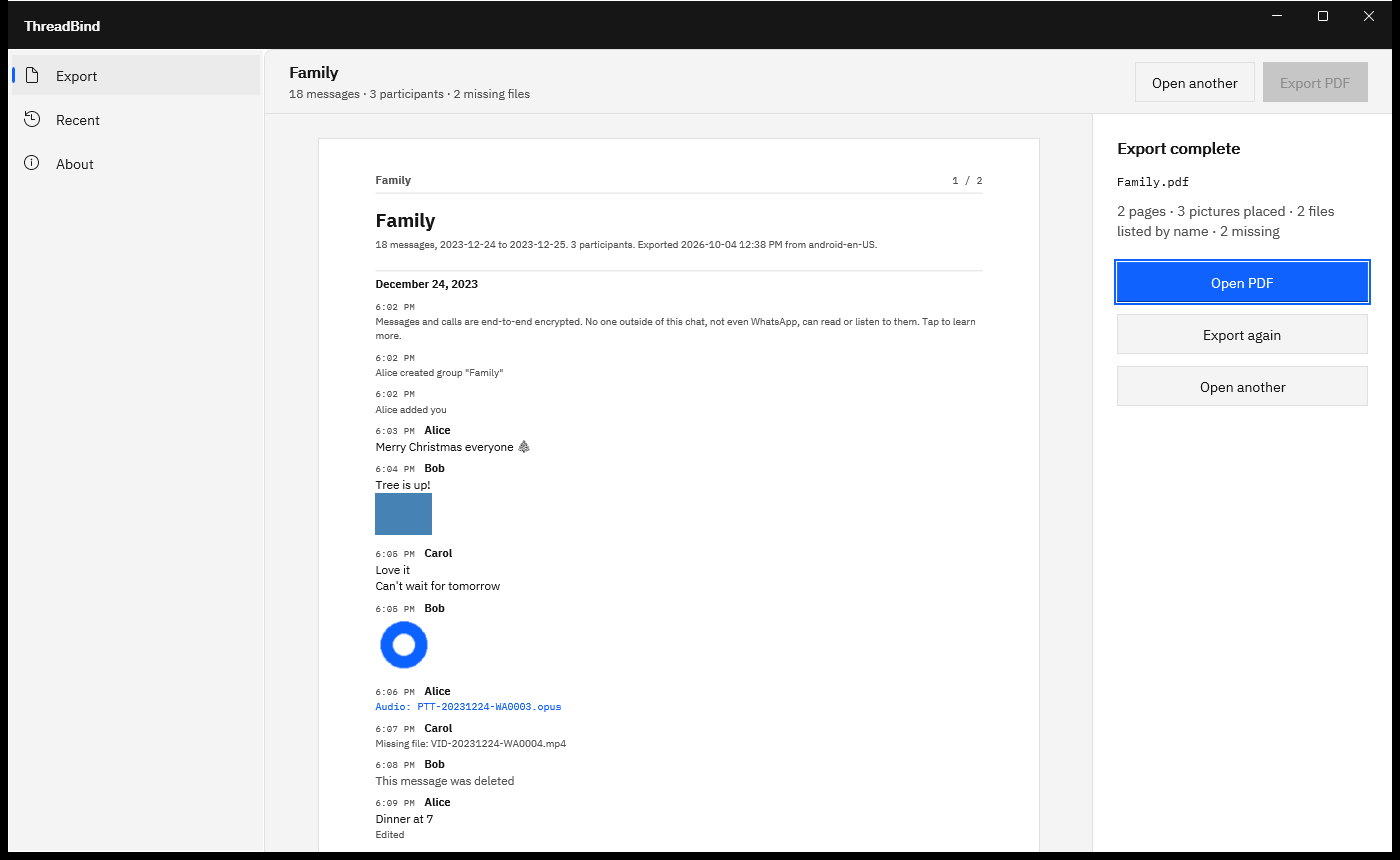
Screenshots use a sample chat export generated for testing, with fictitious names and placeholder pictures.
The full walkthrough, including the phone steps, is in how to export a WhatsApp chat to your PC.
Which method for which job
- Moving to a new phone: a chat backup.
- Quoting a message or two: screenshots.
- Reading at a desk: WhatsApp on the web or desktop.
- Keeping, printing or handing over a whole conversation: export the chat and turn it into a PDF. See WhatsApp chat to PDF, print WhatsApp messages, and, when someone has asked for the full thread, WhatsApp chat export for court.
- iPhone text messages rather than WhatsApp: iMessage and SMS live in the Messages app. BackupPaper saves those conversations from the iPhone backup on your PC.
Frequently asked questions
How do I keep WhatsApp messages before changing phones?
Do both jobs. Turn on the chat backup so your chats restore on the new phone, and export the conversations you want to keep as files, with media. Open each export in ThreadBind and save it as a PDF, so the conversation stays readable on your PC whatever happens to the phone.
Can I save a WhatsApp chat with the photos?
Yes. Export the chat with Include media on Android or Attach Media on iPhone, then open the export folder in ThreadBind. Each photo and sticker is placed under the message that sent it, and voice notes, videos and documents are listed by name, so the PDF shows the whole conversation.
Is an online WhatsApp to PDF converter safe to use?
An online converter works by uploading your chat to its server, and a chat holds other people’s names, numbers and photos as well as yours. Whether that is acceptable depends on the chat and the site. ThreadBind does the same job on your PC: it makes no network connections and has no account, so nothing uploads.
Can I print the saved chat?
Yes. ThreadBind lays the PDF out on A4 or Letter pages with margins, a heading for each day, and page numbers, so it prints like a document. Choose “Open PDF” and print from your PDF viewer, all pages or a range.
Try ThreadBind
ThreadBind is a one-time purchase in the Microsoft Store, and the Store runs a 15-day free trial with every feature. Export a chat you want to keep, open it, and read the PDF before you buy. Read more on the ThreadBind product page.
Turn your next WhatsApp export into a paged PDF during the 15-day free trial.
Get it from Microsoft
Last updated 15 October 2026. Published by Automata Labs, a software company in Canada.
WhatsApp is a trademark of WhatsApp LLC. iPhone and iCloud are trademarks of Apple Inc., and Android and Google Drive are trademarks of Google LLC. ThreadBind is not affiliated with or endorsed by WhatsApp LLC, Apple or Google.