To compare two revisions of a drawing set, pair each sheet in the new issue with the same sheet in the old one, line each pair up, and overlay them so removed and added work show in different colors. Then read the notes and dimensions that changed, keep title block edits out of the count, and save a record of which sheets changed and where.
Revised drawings arrive all through a project: addenda during bidding, reissues and bulletins during construction, a conformed set that folds every change into one PDF. Each one raises the same question, what is different from the set you already have, and the revision clouds on the sheets answer only part of it.
Compare your next revised drawing set on your own PC.
Get it from Microsoft
What a revision comparison has to answer
A useful comparison answers five questions:
- Which sheets changed. On a forty-sheet reissue, the first job is narrowing the list to the sheets worth opening.
- Where on each sheet. Every change located and marked, clouded by the drafter or not.
- What the words say now. Notes, schedules, and dimensions that were edited, such as a stud size that went from 2x6 to 2x8.
- Which sheets are new or gone. Sheets added in the new issue, and sheets removed or renumbered.
- A record. Something you can file with the bid or forward to the field.
Ways to compare drawing revisions
| Method | How it works | Good fit | What to expect |
|---|---|---|---|
| Flipping between two PDFs | Open both issues and page back and forth | One or two sheets | Changes are found by eye, and one-character edits are easy to pass over |
| Prints on a light table | Lay one print over the other | Single sheets, printed at the same scale | Both issues have to be printed, and the record is your notes |
| A pair-at-a-time overlay in a PDF tool | Choose two pages, line them up, view the overlay | A few reissued sheets | Each pair is chosen, and often aligned, by hand |
| A cloud project platform | Upload both sets and let the platform match sheets | Teams already working in that platform | Drawings are uploaded, and pricing is usually per user per year |
| Drawing Revision Delta | Pick both sets on your PC; sheets pair by number; Compare all ranks them | Whole revised sets and addenda, on a Windows PC | Every changed sheet ranked, every change clouded, text edits listed in words, nothing uploaded |
Before you compare
- Pick the right two issues. Compare the addendum with the bid set it modifies, or the new conformed set with the last one you priced or built from.
- Keep the files as issued. A combined bid set PDF can be compared with a folder of separate addendum sheets.
- Expect title block edits. Every reissued sheet carries a new date and revision entry, so plan to mask the title block.
- Note how the sets were produced. Scans, flattened plots, and CAD PDFs all compare; scanned title blocks are read with the text recognition built into Windows.
Meet Drawing Revision Delta
Drawing Revision Delta compares two revisions of a drawing set on your PC: it pairs the sheets by number, ranks the ones that changed, and clouds every change.
Drawing Revision Delta is a Windows 11 app from Automata Labs. It pairs the sheets of two revisions by the sheet number in each title block, aligns each pair for shift, rotation, and scale, and shows every change in a red and blue overlay with revision clouds, with edited words listed in plain terms. It exports a PDF change report, the revised sheets with editable cloud markups, and CSV files. It has no account and no telemetry, and nothing uploads.
Screenshots use a fictional library drawing set made for software demonstration, with no client’s drawings.
Step by step: compare two revisions in Drawing Revision Delta
- Pick the earlier revision. In Sets, under “Set A · earlier revision”, choose “Pick folder” for a folder of sheets, or “Pick files” for a combined PDF or a selection of files. PDF, TIFF, PNG, JPEG, and BMP files are accepted, and multi-page files are split into sheets.
- Pick the later revision. Under “Set B · later revision”, do the same. The app reads each title block, pairs the sheets, and moves to Pairs.
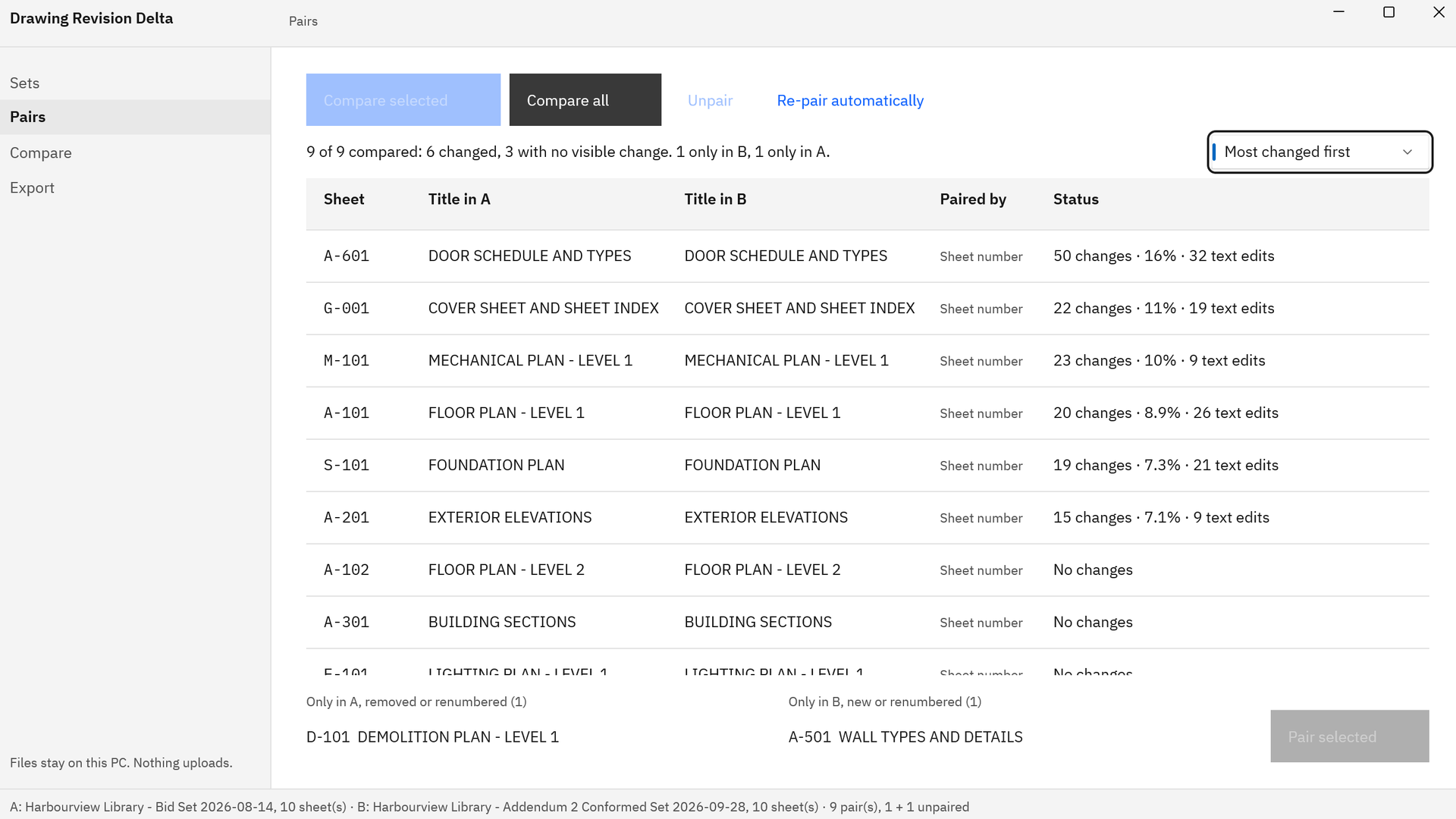
- Check the pairs. The table lists “Sheet”, “Title in A”, “Title in B”, “Paired by”, and “Status”. Sheets found in one revision only are listed under “Only in A, removed or renumbered” and “Only in B, new or renumbered”. To adjust a row, choose “Unpair”, or select one sheet in each list and choose “Pair selected”.
- Compare everything. Choose “Compare all”. The Status column fills in, for example “50 changes · 16% · 32 text edits”, and a summary line counts the changed, unchanged, new, and removed sheets.
- Rank the results. Set the view to “Most changed first”, or to “Changed only” to set aside the sheets with no visible change.
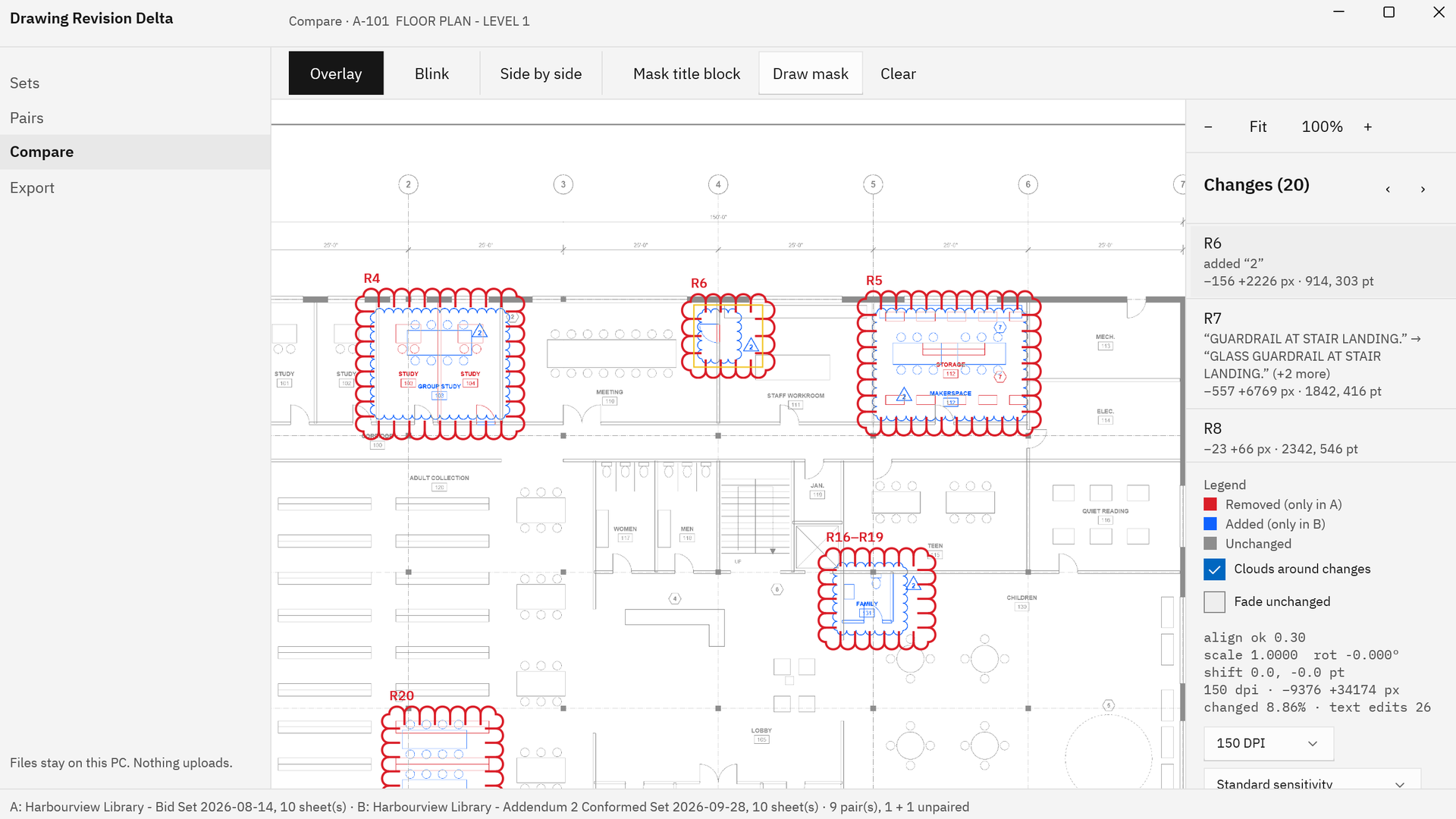
- Open a sheet. Select a row and choose “Compare selected”. In “Overlay”, red is content only in the earlier revision and blue is content only in the later one. Switch to “Blink” or “Side by side” for crowded areas.
- Step through the changes. The “Changes” list numbers every change. The ‹ and › buttons move between them, and each entry shows the pixels removed and added, its position on the sheet, and any text edit in words. Turn on “Fade unchanged” to lighten everything else.
- Quiet the title block. Choose “Mask title block”, or choose “Draw mask” and drag a box over the title block, so new dates and revision letters stop counting. “Clear” removes the mask.
- Export. In Export, choose “Choose folder and export” for change-report.pdf, clouded-set.pdf, sheet-summary.csv, changes.csv, and PNG snapshots, or “Save clouded set” for the clouded PDF on its own.
Run these steps on a set you have already reviewed by hand.
Get it from Microsoft
Read the result before you act on it
- The pairs. Every reissued sheet should appear in the table, and “Paired by” shows whether the match came from the sheet number, the title, the file name, or your own pairing.
- The alignment. The side panel shows “align ok” with the scale, rotation, and shift applied to each sheet, so you can see how the two plots were lined up.
- Resolution and sensitivity. 150 DPI suits most sheets, and 200 DPI brings out fine detail. “Fine: report small edits” catches one-character changes; “Ignore small differences” quiets line-weight noise when the two issues came from different PDF writers.
- Clouds you did not expect. A change the app clouded where the drawing has no cloud of its own is an unclouded change. Our guide to finding unclouded changes covers how to read them.
- The record. change-report.pdf opens with the ranked changed-sheet list and lists a SHA-256 hash of every compared file, so anyone can see exactly which files were compared.
For more on choosing a tool, see compare drawing revisions, and for reading the colors, overlay compare PDF drawings. If you work through addenda before a bid, the addendum drawing review checklist turns these steps into a bid-day routine, and revision clouds and delta tags explained covers the marks drafters use.
Frequently asked questions
Can I compare two PDF drawing sets without uploading them?
Yes. Drawing Revision Delta compares both sets on your Windows PC. It runs in the Windows app sandbox with no declared capabilities, has no network code, and reads only the folders and files you pick, so the drawings stay where they are.
How do I compare a combined PDF with separate sheet files?
Pick the combined PDF as one revision and the folder of separate sheets as the other. Multi-page files are split into sheets, and each sheet is matched by the sheet number in its title block, so the file layout and the page order do not matter.
What do the red and blue colors mean?
Red is content found only in the earlier revision, which means it was removed. Blue is content found only in the later revision, which means it was added. Gray is the drawing both revisions share.
How do I compare scanned drawings?
Pick the scans like any other files: TIFF, PNG, JPEG, BMP, or scanned PDFs. Their title blocks are read with the text recognition built into Windows, and a scan with no resolution information is scaled to the paired sheet before the pair is aligned and compared.
Try Drawing Revision Delta
Drawing Revision Delta is a one-time purchase in the Microsoft Store, and the Store runs a 15-day free trial of the full app, so you can compare a revised set you already checked by hand and see what it finds. It runs on Windows 11 on x64 and ARM64 PCs, and nothing uploads. See how it works and the screens on the Drawing Revision Delta product page.
Compare two revisions of your next drawing set during the 15-day free trial.
Get it from Microsoft
Last updated 15 October 2026. Published by Automata Labs, a software company in Canada.